 Customer Hub
Wireless network restrictions
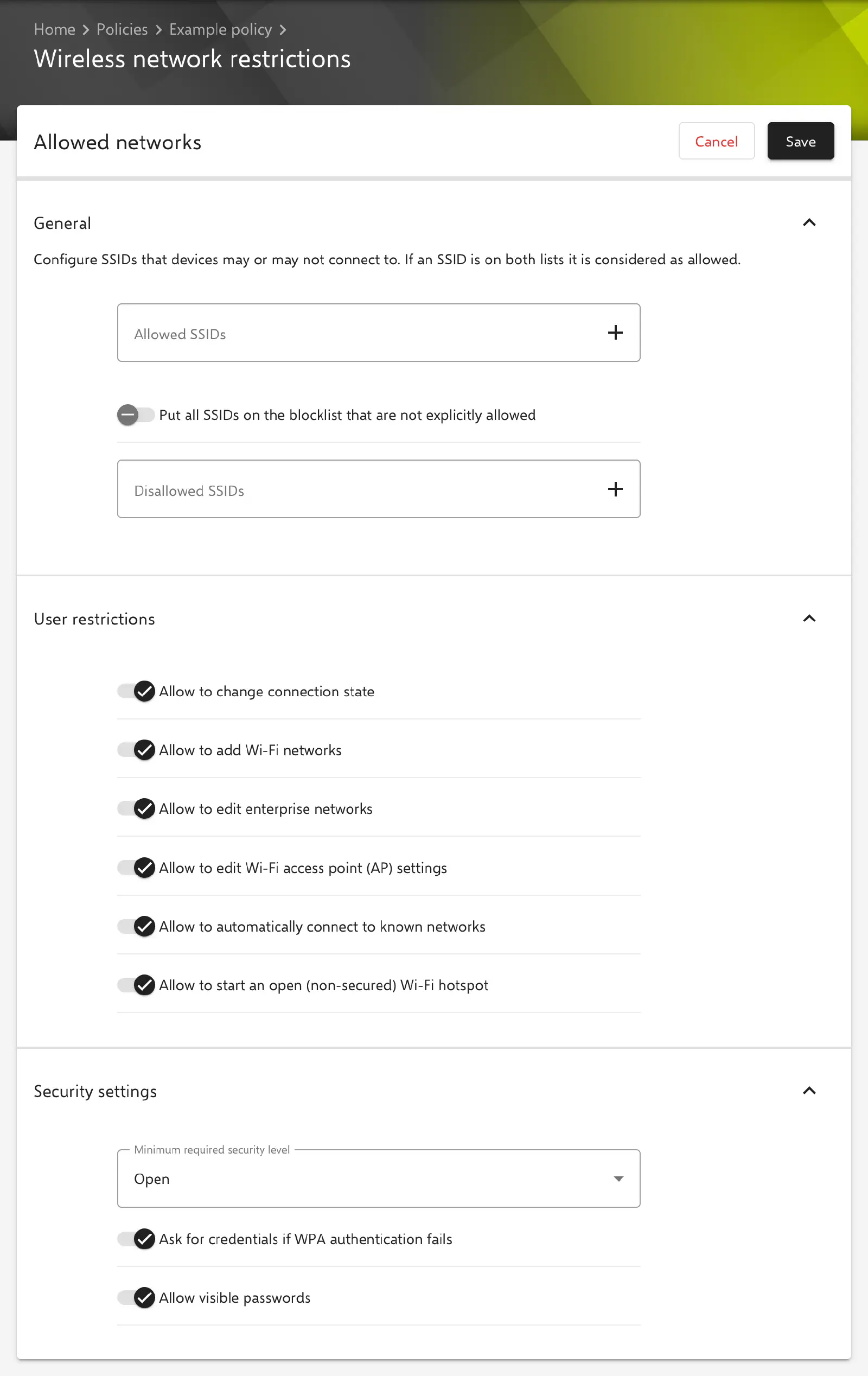
The Wireless network restrictions configuration defines which Wi-Fi networks Android Classic devices may connect to, which Wi-Fi settings the user may change on the device and which security level a network must have at minimum. The Wi-Fi networks themselves are not transferred to the devices here but via the WiFi → configuration.
Prerequisites
- The configuration is available in Android Classic policies.
- One Wireless network restrictions configuration is possible per policy.
- Placeholders are not supported in this configuration.
- The settings are enforced by the Relution Agent on the device. Whether a device supports an individual restriction depends on the device manufacturer and the Android version.
In a new configuration, all switches under User restrictions and Security settings are enabled, both SSID lists are empty and the security level is set to Open. In this state, the configuration does not restrict anything.
General
The General section under Allowed networks defines which networks the device may connect to. Networks are specified by their SSID.
- Allowed SSIDs: SSIDs of the networks the device may connect to. If an SSID is on both lists, it is considered allowed.
- Put all SSIDs on the blocklist that are not explicitly allowed (default: off): blocks all networks that are not listed under Allowed SSIDs. The Disallowed SSIDs field then contains the entry
*(all SSIDs) and cannot be edited. When the switch is turned off, the saved entries are shown again. - Disallowed SSIDs: SSIDs of the networks the device may not connect to. The entry
*stands for all SSIDs.
The form adjusts the fields automatically while editing:
- When the first SSID is added under Allowed SSIDs while Disallowed SSIDs is empty or only contains
*, Put all SSIDs on the blocklist that are not explicitly allowed is turned on. Only the allowed SSIDs are then permitted. - When the last allowed SSID is removed while Disallowed SSIDs starts with
*, the switch is turned off again.
A configuration that blocks all networks without allowing a single SSID is rejected when saving. This applies to an empty Allowed SSIDs list combined with the enabled Put all SSIDs on the blocklist that are not explicitly allowed switch or with the entry * under Disallowed SSIDs.
User restrictions
The User restrictions section defines which Wi-Fi settings may be changed on the device. All switches are enabled by default; a disabled switch removes the respective permission.
- Allow to change connection state: Wi-Fi may be turned on and off on the device. If the switch is disabled, the corresponding user interface is not available.
- Allow to add Wi-Fi networks: New Wi-Fi networks may be added via the settings or other apps. If the switch is disabled, only the enterprise networks distributed by policy are allowed.
- Allow to edit enterprise networks: All settings of a network distributed by policy may be changed. If the switch is disabled, only the user name and password can be changed.
- Allow to edit Wi-Fi access point (AP) settings: The settings of the Wi-Fi access points may be changed. If the switch is disabled, the user interface is grayed out.
- Allow to automatically connect to known networks: The device connects automatically to networks that are already stored. If the switch is disabled, the connection is established manually via the settings.
- Allow to start an open (non-secured) Wi-Fi hotspot: A Wi-Fi hotspot without encryption, which any Wi-Fi-capable device can connect to, may be started on the device.
Security settings
- Minimum required security level (default: Open): The device does not connect to networks whose security level is below the selected minimum. The options are, in this order, Open, WEP, WPA/WPA2-PSK, LEAP, PWD, FAST, PEAP, TLS, TTLS, SIM, AKA and AKA’. If, for example, WPA/WPA2-PSK is selected, the device no longer connects to open networks or networks with WEP encryption. How the device ranks the EAP methods among each other is decided by the device’s operating system.
- Ask for credentials if WPA authentication fails (default: on): If a WPA/WPA2 network reports an authentication failure, the device prompts for the credentials again. For WEP and EAP networks, the connection fails silently with incorrect credentials.
- Allow visible passwords (default: on): The password may be shown in plain text in the Wi-Fi access point dialog of the device settings.
Related topics
- WiFi → — Transfer Wi-Fi networks to Android Classic devices.
- Restrictions → — Further device and app restrictions for Android Classic.
- Overview → — All configurations for Android Classic at a glance.