 Customer Hub
Homescreen as default launcher
The Relution Homescreen can be used in two ways:
- Kiosk Mode: Via the dedicated Relution Homescreen configuration (strictly locked down).
- Separate Launcher: By setting it as the default app.
Using it as a default launcher offers the advantage that notifications remain visible on the lock screen, the system menu can be accessed from the top of the screen, and system apps can be displayed if required.
Policy with Configurations
To have the Relution Homescreen act as the default launcher without enforcing the restrictive Kiosk Mode, two specific configurations must be combined within one policy: Manage Apps and Preferred Activity.
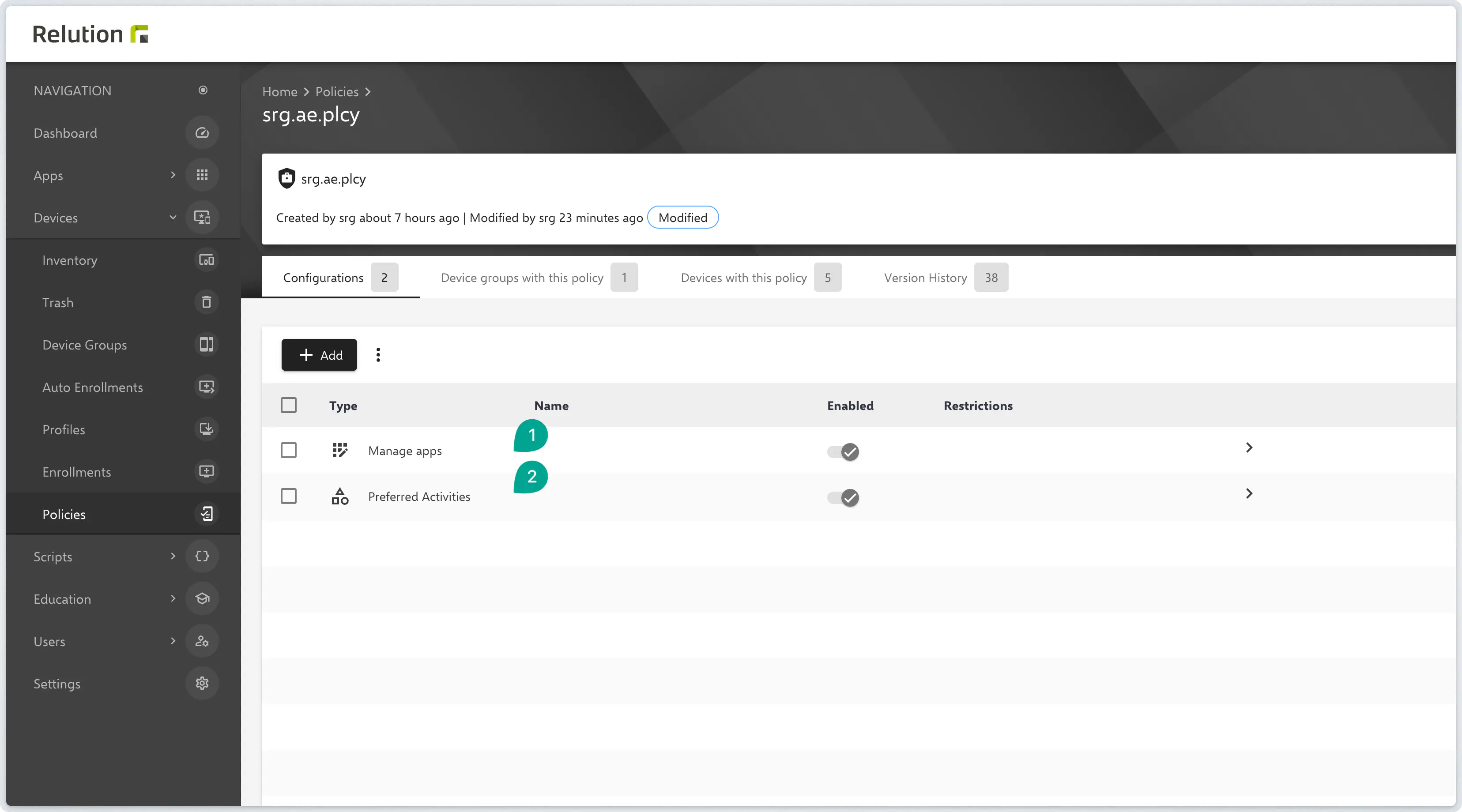
Manage Apps
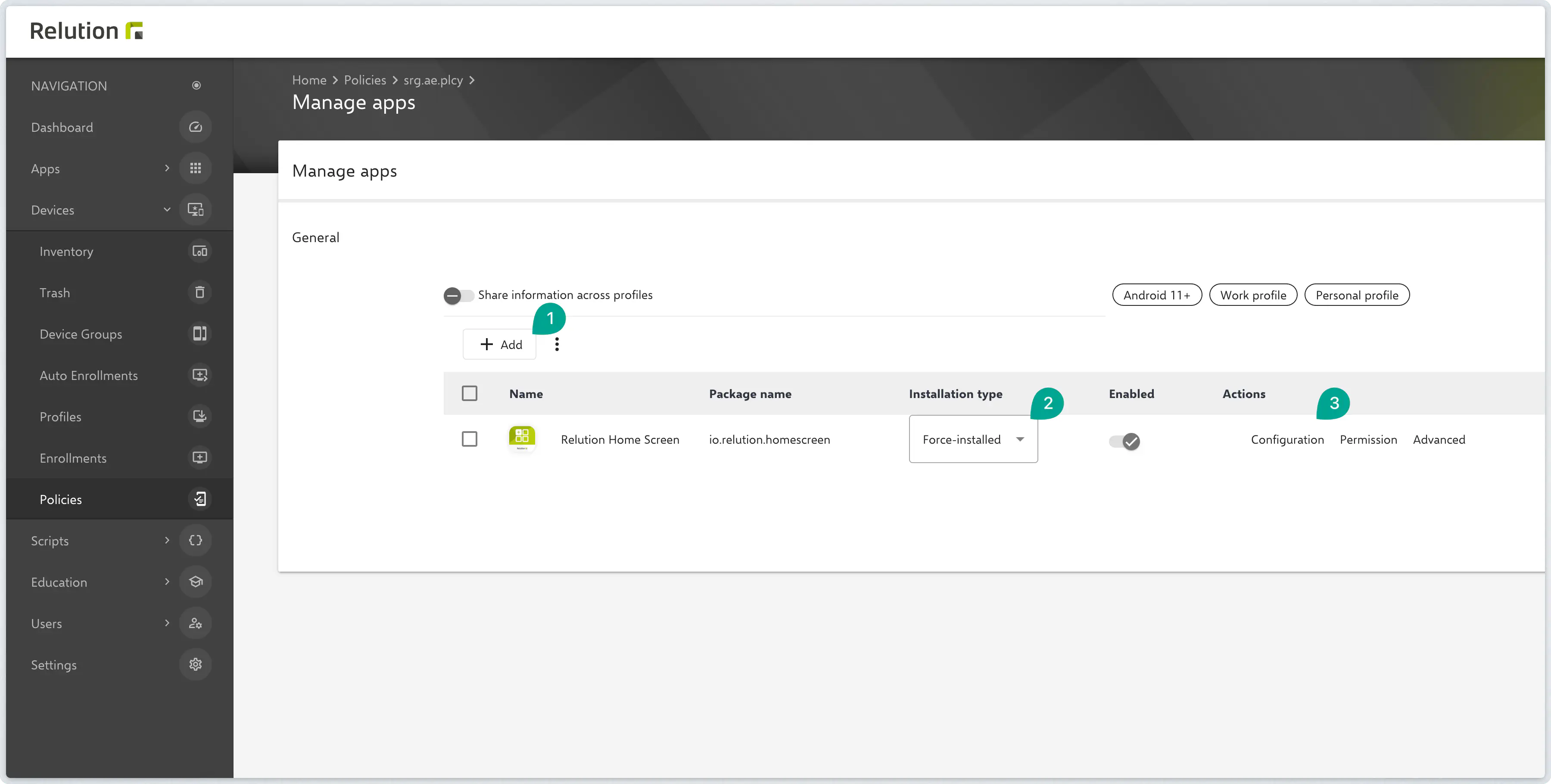
This configuration ensures that the app is present on the device and correctly set up.
- Add the Relution Homescreen app (
io.relution.homescreen) to the Manage Apps list using the “Add” button from the Google Play Store (1). - Set the installation status to Force Installation (2).
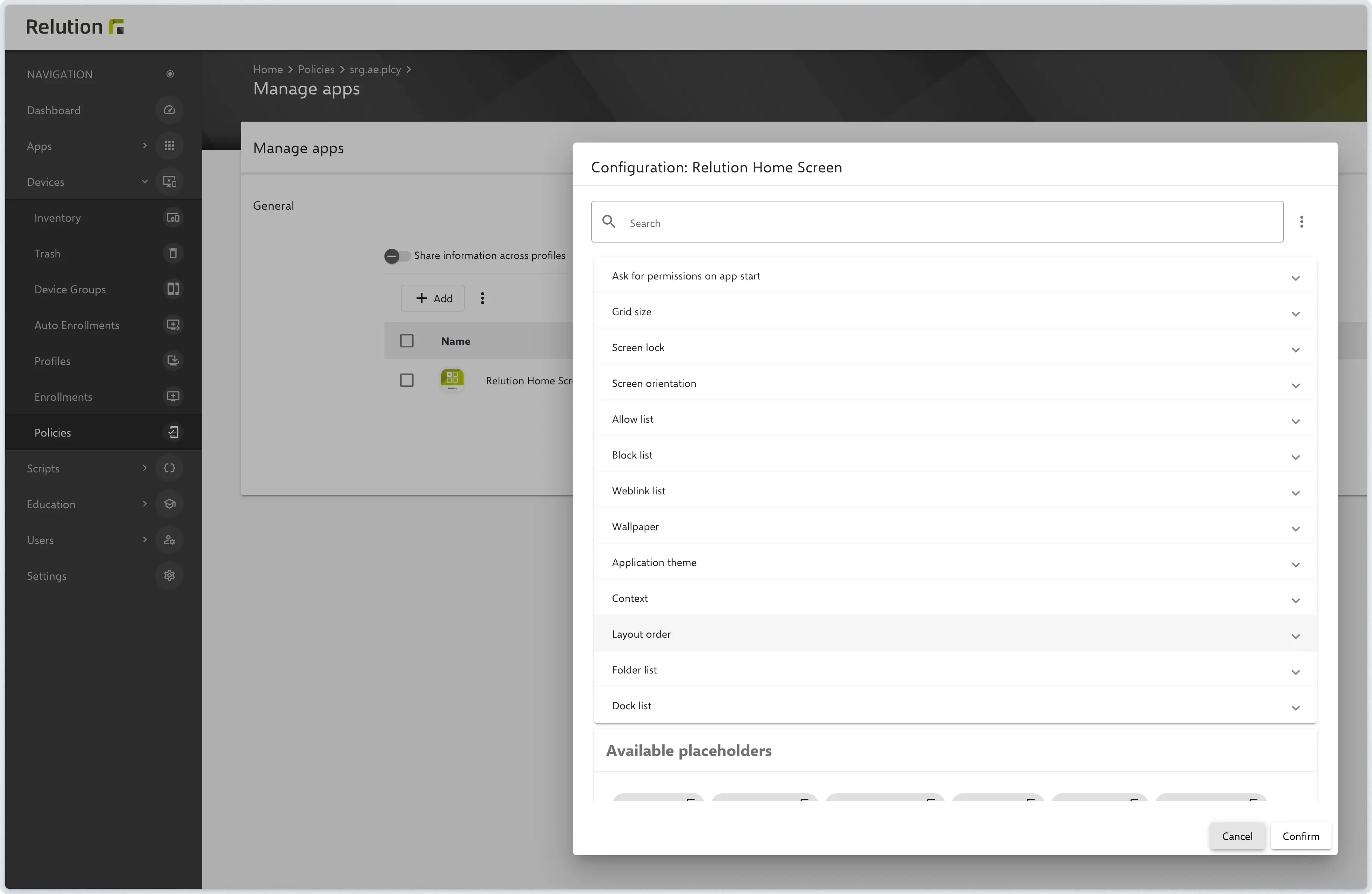
- Under the Configure section, the desired settings for the layout and functions of the homescreen can be manually defined (3).
Preferred Activities
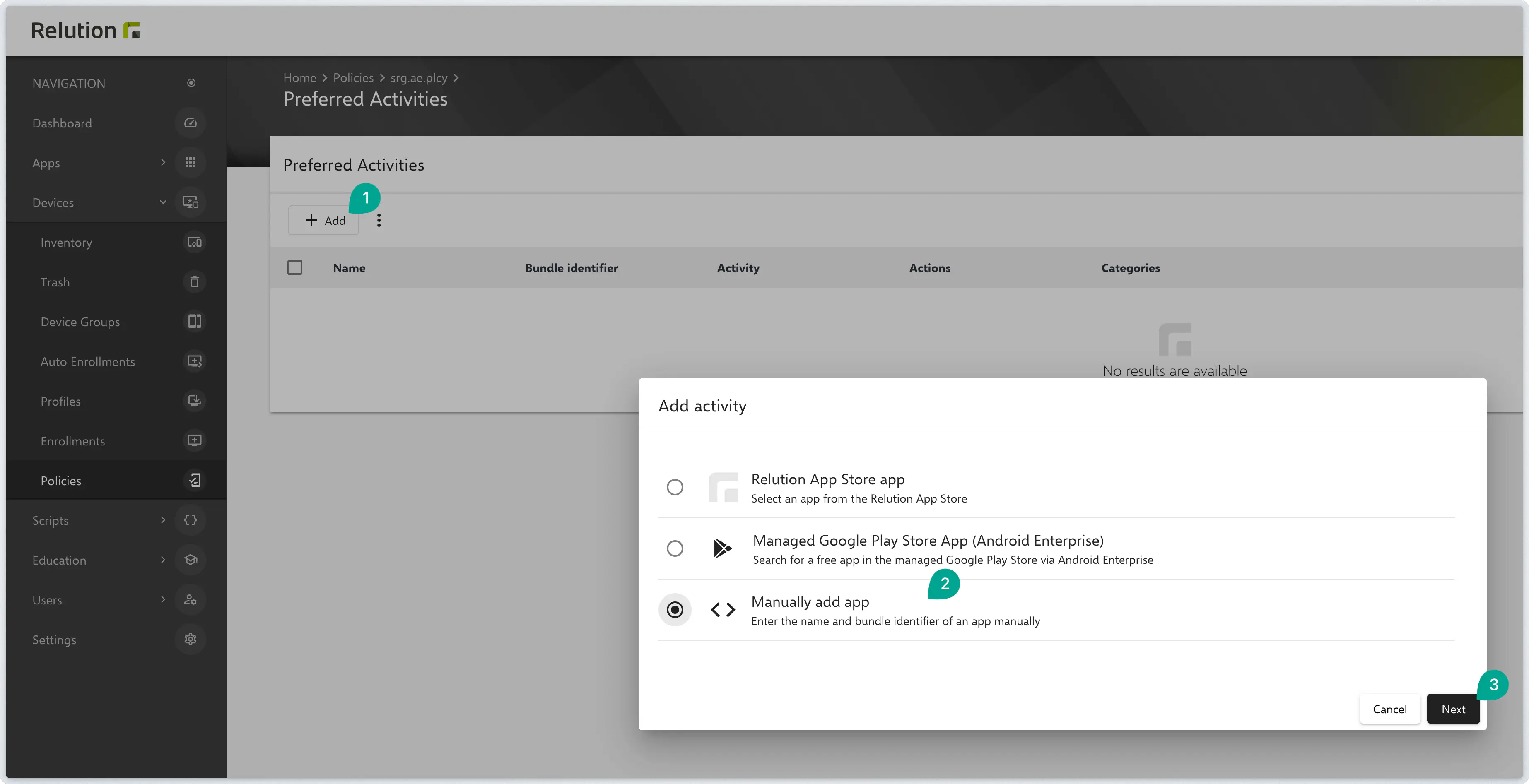
This configuration changes the default behavior of Android and defines the Relution Homescreen as the primary user interface (Home).
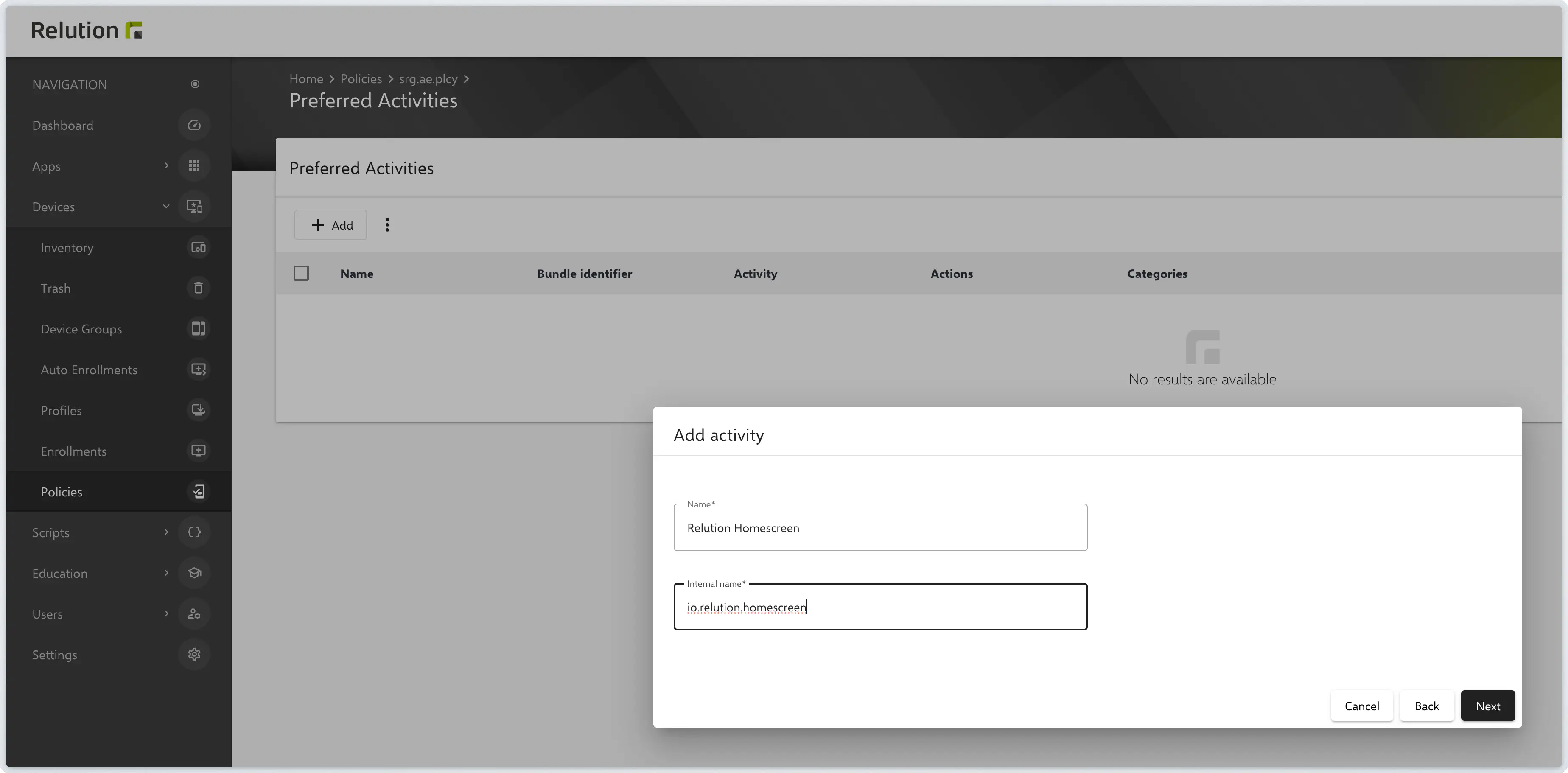
In the configuration, click on Add and select Add app manually.
Enter the following identifiers:
- Name:
Relution Homescreen
- Internal Name (Package Name):
io.relution.homescreen
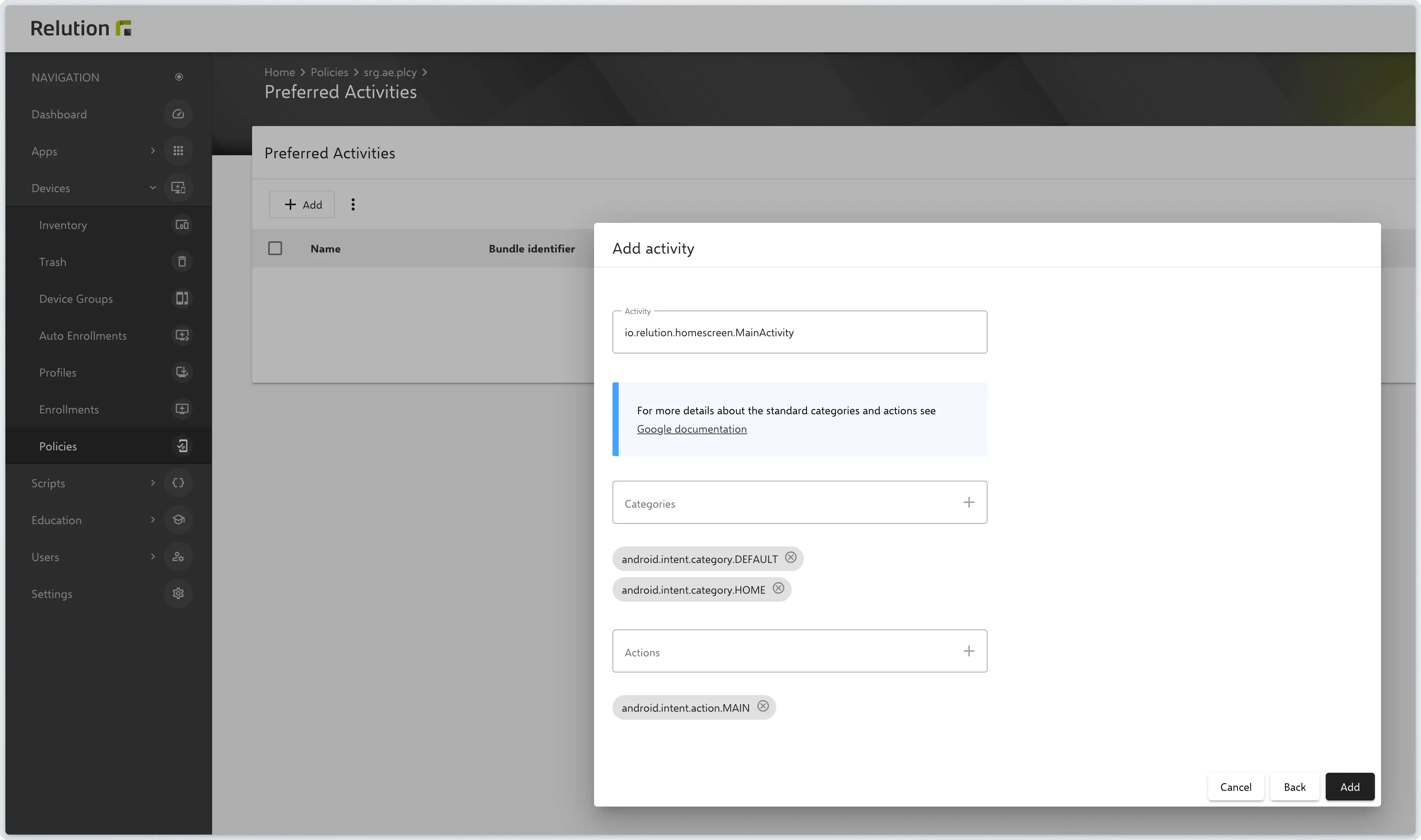
Fill in the parameters exactly as follows:
- Activity:
io.relution.homescreen.MainActivity
- Categories:
android.intent.category.DEFAULT
android.intent.category.HOME
- Actions:
android.intent.action.MAIN
Assignment
Once both configurations have been saved in the policy, it must be assigned to an appropriate Device Group. After the policy is pushed, the Relution Homescreen will be automatically activated as the default launcher.