Managed Mail Client
Introduction
With Relution Mobile Device Management (MDM), it is possible to centrally configure common email clients like Google Mail or Samsung Mail and subsequently distribute these settings to all assigned devices using a policy.
This guide describes how to add the respective email application to the policy and then set it up with dynamic variables for automatic, user-specific configuration.
Add the Email Client App to the Policy
Before you can perform the configuration, the desired email app (Google Mail or Samsung Mail) must be added to the Android Enterprise (AE) policy.
Step 1: Add App
- Navigate in the Relution Portal to your existing or new Android Enterprise Policy.
- Select the
Manage Appsconfiguration. - Add the desired email app (e.g., Google Mail or Samsung Mail) from the Google Play Store if it is not already included in the list.
- Path:
Portal→Your AE Policy→Manage Apps→Add→Managed Google PlayStore App (Android Enterprise)→Google Mail/Samsung Mail (add if not present)
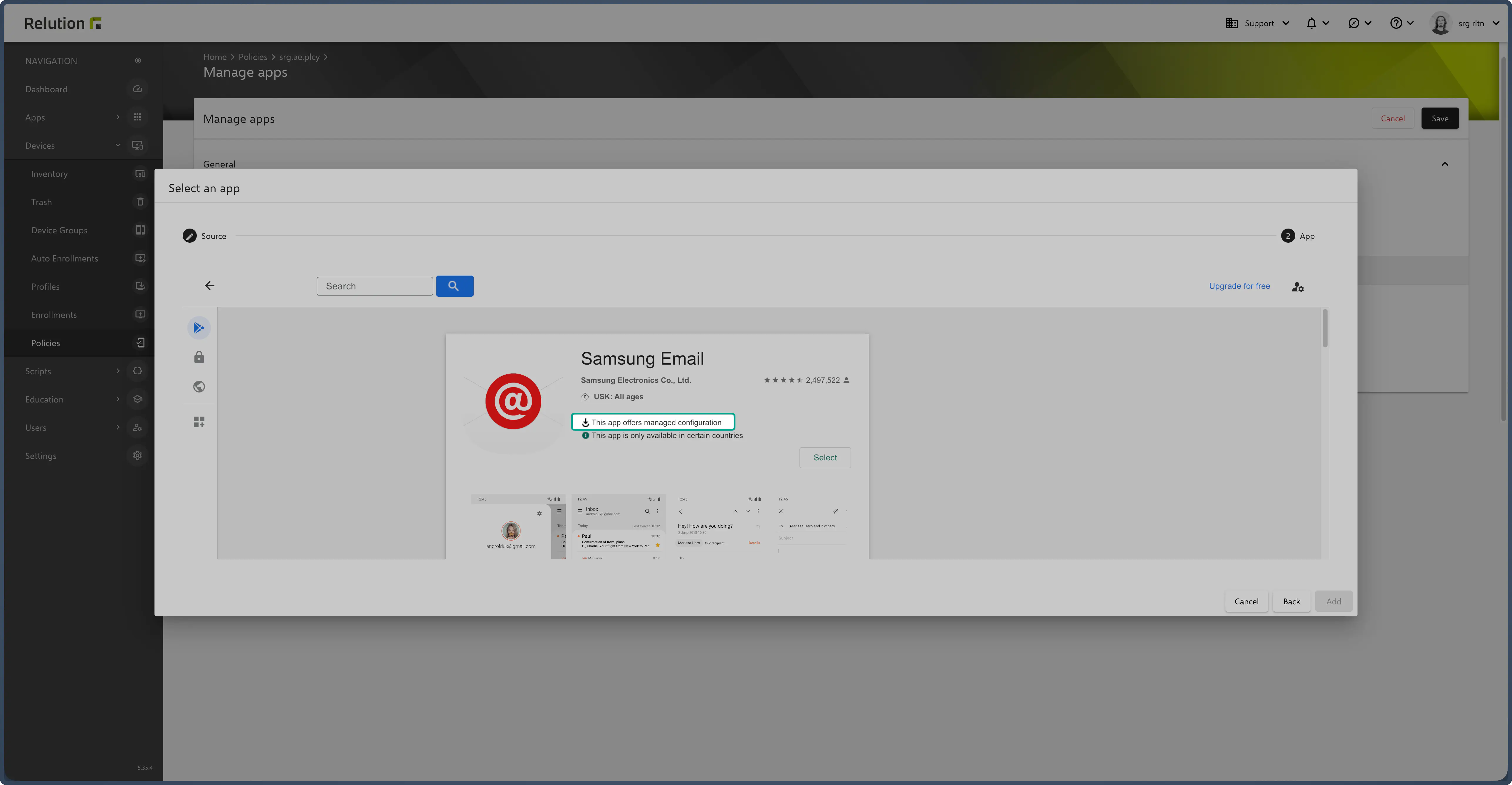
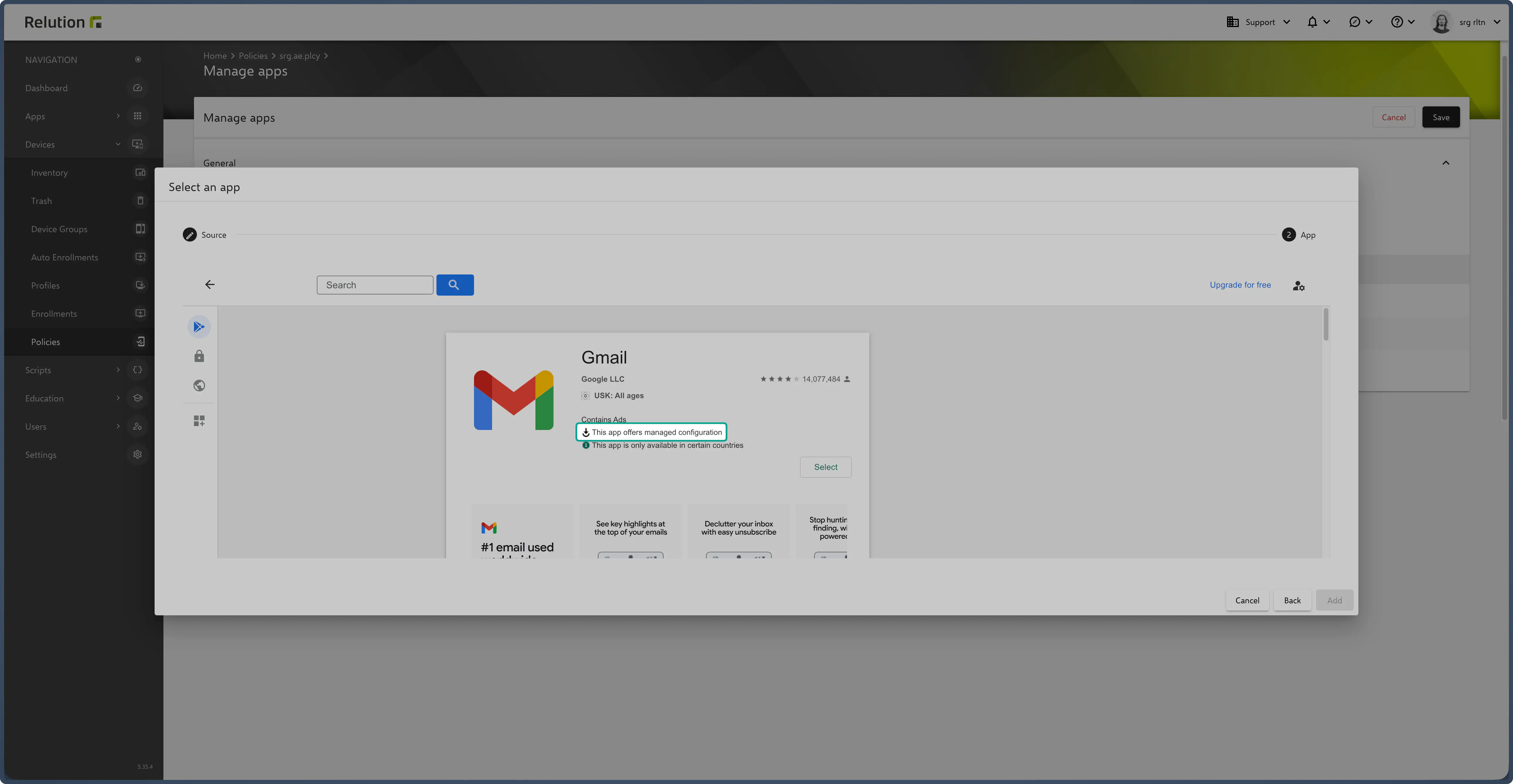
Note on App Configuration Apps for which managed configuration options (Managed Configs) are available are directly identifiable in the selection (as shown in the screenshots).
Please note: The scope of these configurations is determined exclusively by the respective app manufacturer. Relution has no influence on the options provided.
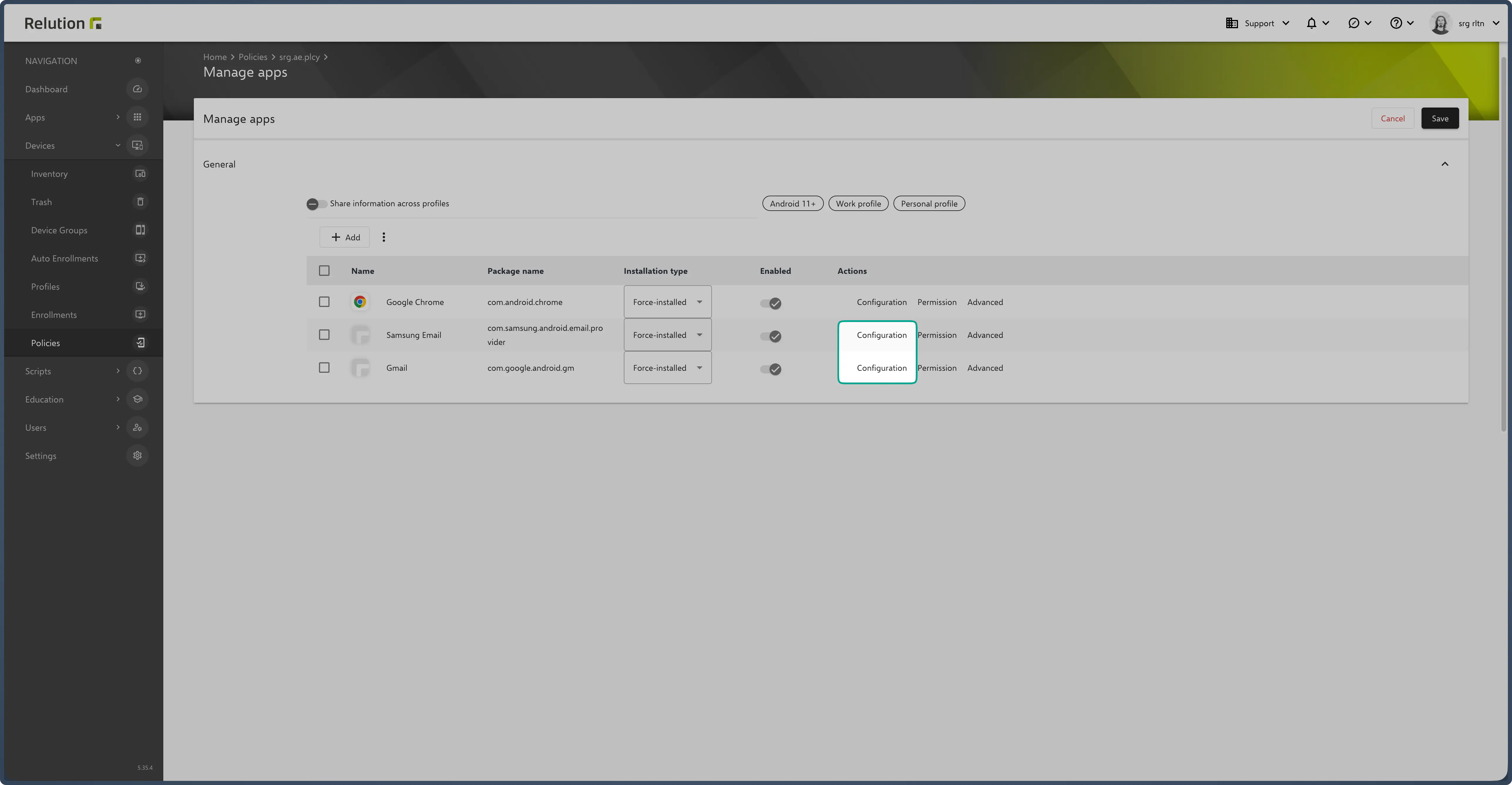
Step 2: Start Configuration
- Click on
Configurationfor the added email app.
App Configuration with Variables (Managed Configuration)
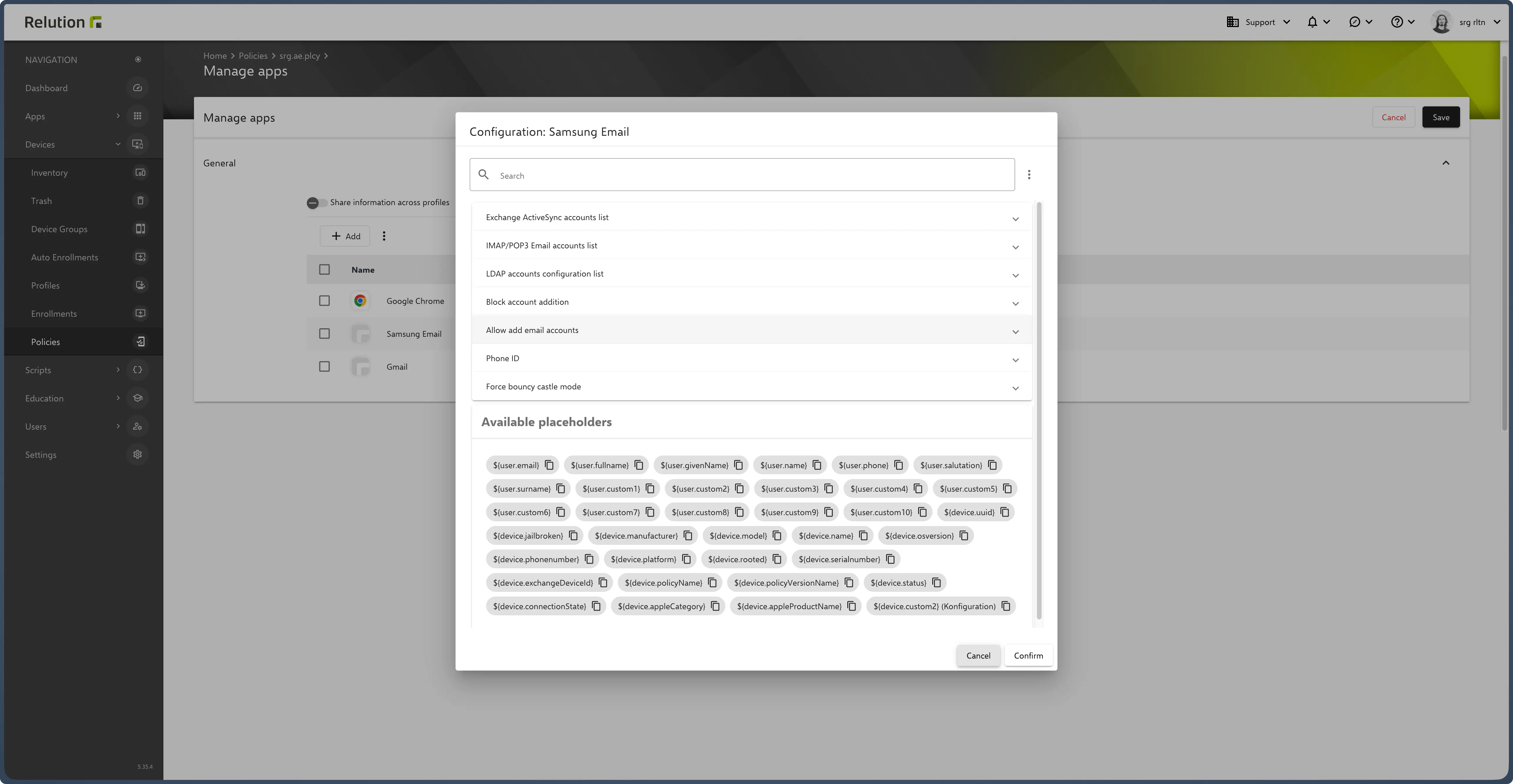
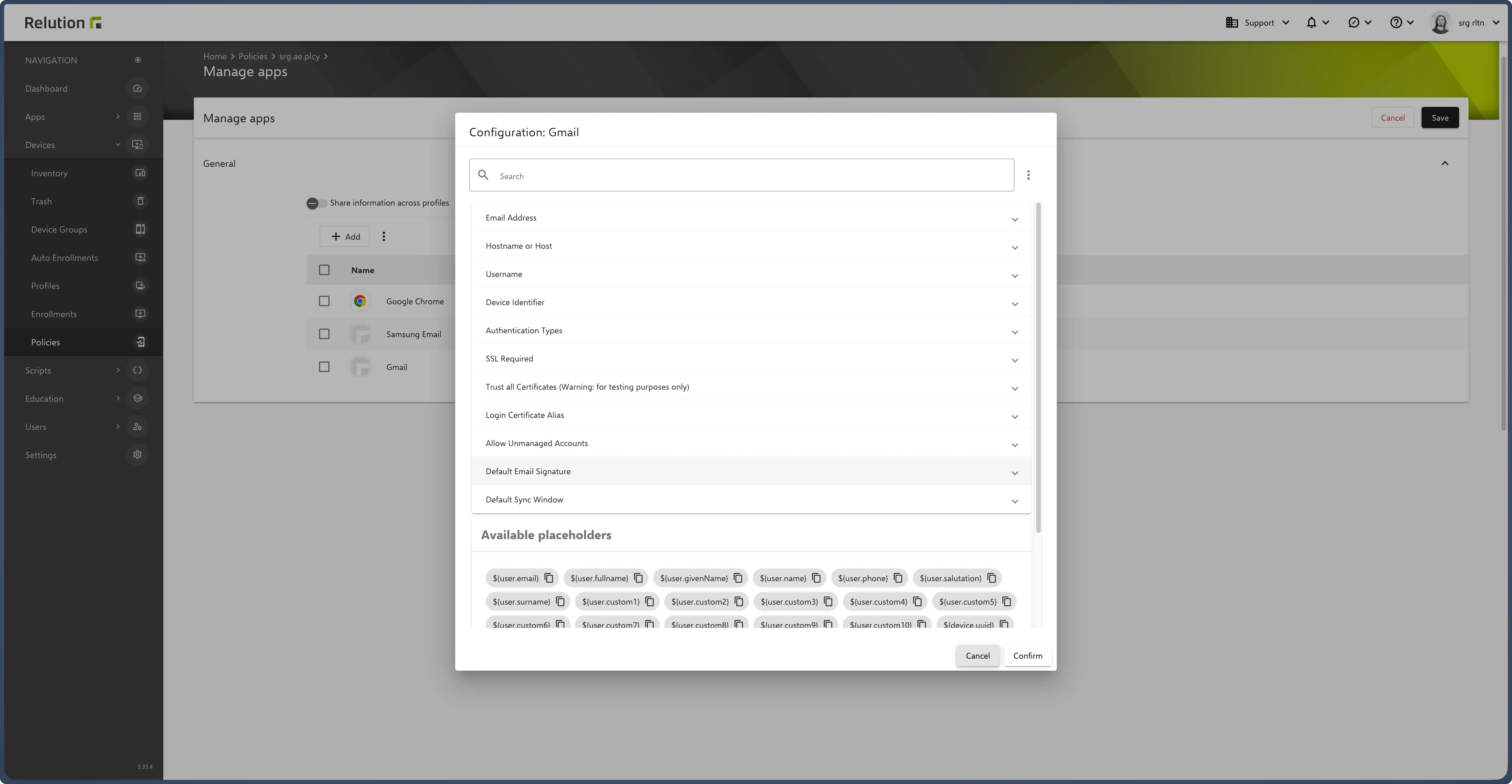
The configuration of the email client takes place via the so-called Managed Configuration (Verwaltete Konfigurationen). Here, user data and server information are stored, whereby Variables (Platzhalter) can be used to automatically adapt the settings to the respective user.
Important Note on Configuration with Variables For a flexible and generally valid configuration, you can use the Relution variables (e.g.,
${user.email}).
- Display: The available variables are shown in the respective configuration view.
- Prerequisites for Functionality: For these variables to be correctly resolved, the following conditions must be met in the Relution system:
- Valid Data: The required information (e.g., an email address for
${user.email}) must be validly stored with the user. - Device Assignment: The user must be assigned to the device in question.
- Valid Data: The required information (e.g., an email address for
Summary and Distribution
After you have saved the Managed Configuration, the email app will be automatically configured and distributed upon publishing to all users assigned to the policy. Users only have to open the app, enter their password, and can immediately retrieve their emails without having to make manual server settings.
Note on Updates Should the data in the configuration be adjusted in Relution but not applied on the end device, the corresponding app must be deleted and the new configuration applied again.
Tip Test the configuration initially with a small group of devices to ensure that all variables and server settings are adopted correctly.
Configuration of Google Mail and Samsung Mail with Secure Mail Gateway (SMG)
Specific configuration adjustments for the mail applications are required when using a Secure Mail Gateway (SMG). A detailed guide for implementing this integration and these adjustments can be found in the Knowledge Base: SMG Integration for Gmail →