 Customer Hub
Managed Mail Client
With Relution Mobile Device Management (MDM), it is possible to centrally configure common email clients like Google Mail or Samsung Mail and subsequently distribute these settings to all assigned devices using a policy.
This guide describes how to add the respective email application to the policy and then set it up with dynamic variables for automatic, user-specific configuration.
Add the Email Client App to the Policy
Before this configuration can be performed, the desired email app (Google Mail or Samsung Mail) must be added to the Android Enterprise (AE) policy.
Add App
- In the Relution Portal, an existing or new Android Enterprise Policy is opened.
- The Manage apps configuration is selected.
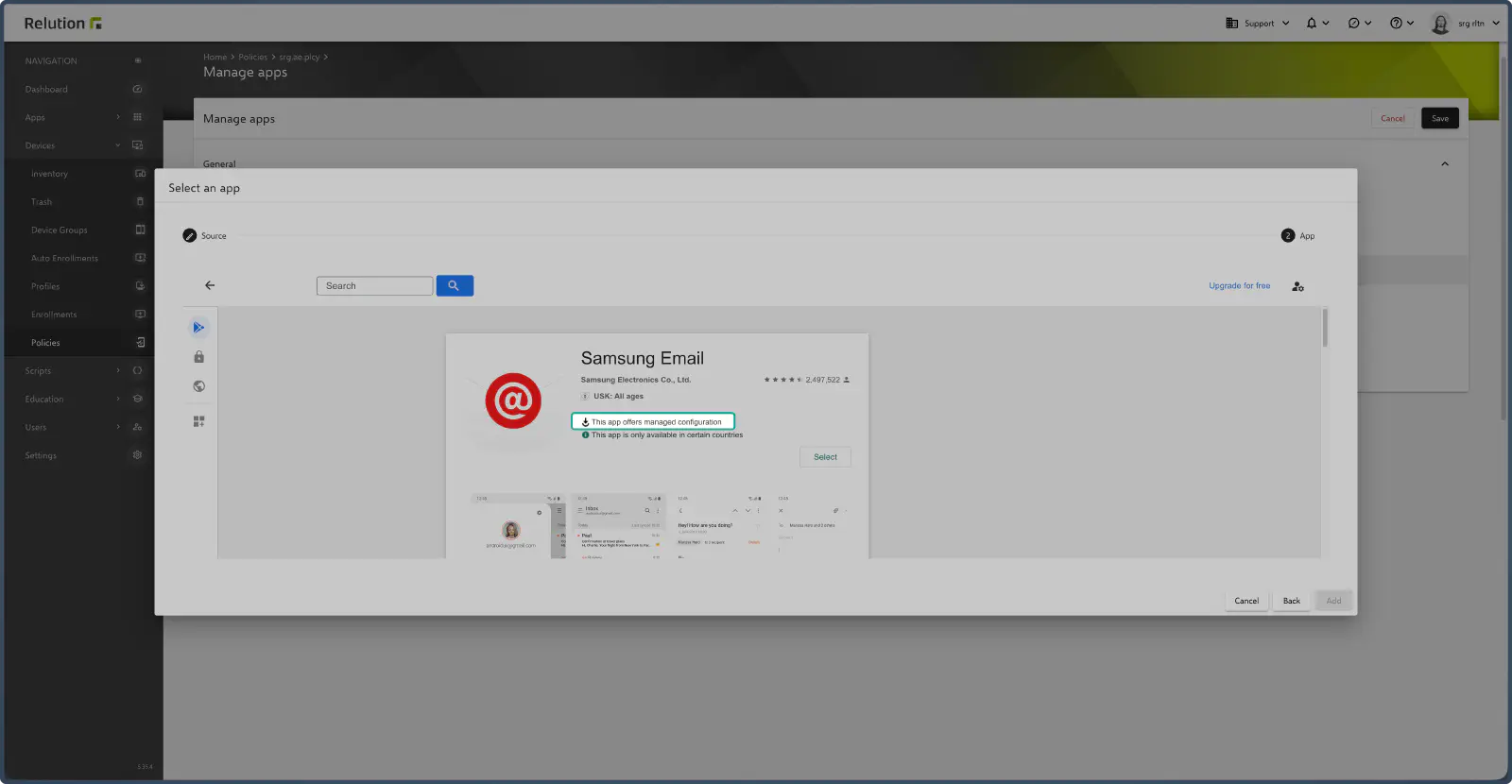
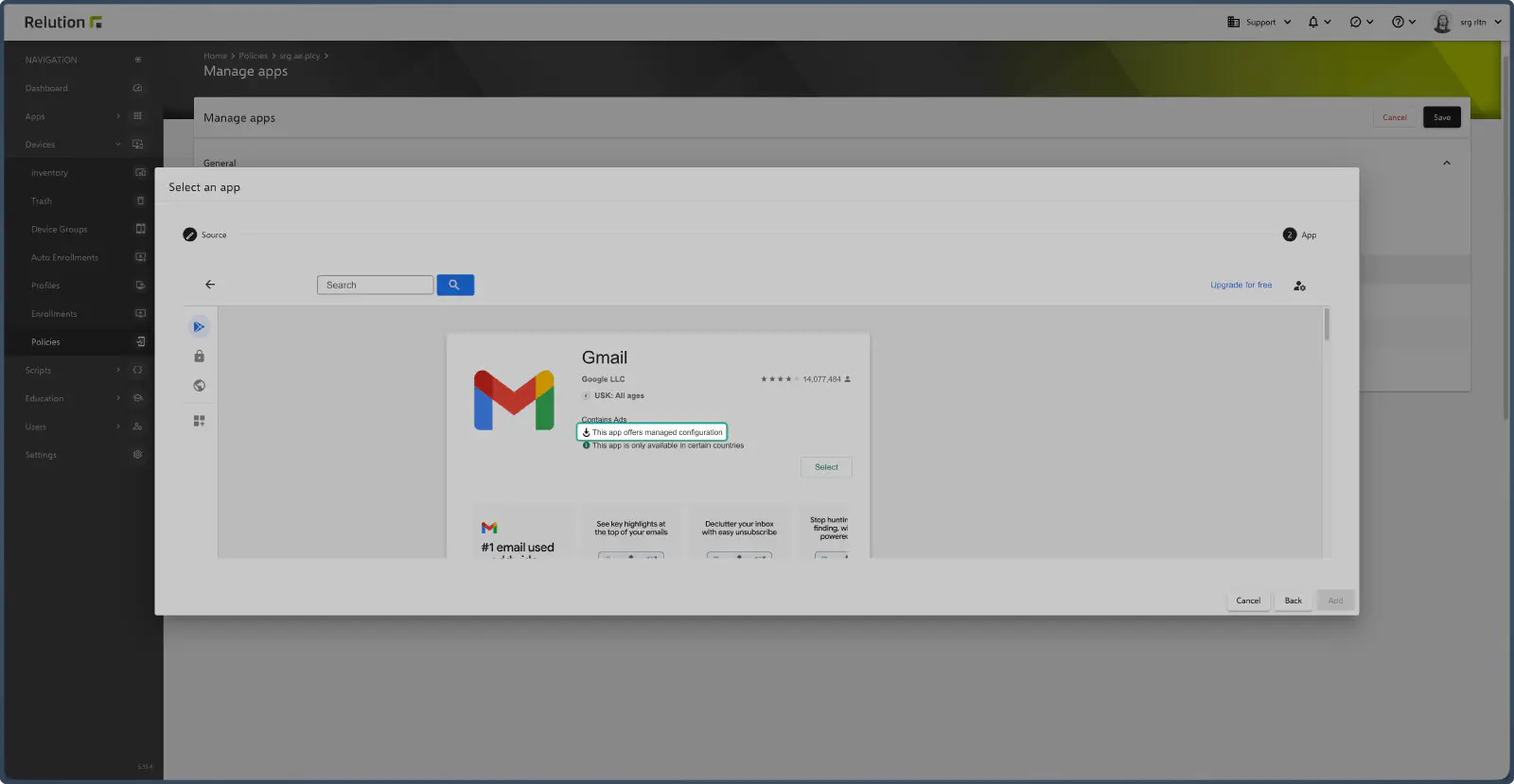
- The desired email app (e.g., Google Mail or Samsung Mail) is added from the Google Play Store if it is not already included in the list.
- Path:
Portal→the AE Policy→Manage apps→Add→Managed Google Play Store App (Android Enterprise)→Google Mail/Samsung Mail (add if not present)
Start Configuration
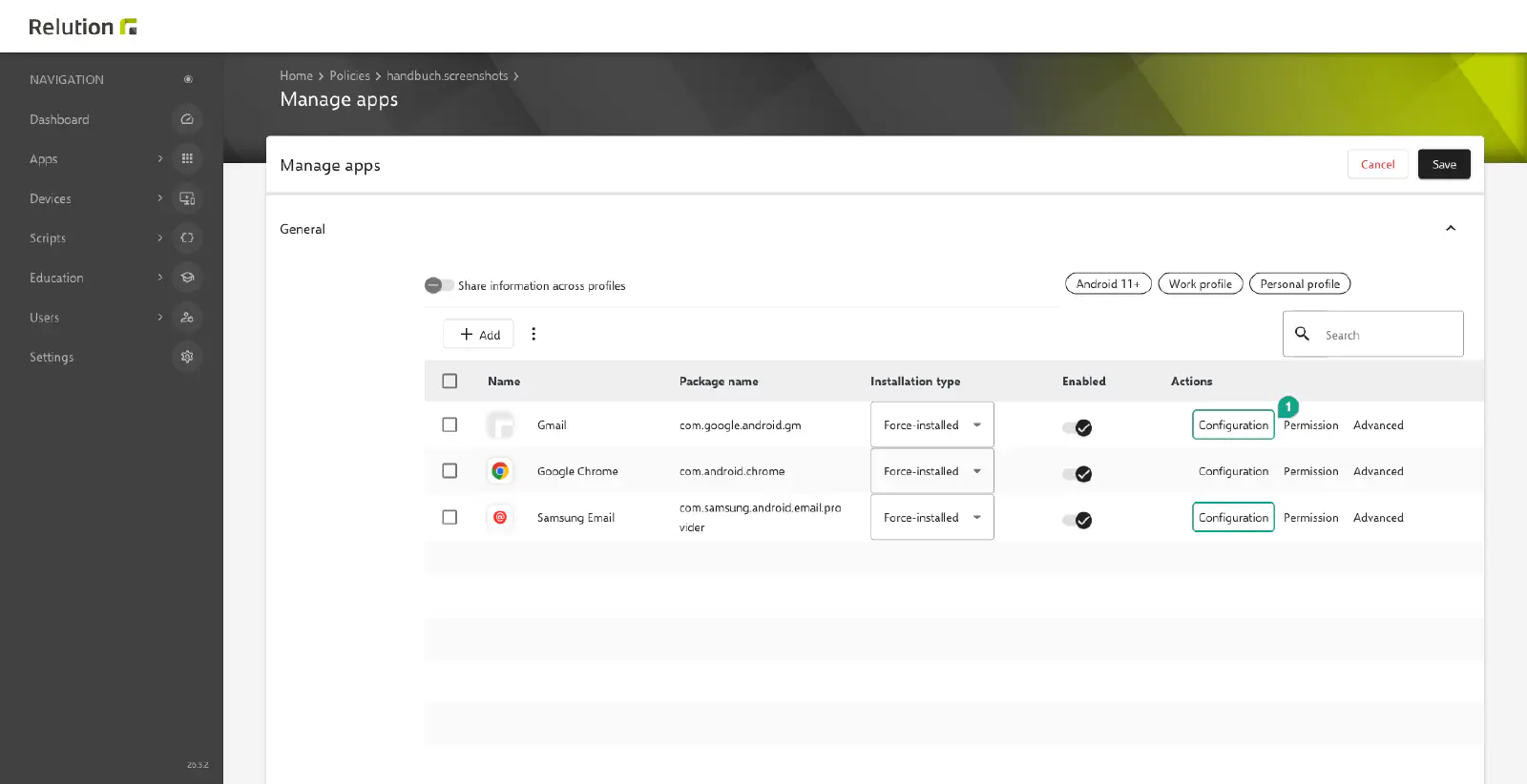
- For the added email app, Configuration is clicked.
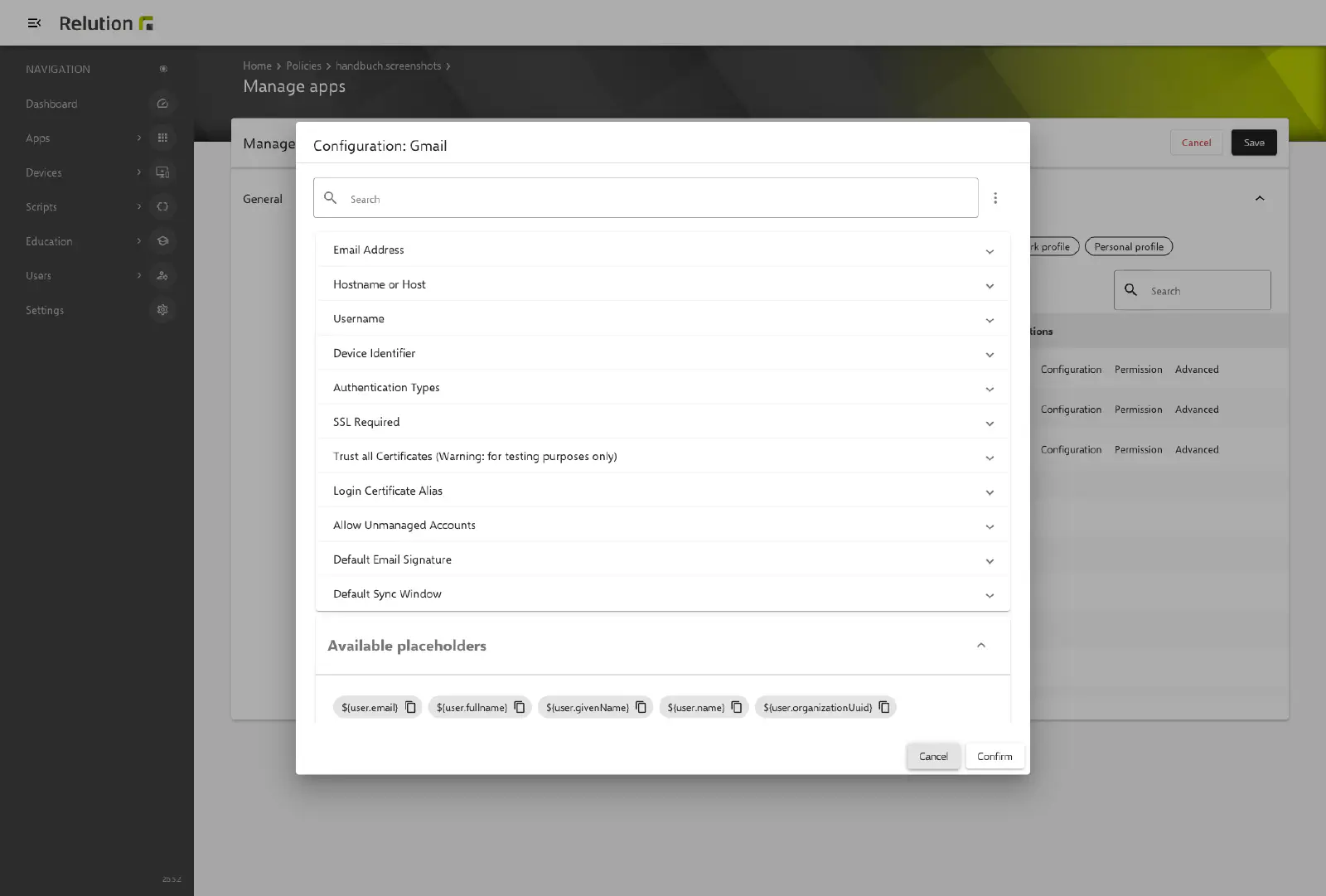
- In the dialog, the desired values (see below) are entered and applied with Confirm.
- The Manage apps configuration is then saved with Save. Confirm only applies the values to the open configuration; without Save, they are lost when leaving the page.
Changes are only possible in the latest, not yet published policy version. If it has already been published, a new version is created first.
App Configuration with Variables (Managed Configuration)
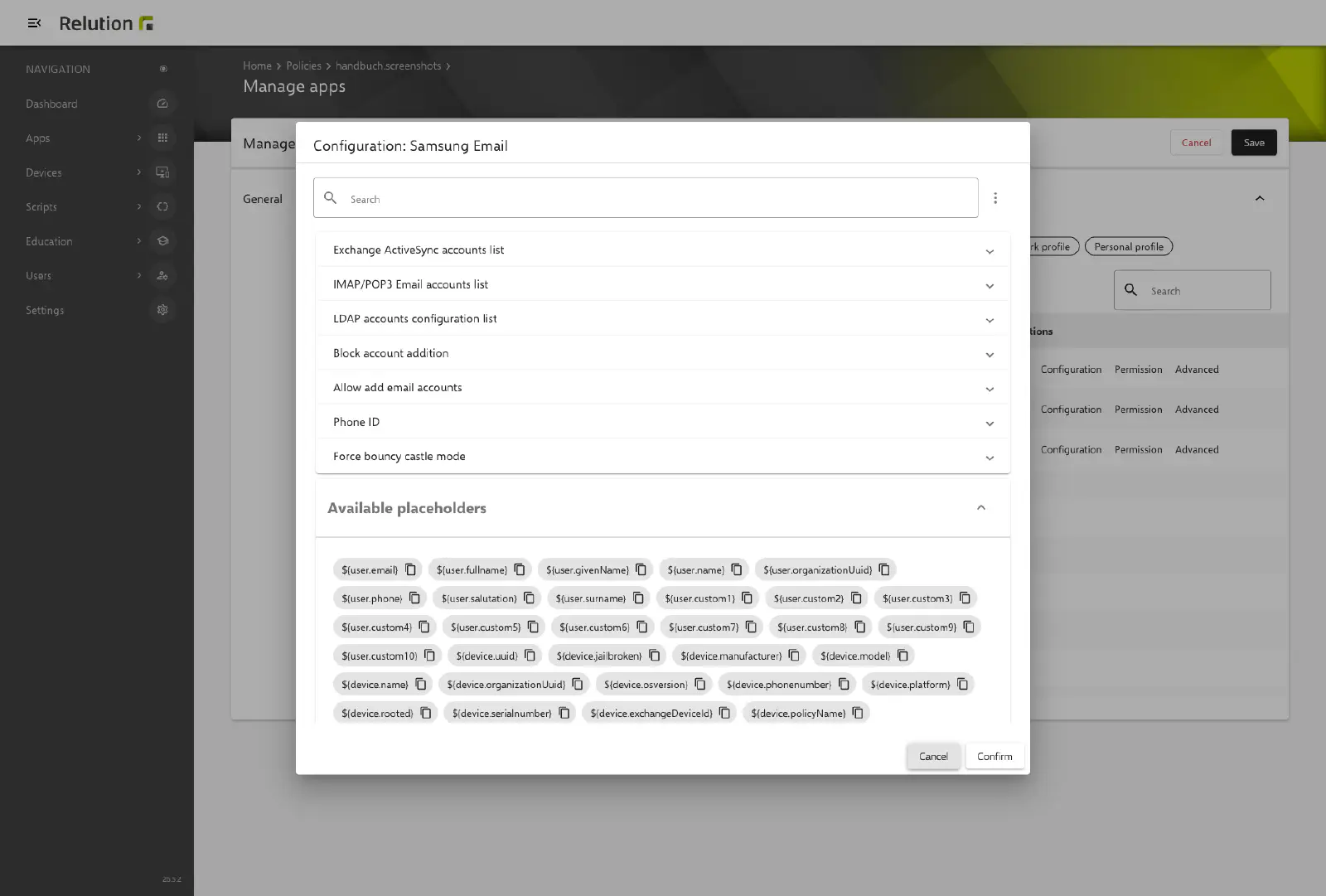
The configuration of the email client takes place via the so-called Managed Configuration (Verwaltete Konfigurationen). Here, user data and server information are stored, whereby Variables (Platzhalter) can be used to automatically adapt the settings to the respective user.
Important Note on Configuration with Variables: For a flexible and generally valid configuration, the Relution variables can be used (e.g., ${user.email}).
- Display: The available variables are shown in the respective configuration view.
- Prerequisites for Functionality: For these variables to be correctly resolved, the following conditions must be met in the Relution system:
- Valid Data: The required information (e.g., an email address for
${user.email}) must be validly stored with the user. - Device Assignment: The user must be assigned to the device in question.
- Valid Data: The required information (e.g., an email address for
Summary and Distribution
After the Managed Configuration is saved, the email app will be automatically configured and distributed upon publishing to all devices the policy is assigned to (e.g., via device groups). The variables are filled with the data of the user assigned to the respective device. Users only have to open the app, enter their password, and can immediately retrieve their emails without having to make manual server settings.
Configuration of Google Mail and Samsung Mail with Secure Mail Gateway (SMG)
Specific configuration adjustments for the mail applications are required when using a Secure Mail Gateway (SMG). A detailed guide for implementing this integration and these adjustments can be found in the Knowledge Base: SMG Integration for Gmail →