 Customer Hub
Certificate
The Certificate configuration installs a single certificate on Apple devices via a policy. Typical use cases are root and intermediate certificates of an in-house certificate authority that the device is meant to trust, and identity certificates (certificate with private key) for apps or websites that authenticate with a client certificate. The source is an uploaded certificate, a certificate template or a certificate from the profile of the user assigned to the device.
Prerequisites
- A policy for iOS, macOS, tvOS, watchOS or visionOS. Relution requires neither supervision nor a specific enrollment type.
- For Select certificate: a certificate uploaded under
Settings→Certificates(see Certificate Management →) or a certificate template, e.g. of the Built-In CA →. Template and certificate must belong to the organization of the policy. - For Use user certificate: a user assigned to the device whose profile contains a certificate of the selected type.
General
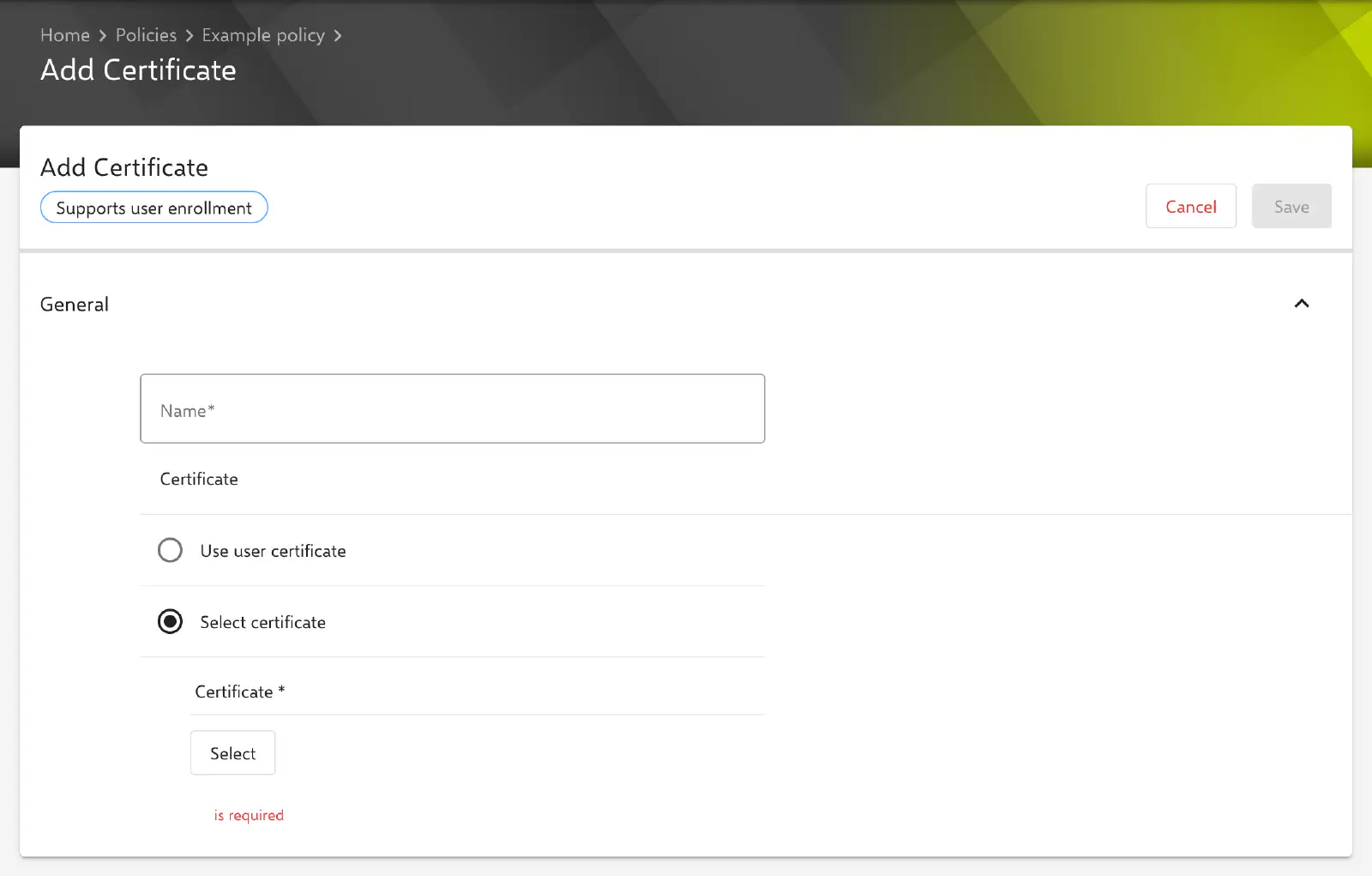
The General section contains all fields of the configuration. Save is only possible once Name is filled in and a certificate is set.
- Name (required): display name of the certificate. It appears in the configuration list of the policy and as the name of the entry in the profile on the device.
- Certificate (required): defines the source of the certificate, either Use user certificate or Select certificate (default). Both variants are described in the following sections.
- Action channel: only visible in macOS policies, see Action channel on macOS →.
Select certificate
Select opens the Select a certificate or a certificate template dialog with two tabs:
- Certificates: uploaded certificates with the usage Generic in the status Created, in the formats PKCS#1 (certificate without private key, e.g.
cer,crt,der,pem) and PKCS#12 (certificate with private key, e.g.p12,pfx). Certificates already used in another Certificate configuration of the same policy version are not available for selection. - Certificate templates: templates of the organization’s certificate authorities. When the policy is transferred, Relution issues a separate certificate from the template for each device, or keeps using a certificate that has already been issued as long as it is not within the automatic renewal period.
Confirm applies the selection. The selected certificate or template appears as an entry below the field and can be removed via the cross on the entry.
For a PKCS#12 certificate, Relution transfers the password stored with the certificate in certificate management to the device together with the certificate. The configuration does not have a password field of its own.
Use user certificate
With this variant, Relution installs a certificate from the profile of the user assigned to the respective device. Each device thus receives the certificate of its own user.
- Certificate type: category of the user certificate. Available options are General certificate (default), WiFi, Exchange, VPN and apps, S/MIME Encryption and S/MIME Signing.
- Certificate name: optional. If the user has several certificates of the selected type, this field selects one of them by its name. The field can contain placeholders, e.g.
${user.email}or${device.serialnumber}, which are resolved per device. If the field is left empty, Relution uses the certificate with the latest expiration date.
If no matching certificate can be determined, the configuration is not transferred without a certificate. The sub-action fails with a reason, and the device receives a compliance notice. Possible causes:
- No user is assigned to the device.
- The user does not have a certificate of the selected type.
- The user does not have a certificate with the specified Certificate name. The name must match exactly.
- After the placeholders have been resolved, the Certificate name results in an empty value, e.g. because a placeholder is not set for the device. In this case, Relution deliberately does not fall back to an arbitrary other certificate.
Further information on user certificates and placeholders: Advanced placeholders →
Platforms
The configuration is available in policies for iOS, macOS, tvOS, watchOS and visionOS and contains the same fields on all platforms. The only difference concerns the action channel.
Action channel on macOS
macOS policies additionally show the Action channel selection:
- Device (default): the certificate applies to the entire device, regardless of the signed-in user.
- User: the certificate applies only to the currently signed-in user account.
An action sent via the User channel is only executed once a user is signed in on the Mac, see Actions stuck in Not now →.
On iOS, tvOS, watchOS and visionOS, no selection is possible. Relution always transfers the configuration via the device channel there.
Special notes
- Multiple per policy: The configuration can be added to a policy multiple times. An uploaded certificate can only be selected in one of them.
- Certificates in other configurations: For Wi-Fi, VPN and Exchange, an identity certificate is selected directly in the respective configuration and transferred by Relution together with it. An additional Certificate configuration is not required for this.
- Replacing the certificate: The identifier of the certificate in the profile corresponds to the identifier of the certificate in Relution. If a different certificate is selected in the configuration, the device therefore recognizes the replacement as a change.
- Compliance: Relution compares the certificates a policy provides for, by common name (CN), with the certificates the device reports as installed. If a certificate is missing on the device, Relution reports a compliance violation for missing certificates. If a user certificate cannot be determined, a compliance notice is created, which disappears automatically as soon as the certificate has been determined and installed.
- Trust in root certificates: According to Apple, root certificates installed via an MDM profile are trusted on iPhone and iPad without manual confirmation in the certificate trust settings. This behavior is determined by the operating system, not by Relution.
Distinction from SCEP and certificate templates
The Certificate configuration transfers a finished certificate to the device. With an uploaded certificate it is the same on all devices; with a certificate template and with user certificates, each device receives its own. In every case, key and certificate are created outside the device.
With the SCEP configuration, on the other hand, the device generates the private key itself and requests the certificate directly from a SCEP server. The private key does not leave the device. For certificate templates of the Built-In CA, the template type SCEP on device is available for this purpose, see Built-In CA →.