 Customer Hub
The Email configuration hands over an IMAP or POP account including its outgoing mail server (SMTP) to the native Mail app via a configuration profile. Manual setup on the device is no longer necessary, and the user name and email address can be filled per user via placeholders. Optionally, S/MIME signing and encryption are delivered together with the matching certificate.
For accounts on a Microsoft Exchange Server via Exchange ActiveSync, the Exchange → configuration is intended instead (see Comparison with Exchange →).
Platforms
The configuration is available in policies for iOS/iPadOS and for macOS. A supervised device is not required. The form carries the badge Supports user enrollment: the configuration can also be distributed to devices with User Enrollment → and to Macs with User Enrollment →.
Several email configurations are allowed per policy, for example for several mailboxes. In the policy’s configuration list, each configuration appears with its Account description.
On macOS and on Shared iPads, Relution delivers the configuration via the user channel. The account is therefore installed in the profile of the signed-in user and not device-wide. If the device does not support a user channel, delivery takes place via the device channel.
General
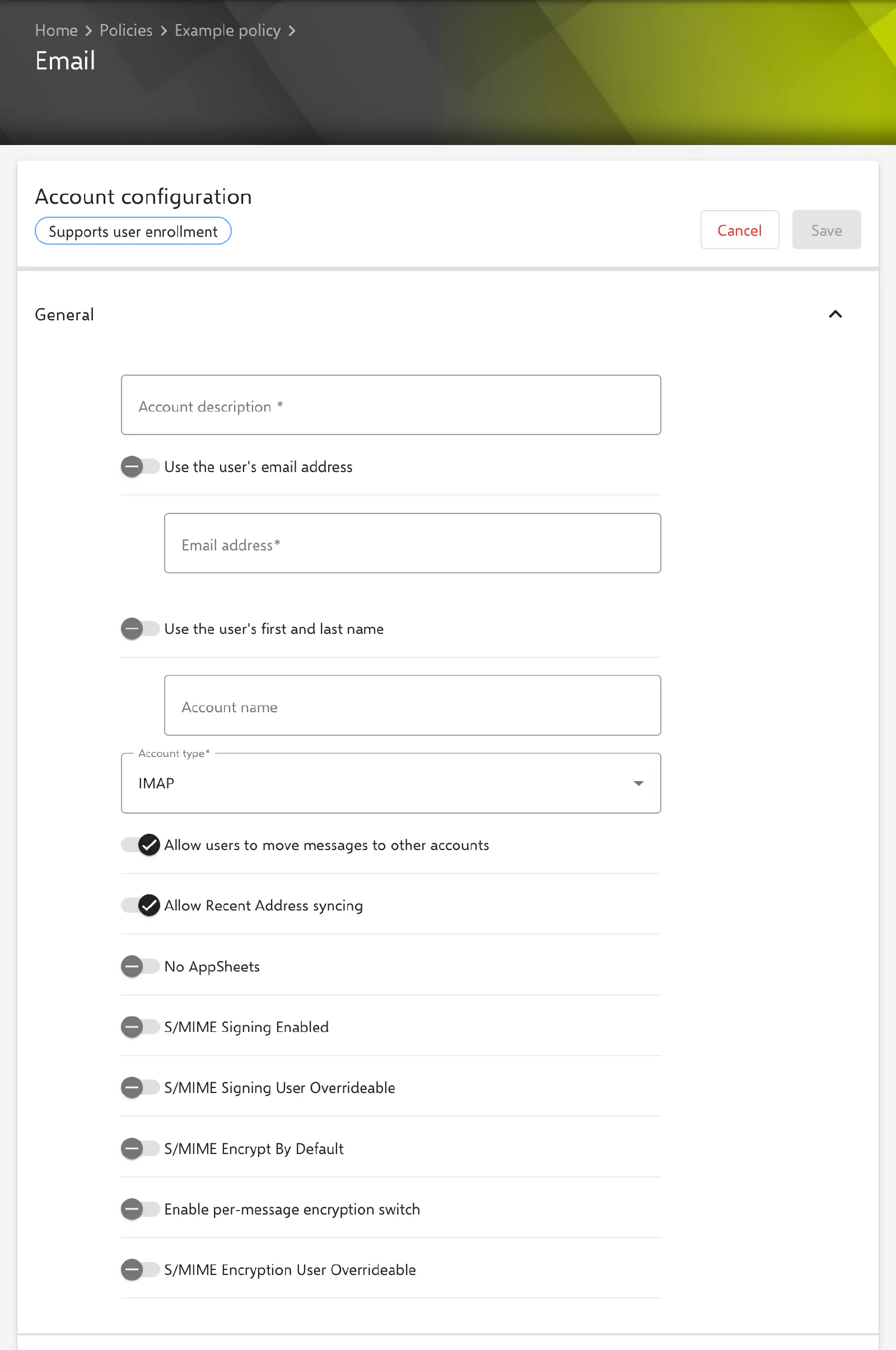
The General area in the Account configuration section contains the account data and the behavior of the Mail app.
- Account description (required, max. 255 characters): name under which the account appears in the Mail app and in the device settings.
- Use the user’s email address: If the switch is on, the Email address field is locked and filled with the placeholder
${user.email}. On delivery, it is replaced with the email address of the user assigned to the device. - Email address (required): sender address of the account. Besides a fixed address, placeholders are allowed in the part before the
@, e.g.${user.name}@example.com. - Use the user’s first and last name: If the switch is on, the Account name field is locked and filled with the placeholder
${userName}. Relution replaces it with the user’s last name and first name, in that order. For the order first name last name, the switch can be turned off and the placeholder${user.fullname}entered in the Account name field. - Account name: optional display name that appears as the sender name in sent messages.
- Account type:
IMAPorPOP. For new configurations,IMAPis preselected. - Allow users to move messages to other accounts: enabled by default. If the option is off, messages of this account cannot be moved to other accounts or forwarded or replied to from there.
- Allow Recent Address syncing: enabled by default. If the option is off, the recently used addresses of this account are not synchronized with other devices via iCloud.
- No AppSheets: disabled by default. If the option is on, the account cannot be used for sending from other apps, e.g. via the share sheet.
The last three options are implemented by the operating system’s Mail app. The description of the behavior follows Apple’s documentation and may change with new operating system versions.
S/MIME
The General area also offers the following switches for S/MIME. All of them are disabled by default.
- S/MIME Signing Enabled: outgoing messages are signed.
- S/MIME Signing User Overrideable: the user can turn signing on and off in the device settings.
- S/MIME Encrypt By Default: new messages are encrypted by default. According to the tooltip in the portal, the user cannot change this default on devices with iOS 12 or later if Enable per-message encryption switch is off.
- Enable per-message encryption switch: when composing a message, a switch appears that turns encryption on or off for this message.
- S/MIME Encryption User Overrideable: the user can change the default encryption in the device settings.
The options for overriding by the user are only transferred to devices with operating system version 12 or later.
Certificates for S/MIME
If one of the switches is on, an additional section for the corresponding certificate appears:
- S/MIME signing certificate: appears as soon as S/MIME Signing Enabled or S/MIME Signing User Overrideable is on.
- S/MIME encryption certificate: appears as soon as S/MIME Encrypt By Default, Enable per-message encryption switch or S/MIME Encryption User Overrideable is on.
Both sections offer two variants:
- Select certificate (preselected): a specific certificate from the Certificate Management → is distributed with the profile to all devices. Only certificates in PKCS#1 or PKCS#12 format are available, no certificate templates. Relution rejects certificates of another organization when saving.
- Use user certificate: the S/MIME certificate of the user assigned to the device is used. If a user has several certificates of this type, the Certificate name field selects one of them by name. The field can contain placeholders that are resolved per device. If it is left empty, the certificate with the longest validity is used. If no matching user certificate can be determined for a device, Relution reports this in the device’s compliance as a missing certificate. More information: Advanced placeholders →
The switches S/MIME Signing Certificate UUID User Overrideable and S/MIME Encryption Certificate UUID User Overrideable allow the user to choose a different certificate on the device. They can only be turned on if a certificate is selected via Select certificate and S/MIME Signing User Overrideable or S/MIME Encryption User Overrideable is also on.
If all switches of a group are off, Relution discards the corresponding certificate and the Certificate name when saving. An email configuration with a selected S/MIME certificate is not included when a policy is exported.
Incoming mail server
The Incoming email server configuration section describes the IMAP or POP server from which messages are retrieved.
- Authentication for incoming email server (required): None, Password (preselected), NTLM, CRAMMD5 or HTTPMD5. The selection must match the sign-in methods of the mail server.
- Host name for incoming email server (required): DNS name or IP address of the server, e.g.
imap.example.com. - Port number for incoming email server (required, 1 to 65535): the field is not prefilled. Common values are
993for IMAP and995for POP with SSL/TLS; the configuration of the mail server is decisive. - Incoming email server uses SSL: enabled by default. The connection is established encrypted.
- Username for incoming email server: optional. Placeholders such as
${user.name}or${user.email}are replaced per device. - Password for incoming email server: optional, see Passwords →.
Outgoing mail server
The Outgoing email server configuration section describes the SMTP server used for sending.
- Authentication for outgoing email server (required): the same methods as for the incoming mail server; Password is preselected.
- Host name for outgoing email server (required): e.g.
smtp.example.com. - Port number for outgoing email server (required, 1 to 65535): the field is not prefilled. Common values are
587(STARTTLS) or465(SSL/TLS). - Outgoing email server uses SSL: enabled by default.
- Username for outgoing email server: optional, placeholders are allowed.
- Use password of incoming email server: disabled by default. If the option is on, the same password as for the incoming mail server is used for the outgoing mail server, and the Password for outgoing email server field is locked.
- Password for outgoing email server: optional, see Passwords →.
Passwords
A stored password is not displayed again in the portal. Instead, the field shows ***** as long as a password is stored. If the field remains unchanged while editing, the stored password is kept. If its content is deleted and the configuration is saved, the password is removed.
An entered password is transferred unchanged to all devices to which the policy is assigned. There is no placeholder for the password of the respective user. For personal mailboxes, the password fields therefore usually remain empty. The operating system then asks for the password on the device; this behavior is controlled by Apple, not by Relution.
Placeholders
Below the form, the Available placeholders area lists the user placeholders that can be used in the text fields of the configuration, including ${user.email}, ${user.name}, ${user.fullname}, ${user.givenName} and ${user.surname} as well as the custom attributes. Relution replaces them on delivery with the data of the user assigned to the device.
Further functions such as substrings or default values are described under Advanced placeholders →.
Per account VPN
The email account can be referenced in a VPN configuration of the same policy in the Per account VPN area, so that the connection to the mail server is established via this VPN. The form of the Email configuration then shows the note “This configuration is referenced by a VPN configuration.” with the link Show the referenced configuration. More information: App to VPN Mapping →
Comparison with Exchange
| Exchange | ||
|---|---|---|
| Protocol | IMAP or POP, sending via SMTP | Exchange ActiveSync |
| Content | email only | email, calendar, contacts, reminders, notes |
| Sign-in | None, Password, NTLM, CRAMMD5, HTTPMD5 | password, OAuth or certificate |
| Secure Mail Gateway | not available | available |
| Platforms | iOS/iPadOS and macOS | iOS/iPadOS (macOS with its own configuration) |
For mailboxes on Exchange Server or Exchange Online, the Exchange → configuration is intended. The Email configuration is suited for mail servers that offer IMAP or POP and SMTP.
Related topics
- Certificate →
- Exchange →
- Certificate Management →
- Advanced placeholders →
- App to VPN Mapping →
- User Enrollment →