 Customer Hub
VPN
The VPN configuration sets up a VPN connection on iOS, iPadOS and macOS devices. It supports the built-in connection types IKEv2, IPSec, L2TP and PPTP as well as VPN apps from Cisco (AnyConnect), Juniper, SonicWALL and other vendors. Relution transfers the settings as a profile with the payload type com.apple.vpn.managed, or com.apple.vpn.managed.applayer if Per App and Account VPN is enabled.
Prerequisites
- The configuration is available in iOS and macOS policies and can be added several times per policy, e.g. for several VPN servers.
- Relution does not require supervision. The portal marks the configuration as Supports user enrollment, so it is also distributed to devices with User Enrollment →. Which kinds of VPN the operating system accepts with User Enrollment is decided by Apple.
- For the types AnyConnect Legacy, AnyConnect, JuniperSSL, SonicWALL and Custom SSL, the vendor’s VPN app must be installed on the device. The profile only contains the connection data, not the app.
Platforms
The form is identical in iOS and macOS policies; iPadOS devices are managed via iOS policies. The portal offers all connection types on both platforms but does not check whether the operating system supports the type. According to Apple’s documentation (without guarantee):
- IKEv2 Always On is intended only for supervised iPhones and iPads, not for macOS.
- PPTP has not been supported since iOS 10 and macOS 10.12.
On macOS, the mappings from the App to VPN Mapping configuration are written directly into the VPN profile, see App to VPN Mapping (macOS) →. For VPN apps that run as a system extension, Custom SSL additionally requires the Provider designated requirement field.
General
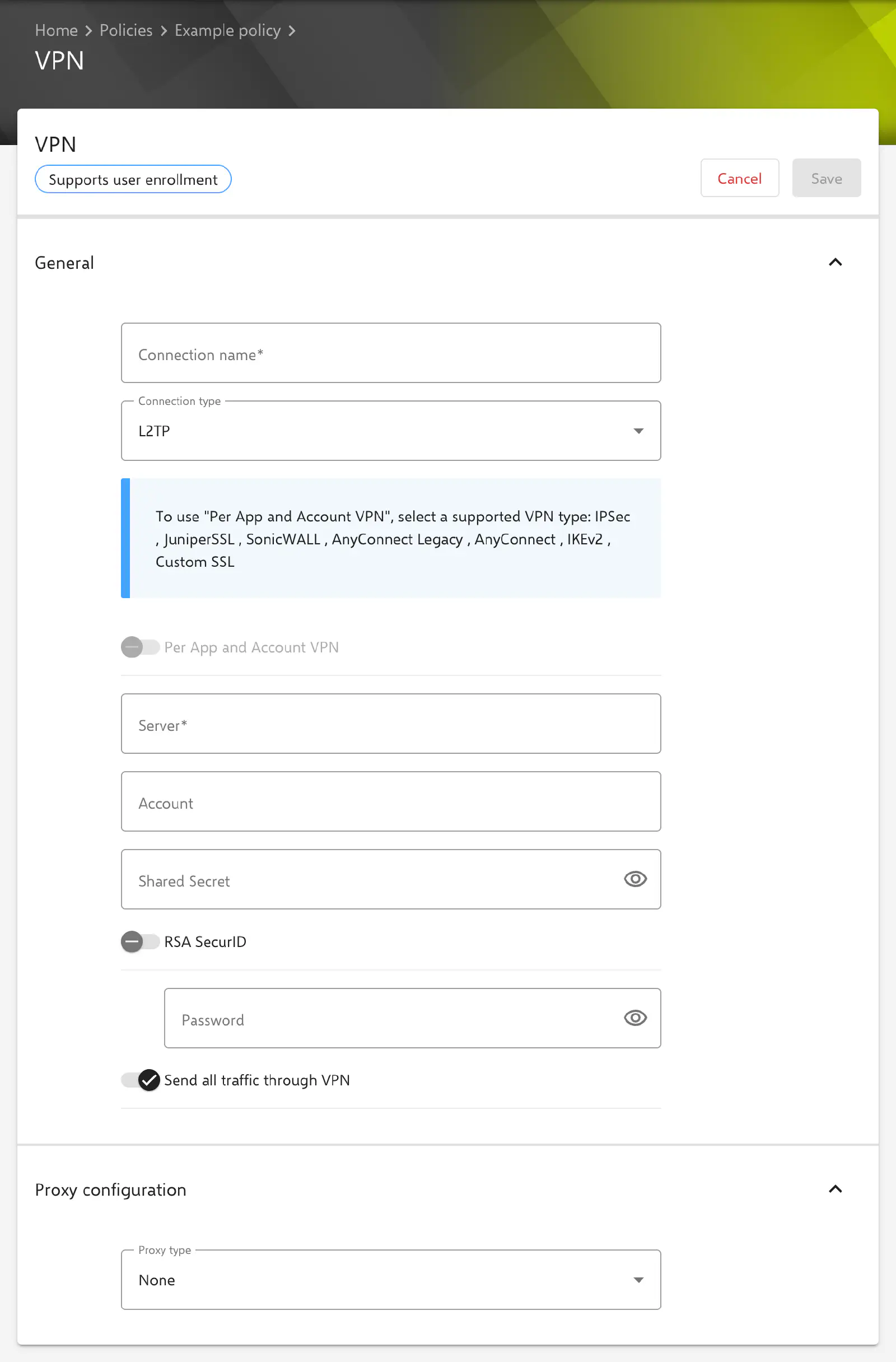
The configuration is created under Devices → Policies in an iOS or macOS policy via Add and the selection VPN. The General section contains:
- Connection name: Required. Name of the connection as displayed on the device.
- Connection type: IKEv2, IKEv2 Always On, L2TP (preselected for a new configuration), PPTP, IPSec, JuniperSSL, SonicWALL, AnyConnect Legacy, AnyConnect or Custom SSL. Depending on the type, the form shows the matching fields (see Connection types →).
- Per App and Account VPN: Disabled by default. If the option is active, the connection no longer applies device-wide but only to assigned apps, accounts and domains (see Per-app and per-account VPN →). Available for IPSec, JuniperSSL, SonicWALL, AnyConnect Legacy, AnyConnect, IKEv2 and Custom SSL. For L2TP and PPTP, the switch is locked and a notice lists the supported types; for IKEv2 Always On, it is not shown.
- Allow disabling connections: Only for IKEv2 Always On, enabled by default. Defines whether the user may switch off the Always On connection. If the option is disabled, the form shows a warning: the device then needs a working VPN for any communication, and in case of a misconfiguration even changes from Relution no longer reach the device.
- Provider type: Only for AnyConnect Legacy, AnyConnect, JuniperSSL, SonicWALL and Custom SSL. Packet tunnel (default) tunnels traffic at the IP layer, App proxy at the application layer. Which variant works depends on the VPN app.
Connection types
The Server field (host name or IP address of the VPN server) is required for all types. The Account field holds the user name for sign-in and can contain placeholders such as ${user.name}. The fields for password, shared secret and certificate are described in the Authentication → section.
IKEv2 and IKEv2 Always On
Both types use the same form. IKEv2 Always On keeps the connection established permanently over Wi-Fi and cellular.
- Remote Identifier: Required. Identifier of the server, formats FQDN, UserFQDN, address or ASN1DN.
- Local Identifier: Optional. Identifier of the device in the same formats.
- Machine authentication: None, Shared Secret / Group Name or Certificate (default).
- Only with Certificate: Server certificate common name, Server certificate issuer common name and Certificate type (Not configured, RSA, RSA-PSS, ECDSA256, ECDSA384, ECDSA521).
- Enable extended authentication (EAP): Unlocks the fields TLS minimum version (default
1.0) and TLS maximum version (default1.2). The minimum version must not be greater than the maximum version. If a Certificate type is selected and EAP is active, the Server certificate issuer common name field is required for saving. - Dead peer detection Rate: None, Low, Medium or High.
- Switches Disable Mobility and Multihoming, Disable redirects, Enable certificate revocation check, Enable perfect forward secrecy and Enable Fallback (tunnel over cellular data for traffic eligible for Wi-Fi Assist; the server must support multiple tunnels per user).
- Use IPv4 / IPv6 Internal Subnet Attributes: In Relution 27.0.1, the switch is not written to the profile; the device always receives the option as disabled.
- Enable NAT keep alive offload: Unlocks the NAT keep alive interval field (in seconds, default and minimum
20).
Under IKE SA Params and Child SA Params, the parameters of both security associations are defined:
| Field | Options | Default |
|---|---|---|
| Encryption Algorithm | DES, 3DES, AES-128, AES-256, AES-128-GCM, AES-256-GCM, ChaCha20-Poly1305 | AES-256 |
| Integrity Algorithm | SHA1-95 (meaning SHA1-96), SHA1-160, SHA2-256, SHA2-384, SHA2-512 | SHA2-256 |
| Diffie-Hellman group | Groups 1, 2, 5, 14 to 21 and 31 | 14 |
| Rekey-Interval (in minutes) | 10 to 1440, required | 1440 |
For IKEv2 Always On, Relution transfers one tunnel for Wi-Fi and cellular with these IKEv2 settings. VPN on demand and the On-demand rules are not saved for this type, even though the form shows them.
L2TP
- Account, Shared Secret and Password.
- RSA SecurID: Sign-in via RSA SecurID instead of a password. The Password field is then locked.
- Send all traffic through VPN: Enabled by default. Routes all traffic through the tunnel.
PPTP
- Account, RSA SecurID, Password and Send all traffic through VPN as for L2TP. There is no shared secret.
- Encryption level: Required. None, Automatic (default, MPPE 40 and 128 bit) or Maximum (128 Bit).
IPSec
- Account and Password for extended authentication (XAuth).
- Machine authentication: Shared Secret / Group Name (default) or Certificate.
- With Shared Secret / Group Name: Group Name, Shared Secret, Hybrid authentification (appends
[hybrid]to the group name) and Prompt for password (the device prompts for the password on every connection). - With Certificate: certificate selection, Prompt for VPN pin as well as VPN on demand with the On-demand rules.
AnyConnect, AnyConnect Legacy, JuniperSSL and SonicWALL
These types hand the connection over to the vendor’s VPN app. AnyConnect stands for the current Cisco Secure Client, AnyConnect Legacy for the older AnyConnect app.
| Type | Additional fields | Machine authentication |
|---|---|---|
| AnyConnect / AnyConnect Legacy | Group Name | Password (default), Certificate, Password + Certificate |
| JuniperSSL | Role, Realm | Password (default), Certificate, Password + Certificate |
| SonicWALL | Login group or domain | Password (default), Certificate |
As soon as a certificate is involved, VPN on demand and the On-demand rules appear.
Custom SSL
For VPN apps from other vendors:
- Identifier: Required. Identifier of the VPN type expected by the VPN app (usually its bundle ID).
- Server, Account and Password. The Password field is shown regardless of the authentication method.
- User authentication: Password (default) or Certificate.
- Provider bundle identifier: Bundle ID of the VPN provider if the app contains several providers.
- Provider designated requirement: Designated requirement of the app, required if the VPN provider is a system extension.
- Send all traffic through VPN: Disabled by default. Only when the option is active is Exclude local networks available; local traffic then stays outside the tunnel.
- Custom data: Key-value pairs that are passed unchanged to the VPN app. Which keys apply is defined by the vendor.
- Only with Certificate: VPN on demand (disabled by default here), the On-demand rules and Disconnect on idle. The options Never (default), 1 minute, 2 minutes, 5 minutes, 15 minutes, 30 minutes or 1 hour are only available while VPN on demand is active.
Authentication
Which authentication methods are available depends on the connection type (see Connection types →). The following applies to passwords, shared secrets and certificates across all types.
Password and shared secret
As of Relution 26.5.5, the Password and Proxy password fields are masked: a stored value appears as *****; if the field is left unchanged, the stored value remains in effect. Details under Passwords and keys in configurations →.
A password in the Password field is transferred unchanged to all devices of the policy. For personal accounts, the field usually stays empty; the VPN app or the operating system then prompts for the password when the connection is established.
Certificate
If a certificate is part of the authentication, two variants are available:
- Select certificate (default): A certificate or certificate template from Certificate Management → is used, e.g. a SCEP template from which every device receives its own certificate. The selection is required.
- Use user certificate: The certificate of the respective device user is used. If a user has several certificates of this type, the Certificate name field selects one of them; it can contain placeholders. If it stays empty, the certificate with the longest validity is used. More information: User certificates →
Relution automatically adds the certificate to the profile.
Placeholders
Text fields such as Account or Group Name can contain user and device placeholders, which are resolved per device. The available placeholders are shown in the Available placeholders area below the form.
VPN on demand
If VPN on demand is active, the device establishes the connection itself when needed. The switch only appears with certificate-based sign-in; for IKEv2 also with the authentication method None. It is enabled by default for IKEv2, IPSec, AnyConnect, JuniperSSL and SonicWALL, and disabled for Custom SSL.
When a connection is established is defined by the On-demand rules. Add, Edit and Delete are only available while VPN on demand is active. The rules are evaluated in order, and the first matching rule applies; the order is changed via drag and drop.
Each rule consists of an Action (required) and optional conditions:
- Action: Connect (establish the VPN on the next network access), Disconnect (tear down the VPN and do not reconnect as long as the rule matches), Evaluate (check the action parameters on every connection attempt) or Ignore (keep an existing connection but do not reconnect).
- DNS domains: matches if a search domain of the device matches; a
*prefix is allowed, e.g.*.example.com. - DNS server addresses: matches if a DNS server of the network matches, e.g.
17.*. - Interface:
--(any), Ethernet, Wi-Fi or Cellular. - SSIDs: matches only in the specified Wi-Fi networks.
- URL to probe: matches if the URL can be reached without redirection with HTTP status 200.
For the action Evaluate, one or more parameters are created under Action parameters via Add action parameter; they are also evaluated in order:
- Domain action: Required. Connect, if needed (VPN if name resolution of the domain fails) or Never connect.
- Domains: Required. Domains to which the parameter applies.
- Required DNS servers: DNS servers used to resolve these domains.
- Required URL probe: HTTP or HTTPS URL; if it cannot be reached with status 200, the VPN is established.
Older configurations of the types IPSec, AnyConnect, JuniperSSL and SonicWALL may still contain the domain lists Always establish, Never establish and Establish if needed. The form only shows them if they are filled. They are only transferred as long as no On-demand rules exist.
Proxy configuration
The Proxy configuration section defines a proxy for traffic through the VPN. Proxy type:
- None (default): no proxy.
- Manual: Proxy server and Proxy server port (
1to65535) are required, Proxy user and Proxy password are optional. Server and port apply to HTTP and HTTPS. - Automatic: Proxy configuration URL pointing to a PAC file.
Per-app and per-account VPN
When Per App and Account VPN is enabled, the Per account VPN area appears below the form:
- Automatically connect to the VPN, if an associated app requests a network connection
- Associated domains, Excluded domains, Safari domains and SMB domains
- Select configurations: accounts of the same policy (Email, Exchange, Calendar, Contact, Google Account, Calendar subscription) whose traffic uses the VPN. In these configurations, a notice points to the linked VPN configuration.
Which apps use the VPN is defined in the App to VPN Mapping → configuration. If a VPN configuration is deleted, Relution also removes its app mappings.
Related topics
- Certificate →
- SCEP →
- App to VPN Mapping →
- Exchange →
- Certificate Management →
- Advanced placeholders →
- Policies explained →