 Customer Hub
WiFi
The WiFi configuration transfers the credentials of a Wi-Fi network to the devices so that they connect without manual input. Open networks, networks with a shared key (WEP, WPA, WPA2, WPA3) and enterprise networks with 802.1X authentication (EAP) are supported, each optionally with a proxy and Quality of Service.
Platforms
The configuration is available in policies for iOS/iPadOS, macOS, watchOS and visionOS. A supervised device is not required.
- iOS/iPadOS, macOS, visionOS: The configuration is also transferred to devices with user enrollment.
- watchOS: watchOS 3.2 or later.
- macOS: The additional field Setup mode is available (see Encryption →).
- iOS/iPadOS: Wi-Fi configurations from active policies can also be selected for the Return to Service → action.
All other fields are the same on all platforms. Whether an operating system applies an individual setting is decided by Apple; Relution transfers the values unchanged.
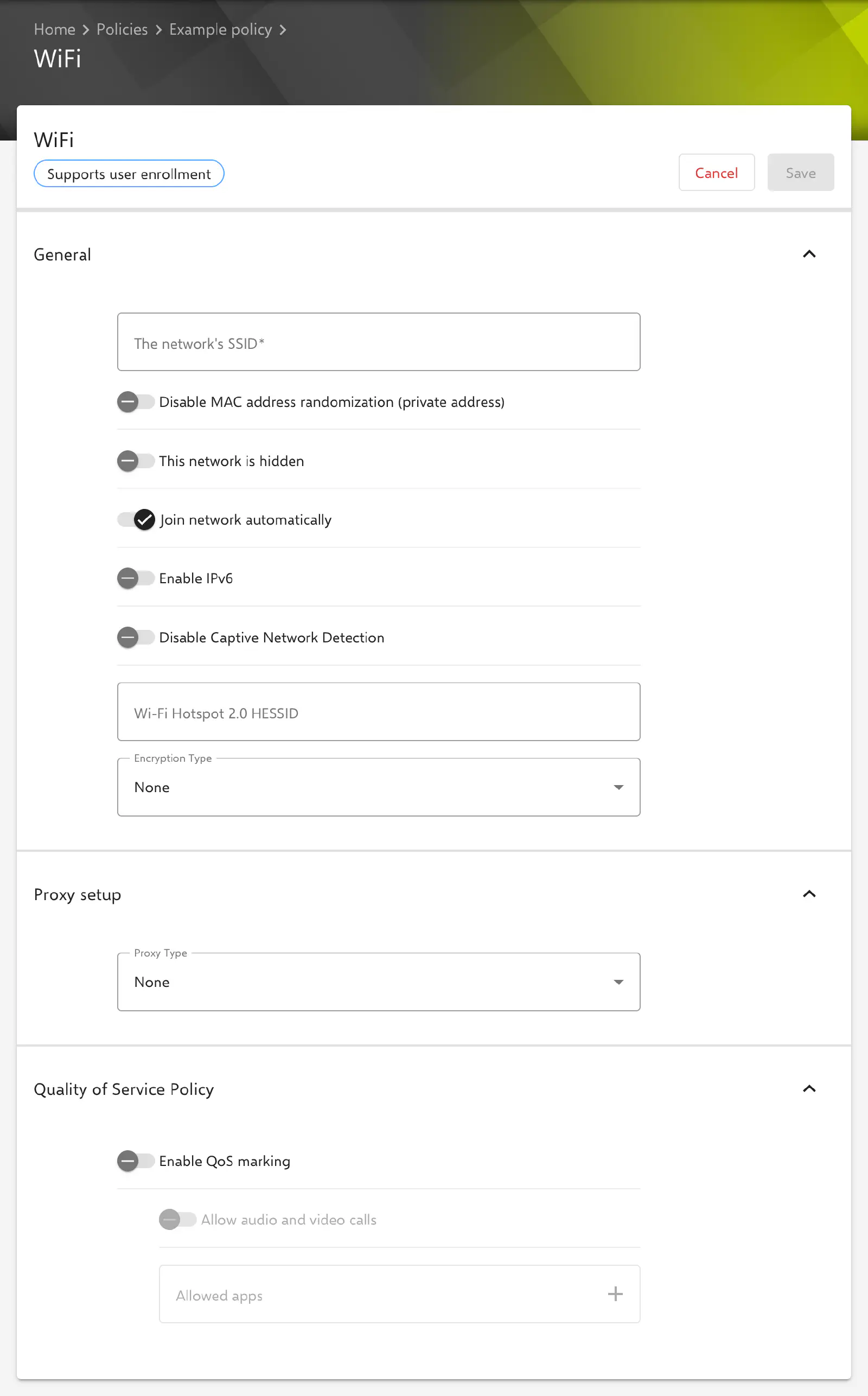
General
- The network’s SSID: name of the network. Required. The SSID is also shown as the name of the configuration in the policy.
- Disable MAC address randomization (private address): The device uses its fixed MAC address on this network instead of a private Wi-Fi address. Disabled by default.
- This network is hidden: for networks that do not broadcast their SSID. Disabled by default.
- Join network automatically: The device connects on its own as soon as the network is in range. Enabled by default.
- Enable IPv6: IPv6 for this network. In a new configuration the switch is off and is turned on for networks with IPv6.
- Disable Captive Network Detection: When connecting, the device does not check for a sign-in page (captive portal) and does not show the captive network assistant. Disabled by default.
- Wi-Fi Hotspot 2.0 HESSID: optional HESSID of a Hotspot 2.0 network. The form does not offer any further Hotspot 2.0 settings.
Encryption
The Encryption Type field determines how the device authenticates to the network. The default value is None (open network).
| Group | Encryption type | Additional fields |
|---|---|---|
| Open | None | – |
| Personal (shared key) | WEP, Personal WPA/WPA2, Personal WPA2, Personal WPA3, Personal Any | Password |
| Enterprise (802.1X) | Dynamic WEP, Enterprise WPA/WPA2, Enterprise WPA2, Enterprise WPA3, Enterprise Any | Enterprise authentication (EAP) → |
With Personal Any and Enterprise Any, the device selects the method offered by the network itself.
- Password: network key for the personal encryption types. Optional; if the field is left empty, no key is transferred. With the other types, a stored key is not transferred.
- Setup mode (macOS only): determines when the network is available.
- Default (preset): No setup mode is transferred; the default behavior of macOS applies.
- Login window: The network is already available at the login window.
- System: The network is used system-wide, independent of a user login.
- Both: Login window and System combined.
Enterprise authentication (EAP)
With the enterprise encryption types, the EAP settings appear. At least one type must be selected under Accepted EAP Types: TLS, TTLS, LEAP, PEAP, EAP-FAST, EAP-AKA and EAP-SIM. For EAP-FAST, Use PAC, Provision PAC and Provision PAC Anonymously can be enabled in addition.
Which further fields appear depends on the selected EAP types:
| Field | Appears with | Meaning |
|---|---|---|
| Username | TLS, TTLS, LEAP, PEAP, EAP-FAST | Required, unless only TLS is selected. Placeholders such as ${user.name} are possible. |
| One time user password | as Username, not with TLS only | The password is not transferred; the device asks for it on every connection. |
| Password | TTLS, LEAP, PEAP, EAP-FAST, as long as One time user password is off | Required as long as no password has been stored yet. |
| Identity Certificate | TLS, TTLS, PEAP, EAP-FAST | see Identity certificate → |
| Inner authentication | TTLS | PAP, CHAP, MSCHAP, MSCHAPv2 (default) or EAP |
| Outer identity | TTLS, PEAP, EAP-FAST | Optional anonymous identity that is sent outside the encrypted tunnel. |
| Enable 2 factor authentication | TTLS, PEAP, EAP-FAST | Intended for authentication with an identity certificate in addition to username and password. Disabled by default. |
| TLS minimum version, TLS maximum version | TLS, TTLS, PEAP, EAP-FAST | 1.0, 1.1 or 1.2 each. The minimum version must not be greater than the maximum. Without a selection, 1.0 and 1.2 apply. |
| Number of SIM RANDs | EAP-SIM | 2 or 3 (default) |
If only TLS is selected, Relution transfers the requirement that an identity certificate is mandatory.
Identity certificate
With an identity certificate, the device identifies itself to the RADIUS server. Two variants are available:
- Select certificate: Via Select, a certificate from Certificate Management → or a certificate template is chosen, e.g. of the Built-In CA → or a certificate pool →. With a template, each device receives its own certificate.
- Use user certificate: The Wi-Fi certificate from the profile of the user assigned to the device is used (see User certificates →). If the user has several Wi-Fi certificates, the optional Certificate name field selects one of them; it may contain placeholders. If it is left empty, the longest-lived certificate is used.
If the user certificate cannot be determined for a device, for example because no user is assigned to the device or the user has no matching certificate, the configuration is transferred without a certificate. If the selection contains no EAP type with an identity certificate, Relution discards a selected certificate when saving.
Trust
The following fields determine which server certificate of the RADIUS server the device trusts. They are available for all EAP types.
- Allow trust exceptions: If the device cannot verify the server certificate, the user may trust it manually. Enabled by default. For strict verification, the option is disabled and the two following fields are maintained.
- Trusted Server Names: list of names that may appear in the server certificate, e.g.
radius.example.com. - Trusted Certificates: multiple selection from Certificate Management →, typically the root certificate of the certificate authority that issued the server certificate. Only certificates in PKCS#1 format are offered.
Proxy setup
The Proxy setup section defines a proxy for this network. The Proxy Type field offers None (default), Automatic and Manual.
Manual
- Proxy address: host name or IP address of the proxy server. Required.
- Proxy port: required, 1 to 65535.
- Proxy username: optional, maximum 255 characters.
- Proxy password: optional.
Automatic
- Proxy PAC URL: address of the PAC file containing the proxy configuration. If the field is left empty, no address is transferred; according to Apple, the device then discovers the proxy itself via Web Proxy Auto-Discovery (WPAD).
- Allow direct connection when PAC is unreachable: If the PAC file cannot be reached, the device connects directly to the destination. Disabled in a new configuration.
If the Proxy Type is changed, Relution discards the settings of the previous type when saving, and when switching away from Manual also the proxy password.
Quality of Service policy
Enable QoS marking transfers a QoS marking (Quality of Service) for this network. According to the portal note, it is only effective in networks with Cisco QoS Fast Lane. Disabled by default. If the option is active, two further fields are available:
- Allow audio and video calls: Audio and video calls from Apple are marked with priority. Disabled in a new configuration.
- Allowed apps: list of bundle IDs of apps whose traffic is marked with priority.
Special notes
- Multiple Wi-Fi configurations: A policy can contain several Wi-Fi configurations, e.g. for different locations. If a device receives several Wi-Fi configurations with the same The network’s SSID, only one of them is applied; with different policies, the one from the policy with the highest priority. The SSID comparison is case-sensitive.
- Stored passwords: Since Relution 26.5.5, stored passwords (Wi-Fi password, EAP password, proxy password) are no longer displayed in the form; the field then shows
*****. If it remains unchanged, the stored password is kept. - Placeholders: User placeholders such as
${user.name}or${user.email}can be used in the text fields and are resolved per device. Device placeholders are not available. The form lists the available placeholders below the settings. More information: Advanced placeholders →
Related topics
- Certificate →
- SCEP →
- Global HTTP Proxy →
- Certificate Management →
- Built-In CA →
- Certificate Pool →
- Advanced placeholders →
- Return to Service →
- Configuration overview →