 Customer Hub
Platform SSO (PSSO)
With Relution, macOS devices can be configured so that users sign in with their Microsoft Entra ID account directly at the login window (Platform Single Sign-On). On the first sign-in, a local user account is created that is linked to the Entra ID identity.
Prerequisites
- macOS 13 (Ventura) or later for Extensible SSO, macOS 15 (Sequoia) or later for most Platform SSO parameters, macOS 26 (Tahoe) for Setup Assistant registration and authenticated guest mode. Microsoft recommends at least macOS 14 (Sonoma).
- A Mac with Apple Silicon if the recommended Secure Enclave Key method is used (see Choosing the authentication method). On Intel Macs, only the Password method is available.
- A Microsoft Entra ID tenant
- The Microsoft Entra ID connection must be set up in Relution: Connect Relution with Entra ID →.
- Permission to register devices in Microsoft Entra ID for the users
- Microsoft Company Portal for Mac must be available as an app and installed before users are targeted for PSSO. For registration during the Setup Assistant (macOS 26+), version 5.2604.0 (April 2026) is required. It is best to always download the latest version — it meets both requirements.
- Network access to the Microsoft/Apple sign-in URLs (see Step 3). These URLs must be reachable and excluded from any TLS inspection, otherwise registration fails.
Preparation in Microsoft Entra ID
Before rolling out the configuration in Relution, check the following in the Microsoft Entra admin center:
- Device settings: Under Identity → Devices → Device settings, “Users may join devices to Microsoft Entra ID” must be set to All (or to the relevant target group).
- Multi-factor authentication: If classic per-user MFA is enabled on the account, PSSO registration can fail. Use Conditional Access for the MFA requirement instead.
- Password complexity: For the Password method, the complexity requirements of the local account and Entra ID must match so that synchronization works.
Upload the Company Portal app
- Download the latest version of Microsoft Company Portal for Mac (.pkg) from Microsoft → and then upload it as a native app under
Apps→Native Appsin Relution. - Make sure the app is released/assigned to the target group/organization.
com.microsoft.CompanyPortalMac.ssoextension, which is required for Platform SSO. It must be at least version 5.2404.0 (for Setup Assistant registration on macOS 26+: 5.2604.0).5.YYMM.x (e.g. 5.2604.0 = April 2026), while the build number visible in the package or via pkgutil looks different — e.g. 4.83.26040910, where 260409 is the build date (2026-04-09). Both refer to the same release; a build from 2026 easily meets the PSSO requirement.Assign the device group and configurations
- Create a device group for the Mac devices on which PSSO is to be rolled out.
- Assign two configurations to this device group:
- Extensible Single Sign On (configuration from Step 3)
- App Compliance, to ensure that the Company Portal app is installed on the device before PSSO becomes active
Choosing the authentication method
The authentication method determines how users sign in to the device and to apps. It is the most important decision during setup and is set in Step 3 under Platform SSO.
| Method | Passwordless | Local password | Min. macOS | Suitable for |
|---|---|---|---|---|
| Secure Enclave Key (recommended) | Yes, phishing-resistant | remains unchanged | 13 / 14 | Personalized devices, Apple Silicon only |
| Password | No | synchronized with Entra ID | 13 / 14 | Intel Macs, shared/lab devices |
| Smart Card | Yes (via CBA) | remains unchanged | 14+ | Organizations with physical smart cards |
Recommendation: For personalized company Macs (Apple Silicon), use the Secure Enclave Key method — it is passwordless, hardware-bound, and meets phishing-resistant MFA. For Intel devices or shared devices, fall back to Password.
Registration during the Setup Assistant (macOS 26+): If PSSO is registered already during the Setup Assistant (Enable Registration During Setup Assistant = ON), then “Enable Create First User During Setup Assistant” must also be ON — regardless of the selected method. Otherwise no local account is created during setup and registration fails (verified in practice):
- Secure Enclave Key method: sign-in ends up in a login loop.
- Password method: the message “Sign-in not possible – Registration failed” appears.
With the toggle set to ON, the first local account is created via PSSO and sign-in completes in both cases.
Configuring the Extensible Single Sign On policy
In a macOS policy, add the Extensible Single Sign On configuration.
General section
| Parameter | Value |
|---|---|
| Extension Identifier | com.microsoft.CompanyPortalMac.ssoextension |
| Denied Bundle Identifiers | leave empty (default) |
| Allow Device Identifiers in Attestation | OFF |
Extension Data → AppPrefixAllowList | com.microsoft.,com.apple. |
Extension Data → browser_sso_interaction_enabled | 1 |
Extension Data → disable_explicit_app_prompt | 1 |
| Realm | leave empty |
| Registration Token | leave empty (not required for Entra ID – see note) |
| Screen Locked Behavior | Do Not Handle |
| Team Identifier | UBF8T346G9 (Microsoft Team ID) |
| Type | Redirect |
| URLs | https://login.microsoftonline.comhttps://login.microsoft.comhttps://sts.windows.net |
Platform SSO section
| Parameter | Value | Note |
|---|---|---|
| Account Display Name | leave empty | optional |
| Authentication Method | Secure Enclave Key | Recommended; for Intel/shared devices: Password |
| Login Policy | not set | macOS 15+ |
| Unlock Policy | not set | macOS 15+ |
| FileVault Policy | not set | macOS 15+ |
| Offline Grace Period | 0 | macOS 15+ |
| Authentication Grace Period | 0 | macOS 15+ |
| Non-Platform SSO Accounts | not set | macOS 15+ |
| Login Frequency | 64800 (seconds, equals 18 hrs) | Re-auth interval |
| Use Shared Device Keys | ON | Required for JIT account creation – see section “Shared Device Keys and account creation” |
| ├─ Enable Authorization | ON | |
| └─ Enable Create User at Login | ON | Just-in-time provisioning of the local account |
| Additional Groups | not set | optional |
| Administrator Groups | not set | optional |
| Authorization Groups | not set | optional |
| New User Authorization Mode | Standard | |
| User Authorization Mode | Standard | |
| Allow Device Identifiers in Attestation | OFF | macOS 15.4+ |
| Enable Create First User During Setup Assistant | ON | macOS 26+ — required when registering during the Setup Assistant (otherwise registration fails) |
| Authentication Methods for New Users | not set | macOS 26+ |
| Sync Profile Picture | OFF | macOS 26+ |
| Enable Quick Login for Authenticated Guest Mode | OFF | macOS 26+ |
| Enable Registration During Setup Assistant | ON | macOS 26+ |
| Short Name | com.apple.PlatformSSO.AccountShortName | Placeholder for the local short name |
| Full Name | name | Placeholder for the full name |
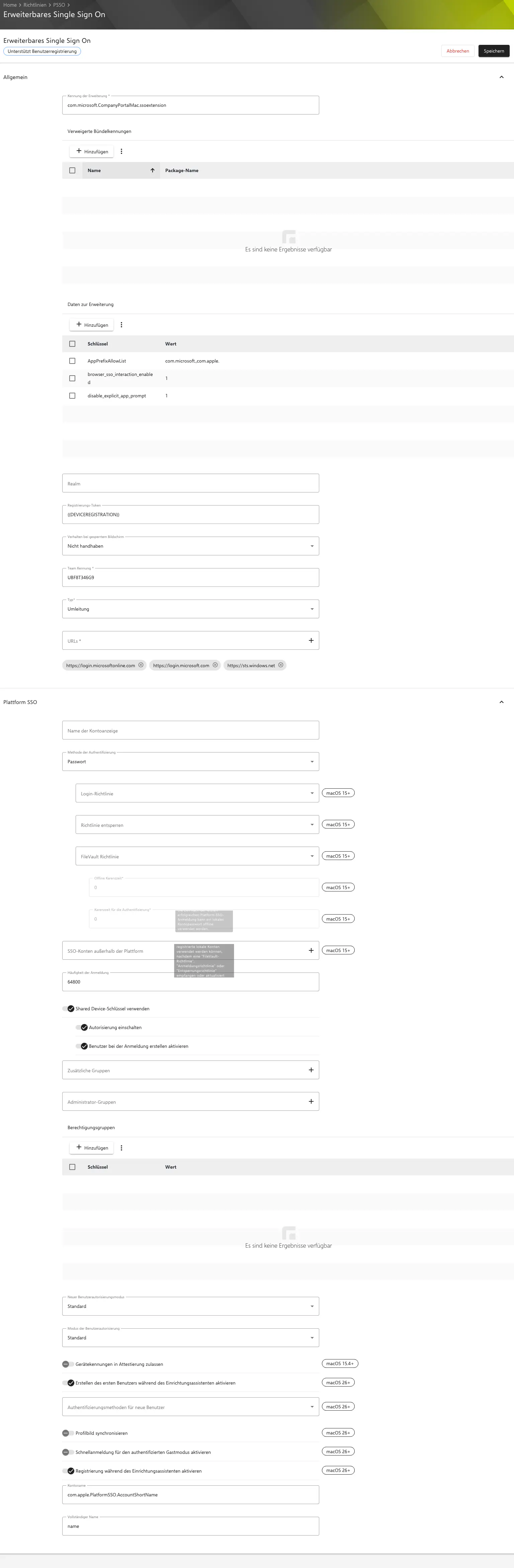
The screenshot shows the Password method as an example. For Secure Enclave Key (recommended, see table) the configuration is identical — only the “Authentication Method” field differs.
Further configuration
- Make sure the device group additionally includes the App Compliance for Company Portal (see Step 2), so the extension is already available at the time of registration.
- For automated deployment (DEP/ADE), it is advisable to assign the policy already in the DEP profile, so registration can take effect during the Setup Assistant (macOS 26+).
Shared Device Keys and account creation
“Use Shared Device Keys” must be ON, because in this flow the local accounts are provisioned via just-in-time provisioning (the Enable Authorization and Enable Create User at Login toggles). Without shared device keys, user-bound keys would be needed — but those cannot be generated while the user account does not yet exist (chicken-and-egg problem). Registration then fails (verified in practice).
Choosing the method by device type:
- Personalized device (recommended): Secure Enclave Key method — passwordless, hardware-bound, Touch ID.
- Shared / multi-user device (e.g. classroom, shift work): Password method, since changing users get by without pre-configured passwordless credentials. Register such devices without user affinity; Conditional Access is not supported on shared Macs.
Login Items / Background Task Management for Microsoft AutoUpdate
As of macOS Ventura, background processes such as Microsoft AutoUpdate (MAU) are blocked by default, or the user receives a “Background item added” notification and has to confirm it manually. Without this approval, MAU cannot update automatically in the background — this also affects Company Portal, since its updates run through MAU.
Therefore, additionally add the Login Items configuration and, via Add, enter the following path (path only, without a team identifier):
| Path | Hide |
|---|---|
/Library/Application Support/Microsoft/MAU2.0/Microsoft AutoUpdate.app | No |
Registration by end users
Once the configuration has arrived on the device and the Company Portal app is installed, the initial registration proceeds as follows:
A “Registration Required” notification appears on the device. Alternatively, it can be triggered from System Settings.
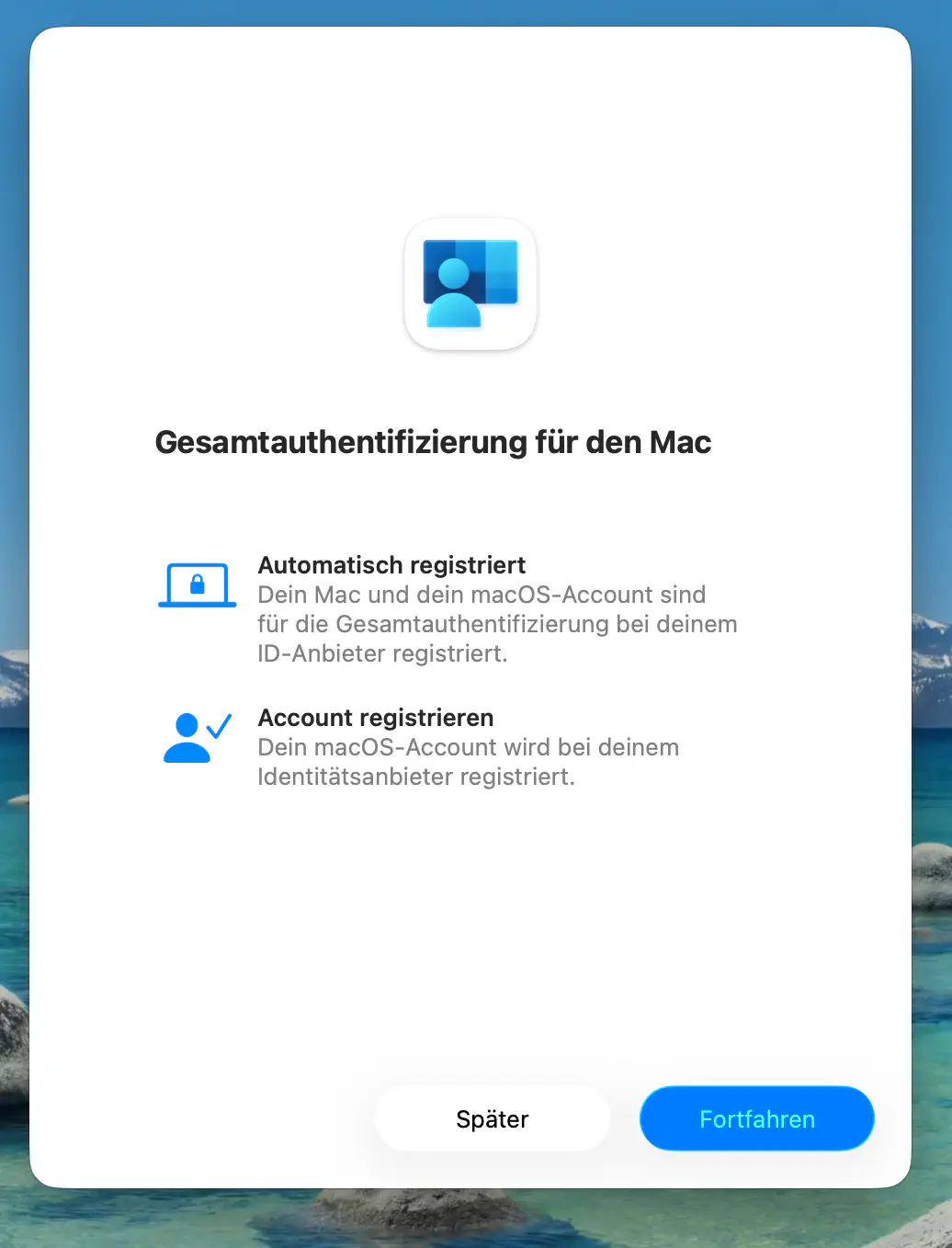
Right after the first sign-in, the “Single Sign-On for Mac” dialog opens with the “Register account” item. Click Continue (registration appears equally for the Password and Secure Enclave Key methods).
Users sign in with their Microsoft Entra ID account and confirm MFA if required (e.g. via Microsoft Authenticator).
The local user account is linked to the Entra ID identity. From now on, single sign-on applies for apps and browsers that use Entra ID.
Allowing passkey autofill for Company Portal
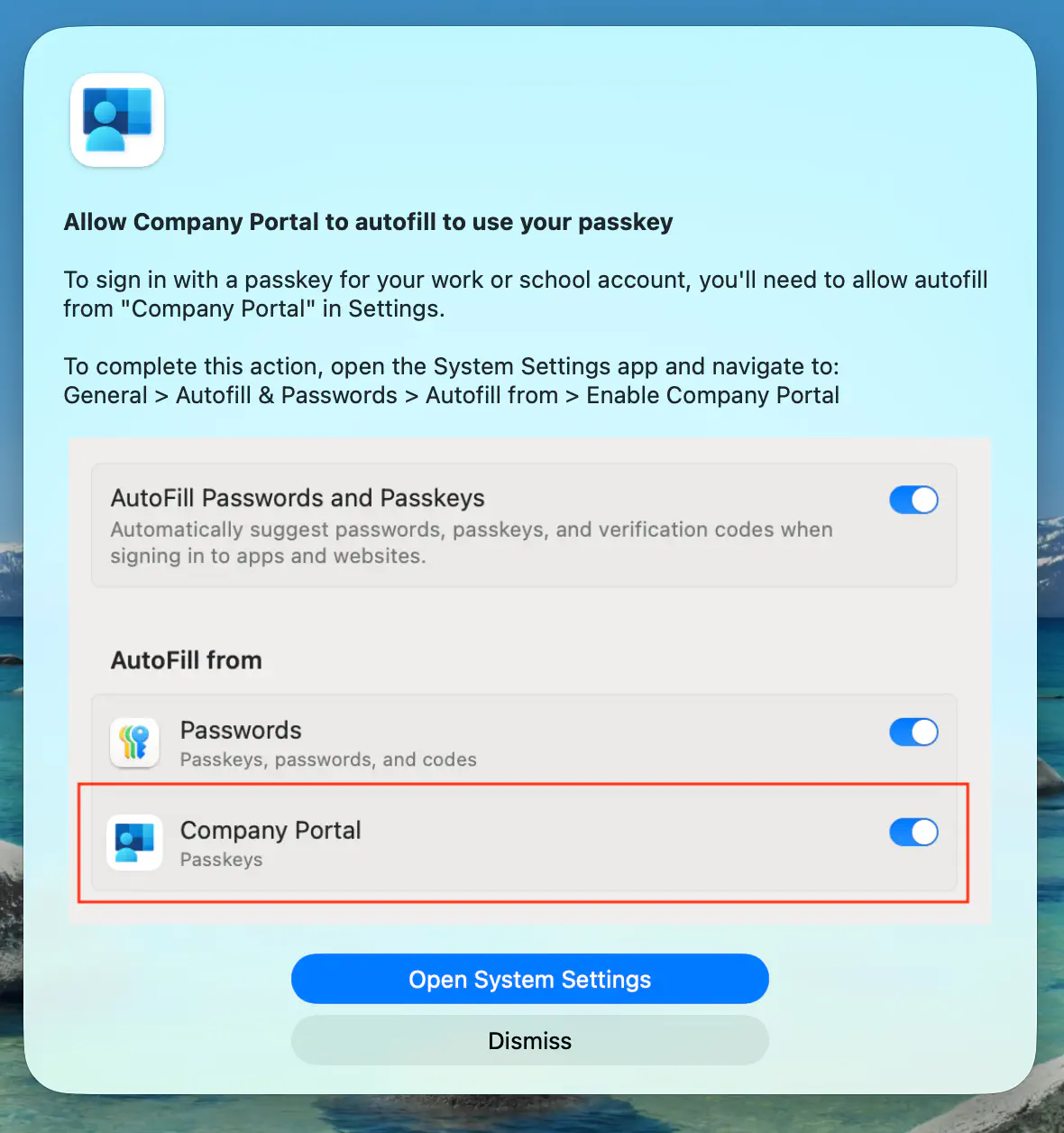
After the first sign-in, a prompt “Allow Company Portal to autofill to use your passkey” appears. For passkey sign-in to work (Platform Credential, especially with the Secure Enclave Key method), users must enable autofill for Company Portal once:
- Click Open System Settings (or open System Settings manually).
- Navigate to
General→AutoFill & Passwords. - Under AutoFill from, enable the toggle for Company Portal.
Verification
Registration success can be checked as follows:
- On the device (Terminal):
app-sso platform -sshows the registration status of the Platform SSO extension. - In Microsoft Entra: Under Devices, the device appears as registered/joined.
- Company Portal: The device status is shown as compliant/registered.
Possible errors
- Registration prompt does not appear → check whether Company Portal (version 5.2404.0+) is installed and the app compliance policy has already been evaluated.
- Sign-in fails → check the Team Identifier, Extension Identifier, and URLs for typos; make sure the URLs are excluded from TLS inspection.
- Registration aborts at MFA → disable classic per-user MFA on the account and use Conditional Access instead.
- “Secure Enclave” not available → affects Intel Macs; use the Password method there.
- Login loop or “Sign-in not possible – Registration failed” → when registering during the Setup Assistant (macOS 26+), “Enable Create First User During Setup Assistant” must be ON — regardless of the method. If the toggle is OFF, no local account is created: with Secure Enclave a login loop occurs, with Password the “Registration failed” message.
- Registration fails despite enabled account creation → “Use Shared Device Keys” must also be ON. With JIT account creation (“Enable Create User at Login”) active, user-bound keys otherwise cannot be generated (chicken-and-egg problem).
For further known issues and diagnostics, see Microsoft’s documentation “macOS Platform single sign-on known issues and troubleshooting”.