 Customer Hub
Accessibility
With the Accessibility configuration, the accessibility features of managed Macs are defined, for example inverted colors, mono audio, controlling the pointer with the keyboard, Sticky Keys, VoiceOver and the zoom function. Relution transfers the settings as a profile with the payload type com.apple.universalaccess.
Prerequisites
- The configuration can be added once per policy.
- It is only available for devices with device enrollment, not for devices with User Enrollment →.
- Relution lists the configuration for macOS 10.9 and later.
- A supervised device is not required.
Transferred values
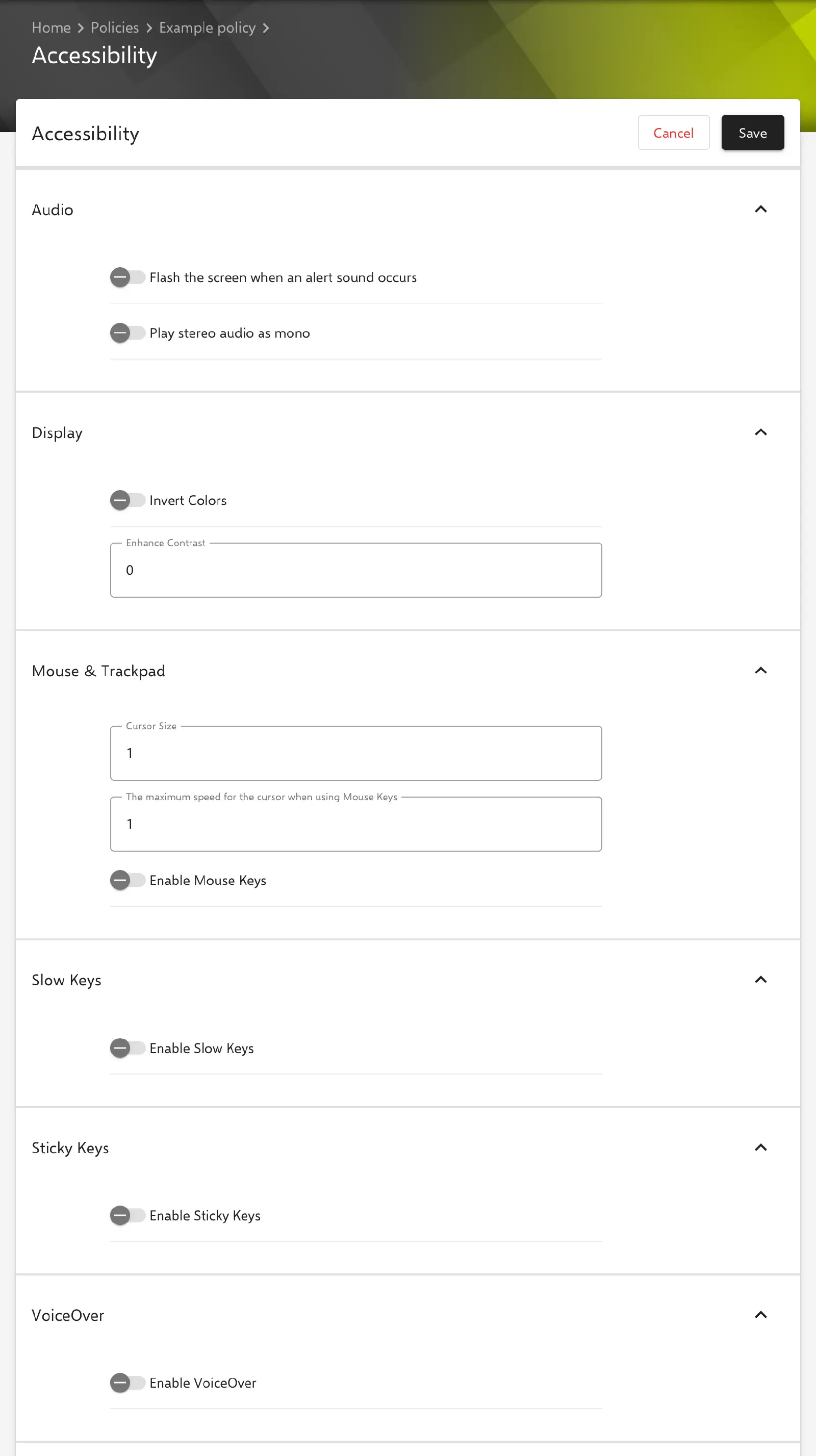
The form is divided into the sections Audio, Display, Mouse & Trackpad, Slow Keys, Sticky Keys, VoiceOver and Zoom options. The key in the profile is given in parentheses.
- All switches are off by default and are transferred with their current value, including
false. - Number fields with a default value are always transferred. The two zoom fields are empty by default; an empty number field is not transferred.
- Some fields are only shown in the form when the related function is enabled. Their value is transferred nevertheless, even if the function is turned off.
Audio and display
Section Audio:
- Flash the screen when an alert sound occurs (
flashScreen): The screen additionally flashes when an alert sound plays. - Play stereo audio as mono (
stereoAsMono): Stereo sound is output as mono on both channels.
Section Display:
- Invert Colors (
whiteOnBlack): The colors of the screen display are inverted. - Enhance Contrast (
contrast, default value:0): Contrast of the screen display as a value between0and100. Relution transfers the value as a fraction between0and1, so50becomes0.5. If the field is left empty,0is transferred.
Mouse & Trackpad
- Cursor Size (
mouseDriverCursorSize, default value:1): Size of the pointer as a value between1(normal) and4. The field applies independently of Mouse Keys. - The maximum speed for the cursor when using Mouse Keys (
mouseDriverMaxSpeed, default value:1): Maximum speed of the pointer when it is controlled with Mouse Keys, value between1and32. - Enable Mouse Keys (
mouseDriver): The pointer can be moved with the keyboard.
When Enable Mouse Keys is switched on, the form shows two additional fields:
- Ignore built-in trackpad (in the portal: Ignore buil-in trackpad,
mouseDriverIgnoreTrackpad): The built-in trackpad is ignored while Mouse Keys is on. - Initial Delay in milliseconds (in the portal: Initial Delay in miliseconds,
mouseDriverInitialDelay, default value:1): Waiting time before the pointer starts moving while a key is held down. The value must be at least0.
Slow Keys and Sticky Keys
Section Slow Keys:
- Enable Slow Keys (
slowKey): A keystroke is only accepted once the key has been held for a certain time. When the switch is on, the form shows two additional fields:- Use click key sounds (
slowKeyBeepOn): A click sound plays when a key is pressed and when it is accepted. - The acceptance delay, in milliseconds (
slowKeyDelay, default value:250): Time a key must be held until the keystroke is accepted. The value must be at least0.
- Use click key sounds (
Section Sticky Keys:
- Enable Sticky Keys (
stickyKey): Modifier keys such as Shift, Command or Option stay active after being pressed, so key combinations are entered one after the other instead of simultaneously. When the switch is on, the form shows two additional switches:- Beep when a modifier key is set (
stickyKeyBeepOnModifier): A beep sounds when a modifier key is set. - Display pressed key on screen (
stickyKeyShowWindow): The modifier keys that are set are shown on the screen.
- Beep when a modifier key is set (
VoiceOver and zoom
Section VoiceOver:
- Enable VoiceOver (
voiceOverOnOffKey): turns on the VoiceOver screen reader, which reads screen content aloud.
Section Zoom options:
- Enable zoom via keyboard (
closeViewHotkeysEnabled): Magnification can be controlled with keyboard shortcuts. - Enable zoom via Scroll Wheel (
closeViewScrollWheelToggle): Magnification can be controlled with a scroll gesture while a modifier key is held down. - Enable smooth images (
closeViewSmoothImages): Magnified content is smoothed. - Maximum Zoom (
closeViewNearPoint): highest zoom level, value between1and40. - Minimum Zoom (
closeViewFarPoint): lowest zoom level, value between1and40.
If Minimum Zoom is greater than Maximum Zoom, the configuration cannot be saved; the form then reports “Minimum Zoom value should be lower than Maximum Zoom.” Equal values are permitted.
Special notes
- System Settings: The configuration sets the values for the accessibility features. How macOS displays the settings and whether they can be changed in System Settings is determined by macOS.
- Setup: Whether the accessibility pane is shown during the initial setup of the Mac is not determined by this configuration but by the option Skip accessibility in the Setup Assistant →.
Related topics
- Overview → — All configurations for macOS at a glance.
- Setup Assistant → — Skip panes of the initial setup, including accessibility.
- Keyboard Settings → — Further settings for the keyboard.