 Customer Hub
App compliance
The App compliance configuration defines which apps must be present on a Mac. Relution can install these apps automatically and reports devices on which a required app is missing as noncompliant. Unlike on iOS, the macOS configuration has no blocklist or allowlist, only the Required apps list.
Prerequisites
- The configuration is created under
Devices→Policiesin a macOS policy via Add Configuration → App compliance. - One configuration of this type is possible per policy.
- The configuration is also available for Macs with User Enrollment →.
- A supervised device is not required.
- Relution installs native apps in
.dmgformat via the macOS Companion. It requires macOS 12 or later and is not available with User Enrollment (see Install native macOS apps →).
Required Apps
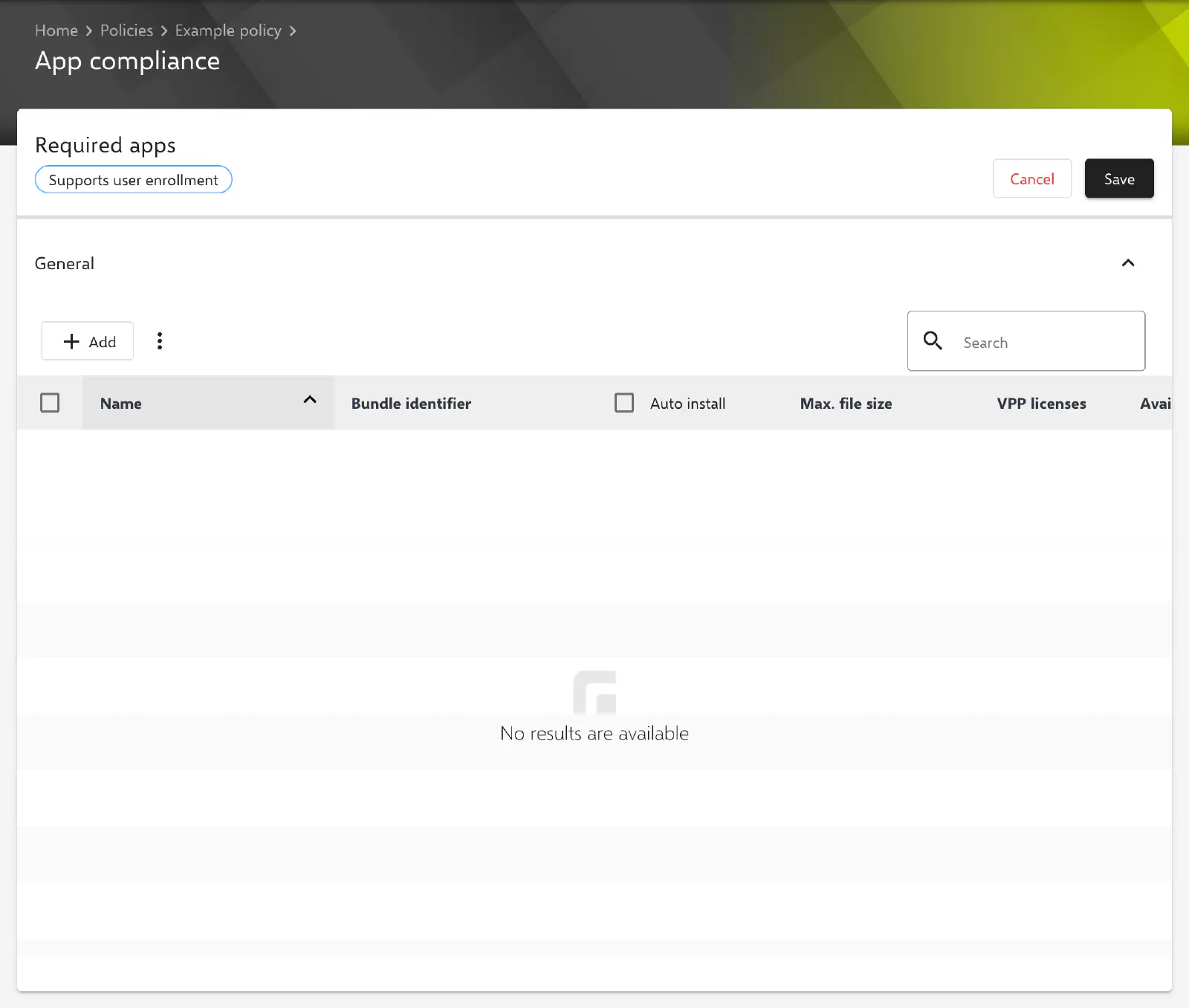
In the General section, the required apps are entered via Add. Two sources are available:
- Relution App Store app: macOS apps from the Relution App Store with a released version are offered. Native apps (
.pkg,.dmg) always appear, App Store apps only if licenses from Apps and Books (VPP in the portal) are available for them in the organization. - Manually add app: Name and Internal name (bundle ID, e.g.
com.vendor.appname) are entered. If the bundle ID matches a macOS app in the Relution App Store, Relution links the entry to this app when saving.
An app that is already on the list is not added twice. Entries are removed via the context menu of a row or, after selecting several rows, via Delete.
The list contains the following columns:
- Name and Bundle identifier: name and bundle ID of the app.
- Auto install: If the checkbox is selected, Relution installs the app automatically on devices where it is missing. It is selected when an app is added. The checkbox in the column header sets or clears the option for all apps at once.
- Max. file size: download size per app. The Total file size row below the list shows the sum of all apps.
- VPP licenses and Available VPP licenses: show the existing and the remaining free Apps and Books licenses per app.
The Lockable and Hideable columns as well as the options for automatic uninstallation and for extending an allowlist only exist in the iOS configuration.
Automatic Installation
Native apps from the Relution App Store and App Store apps with available Apps and Books licenses are installed automatically. Relution assigns the license itself during installation (see Manage App Store apps →). Manually added apps without a link to an app in the Relution App Store are not installed, only checked for their presence.
Relution detects whether a native app is already installed via the detection rules of the app. Without a matching detection rule, the installation is scheduled again with every check.
If an automatically installed app is no longer required after a policy has been changed or removed, Relution uninstalls it from the device. Apps that are still assigned to the device’s user via an auto deployment are excluded. The macOS configuration offers no option to turn off this uninstallation (see Install native macOS apps →).
Compliance Check
If an app on this list is missing on a device, the device is displayed as Noncompliant in the device inventory, provided the option Add compliance violation when required apps are missing is enabled under Settings → Device Management → Device Management (default). All apps on the list are checked, including those without Auto install. This makes the configuration suitable for pure status monitoring of apps installed by other means, for example via a script (see Adobe Creative Cloud Apps →).
App Store apps and manually added apps are considered installed if their bundle ID is in the device’s list of installed apps. Native apps are considered installed if all detection rules of the app match.
Multiple Configurations on One Device
If several App compliance configurations from different policies apply to a device, the required apps of all configurations are combined. If Auto install is selected for an app in any of the configurations, it is installed automatically.
Related topics
- Overview → — All configurations for macOS at a glance.
- Install native macOS apps → — Uploading PKG and DMG apps, creating detection rules and analyzing errors.
- Manage App Store apps → — Distributing App Store apps with Apps and Books licenses.
- App compliance (iOS) → — The same configuration for iOS with blocklist and allowlist.