 Customer Hub
Content Caching
With the Content Caching configuration, the macOS content caching service is set up on managed Macs. A Mac with content caching enabled stores content from Apple such as apps, software updates and iCloud data and provides it to other Apple devices on the network, so that this content is not downloaded from the internet by each device individually. Relution transfers the settings as a profile with the payload type com.apple.AssetCache.managed.
Prerequisites
- The configuration can be added once per policy.
- It is only available for devices with device enrollment, not for devices with User Enrollment →.
- Relution lists the configuration for macOS 10.13.4 and later. Individual options require macOS 10.15; they are noted below.
- A supervised device is not required.
- If the option Allow content caching is turned off in the Restrictions → configuration, content caching is not available on the Mac.
System settings
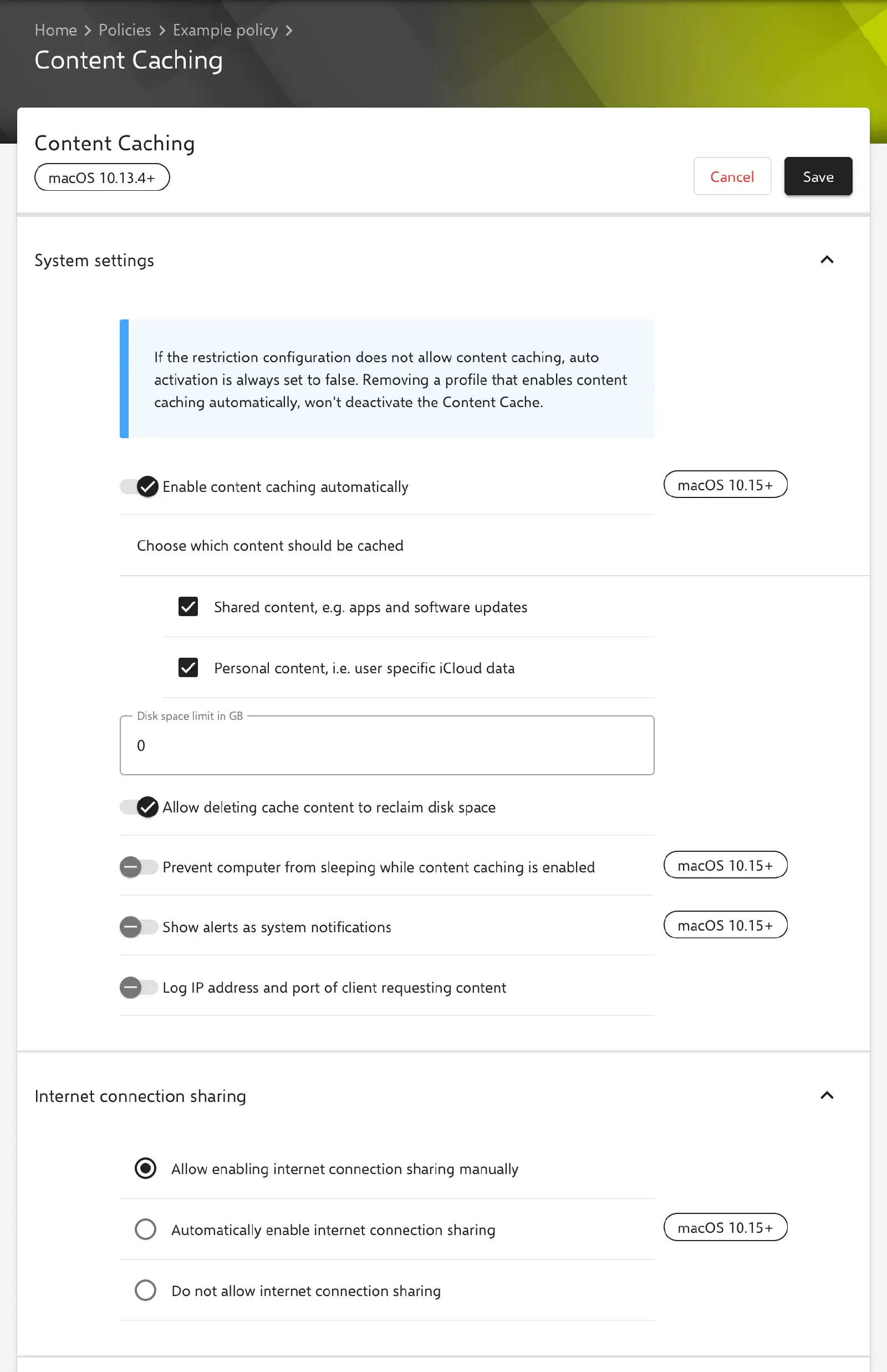
The System settings section defines whether content caching is turned on, which content is cached and how much disk space the cache may use. The key in the profile is given in brackets. All switches are transferred with their current value, including false.
- Enable content caching automatically (
AutoActivation, default: enabled, macOS 10.15 and later): turns on content caching on the Mac automatically. - Choose which content should be cached: at least one of the two options must be selected, otherwise the configuration cannot be saved.
- Shared content, e.g. apps and software updates (
AllowSharedCaching, default: enabled): content that is the same for many devices, such as apps and software updates. - Personal content, i.e. user specific iCloud data (
AllowPersonalCaching, default: enabled): user-related content such as iCloud data.
- Shared content, e.g. apps and software updates (
- Disk space limit in GB (
CacheLimit, default:0): maximum disk space for the cache.0means unlimited. Relution converts the value to bytes with the factor 1,000,000,000; negative values are rejected. - Allow deleting cache content to reclaim disk space (
AllowCacheDelete, default: enabled): the cache may delete cached content to free up disk space. - Prevent computer from sleeping while content caching is enabled (
KeepAwake, default: disabled, macOS 10.15 and later): the Mac does not go to sleep while content caching is turned on. - Show alerts as system notifications (
DisplayAlerts, default: disabled, macOS 10.15 and later): alerts of the caching service appear as notifications on the Mac. - Log IP address and port of client requesting content (
LogClientIdentity, default: disabled): the cache logs the IP address and port of the clients requesting content.
Internet connection sharing
The Internet connection sharing section controls caching for iPhone and iPad devices that are connected to the Mac via USB and share its internet connection (called “tethered caching” by Apple). Exactly one of the following options is selected:
- Allow enabling internet connection sharing manually (default): sharing can be turned on manually on the Mac. Relution transfers
AutoEnableTetheredCachingandDenyTetheredCachingwithfalseeach. - Automatically enable internet connection sharing (macOS 10.15 and later): sharing is turned on automatically (
AutoEnableTetheredCaching=true). - Do not allow internet connection sharing: sharing is not possible (
DenyTetheredCaching=true).
Advanced options
The Advanced Options section defines the storage location and the port of the cache.
- Custom data path (
DataPath, default:/Library/Application Support/Apple/AssetCache/Data): directory in which the cache stores its content. The path must start with/and either be/Library/Application Support/Apple/AssetCache/Dataor end with it, e.g./Volumes/Cache/Library/Application Support/Apple/AssetCache/Data. Before this fixed part, only letters, digits,_,+and/are allowed, so no spaces, hyphens or dots. A directory that does not exist is created; content already cached is not moved when the path changes. - Custom port number (
Port, default:0): TCP port on which the cache accepts requests. With0, macOS picks a random available port. The form only checks that the value is not negative.
Clients, peer and parent caches
The Clients, Peer and Parent caches card defines which devices may use the cache and which other caches it works with. Peer caches are further caches on the network that exchange content with each other. Parent caches are caches from which this cache obtains content instead of downloading it directly from Apple.
IP ranges are entered the same way in all lists: the first and the last address of the range are entered in the input field, both as IPv4 or both as IPv6 addresses. The plus icon, the Enter key or leaving the field adds the range and shows it as an entry. Clicking an entry moves it back into the input field for editing, the cross removes it.
General
- Listen with Peers and Parents (
ListenWithPeersAndParents, default: enabled): besides the allowed clients, the cache also accepts requests from the allowed peer caches and the listed parent caches.
Clients
- Custom client public IP ranges (
PublicRanges): public IP address ranges through which the clients of this cache access the internet. Apple uses these ranges to match clients to the cache. Without entries, the key is not transferred.
Below, it is defined which clients the cache serves:
- Allow clients from all reachable networks (default): Relution transfers
LocalSubnetsOnlyandListenRangesOnlywithfalse. - Allow clients from immediate local networks only: the cache only serves clients from its local subnets (
LocalSubnetsOnly=true). - Allow clients from the following address range only: the cache only serves clients from the ranges in the list Custom client listen IP ranges (
ListenRangesOnly=true, ranges inListenRanges). The list only appears with this option.
Peer caches
- Allow peers from immediate local network only (default): the cache only works with peer caches from its local subnets (
PeerLocalSubnetsOnly=true). - Allow peers from the following addresses only: shows two lists whose ranges are only transferred with this option:
- IP ranges of peers to query (
PeerFilterRanges): ranges of the peer caches that this cache queries. - IP ranges of peers to allow queries from (
PeerListenRanges): ranges of the peer caches whose requests this cache accepts.
- IP ranges of peers to query (
Parent caches
- Parent content cache server (local IP address) (
Parents): local IPv4 addresses of the caches from which this cache obtains content. Each address is added as a separate entry; IPv6 addresses and host names are not accepted. Without entries, the cache downloads content directly from Apple. - Policy to choose from parent content cache (
ParentSelectionPolicy, default: Round robin): defines how one of several parent caches is selected.- Random (
random): a randomly chosen cache. - Round robin (
round-robin): the caches in turn, one after the other. - First available (
first-available): always the first reachable cache in the list. - Sticky available (
sticky-available): the same cache as long as it is reachable; then the next one in the list. - Hashed URL path match (
url-path-hash): the selection depends on the path of the requested URL, so the same content always comes from the same cache.
- Random (
Special notes
- Placeholders: the form shows the Available placeholders card. Since Custom data path only allows the characters listed above and Parent content cache server (local IP address) only allows IPv4 addresses, placeholders cannot be used meaningfully in this configuration.
- No passwords or certificates: the configuration contains no credentials and does not reference any certificates.
- Compliance violation: if the profile cannot be installed on a Mac, the device shows the violation Content Caching configuration.
- Apple Configurator 2: if a policy already contains an Apple Configurator 2 configuration with the payload type
com.apple.AssetCache.managed, the Content Caching configuration can no longer be added there, and vice versa (see Apple Configurator 2 Configuration →).
Related topics
- Overview → — All configurations for macOS at a glance.
- Restrictions → — Contains the option Allow content caching, which allows or blocks content caching on the Mac.
- Apple Configurator 2 Configuration → — Custom profiles with payloads that Relution does not offer as a form.
- Advanced placeholders →