 Customer Hub
Dock
With the Dock configuration, the Dock of managed Macs is set up. It defines the size, magnification and position of the Dock, animations and window behavior as well as the apps, folders, files and links that appear in the Dock. For most settings, it can also be defined whether users may change them in System Settings. Relution transfers the settings as a profile with the payload type com.apple.dock.
Prerequisites
- The configuration can be added once per policy.
- It is only available for devices with device enrollment, not for devices with User Enrollment →.
- Relution lists the configuration for macOS 10.7 and later. According to Apple, the option Allow DockFixup override requires macOS 10.12.
- A supervised device is not required.
Settings and permissions
The form contains two kinds of switches. The key in the profile is given in parentheses.
- Settings such as Enable magnification are inactive by default. Relution always transfers them with their current value, including
false. An inactive switch therefore turns the function off on the Mac, even if macOS would have enabled it without a profile. - Permissions whose label begins with Allow user to modify are active by default. As long as a permission is active, the user can change the corresponding setting on the Mac. If it is inactive, macOS locks the setting; Relution transfers the key ending in
-immutableastruefor this purpose.
Selection fields without a selection are not transferred; macOS then keeps the existing setting. Once a selection has been made, it cannot be cleared in the form, only changed.
General
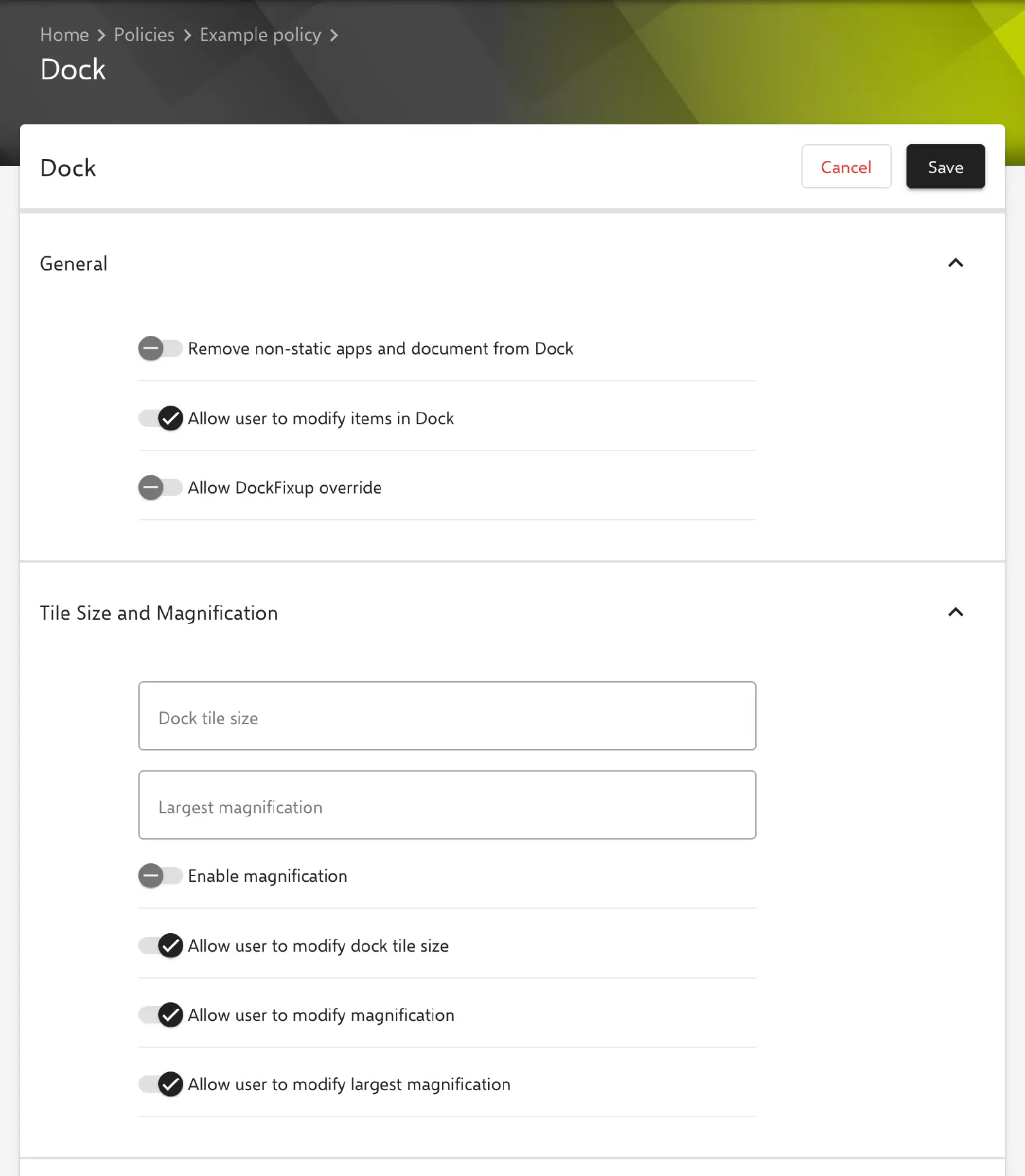
- Remove non-static apps and document from Dock (
static-only, default: inactive): The Dock contains only the items from Static apps and Static others; the items from Persistent apps and Persistent others are ignored. If the option is inactive, both kinds are merged, with the static items first. - Allow user to modify items in Dock (
contents-immutable, default: active): If the permission is inactive, items in the Dock cannot be added, removed or moved. - Allow DockFixup override (
AllowDockFixupOverride, default: inactive): For new and migrated users, the file/Library/Preferences/com.apple.dockfixup.plistis used at the first login. The option has no effect on existing users.
Tile size and magnification
- Dock tile size (
tilesize): Size of the icons in the Dock. Values from 16 to 128 are permitted. If the field is left empty, the key is not transferred. - Largest magnification (
largesize): Maximum size to which icons are magnified when the mouse pointer moves over them. Values from 16 to 128 are permitted. If the field is left empty, the key is not transferred. - Enable magnification (
magnification): turns on the magnification of icons when the mouse pointer moves over them. - Allow user to modify dock tile size (
size-immutable): Slider for the size of the Dock. - Allow user to modify magnification (
magnify-immutable): Turning magnification on and off. - Allow user to modify largest magnification (
magsize-immutable): Slider for the strength of the magnification.
Position on screen
- Position on screen (
orientation): Bottom, Left or Right. - Minimize windows using (
mineffect): Animation when a window is minimized, Genie Effect or Scale Effect. - Double-click a window’s title bar to (
dblclickbehavior): Action when the title bar of a window is double-clicked, Zoom, Minimize or Do Nothing. - Minimize windows into application icon (
minimize-to-application): Minimized windows are placed in the icon of the corresponding app instead of on the right side of the Dock. - Allow user to modify dock position on screen (
position-immutable) - Allow user to modify minimize window effect (
mineffect-immutable) - Allow user to modify Double-click a window’s title bar (
dblclickbehavior-immutable) - Allow user to modify minimize windows into application icon (
minintoapp-immutable)
Animation
- Automatically hide and show the Dock (
autohide): The Dock is hidden and only appears when the mouse pointer is moved to the edge of the screen. - Animate opening applications (
launchanim): Icons bounce when an app is launched. - Show indicators for open applications (
show-process-indicators): A dot appears below the icons of open apps. - Show suggested and recent apps in Dock (
show-recents): The Dock contains a separate area with suggested and recently used apps. - Allow user to modify automatically hiding Dock (
autohide-immutable) - Allow user to modify animate opening applications (
launchanim-immutable) - Allow user to modify show indicators (
showindicators-immutable) - Allow user to modify suggested and recent apps in Dock (
showrecents-immutable)
Windows
- Prefer tabs when opening documents (
windowtabbing): defines whether documents open in tabs instead of new windows, Always, In Full Screen or Never. - Allow user to modify prefer tabs when opening documents (
windowtabbing-immutable)
Special folders
The field Managed client special folders selects folders that are created when a user logs in and are placed in the Dock (MCXDockSpecialFolders). Several folders can be selected at the same time; without a selection, the key is not transferred.
- Documents
- My Applications: according to Apple, only used in Simple Finder environments.
- Original Network Home: according to Apple, only used for mobile account users.
- Shared
Items in the Dock
Four lists define which items appear in the Dock. The Applications side is the area with the app icons, the Documents side is the area to the right of the divider with folders, files and links.
| Section | Area in the Dock | Removable by the user | Key |
|---|---|---|---|
| Static apps | Applications side | no | static-apps |
| Static others | Documents side | no | static-others |
| Persistent apps | Applications side | yes | persistent-apps |
| Persistent others | Documents side | yes | persistent-others |
Add creates an item. Edit is available when exactly one item is selected, Delete also for several items. New items are appended to the end of the list; this order is transferred. Reordering is not provided in the form. Changes to the lists only take effect when the configuration is saved. Empty lists are not transferred.
Fields of an item
For items on the Applications side (Static apps, Persistent apps), only Label, Path type and Path are available; the item is always transferred as a file. For the Documents side (Static others, Persistent others), the remaining fields are added.
- File type (Documents side only, default: File): Kind of item, File, Directory or URL. From this, Relution derives the tile type
file-tile,directory-tileorurl-tile. - Label (required): Name displayed in the Dock.
- Path type (default: Path): Path for a path in the file system, File URL for a URL. With Path, Relution transfers the value in the
file-dataentry, with File URL in theurlentry. For items of file type URL, such as a link to a web page, macOS expects the address in theurlentry; File URL is the right choice for this. - Path (required): Path to the app, file or folder, for example
/System/Applications/Notes.appor/Applications/Safari.app, or the URL. - Display as (Documents side only): Folder or Stack (
displayas). Only transferred for the file type Directory. - Show as (Documents side only): Fan, Grid or List (
showas). Only transferred for the file type Directory. - Home directory (Documents side only, optional): Value that Relution adds to the item as the key
home directory relative. If the field is left empty, the key is not transferred.
Special notes
- Placeholders: Relution replaces placeholders such as
${user.name}or${device.serialnumber}in the text fields, for example Label and Path, when generating the profile for each device. The form does not show a list of available placeholders. More information: Advanced placeholders → - Checking paths: Relution does not check whether the specified apps, files and folders exist on the Mac. How macOS handles missing targets is decided by the operating system.
Related topics
- Overview → — All configurations for macOS at a glance.
- Desktop → — Desktop background of managed Macs.
- Login Window → — Design of the login window.
- Apple Configurator 2 Configuration → — Custom profiles with payloads that Relution does not offer as a form.
- Advanced placeholders →