 Customer Hub
Exchange
With the Exchange configuration, a Microsoft Exchange account is set up on managed Macs. Server, email address and user name are predefined, so that, depending on the sign-in method, only the password or a sign-in via OAuth is required on the device. Relution transfers the settings as a profile with the payload type com.apple.ews.account (Exchange Web Services).
Prerequisites
- The configuration can be added to a policy multiple times, e.g. for several accounts.
- It is available for devices with device enrollment and for devices with User Enrollment →.
- A supervised device is not required.
- Relution does not restrict the configuration to specific macOS versions. The OAuth option is marked with macOS 10.14 or later in the form.
Differences from iOS
The macOS configuration is considerably leaner than the configuration of the same name for iOS (see Exchange (iOS) →):
- iOS uses an Exchange ActiveSync account (
com.apple.eas.account), macOS an account via Exchange Web Services (com.apple.ews.account). - Service selection (calendar, email, notes, reminders, contacts), synchronization settings, S/MIME, certificate-based sign-in, assignment to a VPN and Update mode are not available on macOS.
- Instead, macOS offers the Additional server settings section with path, port and an external server, as well as the Allow Mail Drop option.
- On macOS, the Email address is a required field.
- On macOS, the account is installed via the user channel in the profile of the signed-in user, not device-wide (see Special notes →).
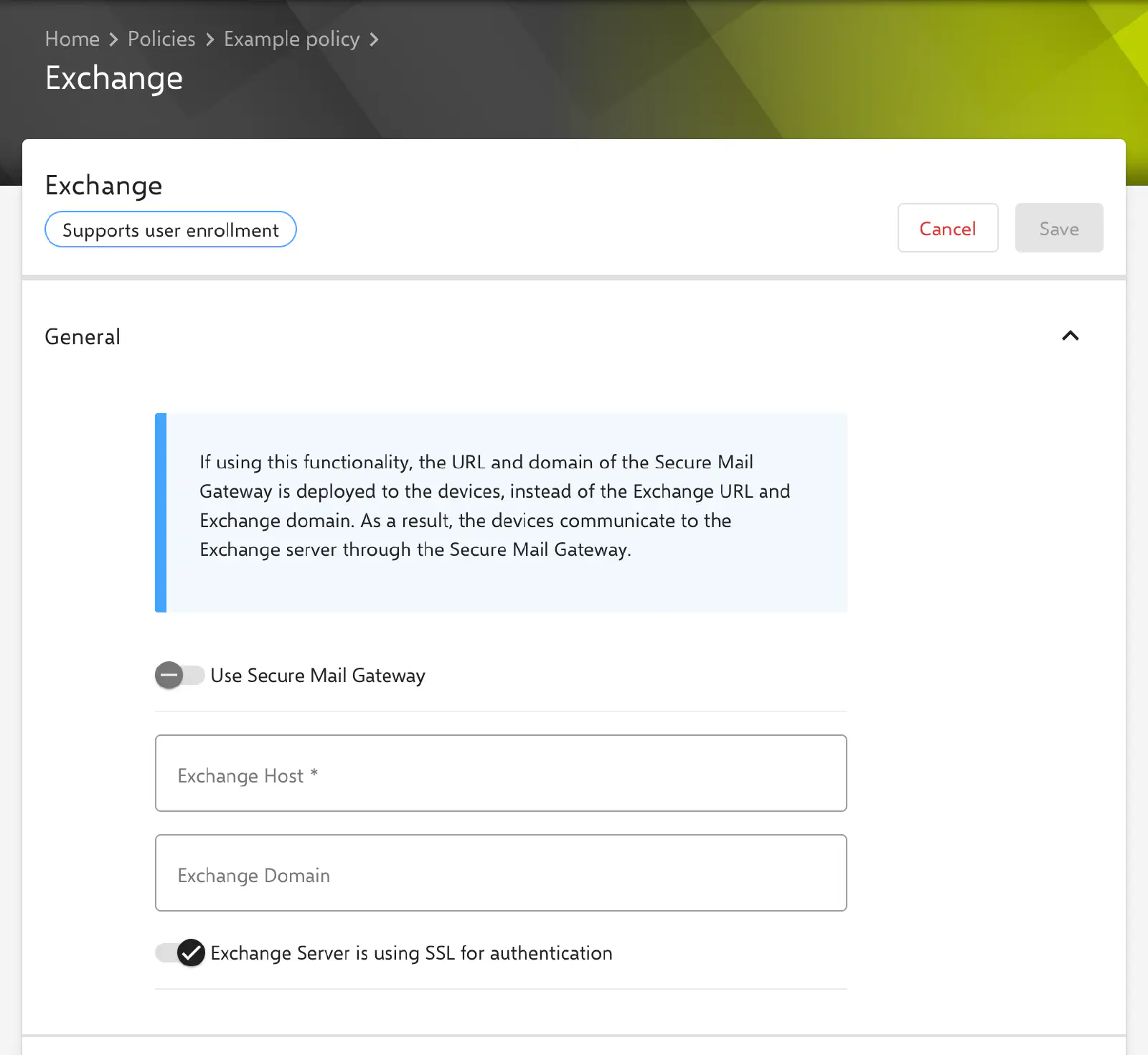
General
The General section defines the Exchange server:
- Use Secure Mail Gateway (default: disabled): If the option is enabled, the SMG Service URL (without
https://) is distributed as host and the unique name of the organization as domain. The Macs then communicate with the Exchange server via the Secure Mail Gateway. The Exchange Host and Exchange Domain fields are locked in this case. - Exchange Host (required field, key
Host): address of the Exchange server without protocol, e.g.mail.example.com. - Exchange Domain (optional): When saving, the value is prepended to the user name (
DOMAIN\username) and is not transferred as a separate field. - Exchange Server is using SSL for authentication (key
SSL, default: enabled): In version 27.0.1, Relution always transfersSSLastrue, regardless of the toggle position. After saving, the toggle appears enabled again.
Use Secure Mail Gateway requires a Secure Mail Gateway that is configured and enabled in the settings. If it is not configured or disabled, the option cannot be turned on, and the form shows a corresponding note. If macOS or individual macOS versions are restricted in the Secure Mail Gateway settings, the form shows a warning, as these devices cannot connect to the Exchange server.
More information: Secure Mail Gateway →
Account settings
The Account settings section contains the account data:
- Account name (required field, key
PayloadDisplayName): name of the configuration in the policy and of the entry in the profile on the Mac. - Email address (required field, key
EmailAddress): full email address of the account. Use the user’s email address enters the placeholder${user.email}and locks the field. Otherwise, a valid email address or a placeholder must be entered. - User name (required field, key
UserName): The options are Manually, Use the user’s username (${user.name}) and Use the user’s email address (${user.email}). If an Exchange Domain is entered, it is prepended, e.g.CORP\${user.name}. - OAuth (key
OAuth, default: disabled): Sign-in takes place via the sign-in page of the identity provider, e.g. Microsoft Entra ID for Exchange Online. As long as the option is enabled, the Password field is locked. - Password (optional, key
Password): The value is transferred unchanged to all devices the policy is assigned to. There is no placeholder for the password of the respective user. For personal accounts, the field therefore usually remains empty, and the password is entered on the Mac.
A saved password is not displayed in the form; the field then shows *****. If it remains unchanged, the saved password is kept. If the content is deleted and the configuration saved, the password is removed.
If OAuth is enabled, Relution discards any input in the Password field when saving.
Additional server settings
The fields in the Additional server settings section are optional. Empty fields are not included in the profile.
- Use SSL (key
ExternalSSL, default: disabled): uses SSL for the connection to the external server. Despite its position at the beginning of the section, the option refers to the External host URL and is always transferred. - Path (key
Path): path on the Exchange server that is appended to the host. - Port (key
Port): port of the Exchange server; values from 1 to 65535 are allowed. - External host URL (key
ExternalHost): address under which the Exchange server can be reached from outside the internal network, without protocol. - External path (key
ExternalPath): path on the external server. - External port (key
ExternalPort): port of the external server; values from 1 to 65535 are allowed. - Allow Mail Drop (key
allowMailDrop, default: disabled): allows sending large attachments via Mail Drop for this account. The option is always transferred.
When macOS uses the internal and when the external server is decided by the operating system.
Special notes
- User channel: On macOS, Relution delivers the configuration via the user channel. The account is therefore installed in the profile of the signed-in user and not device-wide. If the device does not support a user channel, delivery takes place via the device channel.
- Placeholders: User placeholders such as
${user.email},${user.name}or${user.fullname}are available in the text fields and are filled with the data of the assigned user per device. The form lists the available placeholders below the configuration. An assigned user is required. - Compliance violation: If a Mac reports an error while installing the profile, the device details show the compliance violation Exchange configuration.
- Apple Configurator 2: For Exchange accounts, the portal recommends the Exchange configuration instead of a custom profile in the Apple Configurator 2 Configuration →.
Related topics
- Overview → — All configurations for macOS at a glance.
- Exchange (iOS) → — Exchange configuration for iPhone and iPad with services, S/MIME and certificate sign-in.
- Secure Mail Gateway → — Setting up the Secure Mail Gateway as access to the Exchange server.
- Calendar (CalDAV) → — Calendar accounts for macOS without Exchange.
- Managed App Configuration → — Configuration of Microsoft Outlook for an Exchange server.