 Customer Hub
Firewall
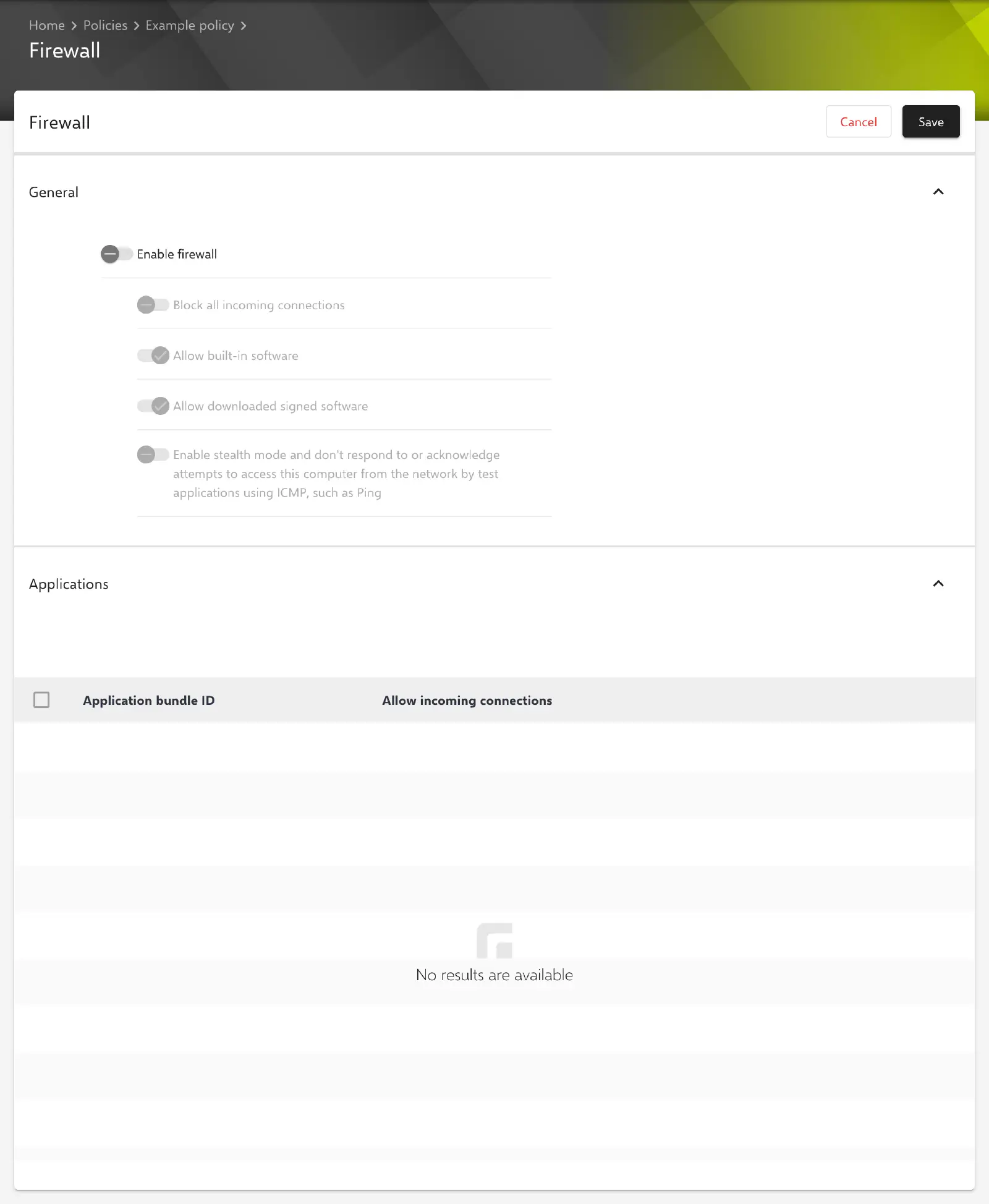
With the Firewall configuration, the built-in macOS firewall is turned on and configured on managed Macs. Besides blocking all incoming connections and stealth mode, it can be defined for individual apps whether they may accept incoming connections. Relution transfers the settings as a profile with the payload type com.apple.security.firewall.
Prerequisites
- The configuration can be added once per policy.
- It is only available for devices with device enrollment, not for devices with User Enrollment →.
- Relution lists the configuration for macOS 10.12 and later. According to Apple, macOS only evaluates the options Allow built-in software and Allow downloaded signed software as of version 12.3.
- A supervised device is not required.
General
The General section provides the following options. The key in the profile is given in brackets.
- Enable firewall (
EnableFirewall, default: disabled): turns on the firewall. Unauthorized apps, programs and services can then no longer accept incoming connections. - Block all incoming connections (
BlockAllIncoming, default: disabled): blocks all incoming connections except those required for basic internet services such as DHCP and IPSec. - Allow built-in software (
AllowSigned, default: enabled): software built into macOS may automatically receive incoming connections. - Allow downloaded signed software (
AllowSignedApp, default: enabled): downloaded software with a valid signature may automatically receive incoming connections. - Enable stealth mode and don’t respond to or acknowledge attempts to access this computer from the network by test applications using ICMP, such as Ping (
EnableStealthMode, default: disabled): the Mac does not respond to ICMP requests such as ping and thus does not reveal itself on the network.
The four sub-options and the list in the Applications section can only be edited while Enable firewall is enabled. Their saved values are kept when the firewall is turned off and continue to be transferred.
Applications
The Applications section defines for individual apps whether they may accept incoming connections (key Applications). Without entries, the profile contains an empty list.
Add creates an entry with the following fields:
- Application bundle ID (required): bundle ID of the app, e.g.
org.mozilla.firefox. - Allow incoming connections (default: disabled): if the option is enabled, the app may accept incoming connections; otherwise they are blocked for this app.
The context menu of an entry provides Edit and Delete. Exactly one entry is edited at a time, while several selected entries can be deleted at once. Changes to the list only take effect when the configuration is saved. Duplicate bundle IDs are not checked.
The bundle ID of an installed app can be determined on a Mac, for example, with the command osascript -e 'id of app "Firefox"' in Terminal.
Special notes
- Locking user changes: Whether users may change the firewall settings on the Mac themselves is not defined by this configuration, but by the option Disable user changes to the firewall settings in the Security Preferences configuration.
- Firewall status of the device: If the Mac reports its firewall settings, the device details show the values Firewall enabled, Firewall block all incoming, Firewall stealth mode, Firewall logging enabled and Firewall logging option in the Security card.
- No compliance check: There is no compliance rule for the macOS firewall. The violation Firewall configuration applies exclusively to Windows devices.
- Apple Configurator 2: If a policy already contains an Apple Configurator 2 configuration with the payload type
com.apple.security.firewall, the Firewall configuration can no longer be added there, and vice versa (see Apple Configurator 2 Configuration →).
Related topics
- Overview → — All configurations for macOS at a glance.
- Apple Configurator 2 Configuration → — Custom profiles with payloads that Relution does not offer as a form.
- Windows Firewall → — Firewall rules for Windows devices.