 Customer Hub
Global ethernet settings
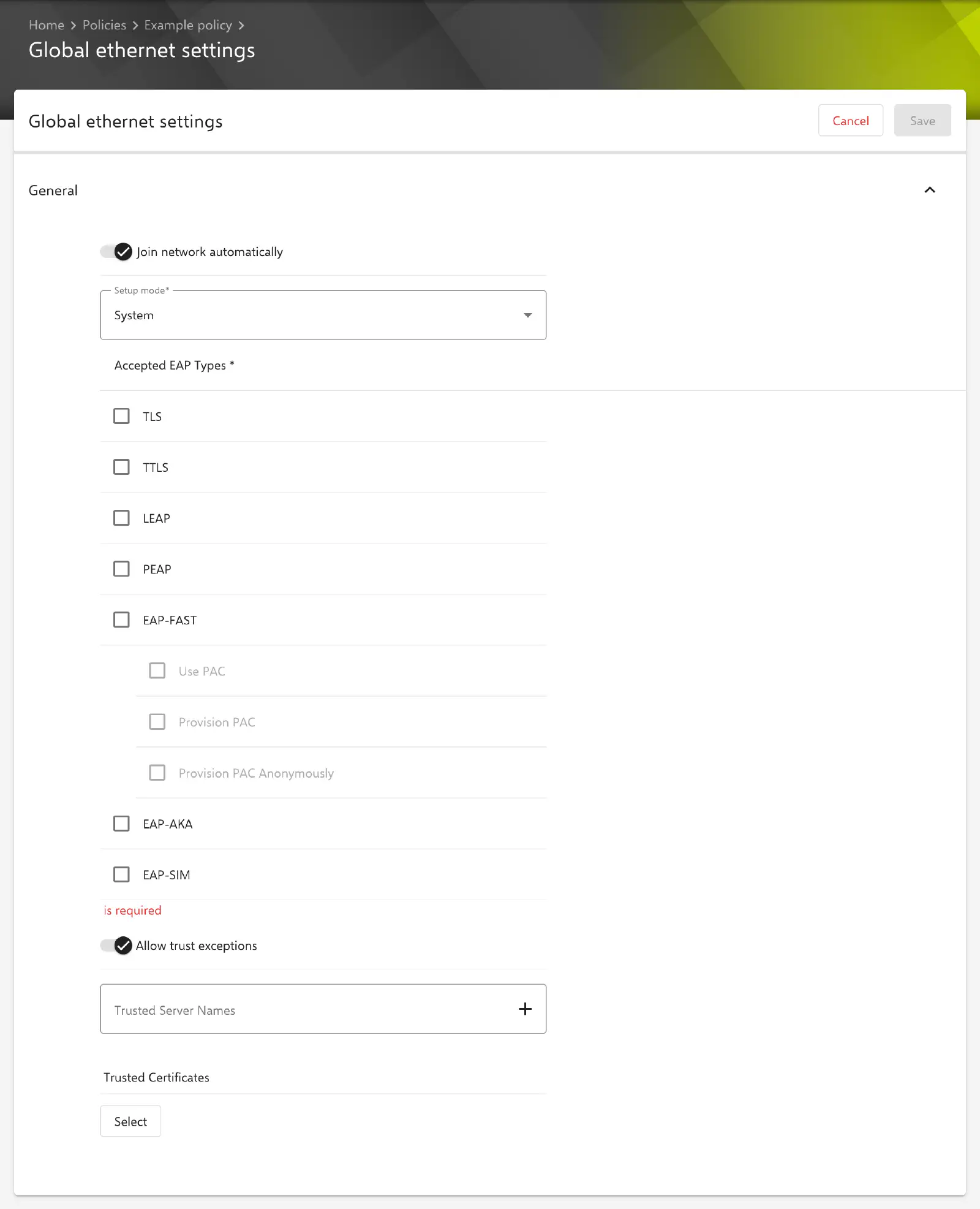
The Global ethernet settings configuration defines how a Mac authenticates to the network via 802.1X (EAP) over a wired connection, for example at a switch port with RADIUS authentication. The settings apply to all Ethernet interfaces of the Mac. Relution transfers them as a profile with the payload type com.apple.globalethernet.managed and the interface AnyEthernet; on the Mac, the configuration appears under the name 802.1X Ethernet: Global.
Prerequisites
- The configuration can be added once per policy.
- It is available for devices with device enrollment and for devices with User Enrollment →.
- Relution does not define a minimum macOS version. A supervised device is not required.
- The network must offer 802.1X authentication, usually via a RADIUS server.
General
The General section contains two basic settings. The key in the profile is given in parentheses.
- Join network automatically (
AutoJoin, default: enabled): The Mac authenticates to the network on its own as soon as an Ethernet connection exists. - Setup mode (
SetupModes, required): determines in which context authentication takes place. Exactly one value can be selected.- System (default): According to Apple, the Mac authenticates system-wide, independently of a user login.
- Login window: According to Apple, authentication takes place at the login window with the credentials entered there.
Unlike the WiFi → configuration, the form does not offer the values Default and Both. Which EAP methods macOS supports in each mode is decided by Apple.
EAP types
At least one type must be selected under Accepted EAP Types: TLS, TTLS, LEAP, PEAP, EAP-FAST, EAP-AKA and EAP-SIM. For EAP-FAST, Use PAC, Provision PAC and Provision PAC Anonymously can be enabled in addition. A new configuration contains no selected type and can only be saved once a type has been selected.
Which further fields appear depends on the selected EAP types:
| Field | Appears with | Meaning |
|---|---|---|
| Username | TLS, TTLS, LEAP, PEAP, EAP-FAST | Required, unless only TLS is selected. |
| One time user password | as Username, not with TLS only | The password is not transferred; the Mac asks for it during authentication. |
| Password | TTLS, LEAP, PEAP, EAP-FAST, as long as One time user password is off | Required as long as no password has been stored yet. |
| Identity Certificate | TLS, TTLS, PEAP, EAP-FAST | see Identity certificate → |
| Inner authentication | TTLS | PAP, CHAP, MSCHAP, MSCHAPv2 (default) or EAP |
| Outer identity | TTLS, PEAP, EAP-FAST | Optional anonymous identity that is sent outside the encrypted tunnel. |
| TLS minimum version, TLS maximum version | TLS, TTLS, PEAP, EAP-FAST | 1.0, 1.1 or 1.2 each. The minimum version must not be greater than the maximum. Without a selection, no version is transferred. |
| Number of SIM RANDs | EAP-SIM | 2 or 3 (default) |
If only TLS is selected, Relution transfers the requirement that an identity certificate is mandatory (TLSCertificateIsRequired), otherwise not.
Identity certificate
With an identity certificate, the Mac identifies itself to the RADIUS server. Two variants are available:
- Select certificate: Via Select, a certificate from Certificate Management → or a certificate template is chosen, e.g. of the Built-In CA → or a certificate pool →. With a template, each device receives its own certificate.
- Use user certificate: The Wi-Fi certificate from the profile of the user assigned to the device is used (see User certificates →). There is no separate certificate type for Ethernet. If the user has several Wi-Fi certificates, the optional Certificate name field selects one of them. If it is left empty, the longest-lived certificate is used.
If the user certificate cannot be determined for a device, for example because no user is assigned to the device or the user has no matching certificate, the configuration is transferred without a certificate. If the selection contains no EAP type with an identity certificate, Relution discards a selected certificate when saving.
Trust
The following fields determine which server certificate of the RADIUS server the Mac trusts. They are available for all EAP types.
- Allow trust exceptions (
TLSAllowTrustExceptions): If the Mac cannot verify the server certificate, the user may trust it manually. Enabled by default. For strict verification, the option is disabled and the two following fields are maintained. - Trusted Server Names: list of names that may appear in the server certificate, e.g.
radius.example.com. - Trusted Certificates: multiple selection from Certificate Management →, typically the root certificate of the certificate authority that issued the server certificate. Only certificates in PKCS#1 format are offered.
Special notes
- Certificates in the profile: Relution automatically transfers the identity certificate and the trusted certificates together with the configuration. An additional Certificate configuration is not required for this.
- Organization boundaries: Certificates and certificate templates must belong to the organization of the policy. If the configuration references a certificate or template of another organization, Relution rejects saving.
- Stored passwords: Since Relution 26.5.5, a stored EAP password is no longer displayed in the form; the field then shows
*****. If it remains unchanged, the stored password is kept. - No placeholders: Unlike the WiFi configuration, no placeholders are provided for this configuration; the form does not show a placeholder list.
- Compliance violation: If the configuration cannot be applied on a Mac, Relution reports the compliance violation Global ethernet settings configuration.
- Apple Configurator 2: If a policy already contains an Apple Configurator 2 configuration with the payload type
com.apple.globalethernet.managed, the Global ethernet settings configuration can no longer be added there, and vice versa (see Apple Configurator 2 Configuration →).
Related topics
- Overview → — All configurations for macOS at a glance.
- WiFi → — 802.1X authentication for wireless networks, also on macOS.
- Certificate Management →
- Built-In CA →
- Certificate Pool →
- Advanced placeholders → — including user certificates.
- Apple Configurator 2 Configuration →