 Customer Hub
Login Items
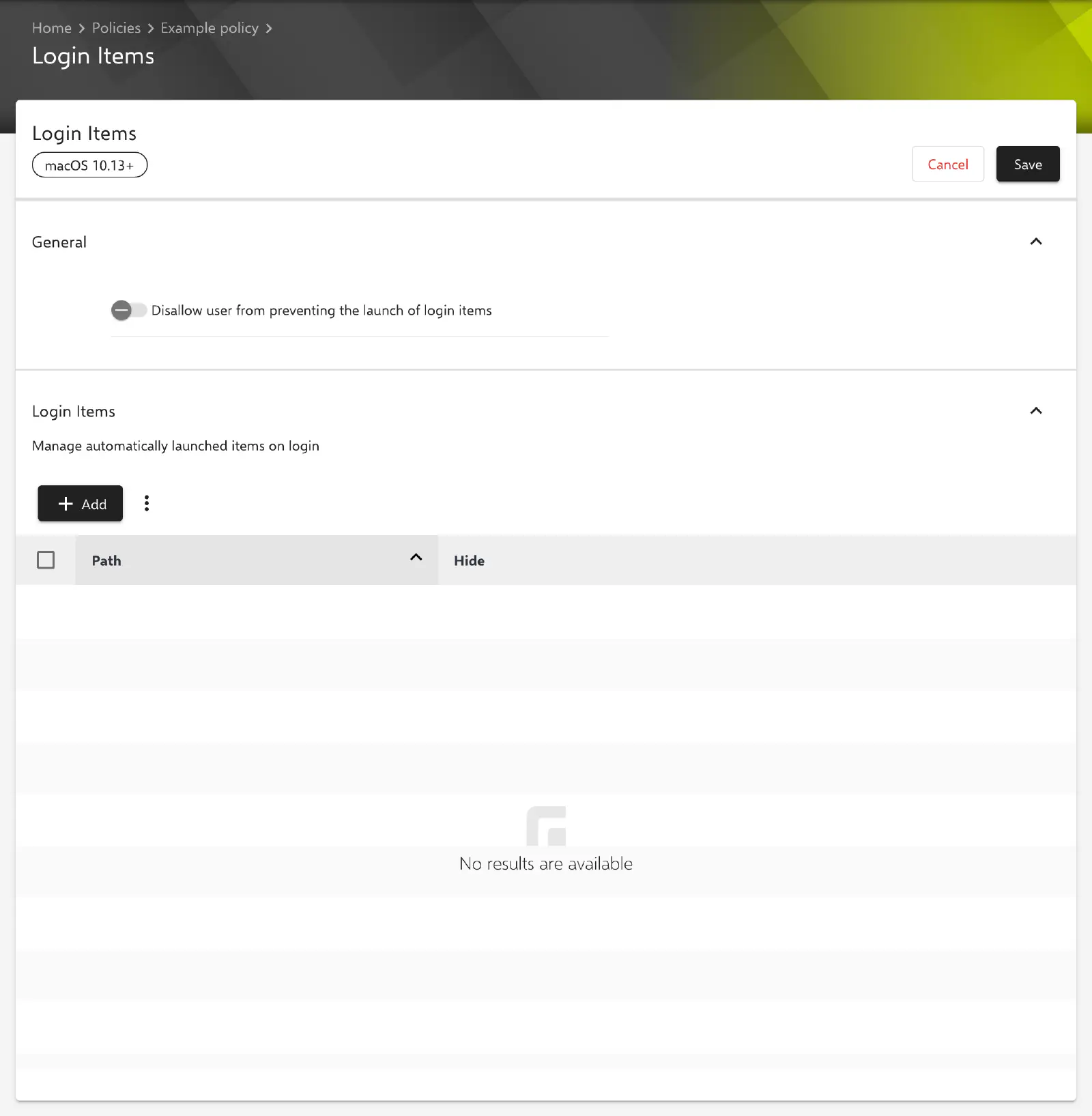
The Login Items configuration defines which apps, files or folders macOS opens automatically as soon as a user logs in. In addition, users can be prevented from suppressing the launch of login items with the Shift key at login. Relution transfers the settings as one profile with two payloads: com.apple.loginitems.managed for the list of items and loginwindow for the Shift key.
Prerequisites
- The configuration can be added once per policy.
- Relution lists the configuration for macOS 10.13 and later; the form carries the badge macOS 10.13+.
- Relution also offers the configuration for devices with User Enrollment →. Which profile contents macOS applies with User Enrollment is determined by Apple.
- A supervised device is not required.
- The apps to be launched must already be present on the Mac. The configuration does not install any software.
General
The General section contains a single option. The profile key is shown in parentheses.
- Disallow user from preventing the launch of login items (
DisableLoginItemsSuppression, default: inactive): Normally, the launch of all login items can be skipped by holding down the Shift key at login. If the option is active, this is no longer possible. The value is always transferred, includingfalse.
Automatically launched items
In the Login Items section, the list of items opened at login is maintained (AutoLaunchedApplicationDictionary-managed). The table shows the columns Path and Hide for each entry. Add opens the Edit login item dialog; existing entries are changed via Edit or removed via Delete after being selected.
The dialog contains the following fields:
- The URL or path string to the item’s location. (
Path, required): full path to the item on the Mac, for example/Applications/Safari.app. The dialog cannot be confirmed without an entry. - Hide the item in the Users & Groups login items list. (
Hide, default: inactive): The item does not appear in the list of login items in the Mac’s System Settings.
When adding an entry, the portal checks whether the path is already in the list and rejects a duplicate entry with the message The application is already in the list of login items. The list may also remain empty; in that case Relution only transfers the option from the General section. A launch order cannot be defined; the table is sorted by path.
Special notes
- Placeholders: Relution replaces placeholders such as
${user.name}or${device.serialnumber}in the path when generating the profile for each device. The form does not show a list of available placeholders. More information: Advanced placeholders → - Background items: Since macOS 13, macOS also lists background services of apps under login items. Whether users may turn these off is controlled by Apple through a separate payload (
com.apple.servicemanagement). This configuration does not manage such background items; Relution does not offer a separate configuration for them. - Login window: The appearance and behavior of the login window itself are defined by the Login Window → configuration.
Related topics
- Overview → — All configurations for macOS at a glance.
- Login Window → — Banner text, user list and automatic login.
- Install native macOS apps → — Distribution of the apps that are then to be launched at login.
- Script → — Running shell scripts on managed Macs.
- Advanced placeholders →