 Customer Hub
Login Window
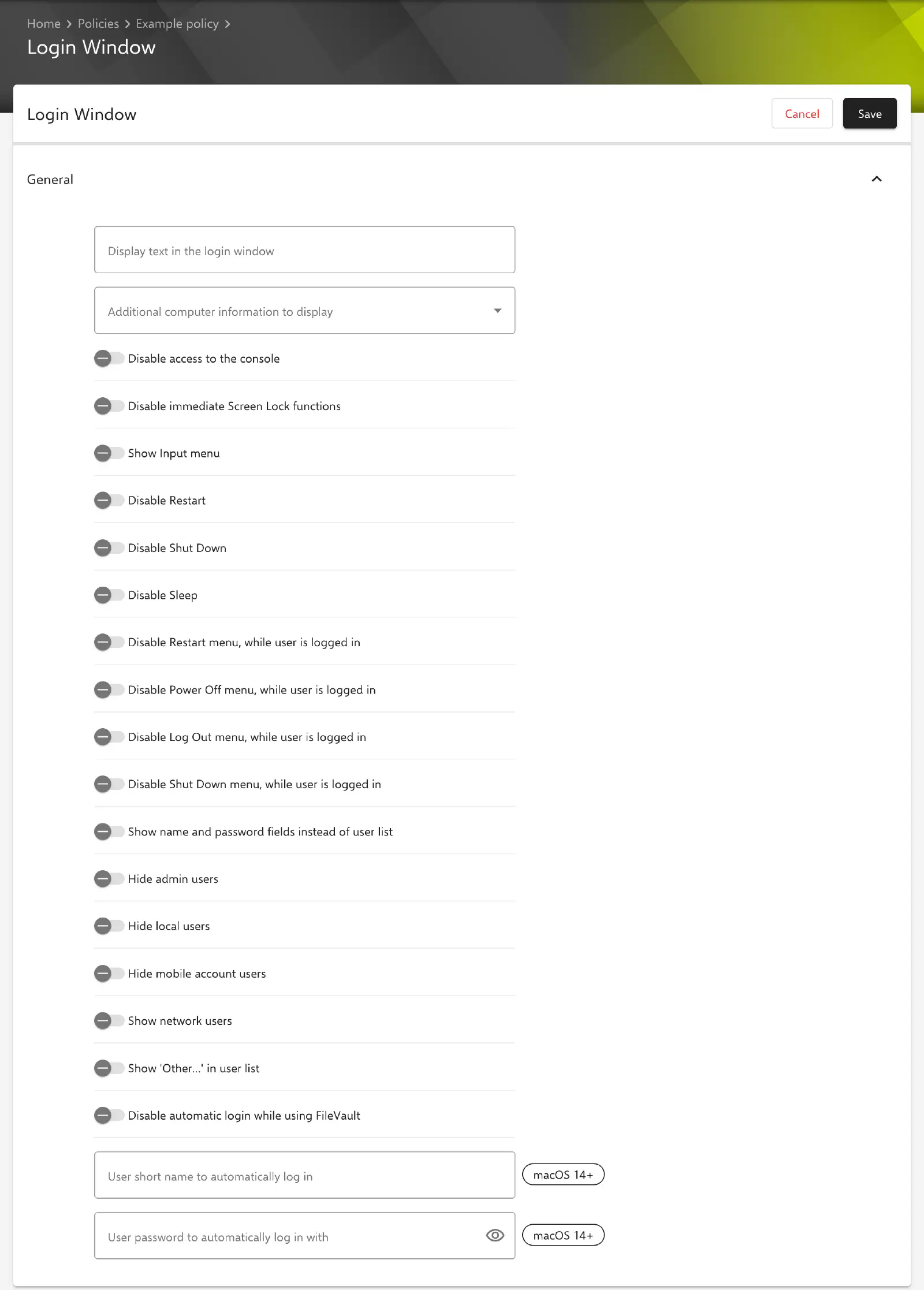
With the Login Window configuration, the appearance of the login window on managed Macs is defined, along with the functions available there and during the user session. This includes a banner text, the display of the user list, blocking shutdown, restart and sleep, and the automatic login of a user. Relution transfers the settings as a profile with the payload type com.apple.loginwindow.
Prerequisites
- The configuration can be added once per policy.
- It is only available for devices with device enrollment, not for devices with User Enrollment →.
- Relution lists the configuration for macOS 10.7 and later. Individual options require newer versions; they are noted below.
- A supervised device is not required.
Login window and user list
All settings are located in the General section. The key in the profile is shown in parentheses. All switches are inactive by default and are transferred with their current value, including false.
- Display text in the login window (
LoginwindowText): text that appears in the login window, for example a usage notice or a contact address. If the field remains empty, no text is transferred. - Additional computer information to display (
AdminHostInfo): additionally shows the Hostname, System version or IP Address in the login window. Without a selection, the key is not transferred. Once a value has been selected, it can be changed in the form but not cleared. According to Apple, as of macOS 10.10 the information can be cycled through by clicking the time in the menu bar of the login window, regardless of the selected value. - Show Input menu (
showInputMenu): shows the keyboard input menu in the login window, which allows switching the keyboard layout. - Show name and password fields instead of user list (
SHOWFULLNAME): input fields for user name and password are shown instead of a list of users. - Hide admin users (
HideAdminUsers): administrators do not appear in the user list. - Hide local users (
HideLocalUsers): the user list shows only network and system users. - Hide mobile account users (
HideMobileAccounts): mobile accounts do not appear in the user list. According to Apple, mobile accounts are shown as network users in some cases. - Show network users (
IncludeNetworkUser): the user list also contains network users, for example from a directory service. - Show ‘Other…’ in user list (
SHOWOTHERUSERS_MANAGED): the user list receives the entry Other…, through which users who are not in the list can log in. - Disable access to the console (
DisableConsoleAccess): the special user name>console, which opens a command line instead of the graphical interface, is ignored in the login window.
Logging in with accounts from an Active Directory requires Show name and password fields instead of user list, Show network users and Show ‘Other…’ in user list (see Active Directory →).
Shutdown, restart and logout
The first three options affect the buttons in the login window; the others apply while a user is logged in.
- Disable Restart (
RestartDisabled): the restart button is not available in the login window. - Disable Shut Down (
ShutDownDisabled): the shut down button is not available in the login window. - Disable Sleep (
SleepDisabled): the sleep button is not available in the login window. - Disable Restart menu, while user is logged in (
RestartDisabledWhileLoggedIn): the restart menu item is disabled during a session. - Disable Power Off menu, while user is logged in (
PowerOffDisabledWhileLoggedIn): the power off menu item is disabled during a session. - Disable Shut Down menu, while user is logged in (
ShutDownDisabledWhileLoggedIn): the shut down menu item is disabled during a session. - Disable Log Out menu, while user is logged in (
LogOutDisabledWhileLoggedIn): the log out menu item is disabled during a session. According to Apple, as of macOS 10.13. - Disable immediate Screen Lock functions (
DisableScreenLockImmediate): the functions for locking the screen immediately are not available. According to Apple, as of macOS 10.13.
Automatic login
The following fields control the automatic login of a defined user at startup, for example on presentation or kiosk Macs. The first two fields carry the macOS 14+ label in the form.
- User short name to automatically log in (
AutologinUsername): short name (account name) of the user who is logged in automatically. If the field remains empty, the key is not transferred. - User password to automatically log in with (
AutologinPassword): password of this user. The field is optional. According to Apple, without a password macOS sets up the automatic login the next time the user logs in on the Mac. - Disable automatic login while using FileVault (
DisableFDEAutoLogin, default: inactive): when FileVault is turned on, macOS normally logs in the user who unlocks the Mac at startup directly. If the option is active, this login is skipped and the login window appears.
The password is stored encrypted in Relution and is no longer displayed in the form after saving; the field then shows *****. If it remains unchanged, the stored password is kept, also in new versions of the policy. The password reaches the Mac as part of the profile.
Special notes
- Placeholders: Relution replaces placeholders such as
${user.name}or${device.serialnumber}in the text fields when generating the profile for each device. The form does not show a list of available placeholders. More information: Advanced placeholders → - Login items: Whether users may suppress the launch of login items with the Shift key is not defined by this configuration, but by the Login Items configuration.
Related topics
- Overview → — All configurations for macOS at a glance.
- Active Directory → — Connection to an Active Directory, which requires this configuration.
- FileVault → — Disk encryption that interacts with automatic login.
- Platform SSO (PSSO) → — Login with a Microsoft Entra ID account directly at the login window.
- Advanced placeholders →