 Customer Hub
Migration Assistant
Migration Assistant is a built-in macOS tool that helps set up a new Mac. It transfers user data, apps, settings, and files from an old device to the new one — so nothing has to be set up from scratch.
Starting with macOS 26.4, Apple supports managing Migration Assistant through Declarative Device Management (DDM). Relution 26.3 implements this support fully: settings can be pushed to devices via policy, and the current migration status is reported back to Relution as a status report.
Settings Declaration
New in 26.3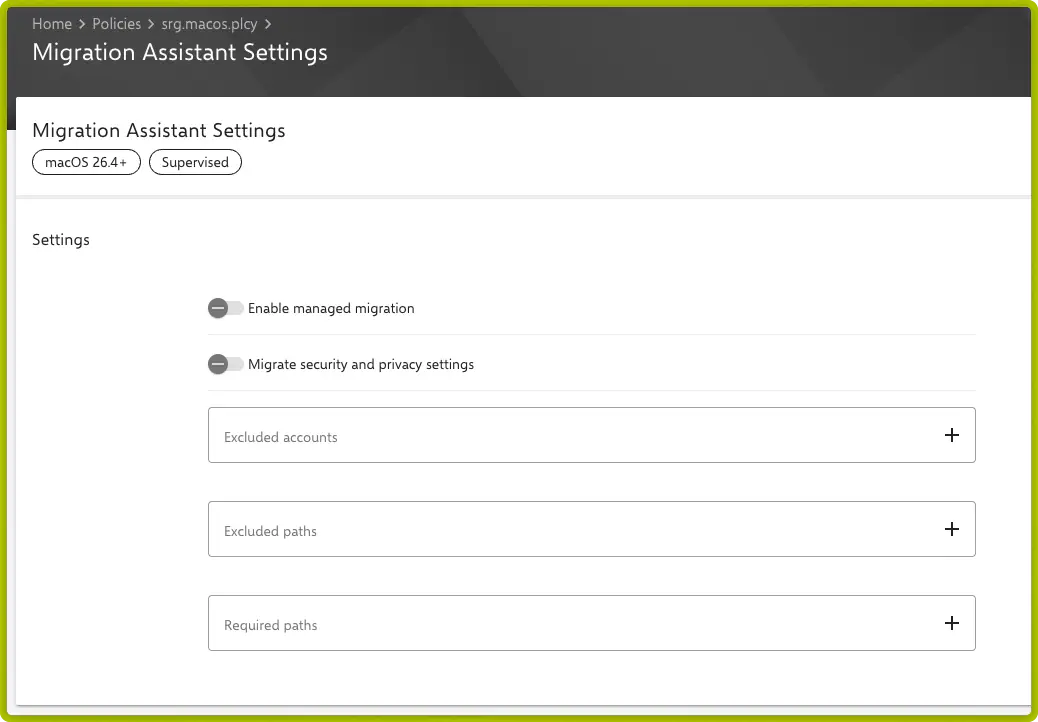
Enable managed migration
Activates managed migration on the device. While this toggle is off, no further restrictions apply.
Migrate security and privacy settings
Determines whether security and privacy settings are transferred from the source to the new device. When disabled, only user data is migrated; system-wide security settings remain at their default state.
Excluded accounts
List of user accounts to be excluded from the migration process. Use the + button to add individual account names.
Examples:
| Account name | Use case |
|---|---|
administrator | Local admin account should not be transferred |
guestuser | Temporary guest account to exclude |
Excluded paths
List of file paths and directories that will not be migrated. Use the + button to add individual paths.
Examples:
| Path | Use case |
|---|---|
/Users/Shared | Shared folder is centrally managed |
~/Library/Caches | Cache data will be rebuilt on the target device |
~/Downloads | Temporary downloads are not transferred |
Required paths
List of file paths and directories that must be migrated. If a required path is missing on the source device, the migration is aborted. Use the + button to add paths.
Examples:
| Path | Use case |
|---|---|
~/Documents | Work documents must be transferred completely |
~/Library/Keychains | Keychains are required for operation |
/Library/Preferences | Ensure system-wide app settings are present |
Status Reports
Relution automatically reads two status reports from the device and makes them available under Devices → Select device → Status Reports. The tab is visible as soon as Migration Assistant has been run on the device.
Migration state
Provides the current state of Migration Assistant on the device:
| State | Meaning |
|---|---|
NotStarted | No migration has been started |
InProgress | Migration is currently running |
Completed | Migration completed successfully |
Failed | Migration failed |
Migration report
Contains detailed information about the completed migration:
- Source: Type and name of the source device
- Timestamps: Migration start time and end time
- Transferred data size: Total size of migrated data
- Error messages: Description of any errors that occurred
Configuration in Relution
- Navigate to
Policies→New Policy. - Add the Migration Assistant Settings configuration.
- Enable Enable managed migration.
- Configure the desired accounts and paths.
- Save and distribute the policy to the target devices.