 Customer Hub
Parental Controls
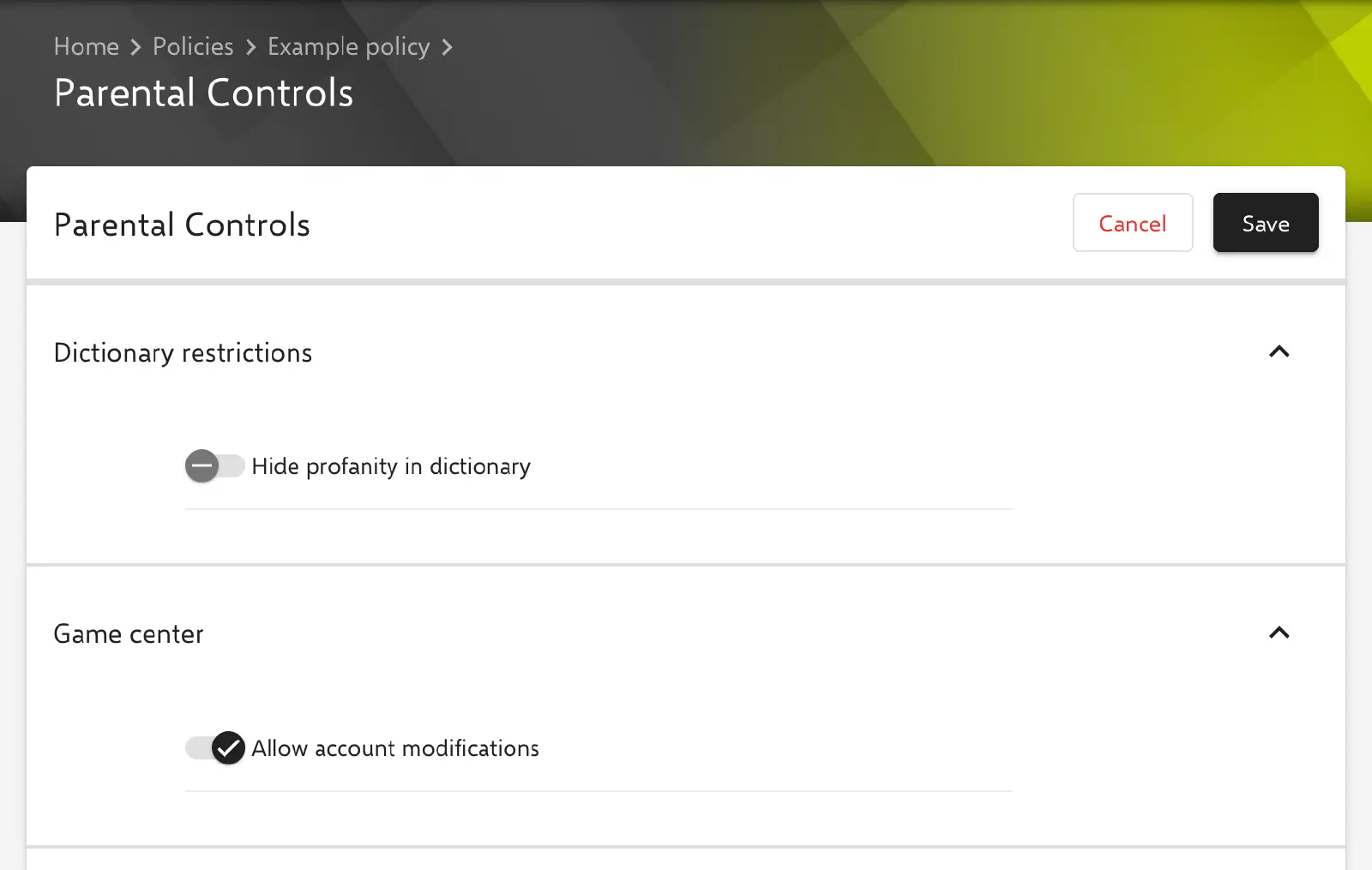
With the Parental Controls configuration, the macOS parental control features are defined on managed Macs: a filter for profanity in the dictionary, account modifications in Game Center, a web content filter, daily usage times and curfews, and a list of apps that are allowed to launch. The configuration does not set the Screen Time feature of System Settings but uses the parental controls payloads; in the German portal it is named Bildschirmzeit. Relution transfers each of the five sections as a separate payload within one profile.
Prerequisites
- The configuration can be added once per policy.
- It is only available for devices with device enrollment, not for devices with User Enrollment →.
- The form shows no version badge. According to Apple, the parental controls payloads are available as of macOS 10.7.
- A supervised device is not required.
All five payloads are always transferred, even if a section is not enabled; the main switch of the section is then sent to the Mac with the value false. The key in the profile is given in brackets.
Dictionary restrictions
Payload type com.apple.Dictionary.
- Hide profanity in dictionary (
parentalControl, default: off): The Dictionary app hides offensive terms.
Game center
Payload type com.apple.gamed.
- Allow account modifications (
GKFeatureAccountModificationAllowed, default: on): Users may modify their Game Center account. The key is only transferred, withfalse, when the option is turned off; in the default state the payload contains no setting.
Web content filter
Payload type com.apple.familycontrols.contentfilter. The options are nested: subordinate fields can only be edited when the parent switch is on.
- Limit access to websites (
restrictWeb, default: off): main switch of the section. If it is off, only this key is transferred and all other fields are locked.- Use built in content filter (
useContentFilter, default: off): macOS filters adult web content automatically. The following two lists can only be edited and are only transferred when this switch is on.- Allow list of URLs (
filterWhitelist): URLs the user can access even if the filter would otherwise block them. - Deny list of URLs (
filterBlacklist): URLs that are not available to the user.
- Allow list of URLs (
- Enable site allowlist (
whitelistEnabled, default: off): unlocks the list Site Allowlist (siteWhitelist). The switch is independent of Use built in content filter.
- Use built in content filter (
Every entry in Allow list of URLs and Deny list of URLs must be a valid URL. Empty lists are not transferred.
Entries in the Site Allowlist are created via Add in the Add allowed web URL dialog and edited or deleted via the context menu:
- Site address prefix (
address, required): address of the website, entered as a valid URL. - Page title (
pageTitle): name of the website.
Time limits
Payload type com.apple.familycontrols.timelimits.v2.
- Enable time limits (
familyControlsEnabled, default: off): main switch of the section. The following limits can only be edited and are only transferred when this switch is on.
Below it are four limits, each with its own switch (default: off). The weekday limits apply to weekdays, the weekend limits to the weekend.
| Switch | Key | Field |
|---|---|---|
| Enable weekday allowance | weekday-allowance | Allowance minutes per day |
| Enable weekend allowance | weekend-allowance | Allowance minutes per day |
| Enable weekday curfew | weekday-curfew | Curfew start time, Curfew end time |
| Enable weekend curfew | weekend-curfew | Curfew start time, Curfew end time |
- Allowance minutes per day: usage time per day in minutes, from 1 to 1439. Relution transfers the value in seconds (
secondsPerDay). - Curfew start time and Curfew end time: period during which the Mac cannot be used, for example 22:00 to 07:00. The times are transferred in the format
HH:mm:sswithout a time zone (start,end).
If an individual limit is not enabled, it is only transferred with enabled = false.
Application restrictions
Payload type com.apple.applicationaccess.new. A notice in the form describes the behavior: the restriction works as an allow list. Certain system apps and utilities are always allowed to run. If an app matches an entry in the list, macOS verifies its code signature and allows it to launch. All other apps are not launched.
- Enable application access restrictions (
familyControlsEnabled, default: off): main switch of the section. The list Allowlisted applications by code signature (whiteList) can only be edited and is only transferred when this switch is on.
Entries are created via Add in the Add application item dialog and edited or deleted via the context menu. The table shows all fields as columns.
- Bundle identifier (
bundleID, required): bundle ID of the app, for examplecom.apple.Maps. - Code requirement (
appID, required): code requirement (designated requirement) of the app, for exampleidentifier "com.apple.Maps" and anchor apple. On a Mac, the value can be read withcodesign -d -r- /System/Applications/Maps.app. - Display name (
displayName): name of the app for display. - Disabled (
disabled, default: off): according to Apple, the app is then not added to the allow list. This way, an entry can be excluded temporarily without deleting it. - App Store (
appStore, default: off): marks the app as an app from the App Store. Apple does not describe the effect of this key. - Detached signature (
detachedSignature): detached signature for an unsigned binary.
Nested helper applications of an app (subApps) cannot be entered in the form.
Related topics
- Overview → — All configurations for macOS at a glance.
- Web Content Filter → — Web filter via a filter app (plugin).
- Relution Decon (content filter) → — Content filter with categories and advanced options.
- Restrictions → — Further restrictions for macOS.
- Apple Configurator 2 Configuration → — Custom profiles with payloads that Relution does not offer as a form.