 Customer Hub
Screen saver
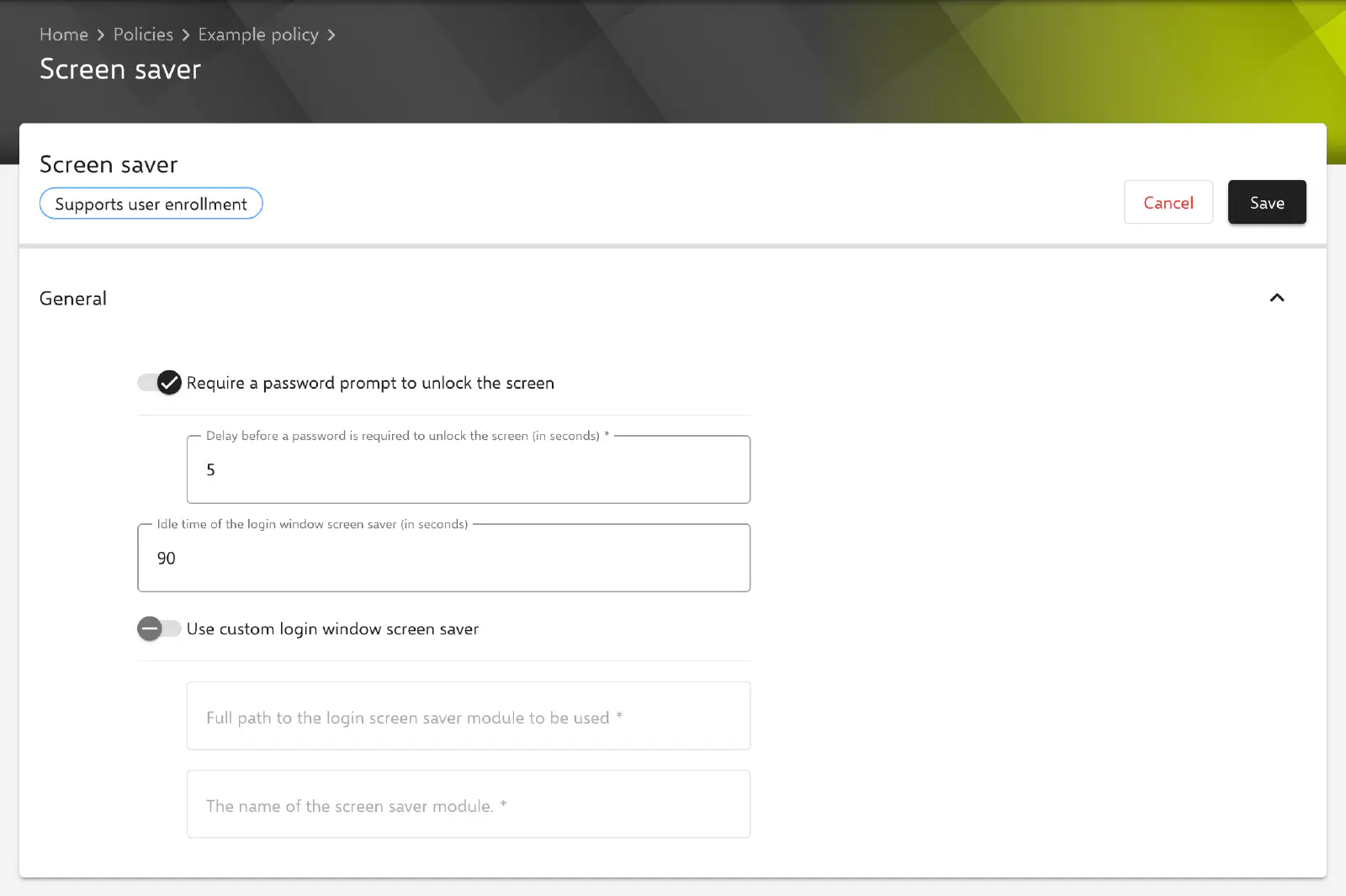
The configuration Screen saver defines after which idle time the screen saver starts on managed Macs and whether a password is requested to stop the screen saver. In addition, a custom screen saver module can be specified for the login window. Relution transfers the settings as a profile with the payload type com.apple.screensaver.
Prerequisites
- The configuration is possible once per policy.
- It is available for devices with Device Enrollment and for devices with User Enrollment →; the form carries the label Supports user enrollment for this purpose.
- A supervised device is not required.
- According to Apple, macOS evaluates the password prompt from version 10.13, the idle time and the module path from version 10.11.
- If the policy already contains an Apple Configurator 2 Configuration → with the payload type
com.apple.screensaver, the configuration cannot be added. Conversely, such an Apple Configurator 2 Configuration is rejected if the policy already contains Screen saver.
Password prompt
All settings are located in the General section. The key in the profile is given in parentheses.
- Require a password prompt to unlock the screen (
askForPassword, default: enabled): The user’s password is requested to stop the screen saver. - Delay before a password is required to unlock the screen (in seconds) (
askForPasswordDelay, default:5): Time span in seconds after the screen saver starts during which the screen saver can still be stopped without a password. The value0requires the password immediately. The field is mandatory as long as the password prompt is enabled and only accepts values from0upwards.
If Require a password prompt to unlock the screen is disabled, the delay field is cleared and locked. In this case, Relution does not transfer askForPassword with false, but askForPassword with true together with the delay 2147483647. Apple provides this value to switch off the password prompt; with askForPassword set to false, macOS 26 still requires a password immediately. The tooltip of the delay field mentions the same value 2147483647.
Screen saver activation
- Idle time of the login window screen saver (in seconds) (
idleTime, default:90): Idle time in seconds after which the screen saver starts. The value0disables the screen saver. If the field is left empty, the key is not transferred.
The field is labeled for the login window in the form, but Relution transfers the value as idleTime. According to Apple, this key defines the idle time of the screen saver in general, i.e. also during a running session.
Screen saver module for the login window
On macOS, a screen saver module is a bundle with the extension .saver that contains the screen saver animation. Built-in modules are usually located in /System/Library/Screen Savers/, modules installed for all users in /Library/Screen Savers/ and modules installed per user in ~/Library/Screen Savers/.
- Use custom login window screen saver (default: disabled): enables the two following fields. Both are then mandatory.
- Full path to the login screen saver module to be used (
loginWindowModulePath): full path to the.saverbundle, for example/System/Library/Screen Savers/FloatingMessage.saver. - The name of the screen saver module. (
moduleName): file name of the module without the extension.saver, in the exampleFloatingMessage. A value consisting only of spaces is not accepted.
Relution only transfers the path and the name. The module itself must already be present at the specified location on the Mac. If the toggle is switched off again, the form clears both fields and the keys are no longer transferred. When a saved configuration is reopened, the toggle is enabled as soon as a module path is stored.
Related topics
- Overview → — All configurations for macOS at a glance.
- Login Window → — Design of the login window, for which a custom module can be defined here.
- Passcode → — Passcode policy for Apple devices, including automatic locking after inactivity.
- Security Preferences → — Blocking of user changes to the lock message and the password.
- Desktop → — Further configuration for the appearance of managed Macs.