 Customer Hub
Restrictions
The Restrictions configuration limits functions of Apple TV, such as changing the device name, incoming AirPlay requests, use of the Remote app or sleep mode, and defines age ratings for apps, movies and TV shows. It is only available in tvOS policies and can be added once per policy.
In the form, individual restrictions carry additional notes: Supervised (only effective on supervised devices), Deprecated, Deprecated on tvOS 10.2+ and the minimum tvOS version, e.g. tvOS 13+. These notes are stated below for each restriction, together with the tvOS version from which Apple supports the setting.
With the default values, the device remains largely unrestricted. The exception is Allow Password Proximity Requests, which is disabled in a newly created configuration.
The download icon at the top of the form (Export restrictions as CSV file) downloads the configured values, including unsaved changes, as a CSV file.
Adding the configuration
The configuration is created in the Relution portal via Devices → Policies → {tvOS policy} → Add → Restrictions → Add details. Configurations can only be added to a draft version of the policy. The policy is then published so that it can be assigned to devices.
System Preferences
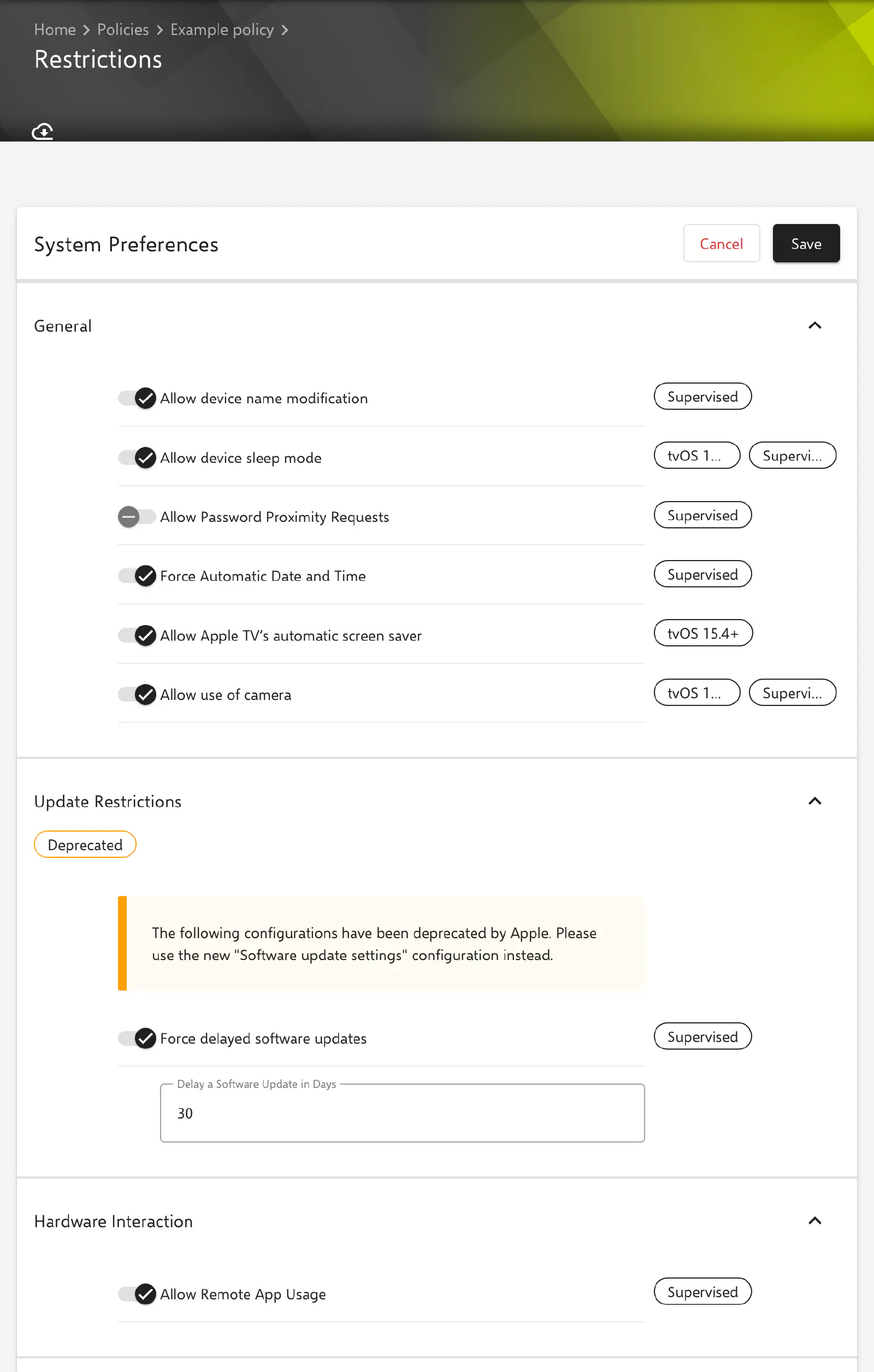
The System Preferences area is divided into the sections General, Update Restrictions, Hardware Interaction and AirPlay Settings.
General
- Allow device name modification (default: enabled; Supervised; tvOS 11 or later) – if disabled, the device name cannot be changed on the Apple TV.
- Allow device sleep mode (default: enabled; tvOS 13+, Supervised) – if disabled, the Apple TV does not go to sleep.
- Allow Password Proximity Requests (default: disabled; Supervised; tvOS 12 or later) – if enabled, the Apple TV may request passwords from nearby devices, for example so that they can be entered on an iPhone. If disabled, no such request is made.
- Force Automatic Date and Time (default: disabled; Supervised; tvOS 12.2 or later) – if enabled, date and time are set automatically and the option cannot be turned off on the device. The time zone is only updated if the device can determine its location.
- Allow Apple TV’s automatic screen saver (default: enabled; tvOS 15.4+) – if disabled, the automatic screen saver does not start.
- Allow use of camera (default: enabled; tvOS 17+, Supervised) – if disabled, the camera is blocked. On Apple TV, this affects the use of an iPhone or iPad as a camera, for example for FaceTime; the exact behavior is determined by Apple.
Update Restrictions
The section is marked as Deprecated in the portal: Apple has deprecated these settings. Software updates are controlled instead via the Software update settings → configuration.
- Force delayed software updates (default: disabled; Supervised; tvOS 12.2 or later) – if enabled, new tvOS versions are not shown for the specified number of days after their release.
- Delay a Software Update in Days (default:
30) – number of days, values from0to90are allowed. The field can only be edited and is only sent to the device if Force delayed software updates is enabled.
Hardware Interaction
- Allow Remote App Usage (default: enabled; Supervised; tvOS 10.2 or later) – if disabled, the Remote app, e.g. the remote control on iPhone or iPad, cannot be paired with the Apple TV.
AirPlay Settings
- Allow incoming AirPlay requests (default: enabled; Supervised; tvOS 10.2 or later) – if disabled, incoming AirPlay requests are rejected. This also prevents screen sharing via AirPlay, for example in conference room mode.
- Enforces all devices sending AirPlay requests to this device to use a pairing password (default: disabled; Deprecated on tvOS 10.2+) – only takes effect on devices running a tvOS version earlier than 10.2. From tvOS 10.2, access is secured via the AirPlay security configuration →.
Age Restrictions
The Age Restrictions area contains the settings for store content in the General section. Apple supports them from tvOS 11.3.
- Allow explicit music, podcasts & iTunes U (default: enabled) – if disabled, music and video content marked as explicit is hidden. The marking is set by the content providers.
- Allow downloads of media tagged as Erotica (default: enabled; Supervised, Deprecated) – if disabled, media tagged as erotica cannot be downloaded.
- The maximum age restriction level of app content allowed (default: All) – highest permitted age rating for apps. The options are None, 4+, 9+, 12+, 17+ and All.
- The maximum age restriction level of movie content (default: All) – highest permitted age rating for movies. The options are None, G, PG, PG-13, R, NC-17 and All.
- The maximum age restriction of TV content allowed on the device (default: All) – highest permitted age rating for TV shows. The options are None, TV-Y, TV-Y7, TV-G, TV-PG, TV-14, TV-MA and All.
- The region key for ratings – region whose rating system applies. The options are us - USA, au - Australia, ca - Canada, de - Germany, fr - France, ie - Republic of Ireland, jp - Japan, nz - New Zealand and gb - United Kingdom. In a new configuration, the region of the organization’s default language is preselected if it is included in the list, otherwise de - Germany.
The levels for movies and TV shows are named with the US designations in the form and are sent as the same numeric value regardless of the selected region. How tvOS maps these values for a region other than us is determined by Apple. The effect is therefore best verified on a test device.
Allow list and block list for apps
The form does not contain its own fields for allowed or blocked apps. The allow list or block list of the App Compliance → configuration is added to the restrictions when they are sent to supervised devices. If no active restrictions configuration is assigned to the device, Relution automatically generates a restriction for supervised devices with App Compliance that only contains this list.
The restrictions are sent to the device again with every update of the device configuration, so that changes to App Compliance take effect.
Multiple policies
If several policies with the Restrictions configuration are assigned to a device, each one is sent to the device as a separate profile. Which value applies in case of conflicting settings is decided by tvOS; as a rule, the more restrictive setting prevails.
Related topics
- AirPlay security configuration →
- App Compliance →
- Conference Room Configuration →
- Software update settings →
- Supervised Mode / Supervision →
- Overview →