Customer Hub
App Compliance
Installing apps from Apps and Books (VPP in the portal) on Apple Watch devices is particularly straightforward thanks to Relution’s App compliance policy. This configuration enables simple and central distribution of applications to a large number of devices.
Starting the distribution only requires:
- An Apple School or Apple Business account.
- The integration of the organization’s own Apps and Books token → in Relution.
- Acquired licenses for the desired apps from Apple School Manager (ASM) or Apple Business Manager (ABM).
Configuring App Compliance
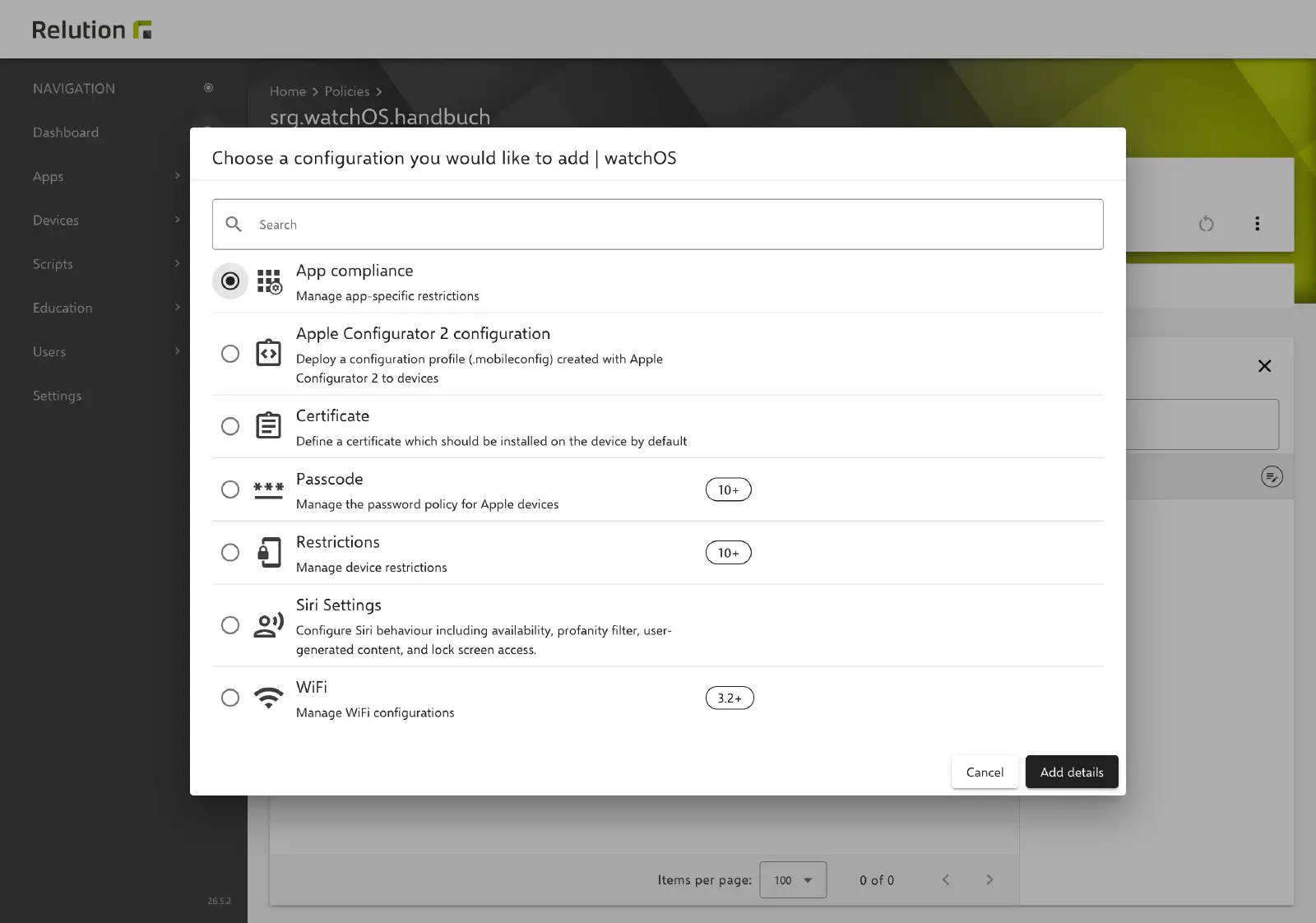
The distribution of apps to Apple Watch devices (analogous to iOS devices) is carried out via the App compliance policy configuration. It is selected under Devices → Policies in a watchOS policy via Add Configuration and created with Add details.
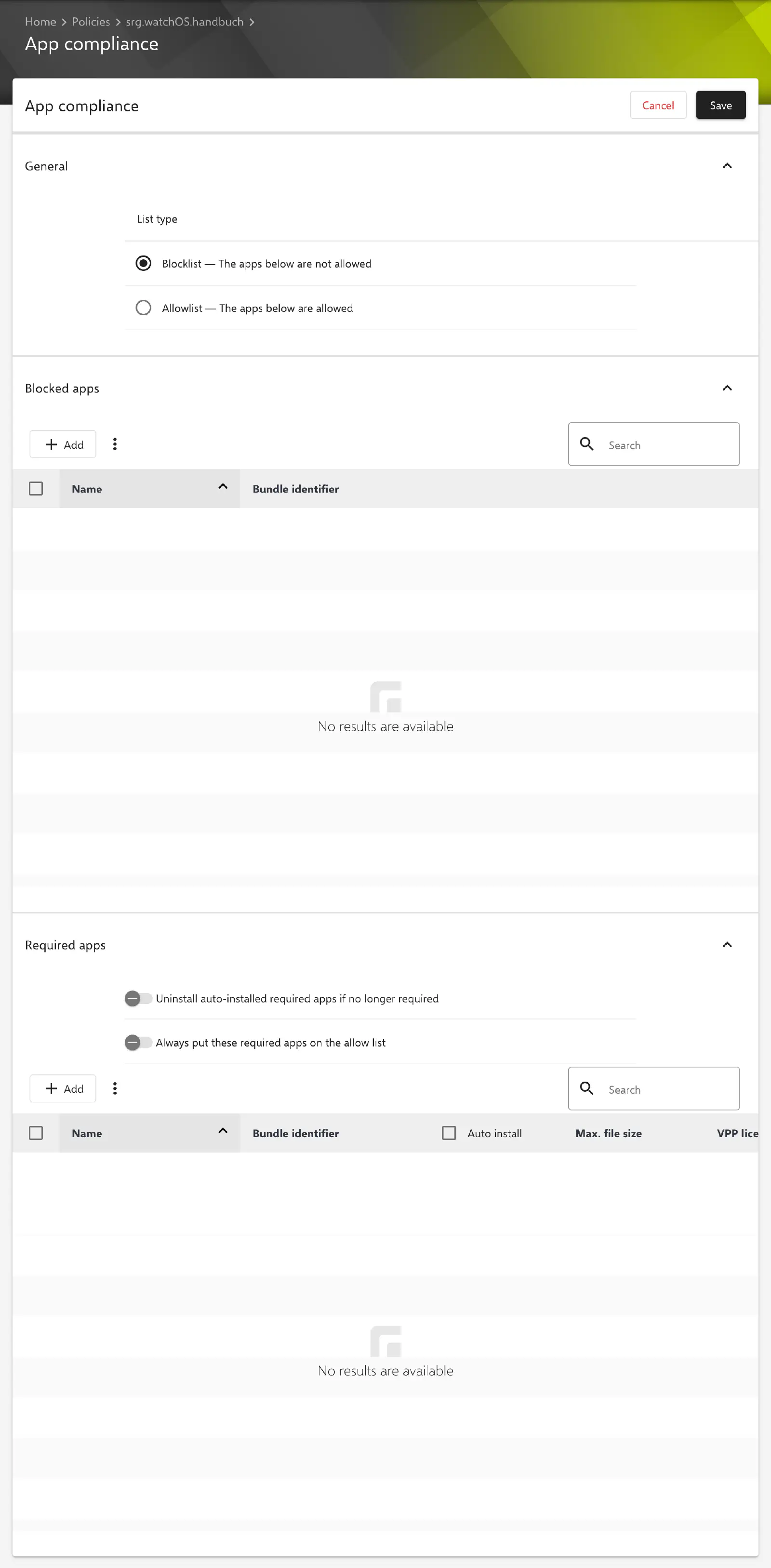
Similar to iOS devices, app availability is controlled under List type in the General section: either as a blocklist (Blocklist — The apps below are not allowed, the default for new configurations) or as an allowlist (Allowlist — The apps below are allowed). The apps are entered via Add in the Blocked apps or Allowed apps section below.
Allowlist and blocklist are only applied to supervised devices.
Allowlist (Permitted Apps)
The allowlist explicitly defines which apps are permitted to be available on the devices. Two additional options are available:
- Put all auto-deployed apps on the allowlist: Apps distributed to the devices’ users via auto deployments are automatically added to the allowlist.
- Allow Local Secret Prompts (e.g., iCloud, Google login): The system dialog for local secret prompts is added to the allowlist so that such prompts are not blocked.
Blocklist (Blocked Apps)
The blocklist is used to hide or block specific apps on watchOS devices.
Required Apps
In the Required apps section, the applications that must be mandatorily installed on the devices are specified. Add offers the following sources (the same apply to the allowlist and blocklist):
- Relution App Store app: Selection of public apps with watchOS support from the Relution App Store, e.g. apps with Apps and Books licenses. There is no direct search in the public Apple App Store for watchOS; the apps must have been added to the Relution App Store beforehand.
- Manually add app: Entry of an app by Name and Internal name (bundle ID).
Native (self-uploaded) apps are not available for selection in watchOS policies, because Relution assigns them the iOS platform.
If a required app is not installed on the device, the device is considered noncompliant. The app is only actively installed if the checkbox in the Auto install column is selected; it is selected by default when an app is added. The VPP licenses and Available VPP licenses columns show the existing and the remaining free licenses per app.
Two toggles are available above the list:
- Uninstall auto-installed required apps if no longer required: If an auto-installed required app is removed from the configuration, or the configuration is removed from the device, the app is uninstalled. The toggle is off for new configurations.
- Always put these required apps on the allow list: If this or another policy configures an allowlist for the device, the required apps are added to it.
Once the configuration is complete, it can be saved, published, and assigned to the corresponding devices.