 Customer Hub
Education groups
Education groups are device groups of type Education. They bundle policies that are automatically applied to the devices of participating students for the duration of a lesson. The group and its policies are prepared in the portal; in Relution Teacher, they are selected as Configurations in the lesson template. This makes it possible to roll out even extensive MDM settings only while the lesson is running.
How it works
For an education group, only the policies are configured. Relution automatically determines which devices are members using a built-in filter: it captures the devices of students who are currently in an active lesson that uses this group as a configuration. Manual device assignment and a custom filter configuration are not possible for this group type.
- When the lesson starts, the student devices are added to the group and receive the linked policies.
- During the lesson, the assignment is updated as soon as students are added or removed.
- When the lesson ends, the devices are removed from the group again and the policies no longer apply.
In addition, the regular hourly re-evaluation of the dynamic filters provides a self-healing assignment.
Creating an education group
Education groups are created like other device groups under Devices → Device Groups using Add. Education is selected as the Group type. The desired policies are then assigned to the group.
The name, description and linked policies are displayed in Relution Teacher. Meaningful names and descriptions therefore make the selection easier during lessons.
General information on device groups: Device groups →.
Permission for teachers
Which teachers can see and select configurations is controlled by the read permission Education → Lesson Device Groups in the role editor. It complements the Education → Use Teacher App permission; both are required to select configurations. Without this permission, no configurations are displayed in Relution Teacher. It is already included in the predefined roles that allow the use of the Teacher App.
More on roles and rights: Permissions →.
Use in Relution Teacher
In the lesson template, the Configurations area lists the organization’s education groups with their name, description and linked policies. One or more configurations can be selected. If no education group exists, the note No configurations available is displayed; the template can still be used as usual.
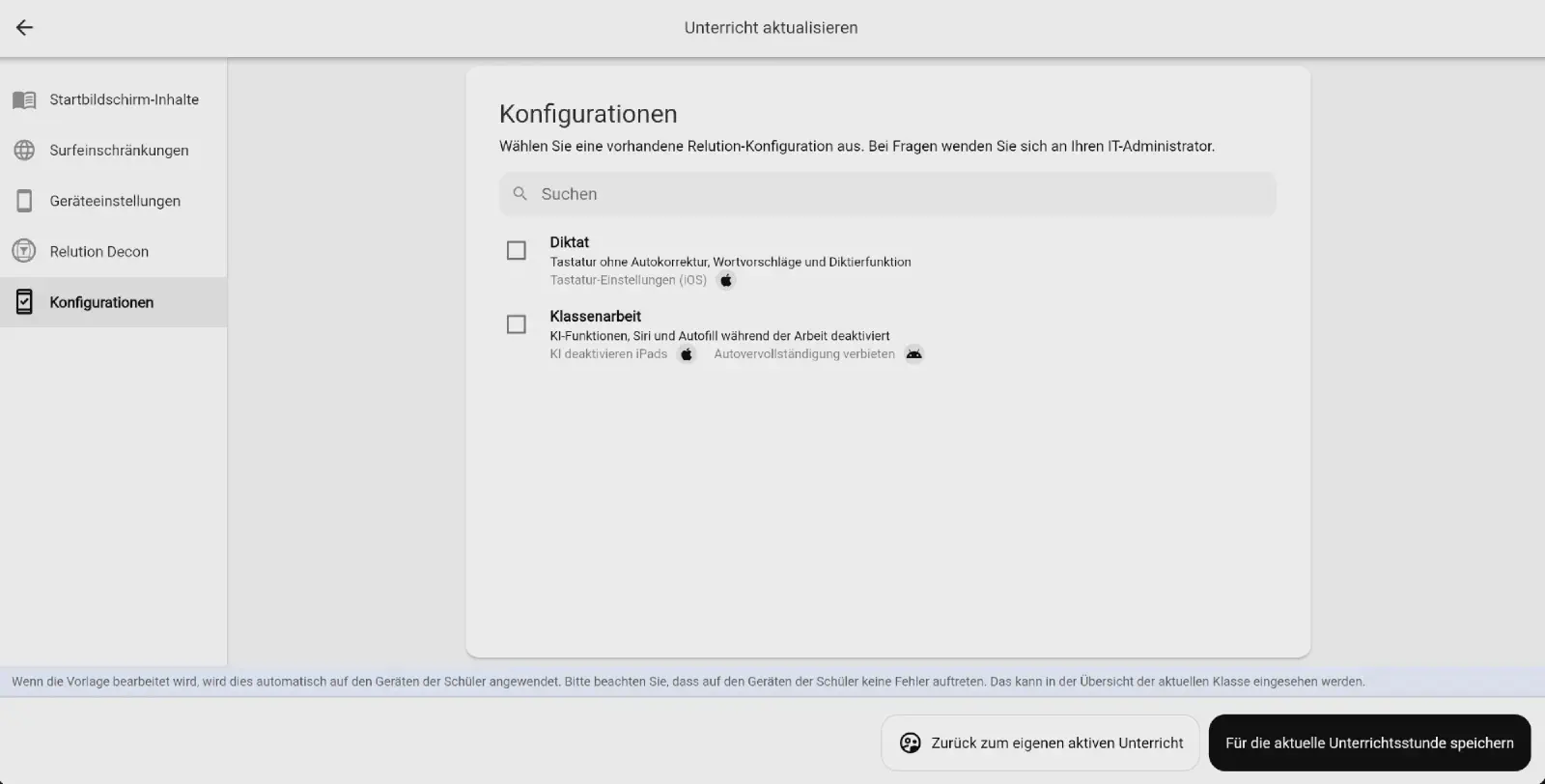
Details on the lesson template: Relution Teacher →.