 Customer Hub
Renew DEP / VPP Tokens
Apple DEP and VPP tokens have a maximum validity of 1 year and must be renewed regularly to ensure uninterrupted device management and app assignment. This guide explains how to easily renew these tokens.
DEP and VPP tokens are independent of each other: each token expires one year after its own creation. Therefore, only the token whose expiration is approaching is renewed.
Additionally, as of version 5.33, Relution provides a centralized overview of all connected DEP tokens. Administrators of the Global organization can see at a glance:
- Which DEP tokens are valid or expired
- When the respective tokens expire
Token Overview in the Relution Portal
The two token types are managed in different places in the portal.
Accessing DEP Accounts
To access the central overview of DEP accounts, follow these steps:
- Log in to the
Globalorganization. - Open Settings in the left sidebar.
- Navigate to the Device platform specific section.
- Select Apple Automated Device Enrollment.
- Open the All DEP accounts tab (available from version 5.33.0).
Accessing VPP Accounts
To access the overview of VPP accounts, follow these steps:
- Log in to the
Globalorganization. - Open Settings in the left sidebar.
- Navigate to the Volume Purchase Program section.
- Select User Account.
- Open the All VPP accounts tab (available from version 5.33.0).
Renewing VPP Tokens (Content Tokens)
The VPP token is first downloaded from Apple and then uploaded to Relution.
Download from Apple School Manager (ASM)
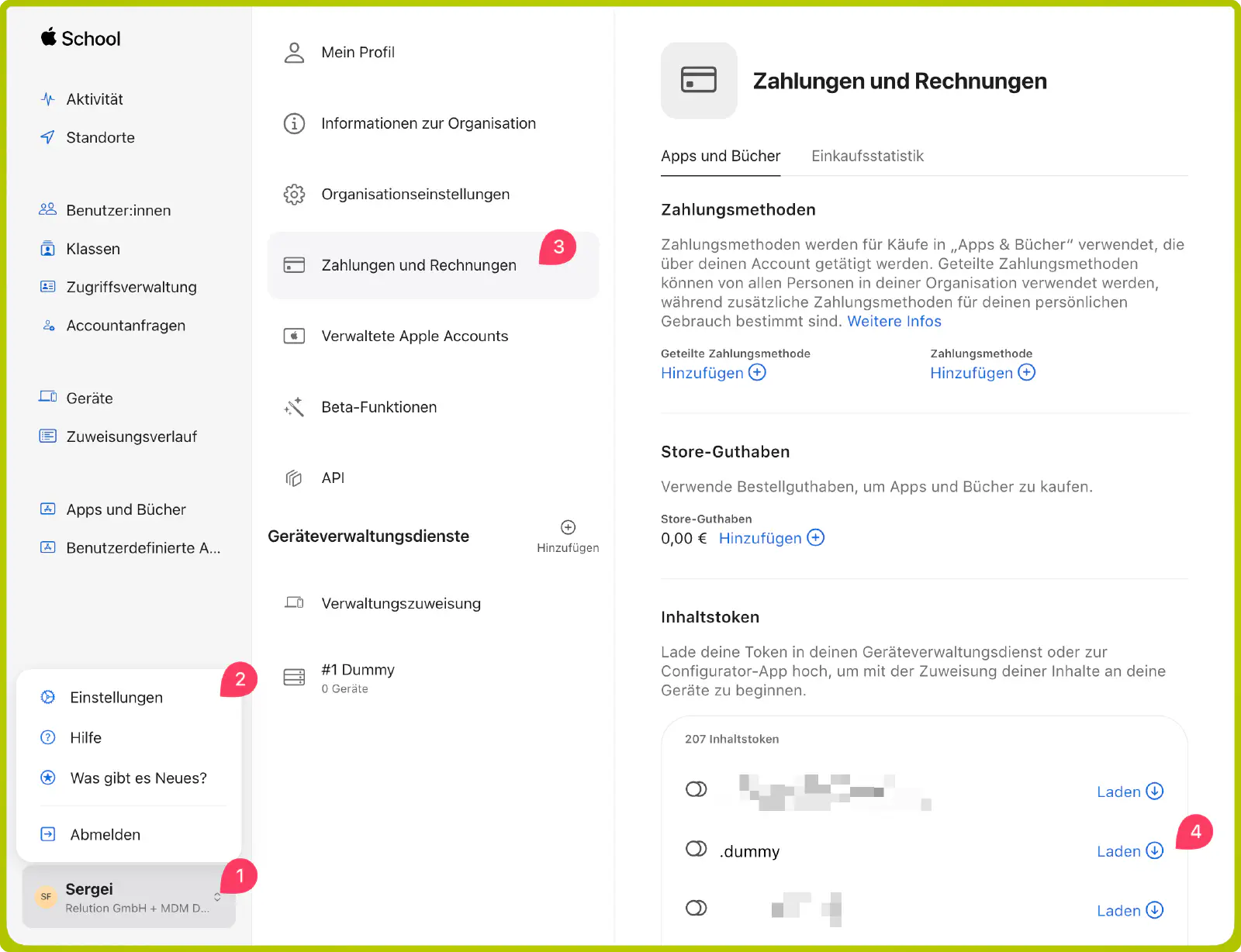
- The login takes place in Apple School Manager →.
- The logged-in user name in the bottom left corner is clicked.
- Settings is opened.
- Payments & Billing is selected.
- Under Content Tokens, the desired token is downloaded.
- File format:
sToken_for_[Location].vpptoken
- File format:
Download from Apple Business (formerly ABM)
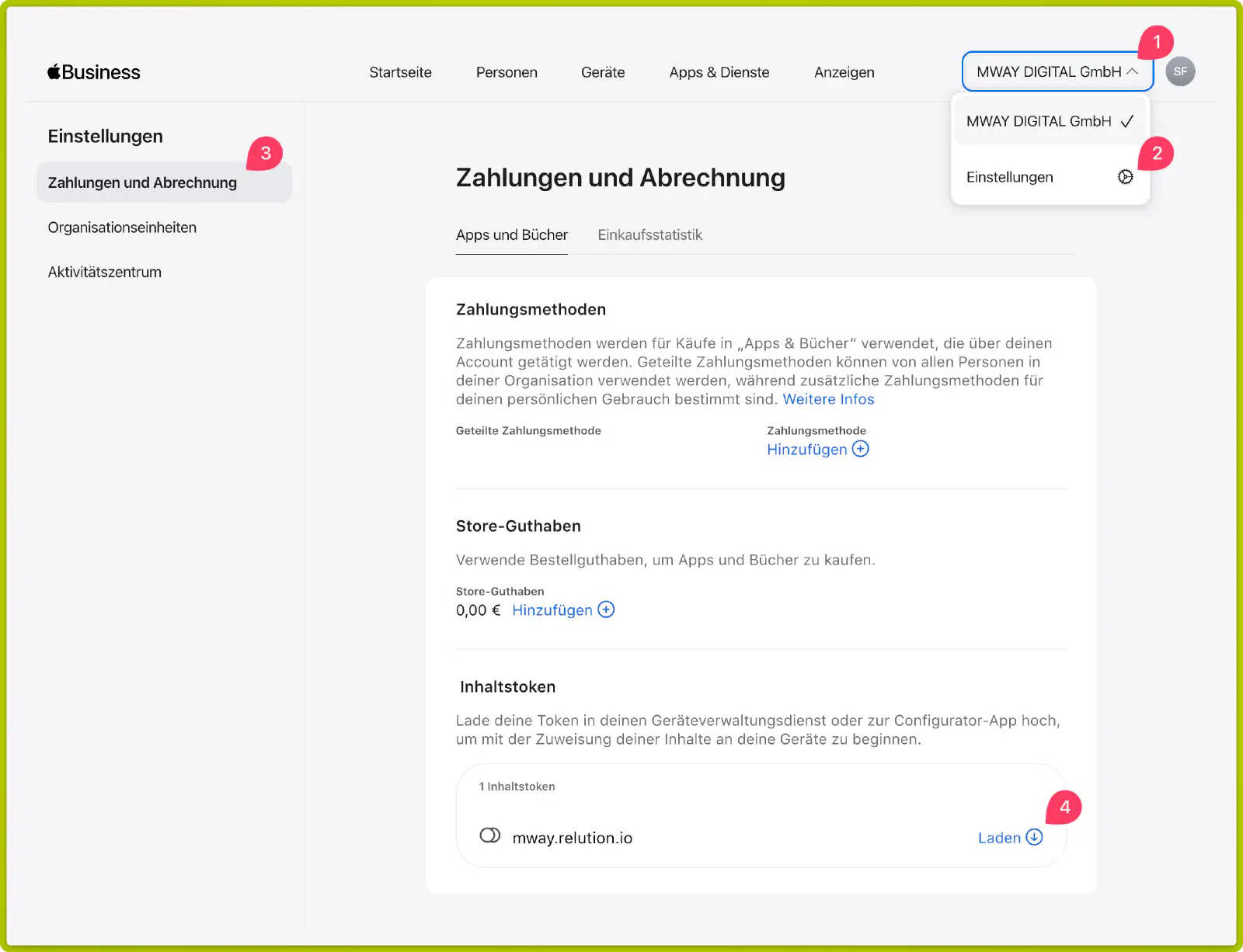
- The login takes place in Apple Business →.
- The organization name in the top right corner is clicked.
- Settings is opened.
- Payments & Billing is selected.
- Under Content Tokens, Download is clicked for the desired token.
- File format:
sToken_for_[Location].vpptoken
- File format:
Uploading to Relution
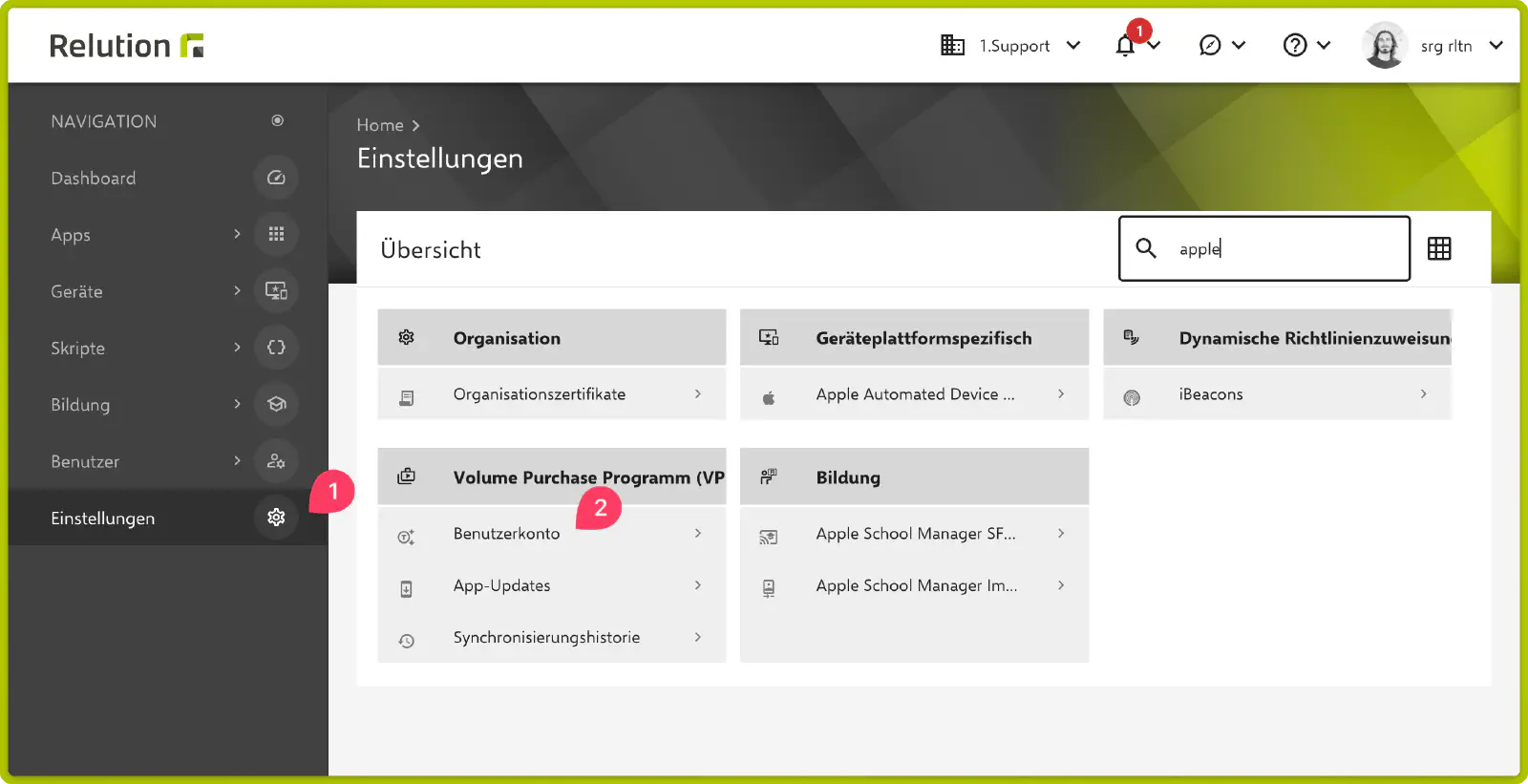
- Log in to the Relution portal and switch to the corresponding organization.
- Open Settings.
- Navigate to Volume Purchase Program (VPP) → User Account.
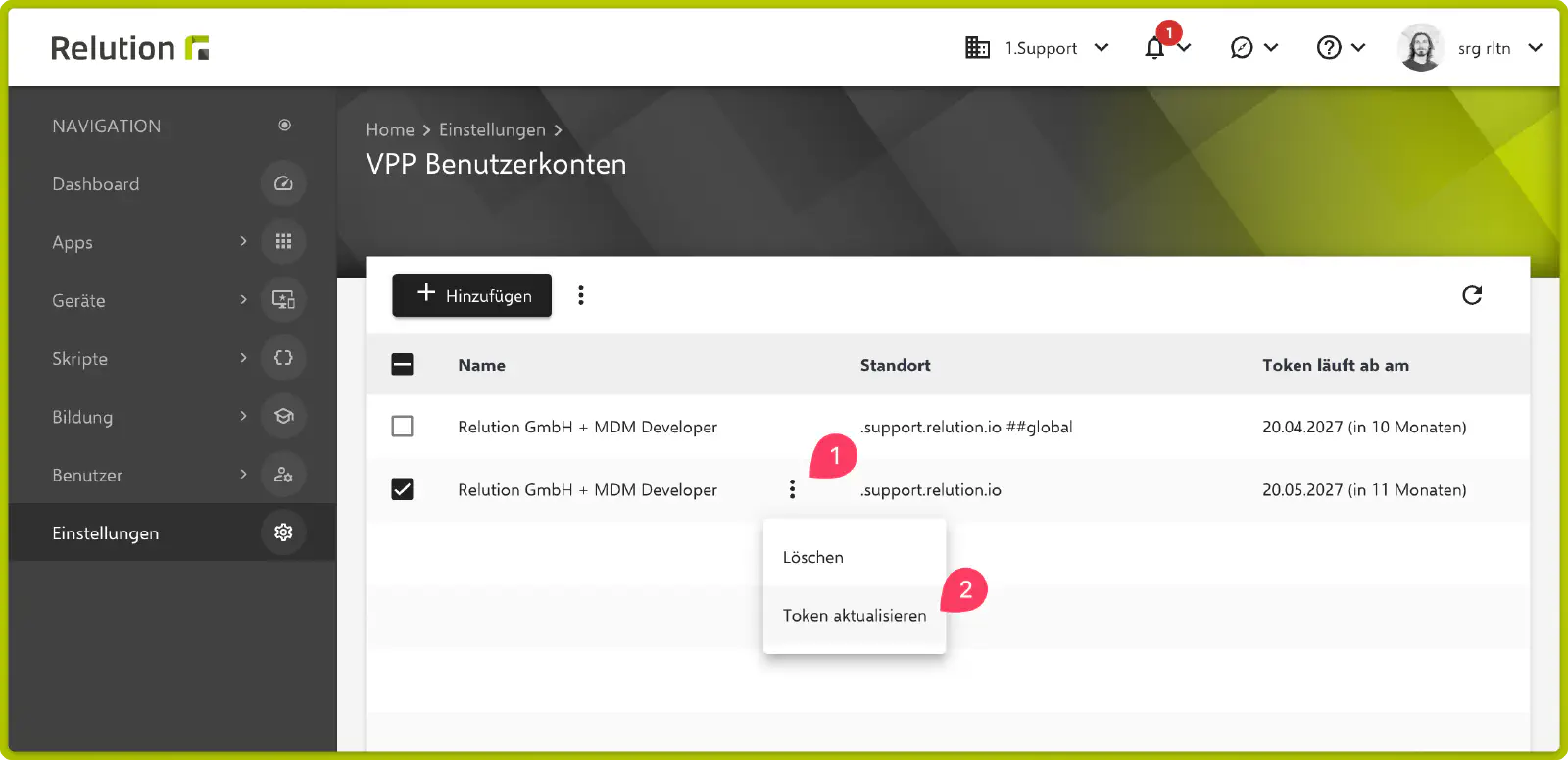
- Select the token to be renewed via the three-dot menu.
- Click Update token.
- Upload the previously downloaded file (
*.vpptoken). - Complete the process by clicking Update token.
Renewing DEP Tokens (Server Tokens)
For the DEP token, the public key certificate from Relution is required before the new token can be generated at Apple.
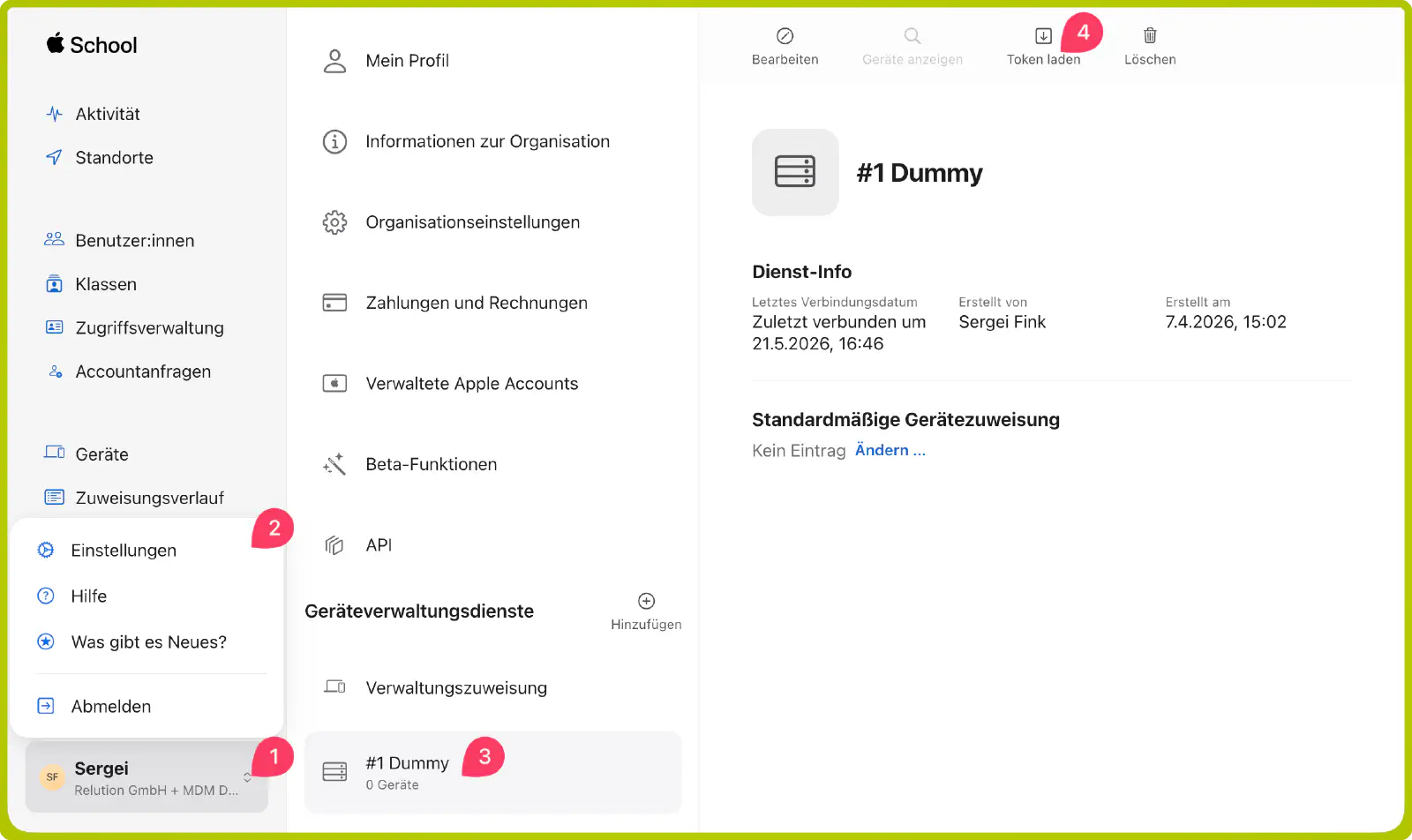
Download from Apple School Manager (ASM)
The login takes place in Apple School Manager →.
The logged-in user name in the bottom left corner is clicked.
Settings is opened.
In the list of device management services, the device management service connected to Relution is selected.
The new token is downloaded via the corresponding button of the device management service.
Downloading a new token resets the existing token.- File format:
*_smime.p7m
- File format:
Download from Apple Business (formerly ABM)
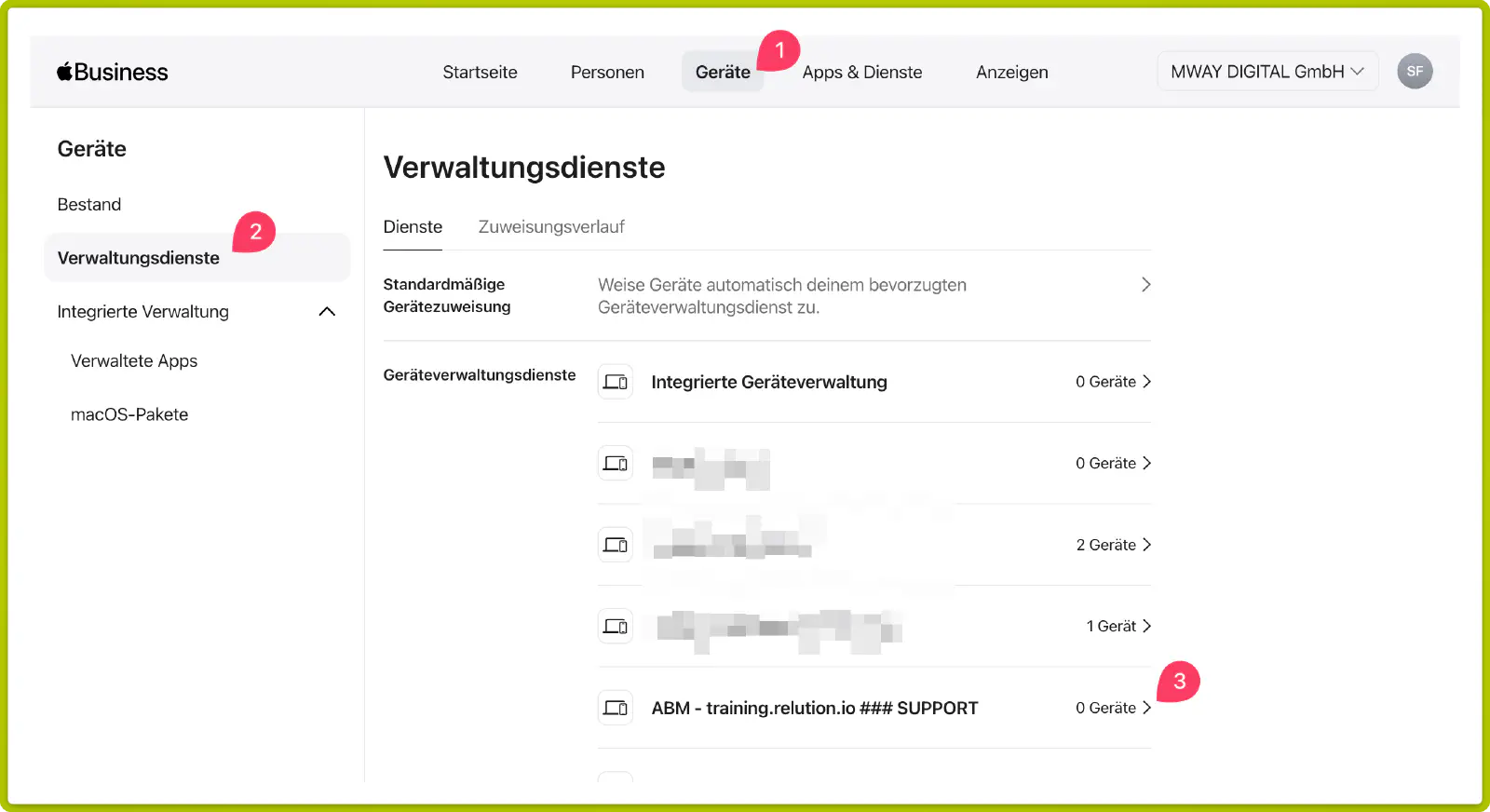
- The login takes place in Apple Business →.
- Devices in the top center is clicked.
- In the left navigation, Management Services is selected.
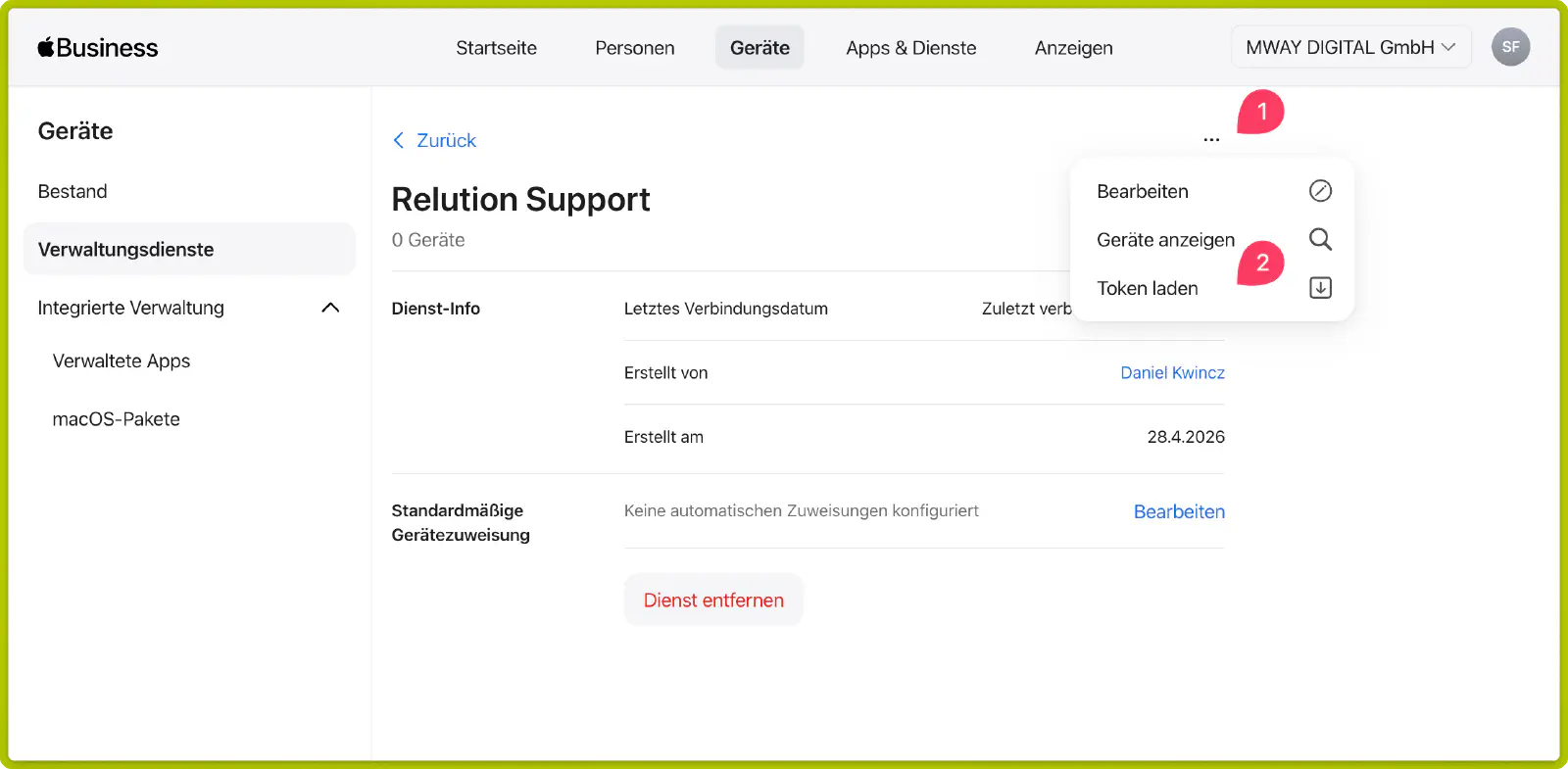
- In the list of device management services, the desired service is selected.
- At the top right, the three-dot menu (…) is opened and the new token is downloaded from there.
- File format:
*_smime.p7m
- File format:
Uploading to Relution
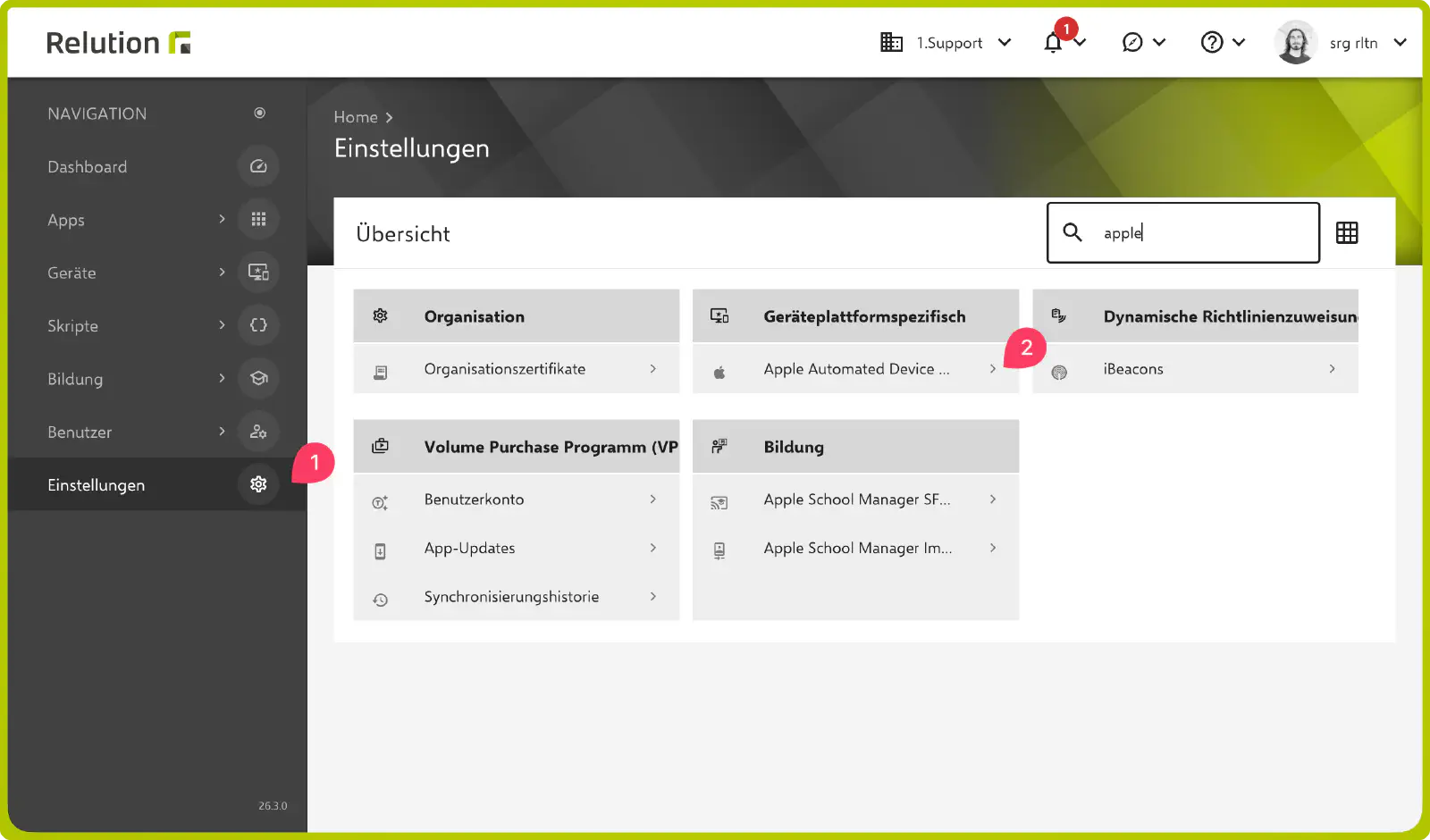
- Log in to the Relution portal and switch to the corresponding organization.
- Open Settings.
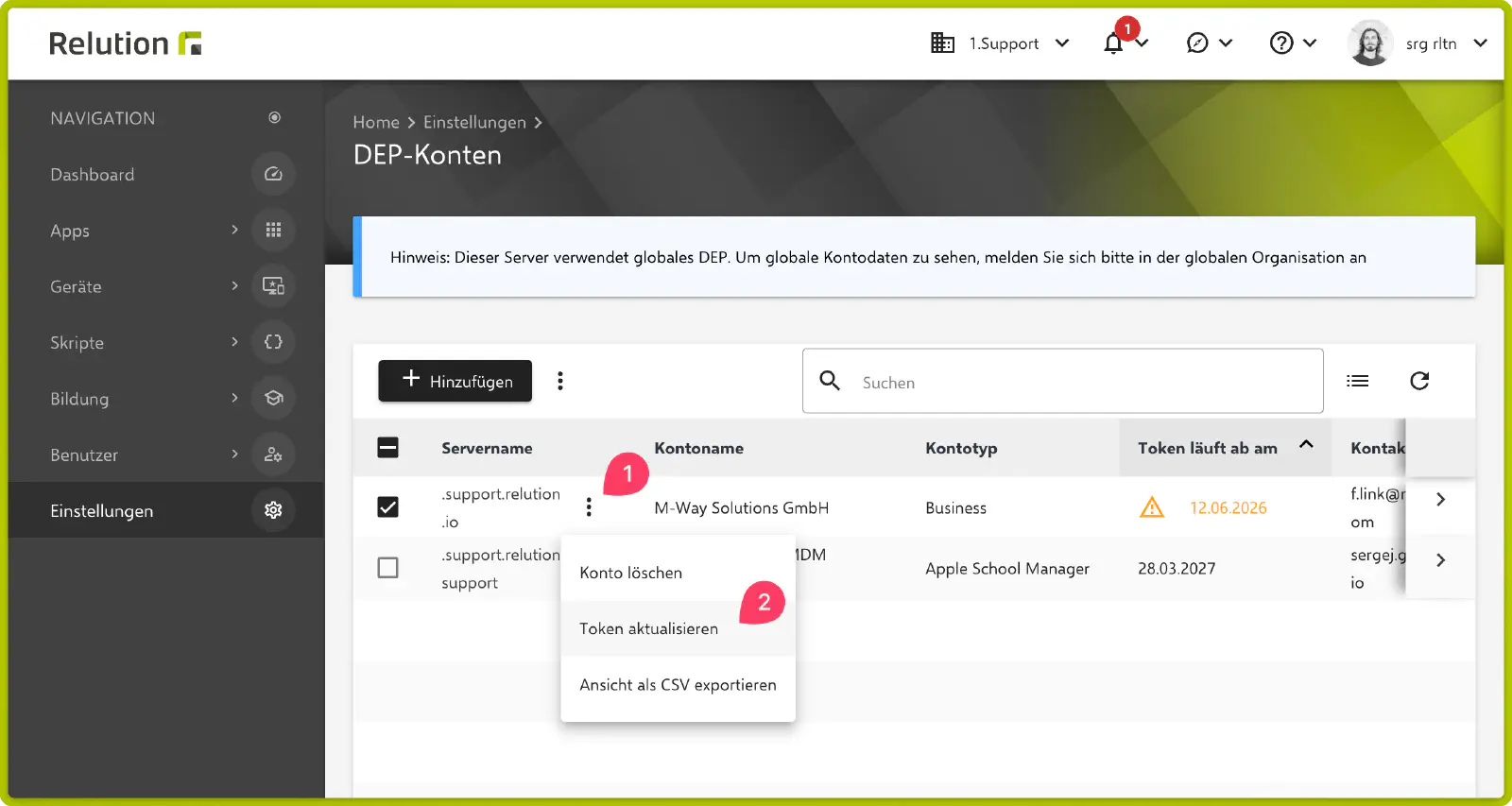
- Navigate to Device platform specific → Apple Automated Device Enrollment.
- Select the desired token via the three-dot menu.
- Click Update token.
- Upload the
*_smime.p7mfile via Select file. - Complete the process by clicking Save.
Important Notes & Troubleshooting
The following points are the most common causes of failed token renewals.
Common Errors
In practice, VPP tokens (.vpptoken) and DEP tokens (.p7m) are frequently mixed up and uploaded into the wrong menus. When this happens, Relution will trigger error messages such as Invalid Token or Uploaded file invalid.
File Extensions Overview
| Token Type | Purpose | File Extension |
|---|---|---|
| DEP Token | Automated Device Enrollment | *_smime.p7m |
| VPP Token | App and book licenses (Volume Purchase Program) | *.vpptoken |
| Public Key | Encryption certificate from Relution for ABM/ASM | *.pem (Only required during initial setup) |
Premature Token Invalidation
A token can become invalid before its regular 1-year expiration date. Common causes include:
- Password Changes: The password of the underlying Managed Apple ID in ABM/ASM was changed.
- Account Status Changes: The administrator account used to generate the token was deleted, deactivated, or downgraded in permissions.
- New Apple Terms & Conditions: Apple has published updated terms of service in the ABM/ASM portal. Token communication is temporarily blocked until a main administrator accepts the new terms within the Apple portal.