 Customer Hub
Configure DEP
Apple Automated Device Enrollment (ADE, DEP in the portal; formerly Device Enrollment Program) provides organizations with the ability to enroll and provision their own Apple devices. ADE streamlines the process of large-scale device provisioning and management by allowing devices to be pre-configured before they are distributed. Users receive their devices fully configured and ready to use out of the box, while data remains private and the system is secure. All pre-configured settings are controlled by administrators via remote management, and compliance is maintained wirelessly, never requiring on-site manual intervention.
ADE-compatible devices
All iPhones, iPads, Mac computers or Apple TVs purchased on or after March 1, 2011, either directly from Apple or from a participating Apple Authorized Reseller, are eligible for ADE. iPhones and iPads must be running iOS/ iPadOS 7 or later, Mac computers must be running OS X 10.9 or later, and Apple TVs must be running tvOS 10.2 or later. Apple Vision Pro (visionOS) can also be enrolled in Relution via ADE. Apple devices can be added to ADE using Apple Configurator, regardless of where the devices were purchased. When an Apple device that was manually registered is set up, it behaves like any other registered device with mandatory supervision and mobile device management (MDM) enrollment. For Apple devices that were not purchased directly, users have a 30-day transition period to remove the device from MDM enrollment and supervision.
Advantages of ADE
The biggest advantage of ADE is the simplicity of the auto-enrollment process. This process ensures that all Apple devices are configured according to the organization’s requirements, and it also guarantees that all users have the same apps, settings, restrictions and permissions on their devices before they are even issued to them.
Other benefits
- Installation of MDM profiles that users cannot remove, so that the devices remain under remote management. To achieve this, the option User may remove MDM Enrollment is disabled in the DEP profile (enabled by default).
- Ability to enable supervision wirelessly.
- Pre-configuration of an initial setup, avoiding time-consuming issues for end users.
- Silent app installation and push capabilities.
- More control for the IT department.
- Fewer security issues.
Supervised iOS devices, DEP and MDM →
Migration of devices via Apple Configurator
Apple Configurator is a solution for small organizations that only have a few Apple devices to manage or only need a basic configuration for their devices. Because Apple Configurator does not provide wireless capabilities, devices managed with Apple Configurator must be physically connected to a Mac computer in order to make changes. This can be beneficial for organizations that need a hands-on approach.
Migrating from Apple Configurator to ADE with Relution is the solution for organizations of any size that want a user-friendly system for managing any number of Apple mobile devices. The migration provides a user-friendly and wireless solution with advanced features that can be customized to meet the needs of organizations of any size.
Add DEP devices with Apple Configurator 2 →
Restrictions on adding devices to ADE
Apple devices purchased on or after March 1, 2011 can be enrolled in ADE after a factory reset. The only other restriction is that the device must be enrolled in ADE within three years of the purchase date.
Remove devices from ADE
Devices can be removed from ADE at any time. Damaged, lost or stolen devices can and should be removed from ADE as soon as possible. Once a device has been removed from ADE, it can no longer be assigned automatically via the reseller; it can only be added again manually using Apple Configurator.
Adding devices from authorized dealers to ADE
ADE works with Apple devices that support ADE when purchased from authorized resellers and carriers. Checking with the dealer before purchasing an Apple device is recommended. To register for ADE with Apple, an Apple customer number or a DEP reseller ID must be entered. If a reseller does not have this number, ADE cannot be accessed.
How To
The DEP account is set up in Relution under Settings → Apple Automated Device Enrollment (Device platform specific section).
The server certificate is downloaded in Relution via Download certificate.
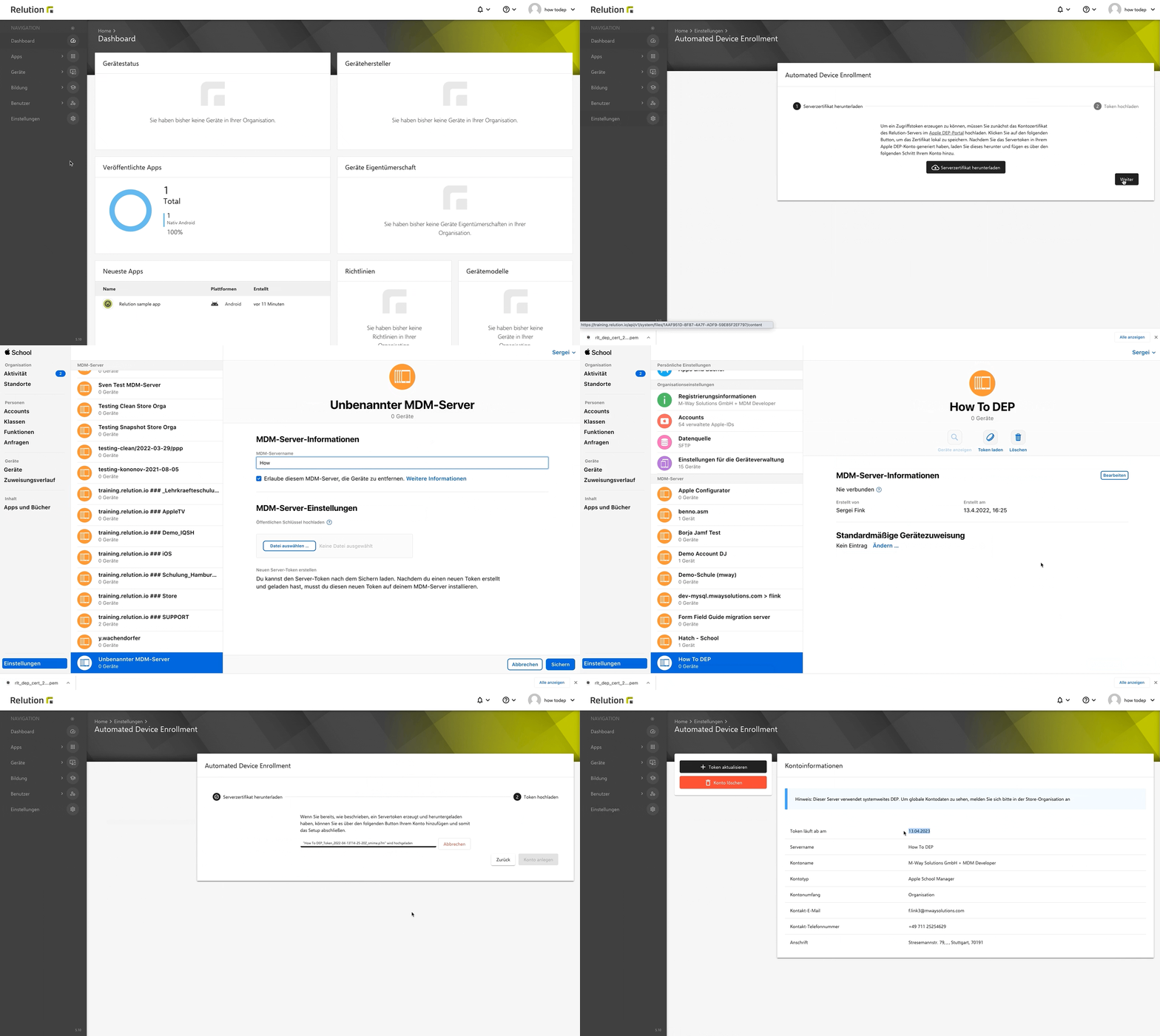
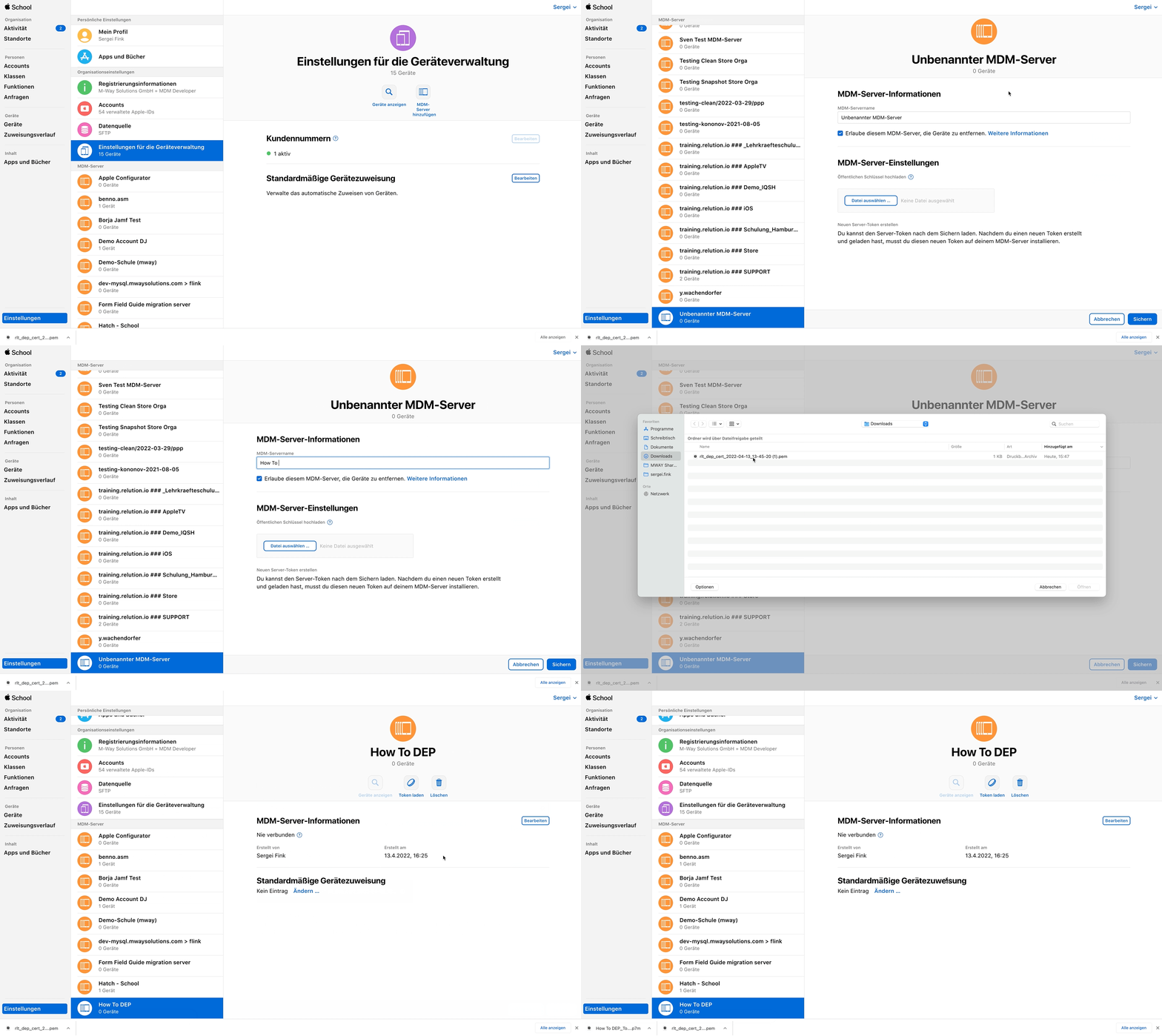
An MDM server is created in Apple School/ Business Manager.
The certificate is uploaded and the token is downloaded.
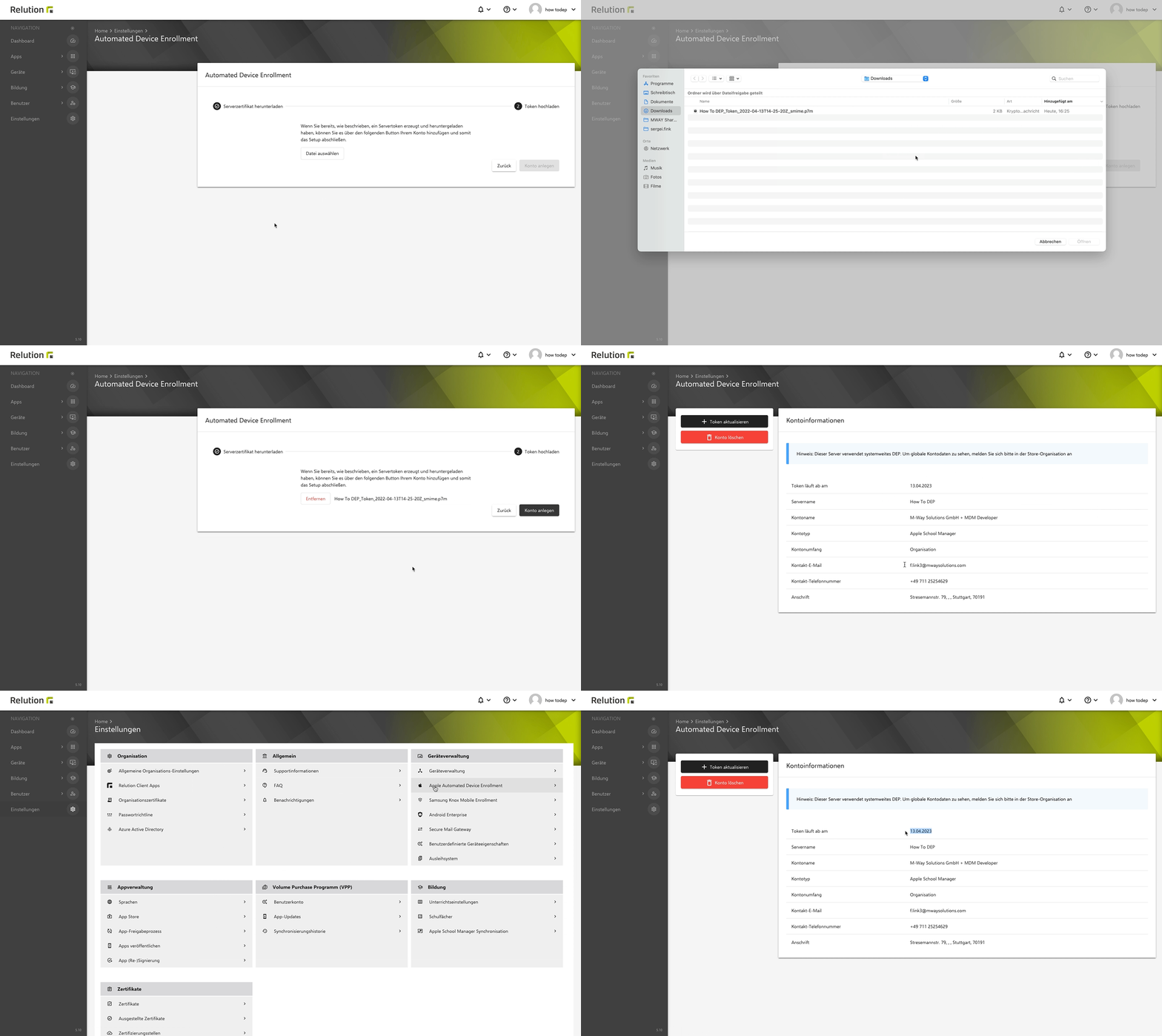
The token is uploaded to Relution via Upload token, and its validity is checked.
Common errors during token upload, an overview of the file extensions and reasons for premature token invalidation are described under Important Notes & Troubleshooting →.
The DEP token is valid for one year and must be renewed afterwards. The procedure is described under Renewing DEP Tokens (Server Tokens) →.
Assigning devices to the MDM server
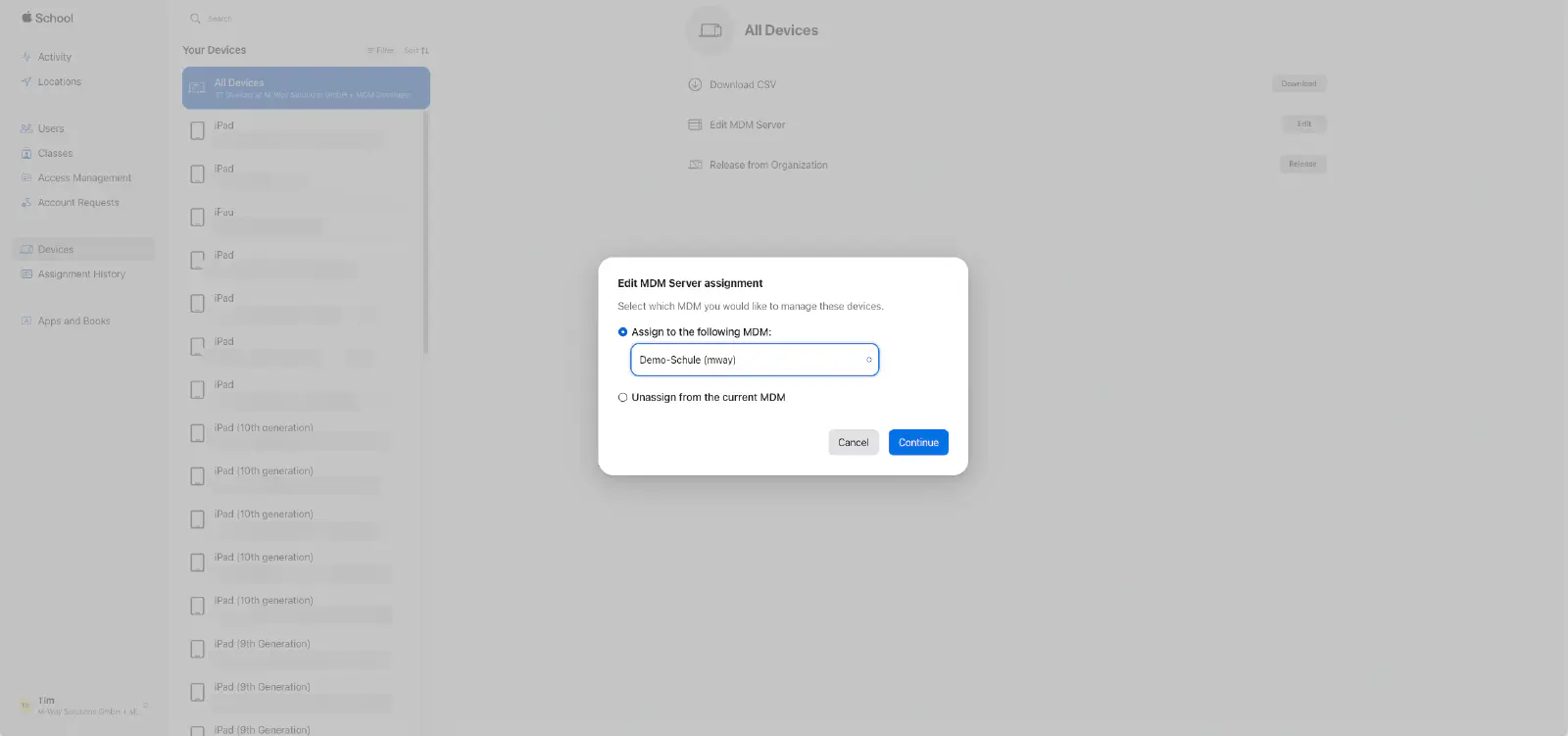
Assigning Apple devices to the MDM server in Apple School/Business Manager requires access with appropriate permissions. In Apple School/ Business Manager, the Devices section is opened.
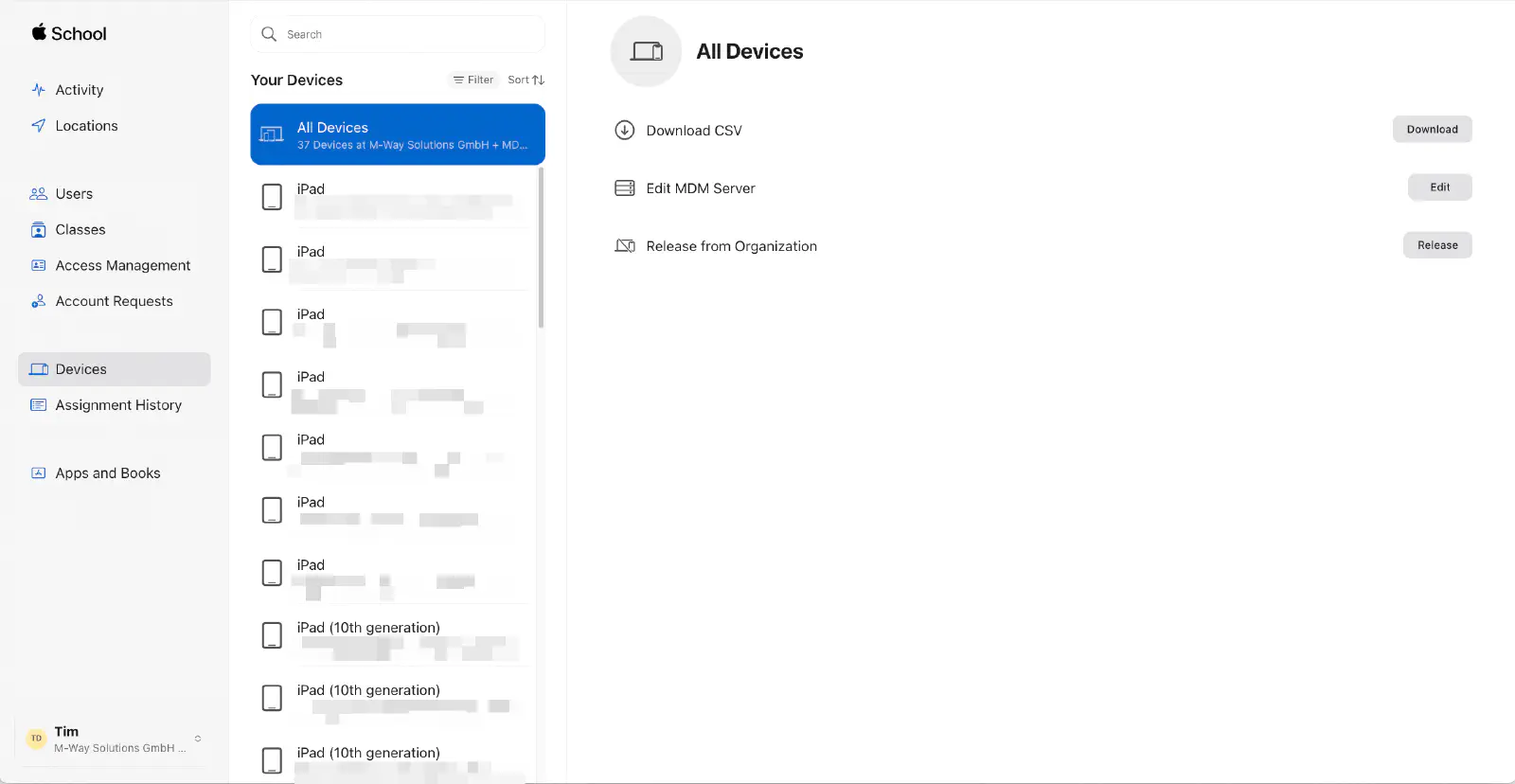
The desired devices are selected and assigned to the appropriate server.
Synchronizing the devices
After that, the Apple devices become visible in Relution under Devices → Auto Enrollments. By default, Relution synchronizes the devices automatically once a day (at night, around 3:00 a.m. server time). The Sync devices button triggers the synchronization immediately; it synchronizes all configured auto enrollment services.
If a DEP profile was previously created and marked with Use as default profile, it is automatically assigned to the new devices during synchronization. Otherwise, the DEP profile is assigned manually via Set profile — a DEP profile is mandatory. DEP profiles are created under Devices → Profiles, see Profile for ADE →.
The following actions are also available for selected devices in the auto enrollments:
- Assign user and Unassign user: Assigns a user to the devices or removes the assignment.
- Use user name as device name: Uses the name of the assigned user as the device name.
- Add to device groups and Remove from device groups: Assigns the devices to static device groups. The policies of these groups are applied automatically on enrollment.
Commissioning the DEP devices
When one of the devices is started up, or a factory reset is performed if it’s already up and running, the device logs into Apple and downloads the DEP profile, provided an Internet connection is available. Following the on-screen instructions is all that is required: at the end of the wizard, the Apple device is enrolled and the Relution Agent should be installed.
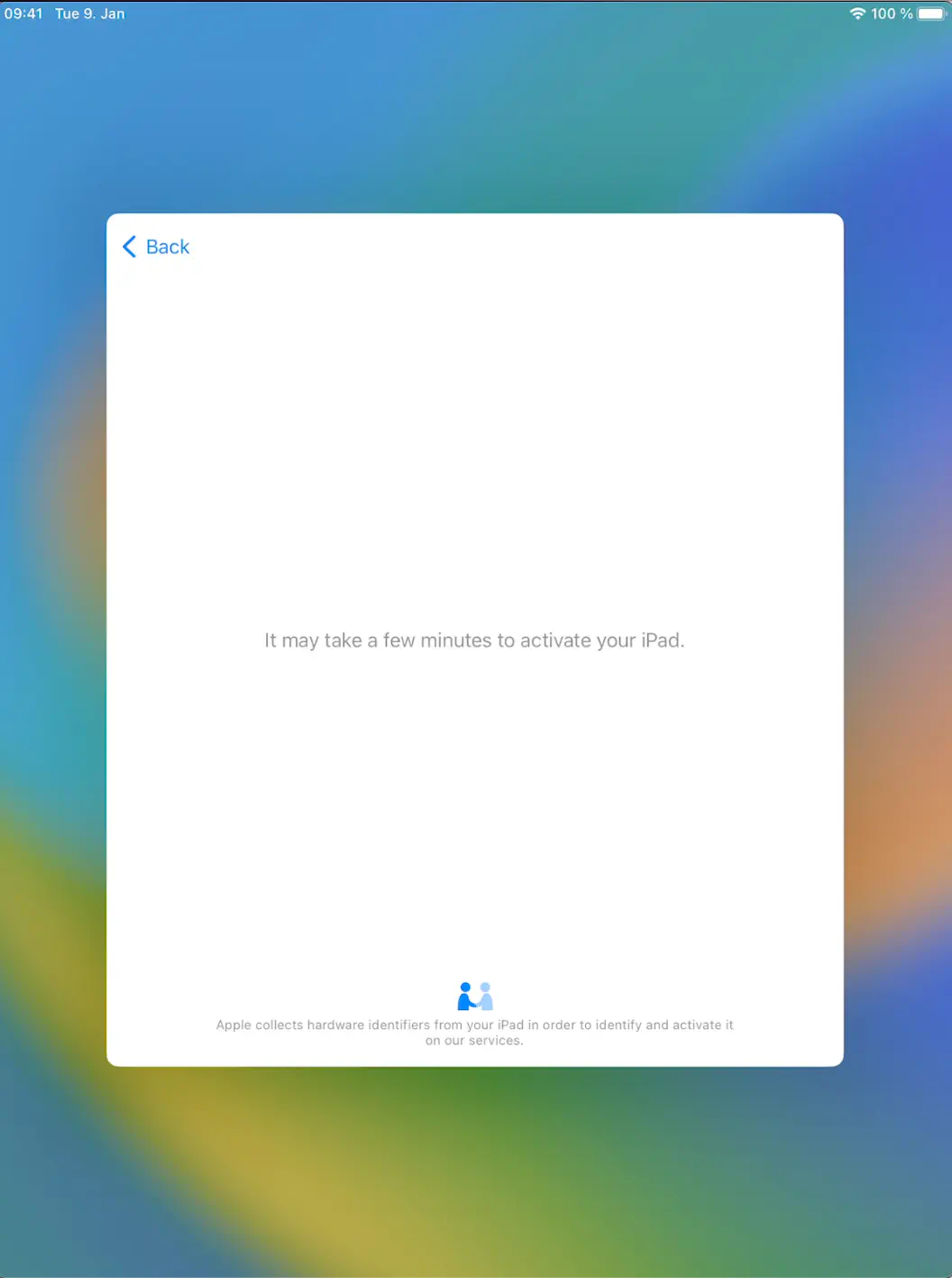
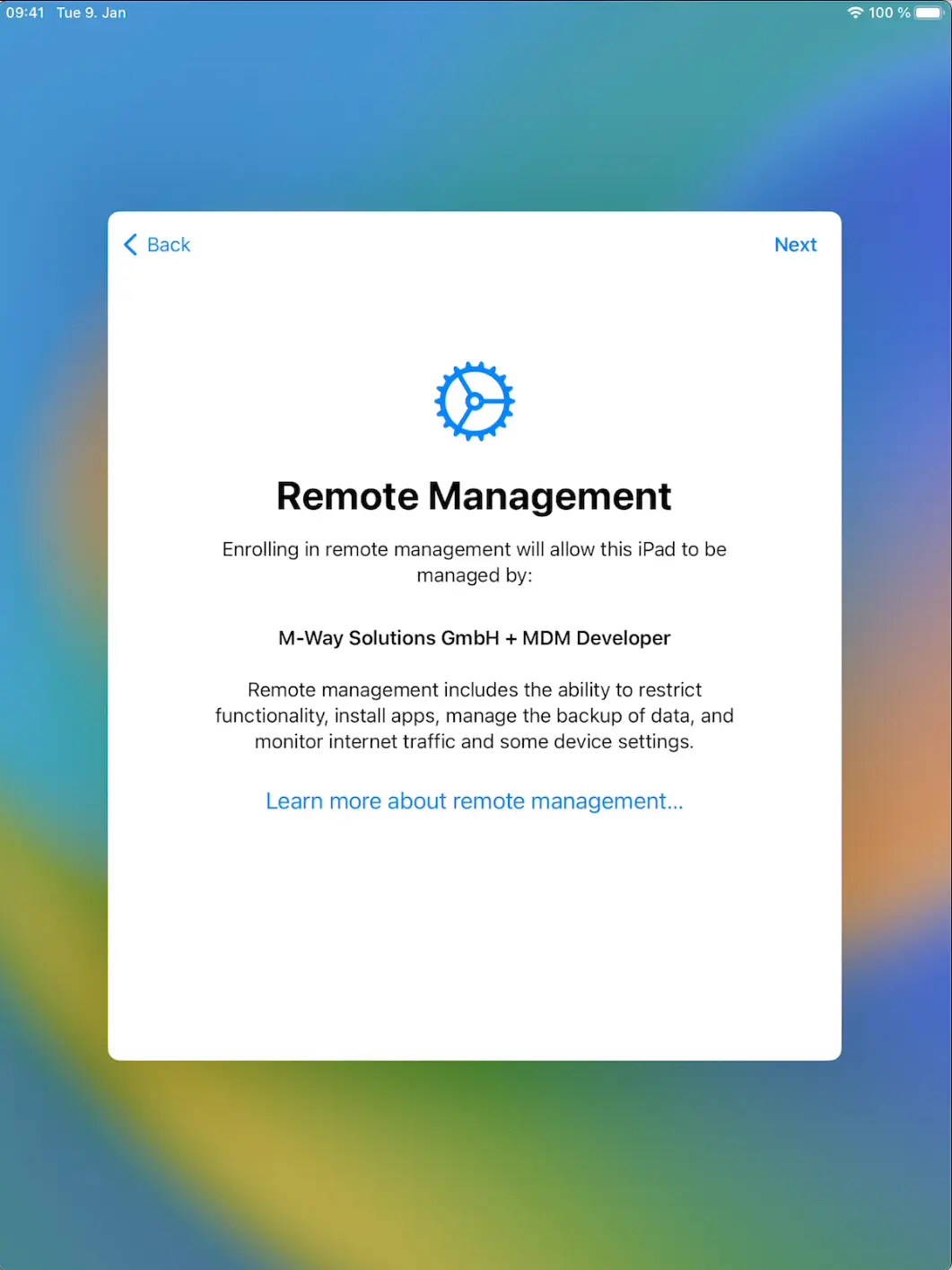
Profile could not be loaded is displayed, it is checked whether enough free device licenses are left and whether a DEP profile is associated with the device.