 Customer Hub
App Management
Relution offers comprehensive Mobile App Management (MAM) functionality, enabling centralized management of all supported apps — cross-platform and efficient.
Supported platforms and app formats:
- iOS & iPadOS: apps from Apps and Books (VPP in the portal) and native apps (
.ipa) - macOS: apps from Apps and Books and native apps (
.dmg,.pkg) - Android: Google Play Store apps, Managed Google Play Store apps (Android Enterprise) and native apps (
.apk) - Windows: Microsoft Store apps and installation packages in the formats
.msix,.msixbundle,.appx,.appxbundle,.msi,.exe, and via WinGet - Weblinks: can also be managed and provided centrally
Relution allows unified and flexible management of all applications within an organization.
For native apps, using the Relution App Store is mandatory, whereas apps from Apps and Books or from manufacturer stores can optionally be managed through it.
Overview of the Apps Menu
The Apps Menu in Relution is divided into the following sections:
- App Store - Relution’s own app store for all supported apps and formats mentioned above.
- Requests - App requests from end users that can be approved by administrators or app managers.
- Categories - Allows apps to be categorized, e.g., for educational purposes.
- Purchased Apps - Overview of all apps from Apps and Books, including VPP tokens and synchronization options.
- Media - Overview of all books obtained via Apps and Books and of self-uploaded files, e.g., PDFs.
App Store Explained
The Relution App Store serves as a central repository for all supported apps across various platforms.
It provides an overview of available apps based on Name, Platforms, Status, Modified, and additional criteria. Additional columns can be displayed via the hamburger menu.
Using the add button, apps can be integrated from their respective manufacturer stores or uploaded natively. The following sources are available: Native app, Weblink, Windows Store app, Google Play Store app, Managed Google Play Store App (Android Enterprise), Apple App Store App and Winget Store app. The Managed Google Play Store App (Android Enterprise) source only appears if Android Enterprise is connected in the organization.
Sections in the App Store
When opening an added app, extended configuration possibilities and actual MAM functionalities become accessible.
Information
- Overview with current status and version (Development, Review, Release, Archive)
- Description of the app (retrieved from the respective manufacturer store)
- Changelog of the app (retrieved from the respective manufacturer store)
- Additional information such as internal app name or version
Settings
- General
- Update automatically – only for store apps; refers to metadata from the respective manufacturer store (weekly updates)
- Categories – allows the app to be categorized, e.g., for educational purposes
- Responsible person – assigned person or role for the app
- Support contact – contact address for app support
- Permissions
- Owner – owner of the app
- Reviewer – permissions for app review
- Developer – permissions for app development
- Users – users or groups approved here can use or install the app
- General
Auto Deployments – specify users or groups that should automatically receive this app. The tab only appears once a version in the Release status exists; for macOS only for apps from Apps and Books.
Scripts – only for Windows apps in
.msior.exeformatVersion assignments and App permissions – only in the global organization for local apps
History – timeline of app updates and versions
Devices with this app – overview of all devices where this app is installed
Requests
Via the Relution Agent → or the Portal, users can request desired apps.
This enables the authorized user or administrator to approve apps, delete requests, adjust the status, and procure Apps and Books licenses if necessary.
This requires the App requester enabled toggle under Settings → General Organization Settings in the App Requests area. It is enabled by default and is not available in the global organization. If it is switched off, the Requests menu item is missing and no apps can be requested.
Categories
Admins and authorized users can create categories for apps and add respective apps to them, making them easier and faster to locate within the Relution Teacher App.
Purchased Apps
A dedicated overview for apps from Apps and Books for iOS, iPadOS, and macOS, including a manual sync function if required.
It allows filtering via VPP tokens and offers an overview of total license count, available licenses, and assigned licenses. Clicking on a specific app allows assigning licenses directly to devices, users, or groups. Further licenses can be purchased via the Purchase app context menu.
With a public VPP token, the assignments shown refer only to the current organization, while the total license count refers to all organizations.
Media
A dedicated overview for media from Apps and Books for iOS, iPadOS, and macOS, including a manual sync function if required.
It allows filtering via VPP tokens and provides an overview of total license count, available licenses, and assigned licenses. Clicking on a specific medium allows assigning licenses directly to devices, users, or groups.
Additionally, other media such as PDF or EPUB files can be distributed. They are added via Upload new PDF or ePUB and replaced via Update media content. Uploading is only possible if a VPP token is available in the organization. Further books can be purchased via Purchase books from Apple Store.
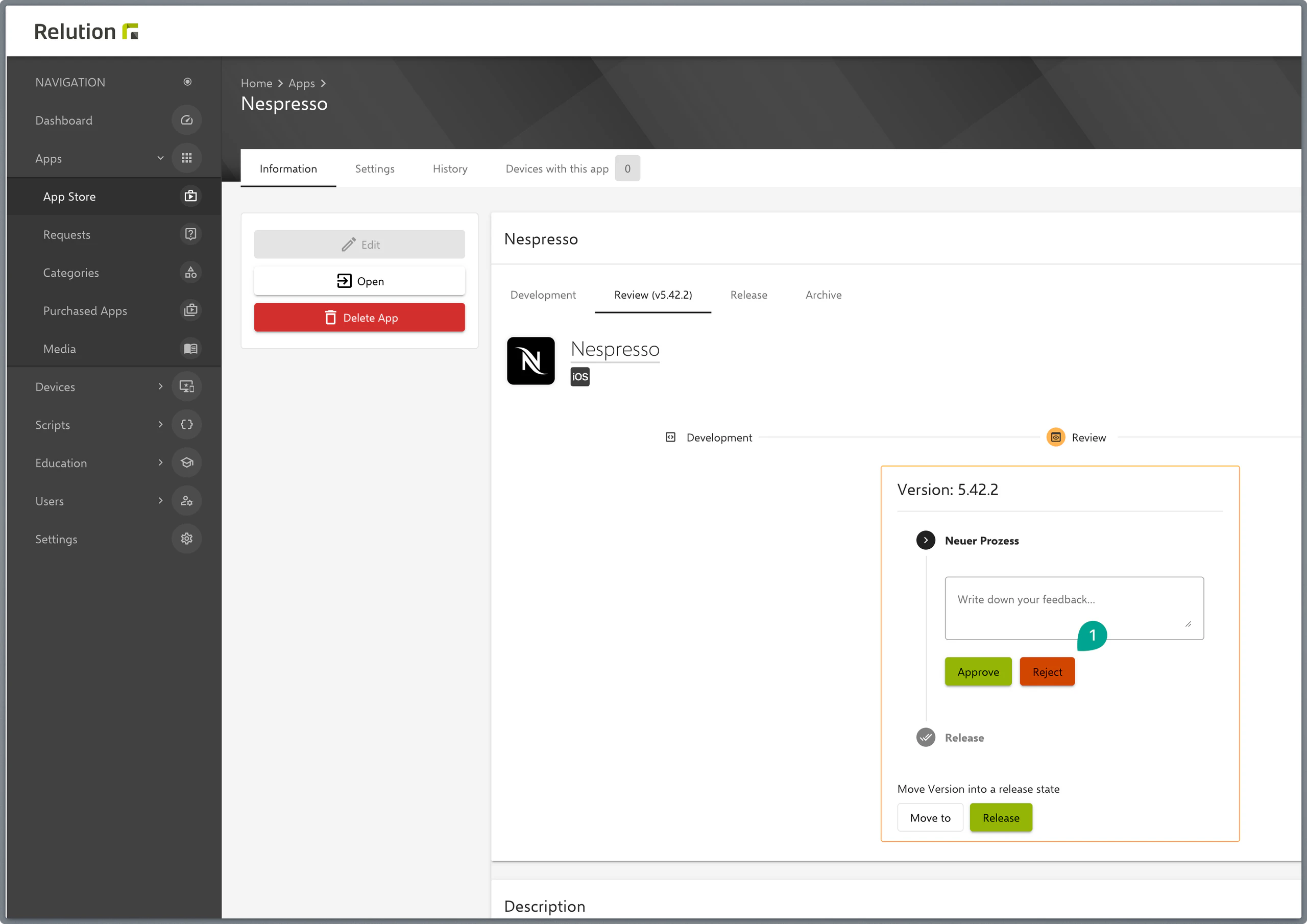
Processing App Requests
Requested apps are placed in the Review status. Without an active app release workflow, owners and reviewers of the app, i.e. by default the members of the App Reviewer group, can release or reject the requested version directly. Users with delete permission can remove the request. Optionally, a multi-step release process can be set up whose steps can be restricted to requested apps.
Setting Up the Process
An optional release process is configured under Settings → App Release Workflow. For details on individual release steps, responsibilities, and automated date arrangement, see App Release Workflow →.
Managing App Requests
Requested apps can be managed via the sidebar under the following menu item:
Apps → Requests
In this section, pending requests can be reviewed and subsequently approved or rejected.
App Store Default Permissions for New Apps
In Relution, the default permissions for new apps can be defined under Settings → App Store. This is particularly useful if apps should be explicitly available only to a specific group of users by default.
Default Configuration for New Apps
As long as the Enable toggle is switched off, new apps receive the following default assignment:
- Users: Appstore User and Device Manager
- Developers: Developer
- Reviewers: App Reviewer
After switching it on, all roles are initially empty and must be filled via App uploader or Assign User or Group. Without an assignment in the User role, new apps are not available to App Store users. After switching the toggle off and on again, the template is empty again.
Example: Configuration for the User Role
Within the settings, the following options are available for assignment:
App uploader: If active, the uploading user is automatically assigned to this role. If a user is assigned as the owner, they have the permission to modify all settings for the app.
Assign User or Group: Alternatively, a specific user or a predefined group can be defined for the use of the app.