Download Device Logs
As of Relution 5.31, debug logs for individual devices can be managed and downloaded directly via the Relution portal.
Introduction
Starting with Relution 5.31, it is possible to download debug logs for specific devices from the server using the Relution portal. To record and download these logs for a specific period, certain administrative privileges are required.
Prerequisites
- Permissions: Access to the Global Organization is mandatory.
- User Role: System Administrator or a user with appropriate permissions within the Global Organization.
Instructions
Follow these steps to manage and download device logs:
- Login: Log in to the Relution portal as an administrator of the Global Organization.
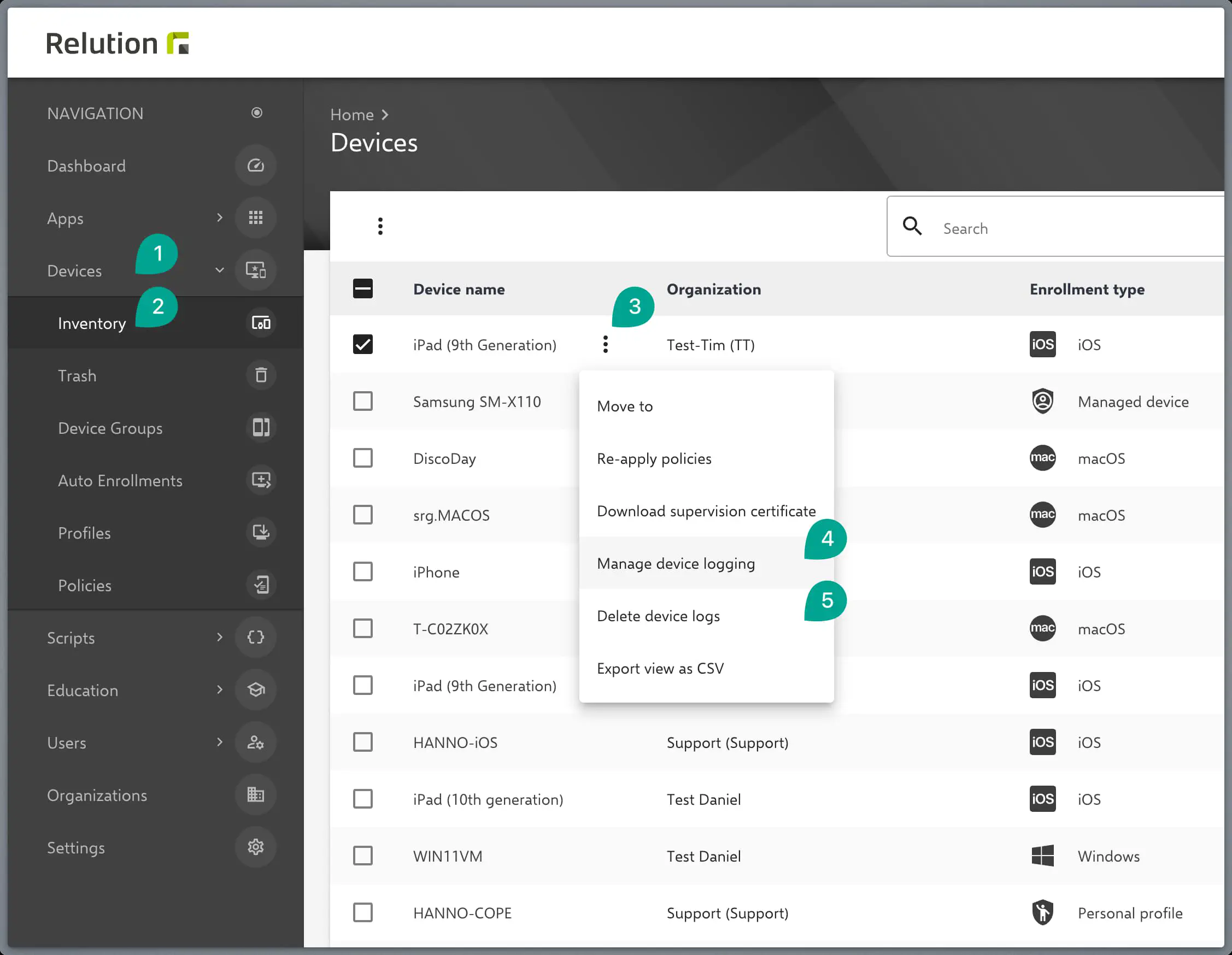
- Navigate to Device: Go to the Inventory and locate the specific device.
- Context Menu: Open the device’s context menu by clicking the three dots icon.
- Manage Device Logging: Click on Manage device logging.
- Logging Duration: In the next step, you can define how long the logging should remain active.
- Download Logs: This section also allows you to download existing log files from the device.
- Delete Device Logs: Use this option to remove generated log files from the server once they are no longer needed.