Customer Hub
Device groups
The device group function has been available in Relution since version 5.21.0. This allows devices to be automatically assigned to groups based on various device properties. The device groups can then be used to assign policies that are delivered automatically.
Accessing device groups
Device groups are located under Devices → Device Groups.
This page provides an overview of the existing groups and allows new groups to be created.
A device group is a link between devices and policies. This link can be created either manually or automatically based on certain device properties.
Policies are linked to devices exclusively via device groups; direct linking is no longer possible. Device groups can also trigger actions based on events or on a schedule: Device group actions →
Creating new device groups
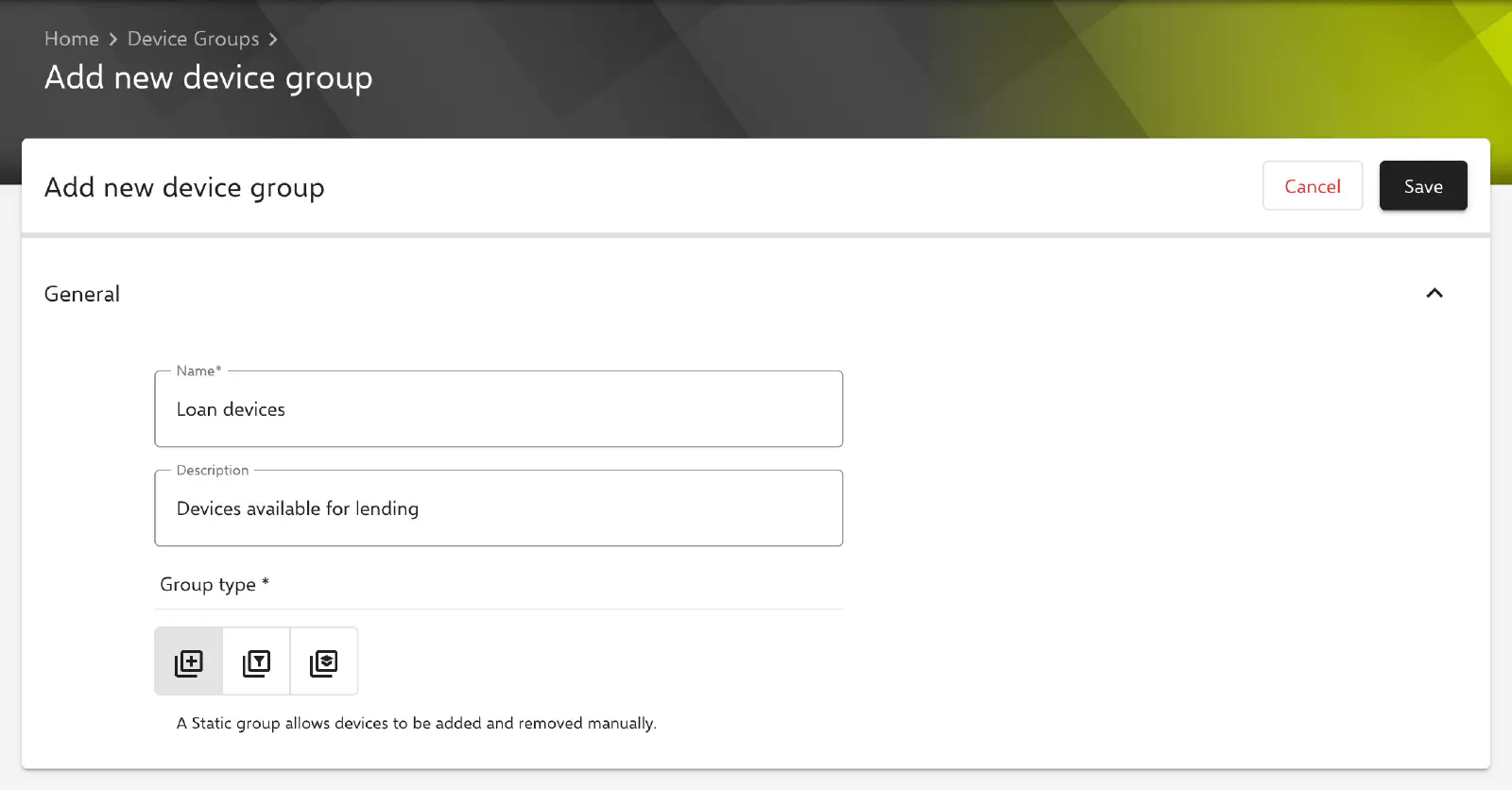
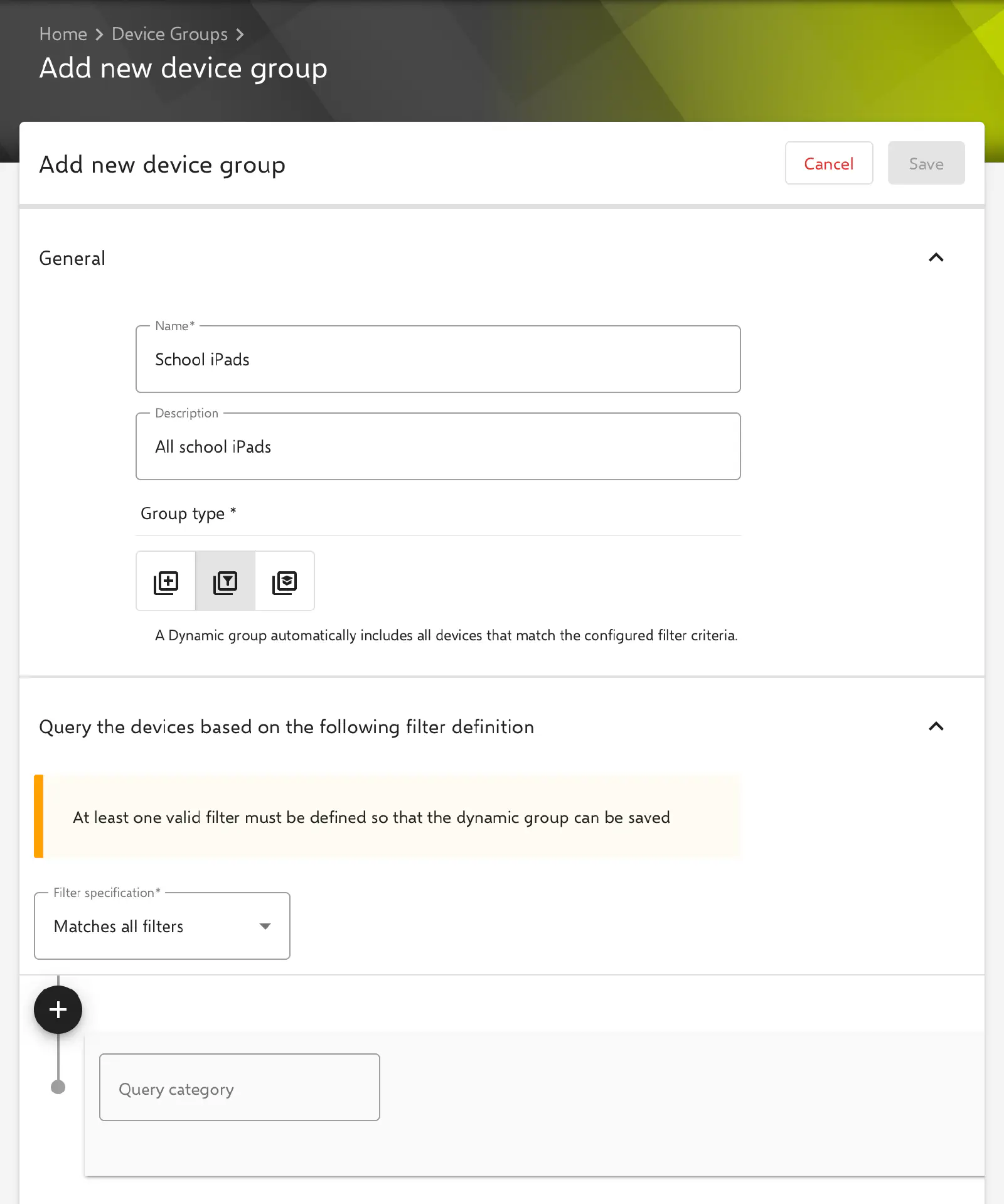
A new device group is created by clicking Add. A name and (optionally) a description are assigned to the group. The Group type can also be selected. Here the options Static and Dynamic are available; with an Education or Free license, Education is also available. Dynamic is preselected.
Static groups
Static groups allow manual linking between devices and policies.
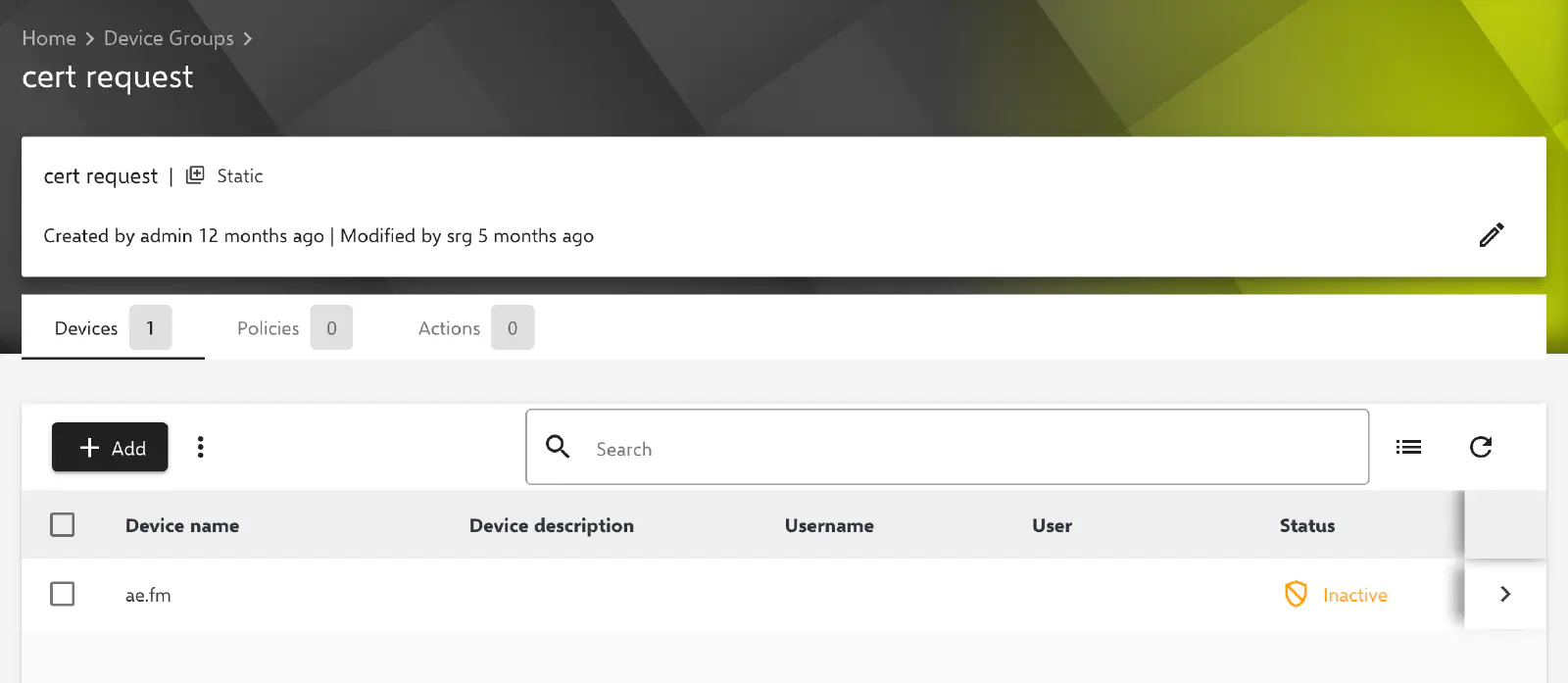
After the group is created, devices and policies can be added. Only policies that have been previously published, can be linked.
Bulk Adding Devices
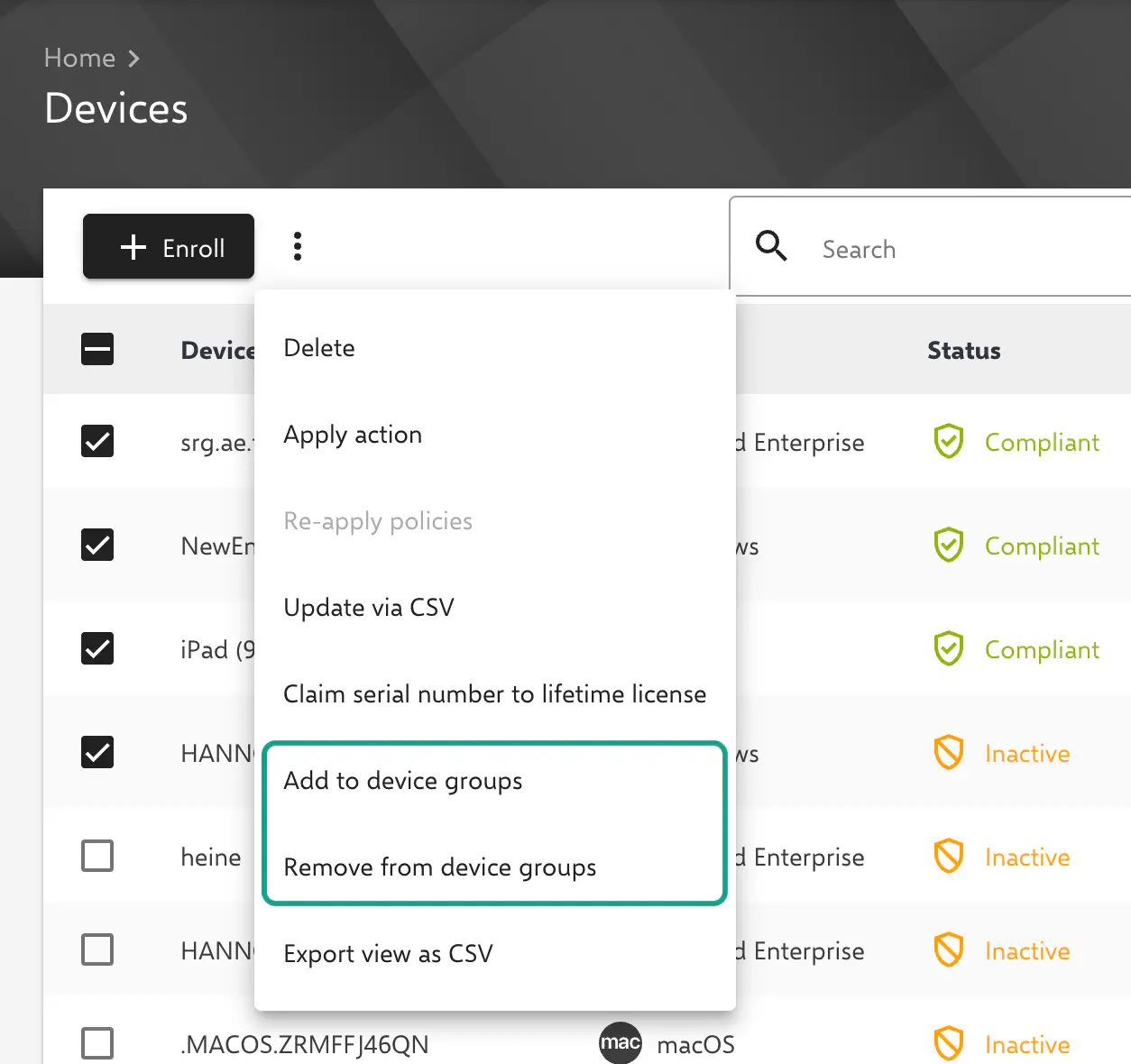
With Relution 26.1.0, it is possible to directly add multiple selected devices from the inventory or auto-enrollments to an existing static group or remove them from it, which also assigns or withdraws the associated policies. The 3-dot menu provides the entries Add to device groups and Remove from device groups for this purpose.
Devices can already be assigned to static groups during enrollment: enrollments and auto-enrollments provide the Static device groups field for this purpose.
Dynamic groups
In dynamic groups, filters must be defined based on which devices are automatically assigned to the group. This happens automatically in the background. For filters on user groups or classes (courses), it can take up to an hour until changes take effect in the group; prompt evaluation is only guaranteed for Relution Shared Device logins and logouts. There is no direct manual influence on the content of these groups.
In the Device preview section, clicking Update shows how many and which devices the group contains with the current filters. If saving an existing dynamic group changes the number of devices, Relution asks for confirmation before saving.
Caution: When a device loses its membership in a dynamic device group, the policies assigned through this group are withdrawn. If Uninstall auto-installed required apps if no longer required is enabled in an affected app compliance policy, the apps are removed together with their local data. The group membership is restored automatically as soon as the filter condition applies again, the app data is not.
Almost all filterable properties can change without any action by an administrator: they are reported by the device or taken over from Apple, Google, Microsoft or the identity provider. Custom fields 1–5 as well as the device name and description are also reset when the device is enrolled again.
For policies with automatic uninstallation, it is therefore advisable to use static device groups or to disable automatic uninstallation for apps that hold user data.
The Filter specification field offers the options Matches all filters (AND) and Matches at least one filter (OR). Via the plus icon, Add filter creates further filters and Add group creates nested filter groups. Each filter group has its own Filter specification, which allows conditions to be bracketed as in the following example.
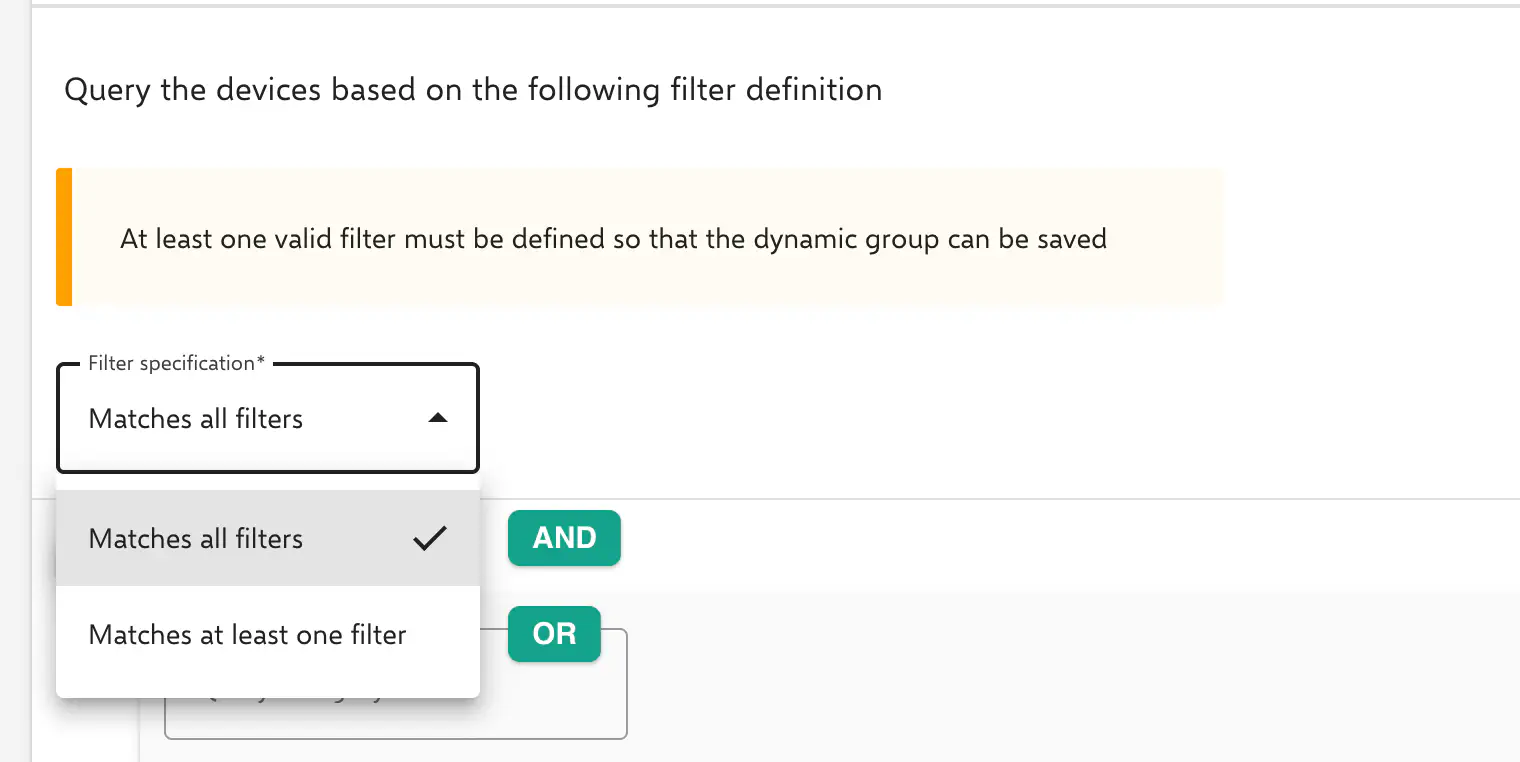
In the example, a filter has been defined from several properties and filter specifications.
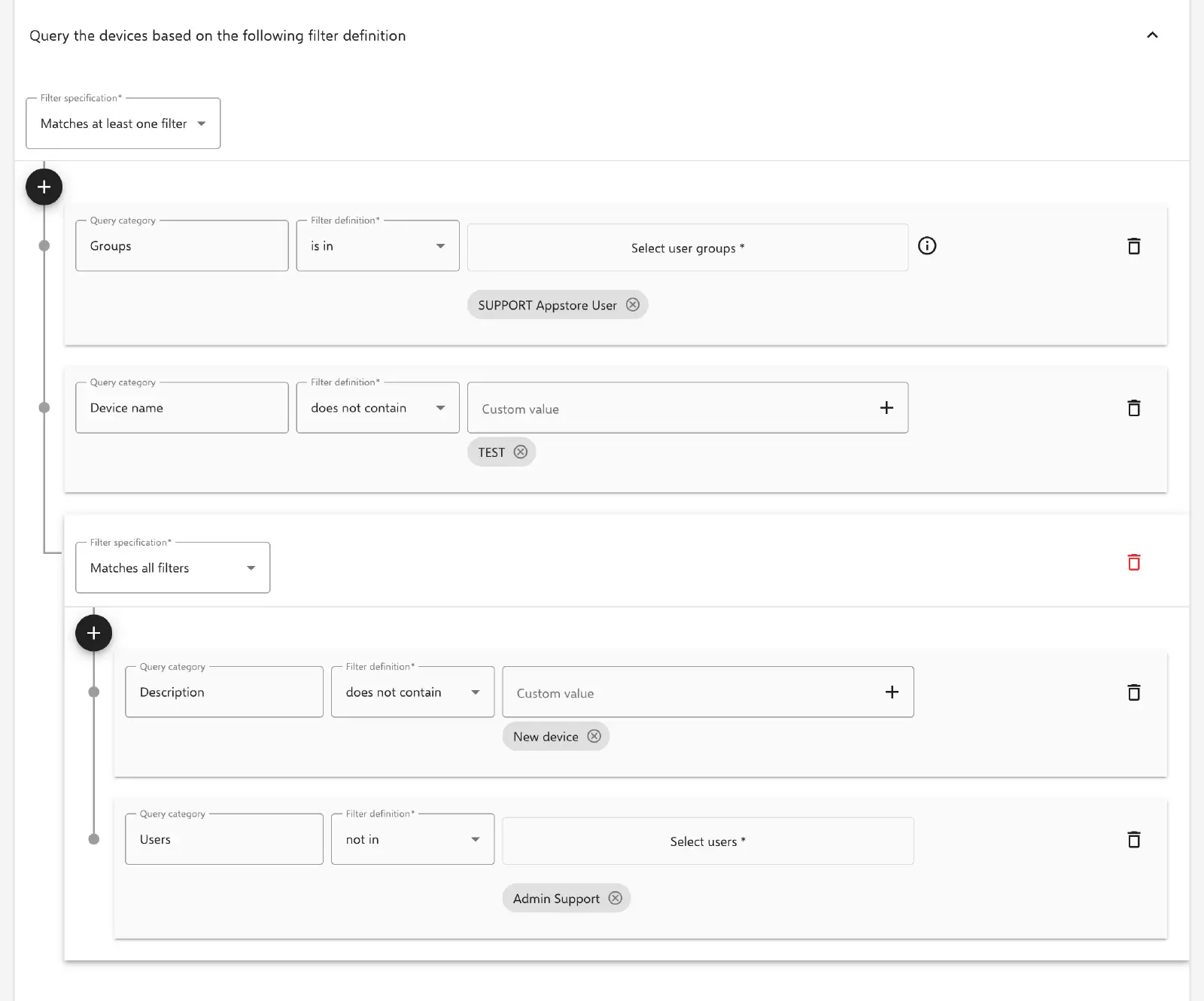
The filter integrates the following devices:
- The linked user must be a member of the
SUPPORT Appstore Usergroup.
OR
- The device name does not contain
TEST.
OR
- The description does not contain
New device.
AND
- The user is not
Admin Support.
Alternatively, the filter could be described like this:
Groups = "SUPPORT Appstore User" OR Device name DOES NOT CONTAIN "TEST"
OR (Description DOES NOT CONTAIN "New device" AND User NOT "Admin Support")
The filter specifications behave like ordinary logical functions.
For example, to avoid accidents, the serial number of a single device can also be added as a fixed filter value to apply the policy only to that device and verify that the result is as expected.
Dynamic Device Groups with Group Filter
As of version 5.33, Relution supports the use of device groups as filters within dynamic device groups. This allows existing static or dynamic groups to be used as conditions in new groups – either to include or specifically exclude devices. For this filter type, Device group is selected under Query category and at least one existing device group is added as a condition. The filter definitions is in, not in and all of (device is a member of all selected groups) are available. The group currently being edited is not offered for selection.
Advantages of the Group Filter
- More precise target group formation, e.g.,
all iPads except test devices - Less maintenance effort, as policies no longer need to be manually duplicated
- Clearer management of policies, profiles, and actions
With the new filter type, one or more other device groups can be included in or explicitly excluded from a dynamic group. For example, a test group can easily be filtered out of a dynamic production group without the need to configure additional criteria.
Working with dynamic device groups requires careful planning:
- No mutual dependencies between groups
- No accidental removal of critical baseline configurations, such as Wi-Fi profiles
- Policy changes are always tested with pilot devices first
Misconfigurations can otherwise lead to unwanted device loss from groups or even endless loops.
Education groups
New in 26.5The Education group type automatically applies the linked policies to the devices of participating students for the duration of a lesson. Membership results from the active lessons in Relution Teacher; manual device assignment is not possible. Details under Education groups →.
Duplicate Device Groups
As of Relution 5.33, device groups can be duplicated to enable faster and more convenient management.
To do this, one or more desired device groups can be selected under Devices → Device Groups and duplicated via the 3-dot menu. A query will follow asking what should be duplicated from the original device group.
The following options are available:
- Include device group actions (only with the permission to create device group actions)
- Include devices (static groups only)
- Include filters, if disabled a static group will be created (dynamic groups only; if disabled, a static group without devices is created)
- Include policies
If only one group is duplicated, the dialog also asks for the Name of the device group duplicate. When several groups are duplicated, the duplicates are automatically named <original name> - duplicate.
Delete Device Groups
Device groups that are no longer needed can be selected under Devices → Device Groups and deleted via the 3-dot menu. Deleting a group leaves the devices enrolled. However, policies that were assigned to the devices only through this group are withdrawn. If Uninstall auto-installed required apps if no longer required is enabled in an affected app compliance policy, the apps are removed together with their local data.
Activate Device Groups
Outdated as of Relution 26.0.0 — device groups have been enabled by default since then.
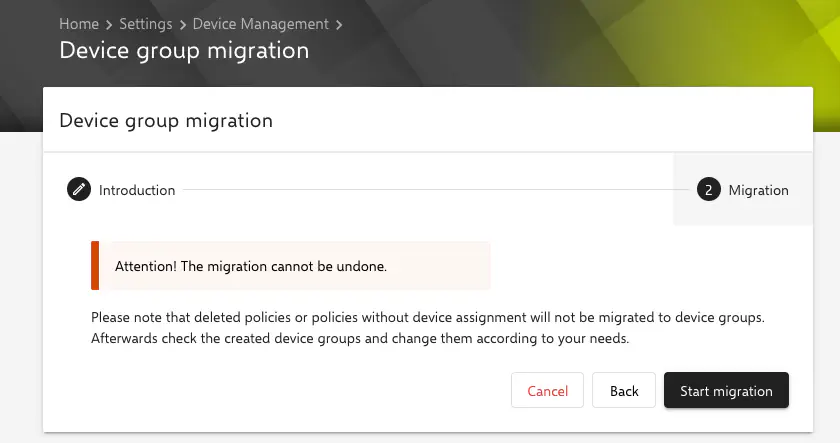
In older versions, the device groups feature has to be enabled manually. This can be done via Settings → Device Management → Device group migration. The associated policy assignment to device groups cannot be undone.
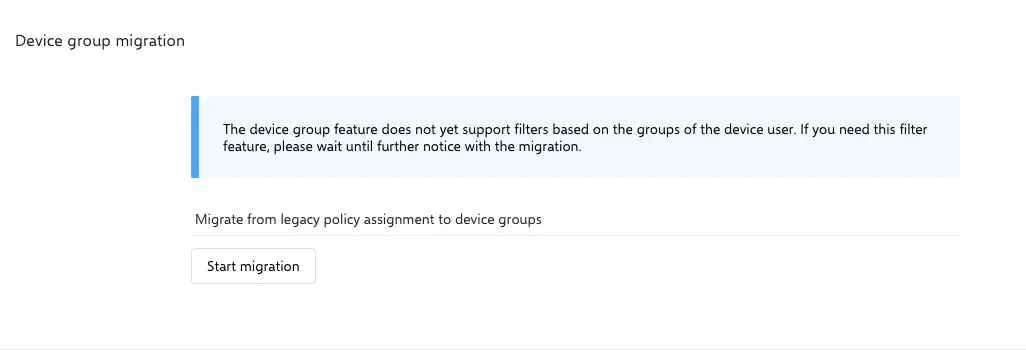
After clicking Start migration, a message about the upcoming changes is displayed. It should be read carefully before clicking Next.
In the following dialog, the migration can finally be executed.