Customer Hub
Lending
The Relution lending system supports schools in the efficient management of loan devices. The system enables administrators to define lending conditions, track lending periods, and monitor device status.
The goal is a transparent, secure, and smooth process for device handover and return.
A newly added feature is the option to process device returns with the Relution Assets App, see Relution Assets App →.
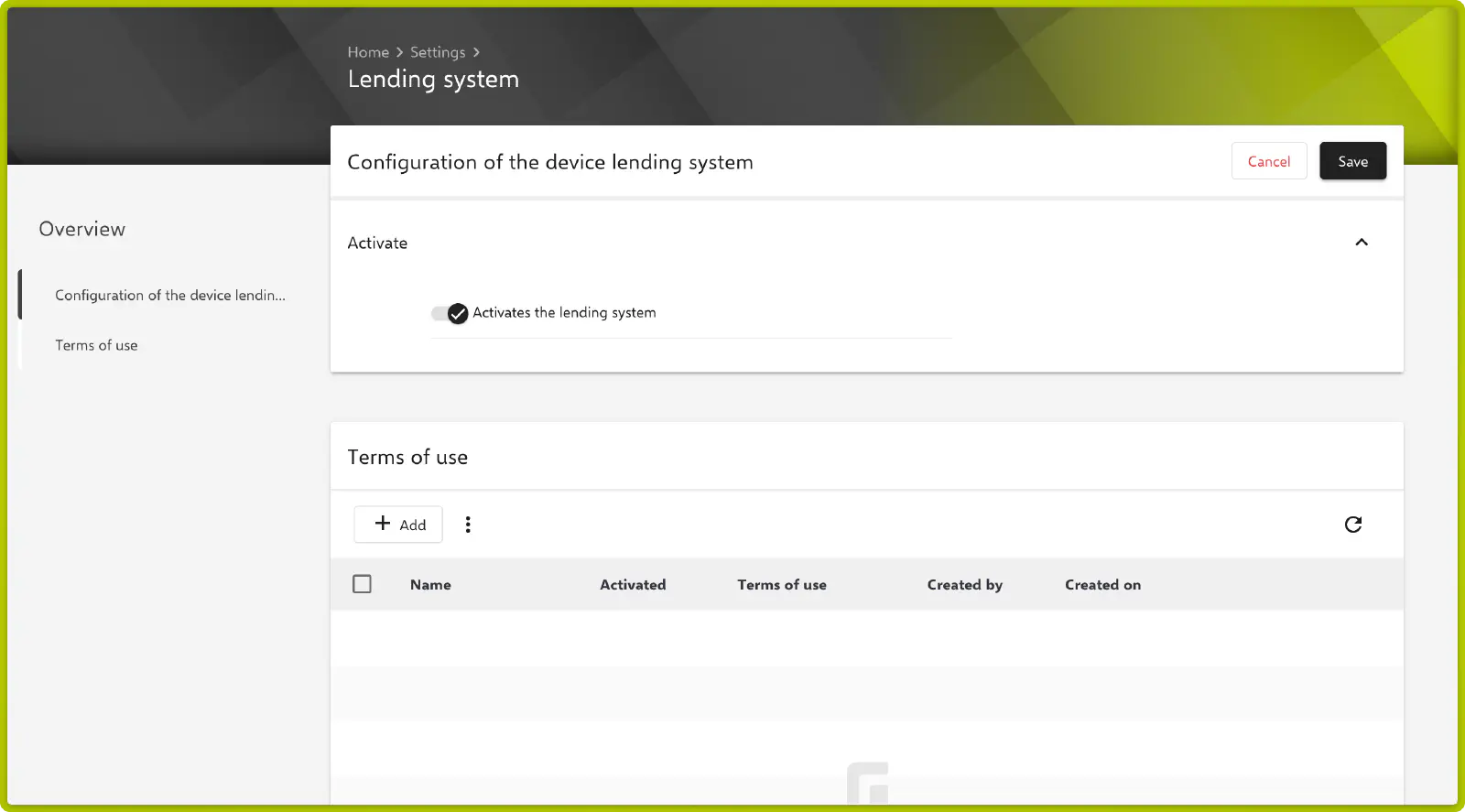
Activate Lending System
The lending system can be activated in Relution in the desired tenant under the following path:
Home → Settings → Lending
Terms of Use
Before devices are issued to students or teachers, clear terms of use should be defined.
These include, among others:
- general framework conditions
- regulations for issuing and returning loan devices
- liability in the event of damage or loss
- initial setup and configuration of devices
- compliance with data protection and youth protection regulations
These conditions can be stored in Relution under Settings → Lending System and formatted with Markdown for better readability.
It is possible to save multiple usage variants that can be selected during lending.
The documented terms of use are available throughout the lending process and can be selected for each lending transaction. This ensures that it is always traceable under which conditions a device was issued.
Additionally, a physical loan agreement can be concluded and uploaded into the system.
Lending Devices
To systematically map lending in Relution, devices can be lent out in the Inventory.
Two entry points are available in the device details:
- Quick access Lend Device in the info box (1)
- Lending tab with the Lend button (2)
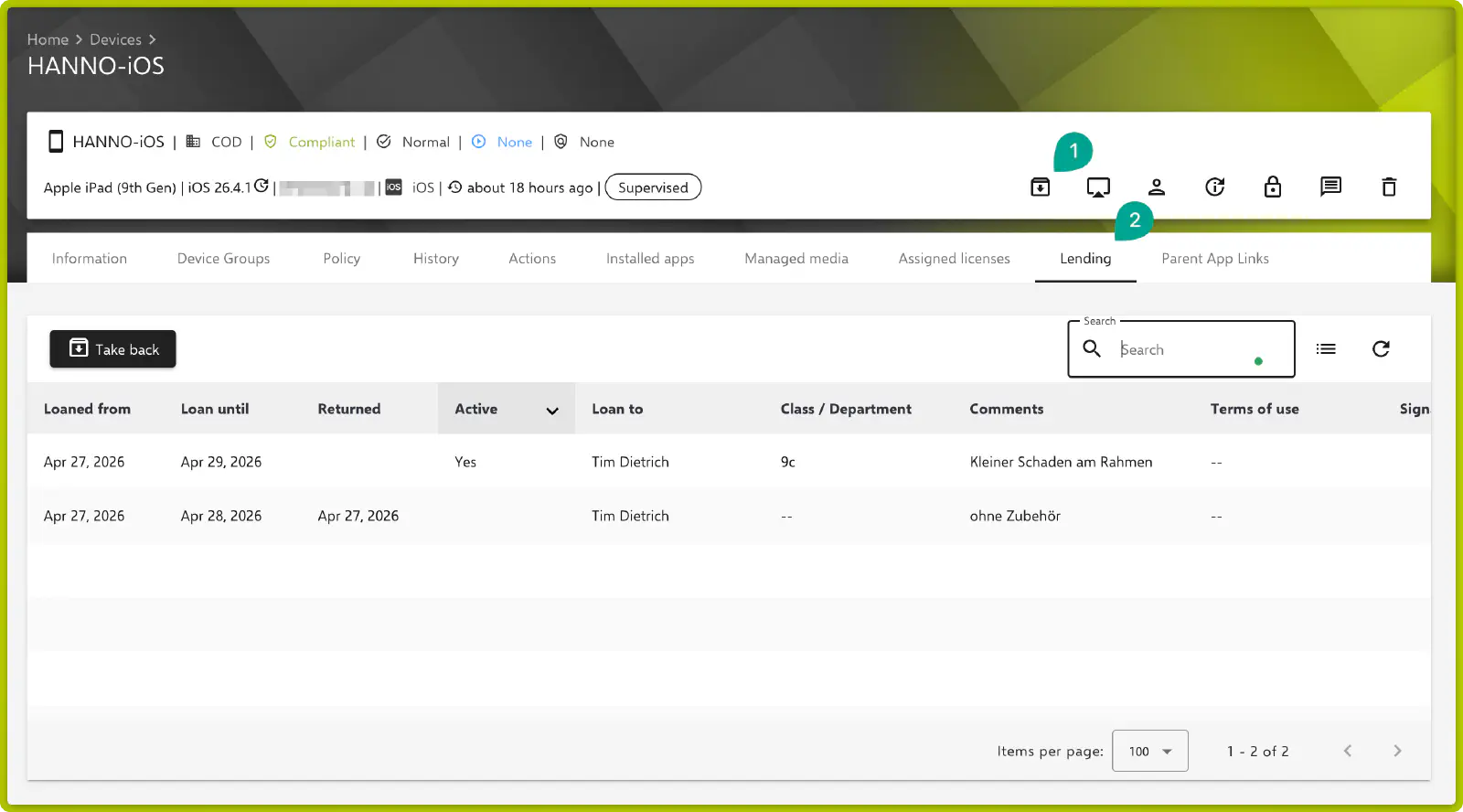
In the following dialog, the lending period is defined using the required fields Lent from and Lent until.
The device is assigned to a student or teacher. In the free text field Lent to, the name of the borrower is entered.
A suggestion function allows previously entered names as well as existing Relution users to be selected.
Additional Information During Lending
Comments can be stored in the Remarks field, for example:
- purpose of the lending
- project or measure
- notes on the device condition
If accessories such as a power supply, case, or pen are issued, this can be documented and checked upon return.
In addition, the following can be added:
- stored terms of use can be selected
- a signature can be uploaded
- a physical loan agreement can be stored as a file
An actively lent device is shown as lent in the Lending overview and is not available until it is returned.
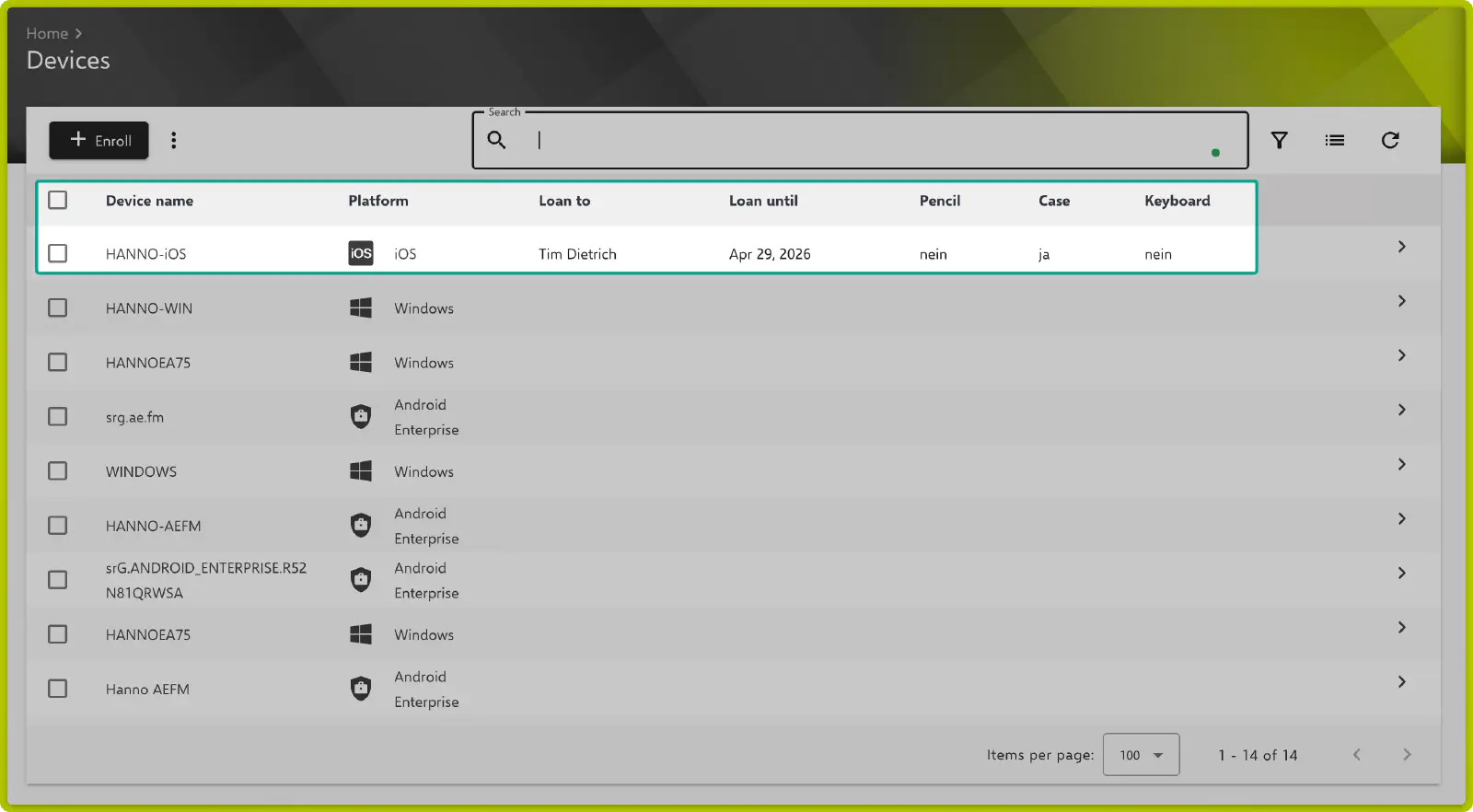
In the inventory overview, lent devices can be identified by the columns:
- Lent to
- Lent until
Returning Devices
The return is also processed via the device details page:
- Shortcut Return Device in the info box
- Lending tab with the Return button
After a successful return, the device no longer appears as actively lent in the Lending overview.
In addition, the return date is displayed.
The device is then available again as a loan device and can be lent out again.
Exceeded Lending Period
If the lending period is exceeded and the device is not returned on time, the Lent until date is highlighted in red in the inventory overview.
In addition, rules can be defined to automatically react to such cases.
Rules for Exceeded Lending Periods
The following actions can be executed automatically:
- A device not returned on time can be moved to the device status non-compliant with the compliance violation Lending period exceeded.
- Using the action Notify selected users or groups, administrators can be informed automatically.
- Loan devices can be locked directly.
- Devices can be automatically reset to factory settings.
This ensures safe and controlled use of loan devices.
Record Accessories
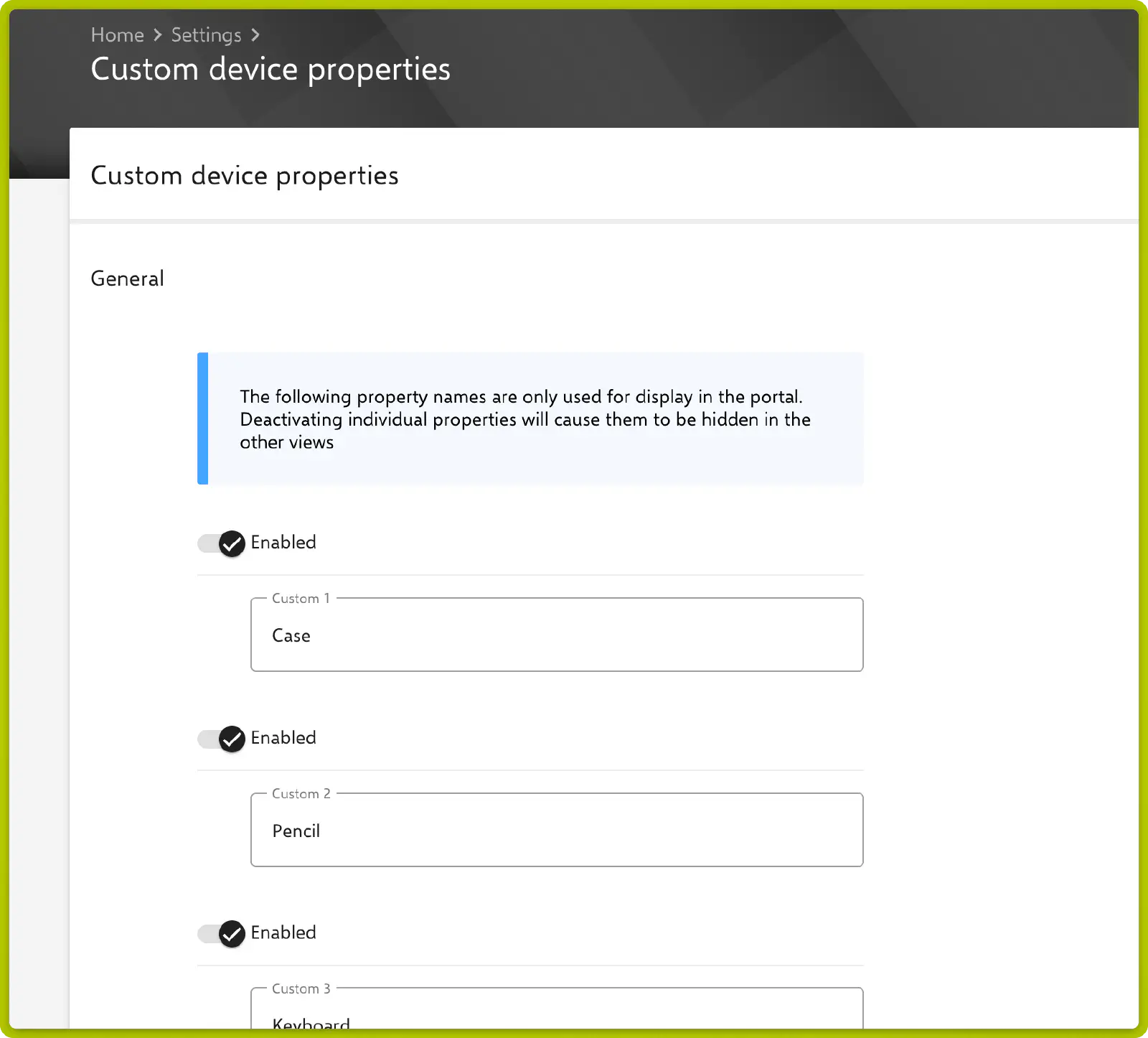
Relution offers the option to define up to five additional fields individually under Custom Device Properties →.
Examples:
- power supplies
- bags
- pens
- adapters
- additional accessories
These defined properties can be configured in the device details and specifically checked upon return.
Once custom device properties are activated, they are displayed in