 Customer Hub
Distribute User-Based Policies
In Relution, policies are assigned to device groups by default. However, with dynamic device groups and user-based filtering, policies can also be specifically linked to an individual user or an entire user group.
The principle works as follows:
- A dynamic device group is configured with a user filter.
- As soon as the corresponding user (or a member of the user group) signs in on a device, the device is automatically moved into this device group.
- The policies assigned to the device group become active and are applied to the device.
- When the user signs out, the device leaves the group again – the policies are deactivated.
Requirements
- Users are created in Relution and, if necessary, assigned to a user group
- Devices are enrolled and can be assigned to a user
- Sufficient administrator permissions in the respective organization
Use Cases
| Scenario | Filter Type | Description |
|---|---|---|
| Individual user receives a special policy | User | e.g. developer needs relaxed restrictions, private Exchange profile |
| Department receives a standardized configuration | User Group | e.g. all teachers receive a shared Exchange profile |
| BYOD scenario | User Group | Work profile policies only for registered BYOD users |
For an Individual User
- Navigate to
Devices→Device Groups. - Click New Device Group.
- Enter a meaningful name, e.g.
DYN – John Smith. - Select Dynamic as the type.
- Under Filter, add the following condition:
- Filter Type:
User - Value: Select the desired user from the list
- Filter Type:
- Save the device group.
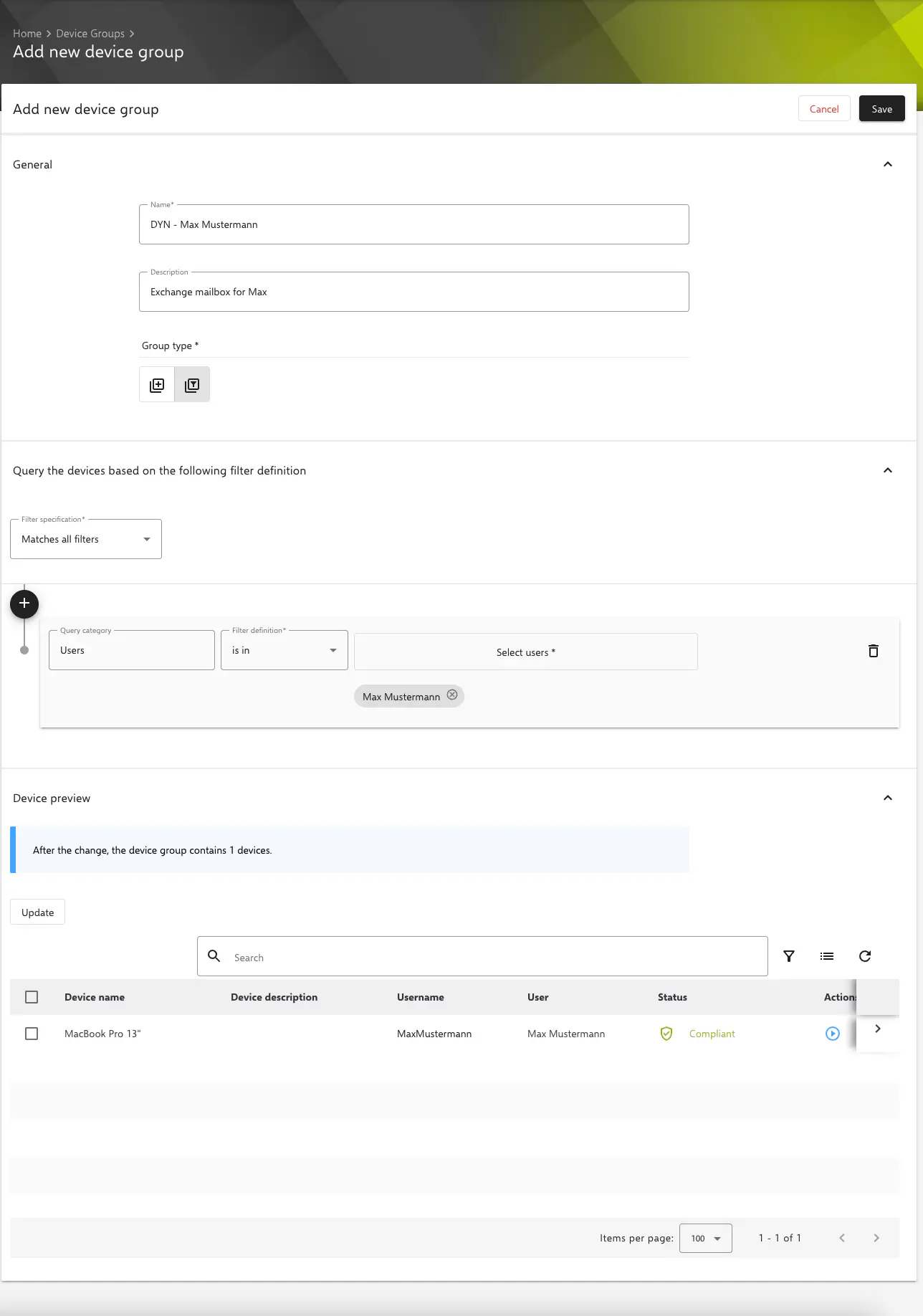
If the user is signed in on multiple devices at the same time, all affected devices will be added to the group.
For a User Group
- Navigate to
Devices→Device Groups. - Click New Device Group.
- Enter a meaningful name, e.g.
DYN – Teachers. - Select Dynamic as the type.
- Under Filter, add the following condition:
- Filter Type:
Group - Value: Select the desired user group from the list
- Filter Type:
- Save the device group.
User groups can be synchronized via LDAP/AD. Changes to group membership in LDAP are automatically transferred to Relution.
Assign Policies to the Dynamic Device Group
After creating the dynamic device group, assign the desired policies to it:
- Open the newly created device group.
- Switch to the Policies tab.
- Click Add Policy.
- Select one or more policies and confirm.
The policies are now linked to the dynamic device group and will be applied automatically as soon as a device meets the filter condition.
Recommendations and Best Practices
- Naming Convention: Use a consistent prefix for dynamic device groups, e.g.
DYN –, to clearly distinguish them from static groups. - Policy Priority: Watch for possible conflicts if a device is a member of multiple dynamic groups at the same time.
- Testing: Test new dynamic groups first with a single test device and test user before deploying them in production.
- LDAP Synchronization: If using LDAP groups, check whether the synchronization intervals fit the intended use case.
Related Articles
- Policies Explained →
- Device Groups →
- User Management →
- Network-Based Policy Assignment (BYOD) →
- LDAP Configuration →