 Customer Hub
OneRoster Interface
Starting with Relution 26.2, the OneRoster interface is implemented in the portal for users. This interface allows the synchronization of users and classes, for example, from Untis or WebUntis, with Relution. The feature can be found under Settings → User Management → OneRoster.
Currently, Untis/WebUntis only supports one organization/tenant in Relution. Therefore, it is recommended to integrate the OneRoster interface directly into the target tenant. Alternatively, the interface can also be integrated into the global organization, where schools can be mapped via IDs. However, this requires support from the user management application.
General Settings
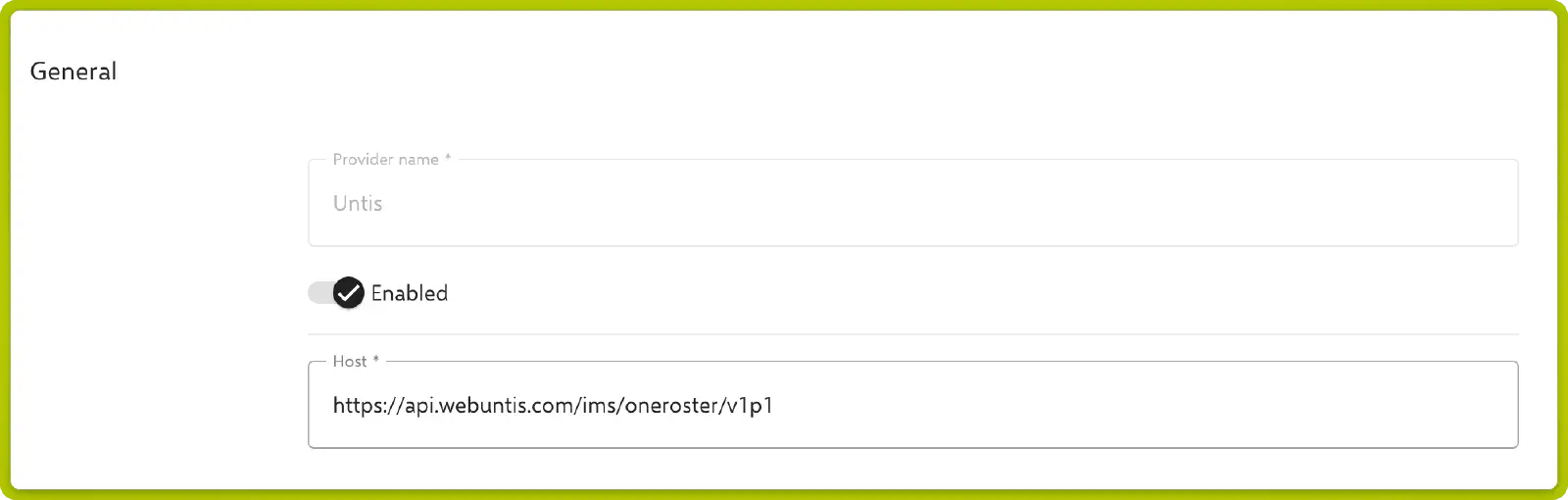
- Provider Name: Enter a unique name for the provider.
- Activate: Enable the interface by toggling the switch.
- Host: Enter the URL of the OneRoster server.
Authorization Parameters
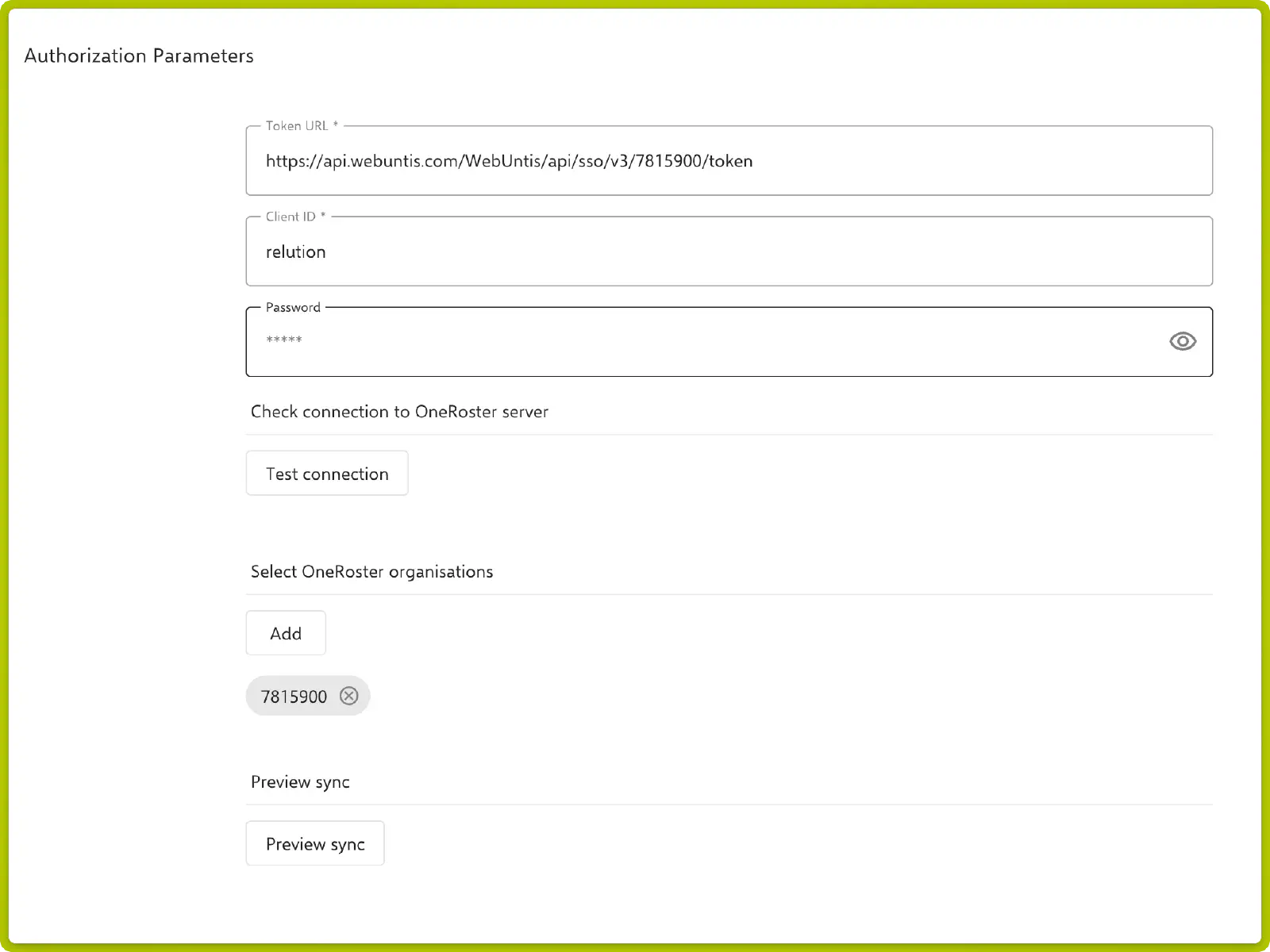
- Token URL: URL for token authentication.
- Client ID: The client ID for authentication.
- Password: The corresponding password.
Use the Check Connection button to test the connection to the OneRoster server.
Select Organizations
- Select the OneRoster organizations to be synchronized.
- Use the Synchronization Preview to review the data to be synchronized beforehand.
Synchronize Classes
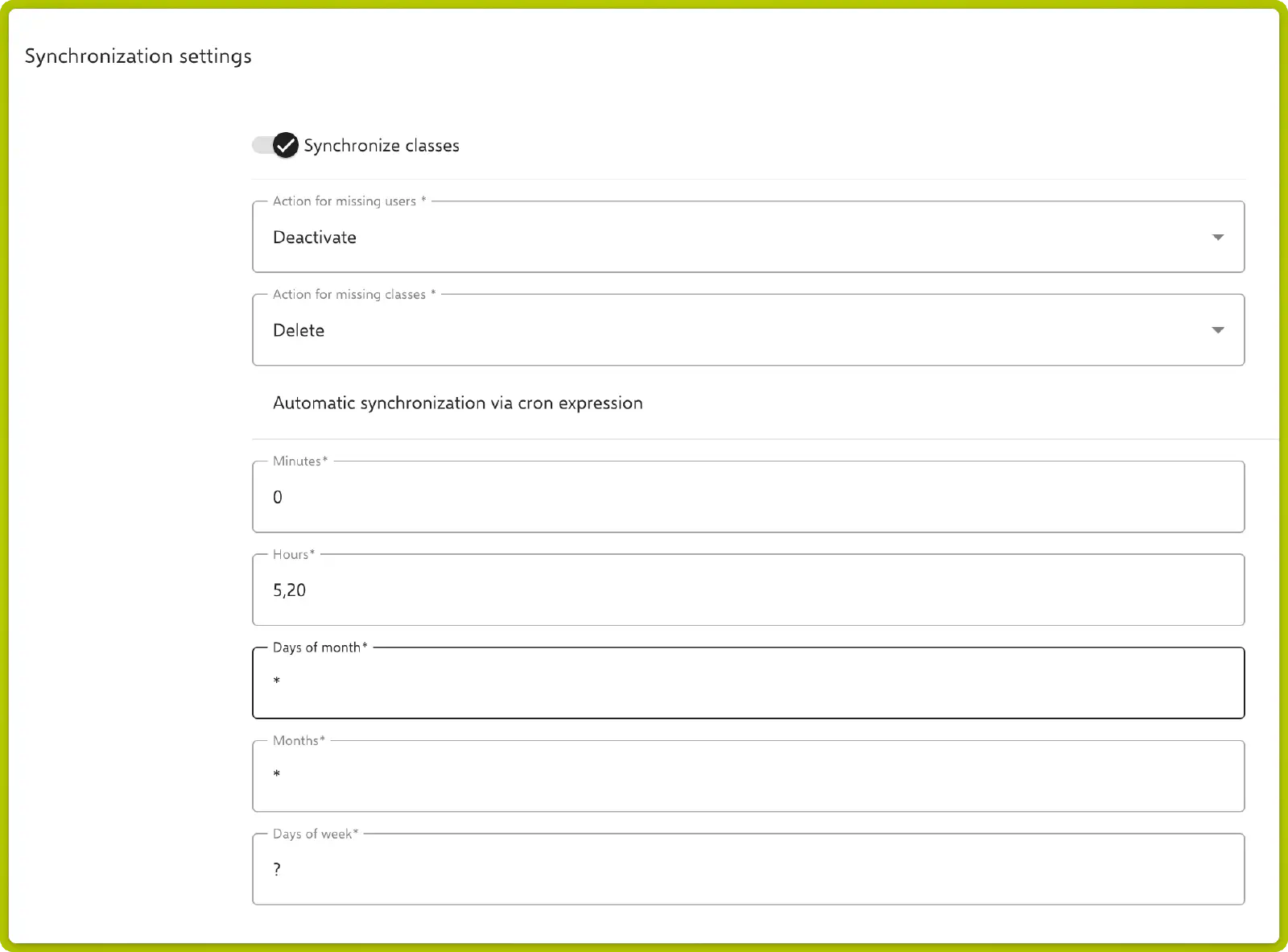
- Enable the Synchronize Classes option to import classes from OneRoster.
- Action for Missing Users: Define how to handle users missing in Relution.
- Action for Missing Classes: Specify how to handle classes missing in Relution.
Automatic Synchronization
- Set up automatic synchronization using Cron Syntax:
- Minutes: Specify the minute when synchronization should occur.
- Hours: Define the hour for synchronization.
- Days of the Month, Months, Weekdays: Adjust the synchronization intervals as needed.
Checking Synchronization
Once the connection is successfully saved, it can be opened in the overview to check the sync status.
If errors occur during the synchronization process, the cause can be identified here.
Most synchronization errors occur due to missing users in a class. Relution requires at least one student and one teacher to create a class. Additionally, duplicate users without a unique email address may sometimes be discarded during synchronization.