 Customer Hub
CSV Import
To efficiently manage a large number of users, use the CSV import function. Follow these steps:
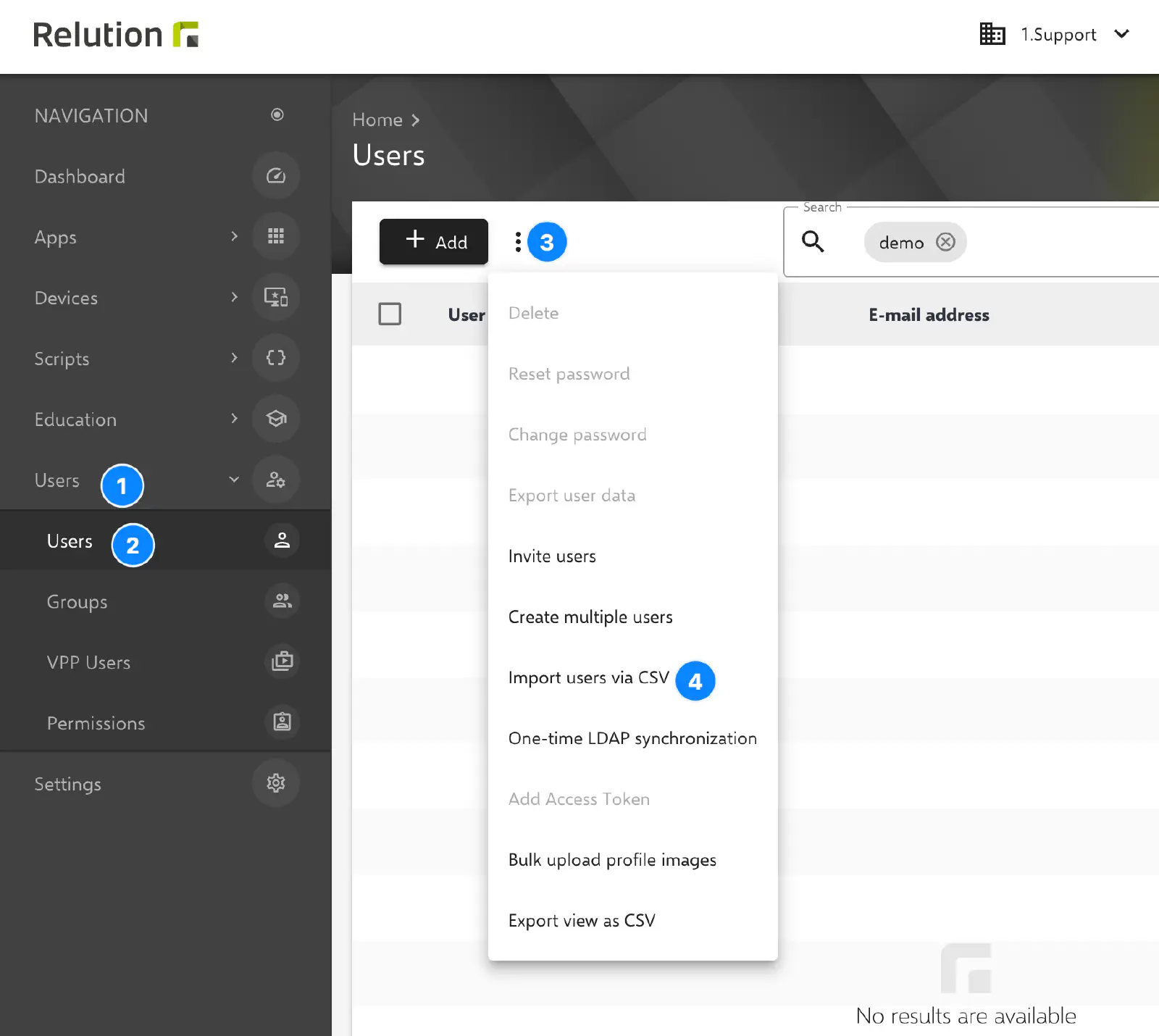
- Access the Menu: Open the Users navigation point in Relution.
- Start Import: Select the 3-dot menu and click on Import users via CSV.
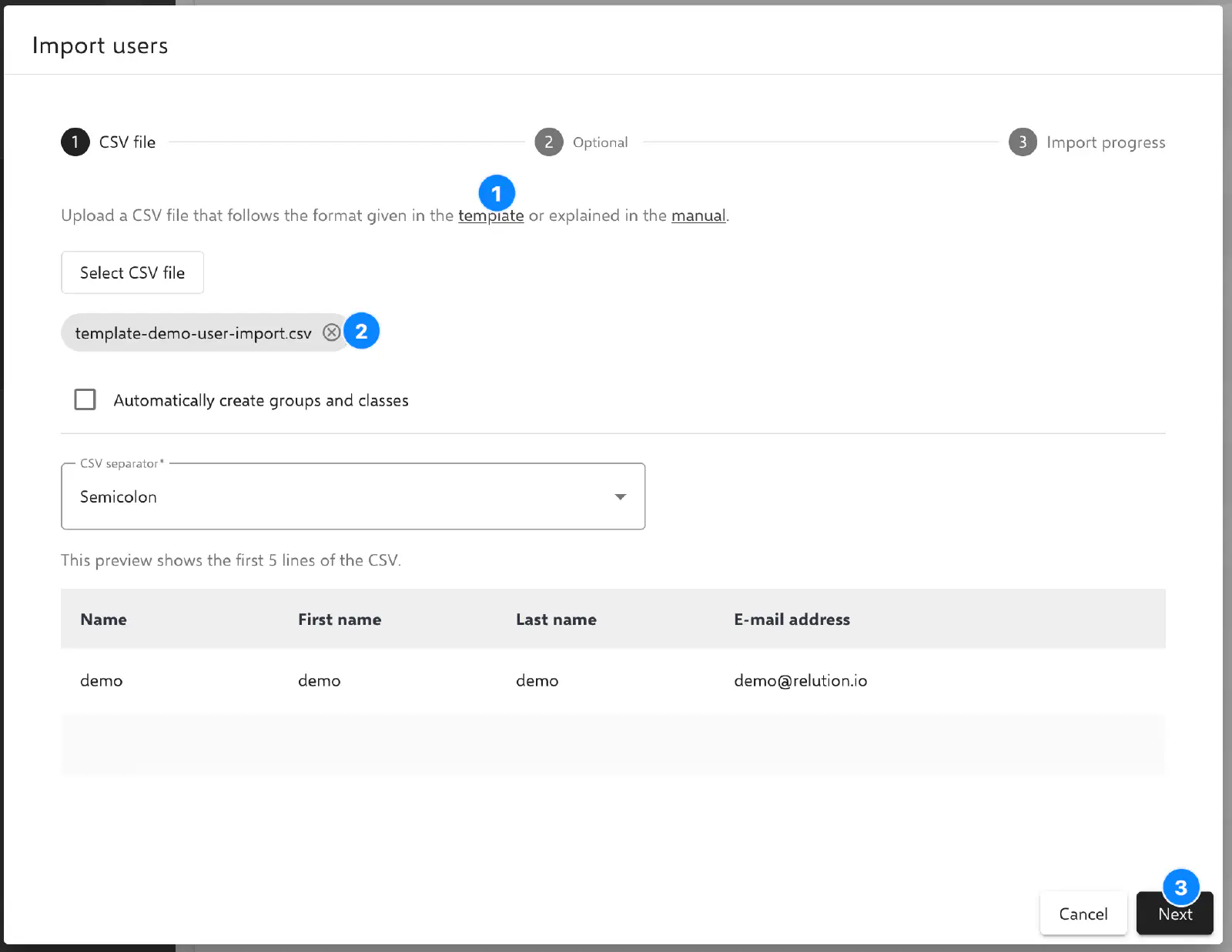
- Use Template: Download the provided CSV template.
- Edit Data: Open the file in an editor of choice and enter the required values.
- Upload File: Upload the edited CSV file back to Relution.
- Review: Check the Preview (the first 5 rows will be displayed for verification).
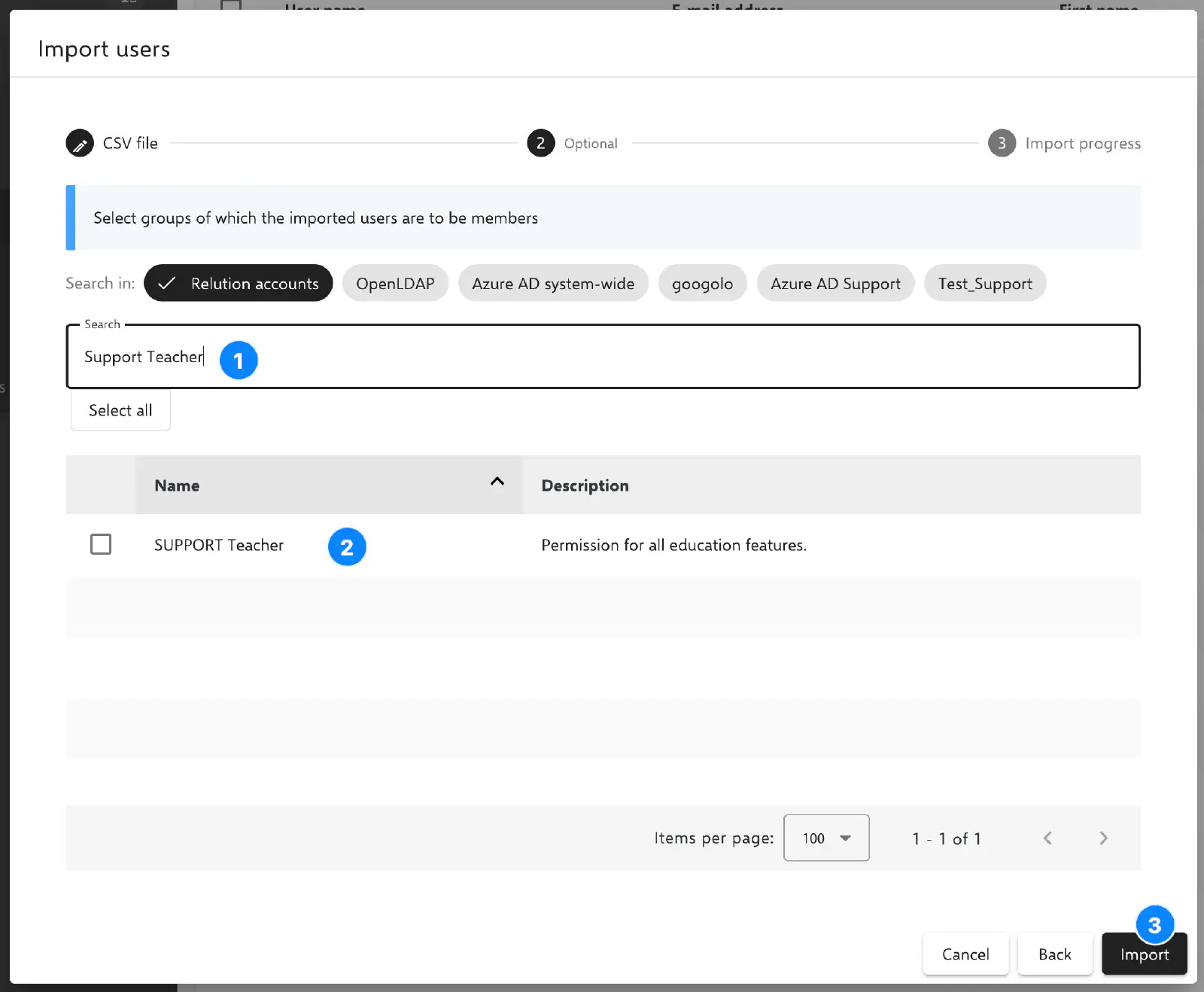
- Assignment (Optional): Users can be added directly to existing groups during this process.
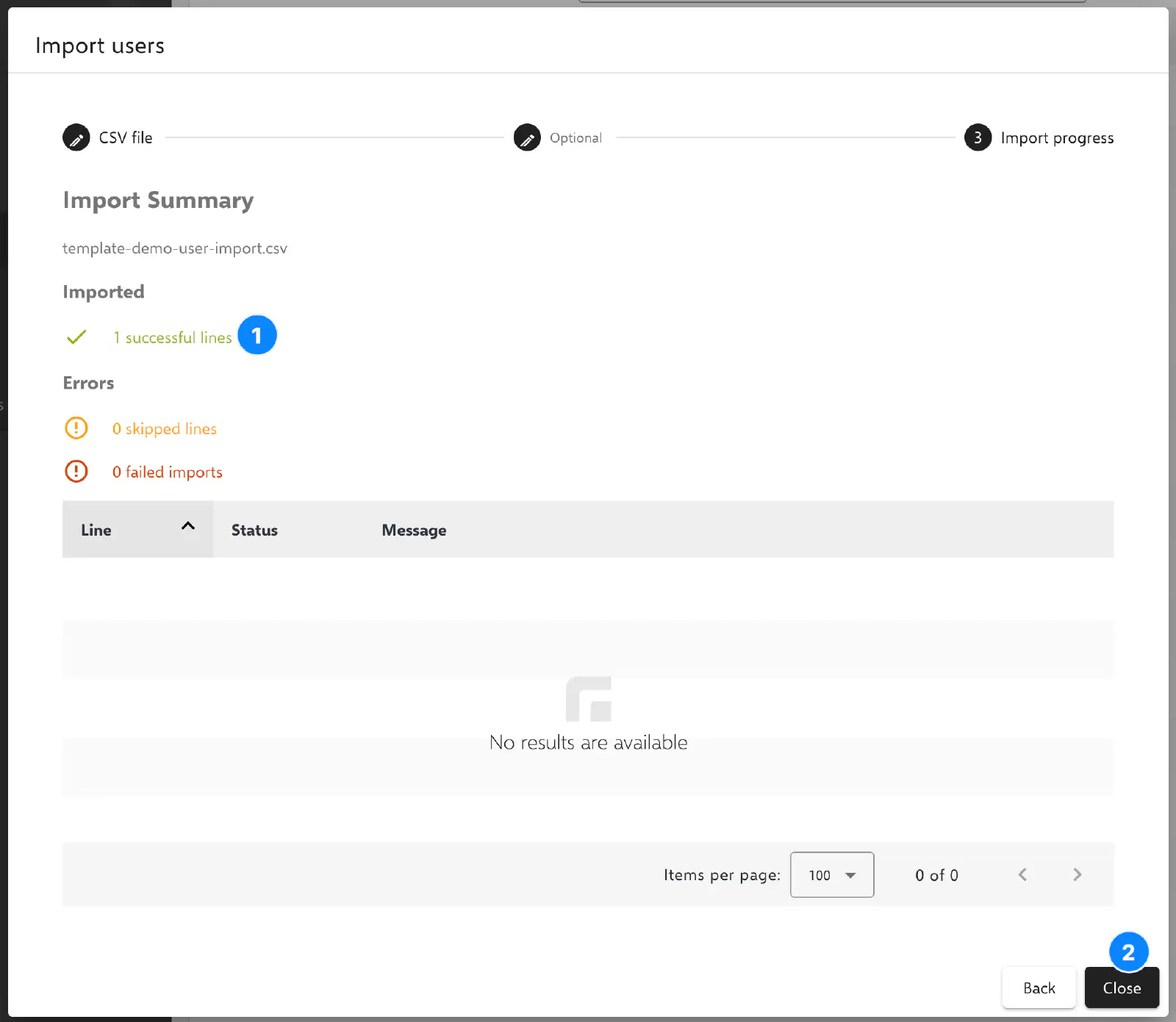
- Completion: The import progress shows the current status as well as any errors for invalid entries.
Important Configuration Notes
- Password Policies: If fixed passwords are defined, they must comply with the global password standards of the Relution instance. For example, if the system requires at least 8 characters, the import will fail for any users whose passwords contain fewer characters.
- Class Creation: Classes can only be created successfully if the import includes at least one person with the role Teacher and one person with the role Student for the respective class.
- Group Assignment: User groups or permission templates can be assigned directly via the
memberOfGroupscolumn in the CSV file. This should be based on the Unique Organization Name. - Updating Existing Users: The CSV import can also be used for already existing user accounts. Matching accounts are identified by the
namecolumn (username) within the same organization and updated with the values from the CSV file instead of being created again. The email address is not used for this matching. - Empty Columns During an Update: If a column exists in the CSV file but its value is empty for a given row, the corresponding field of the existing user is cleared. Columns whose existing values should remain unchanged must be removed from the CSV file entirely rather than just left empty.
- Password During an Update: If the
passwordcolumn is empty or omitted for an already existing user, that user’s current password remains unchanged. For newly created users without a password value, no password is generated automatically; an initial password needs to be set for them in a separate step.
Behavior in Practice
A few concrete examples for updating existing users via the CSV file:
- The
emailcolumn is present but left empty for a row: The user’s existing email address gets deleted. To keep it unchanged, theemailcolumn must be removed from the CSV file entirely. - How an existing user is recognized during an update: Exclusively by the
namecolumn (username) within the same organization — the email address plays no role in this. - The
passwordcolumn is left empty: For an already existing user, the current password remains unchanged, regardless of whether the column is missing or just empty. For a newly created user, no password is generated automatically in this case.
Naming Example:
- Organization Name:
User-Import-Test - Unique Organization Name:
UIT - User Groups:
UIT Student,UIT Teacher
A CSV file with one teacher and one student, each assigned a permission template via the memberOfGroups column, could look as follows:
name;email;givenName;surname;permissions;memberOfGroups
teacher1;teacher1@uit-school.com;Jane;Teacher;;UIT Teacher
student1;student1@uit-school.com;Sam;Student;;UIT Student
Multiple groups or permission templates within the same cell are separated by a pipe character (|), for example UIT Teacher|UIT Student. A semicolon can also be used as a separator within the cell; however, since it may already separate the columns themselves depending on the chosen CSV separator, using | is recommended for unambiguous results.
Automatic Creation of Missing Groups and Classes
Relution can automatically create classes and user groups that do not yet exist during the CSV import. Please keep the following points in mind:
- Precision: Ensure that the spelling is strictly correct.
- Whitespace Check: Pay close attention to spaces that may be present in columns before or after the actual group names, as these can lead to errors or duplicates.
Common Reasons for a Failed Import
A common reason for a failed CSV import is an email address that is already assigned to another user account on the server. Email addresses must be unique across the entire server, regardless of which organization the respective user belongs to.