 Customer Hub
CSV Import
To efficiently manage a large number of users, use the CSV import function. Follow these steps:
- Access the Menu: Open the Users navigation point in Relution.
- Start Import: Select the 3-dot menu and click on Import users via CSV.
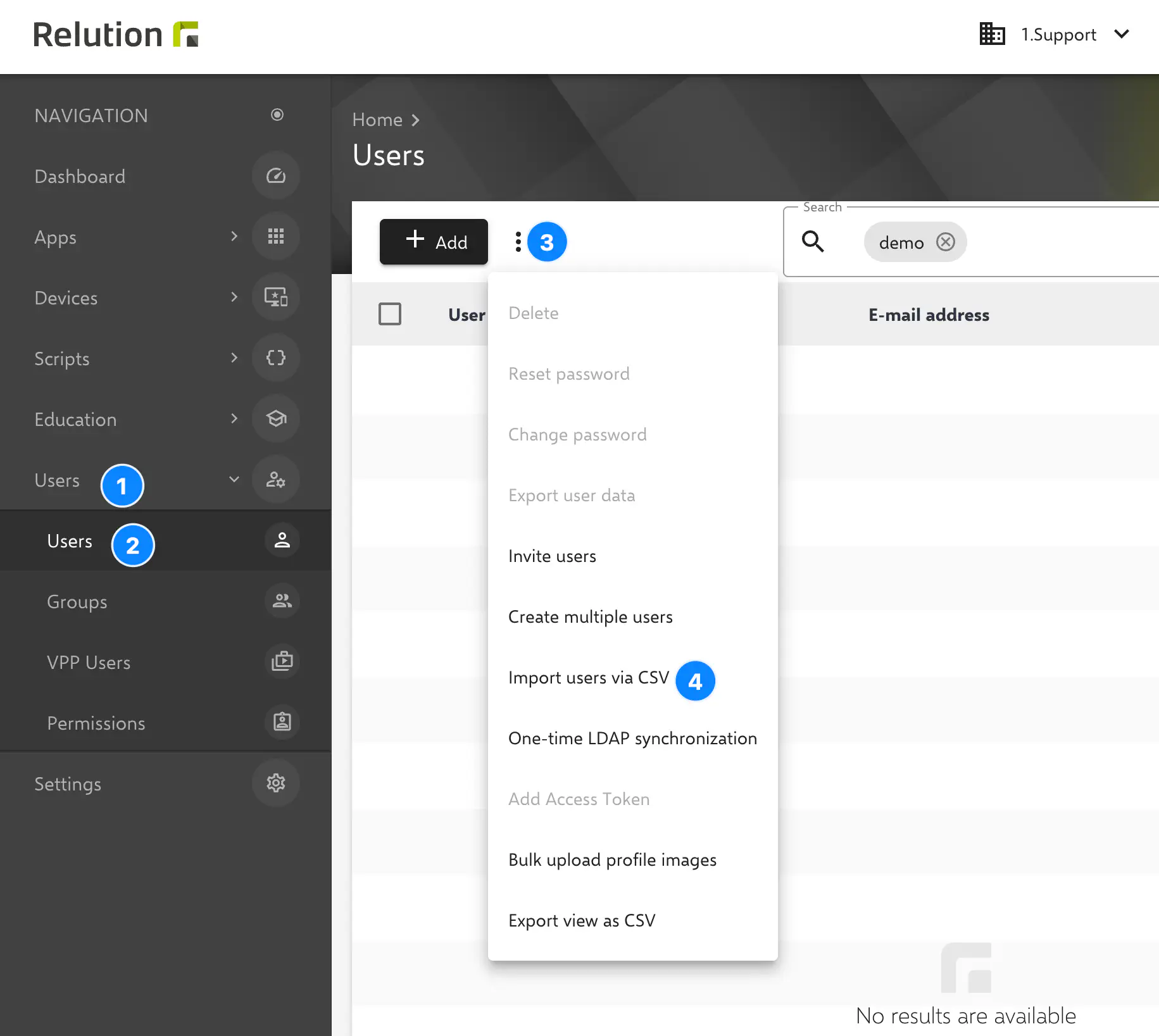
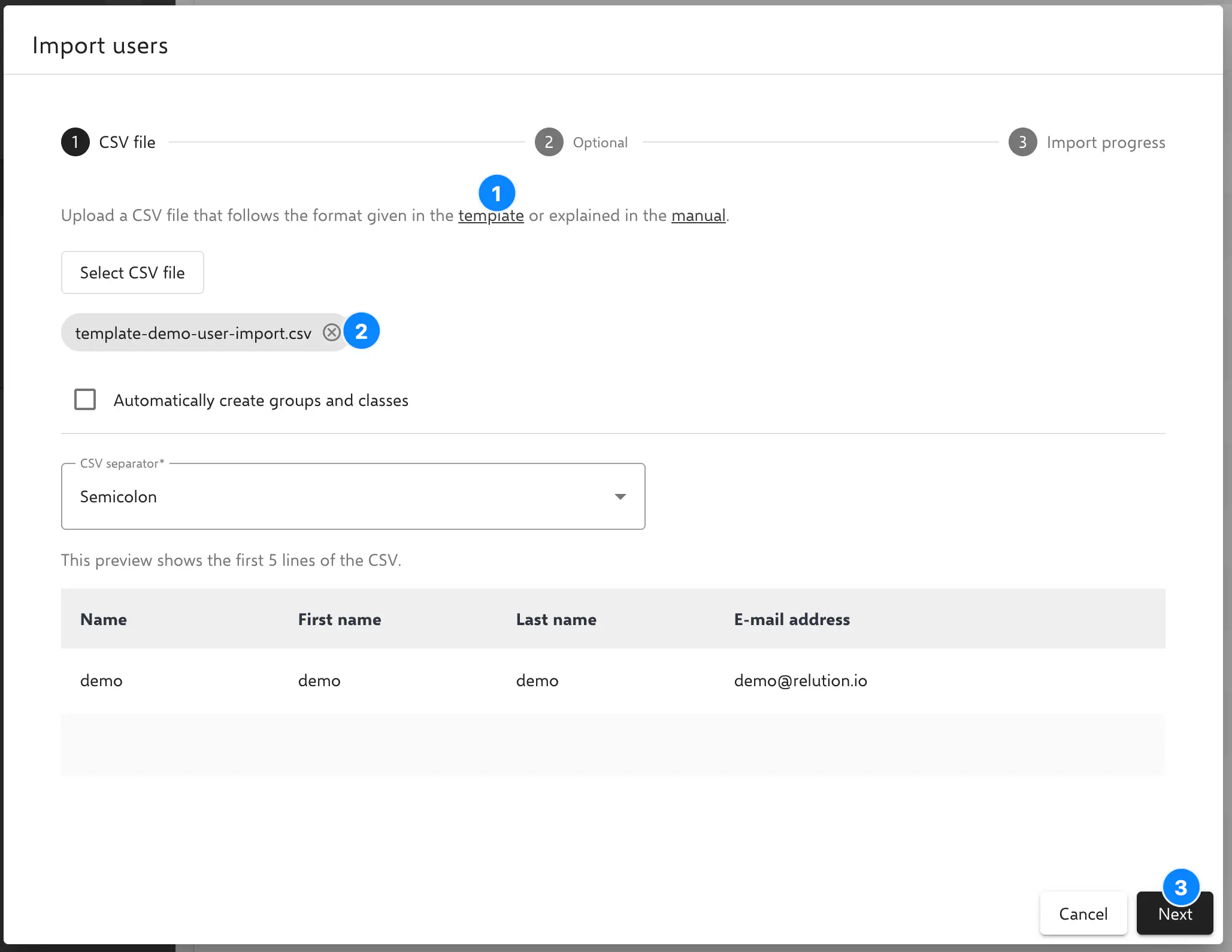
- Use Template: Download the provided CSV template.
- Edit Data: Open the file in an editor of choice and enter the required values.
- Upload File: Upload the edited CSV file back to Relution.
- Review: Check the Preview (the first 5 rows will be displayed for verification).
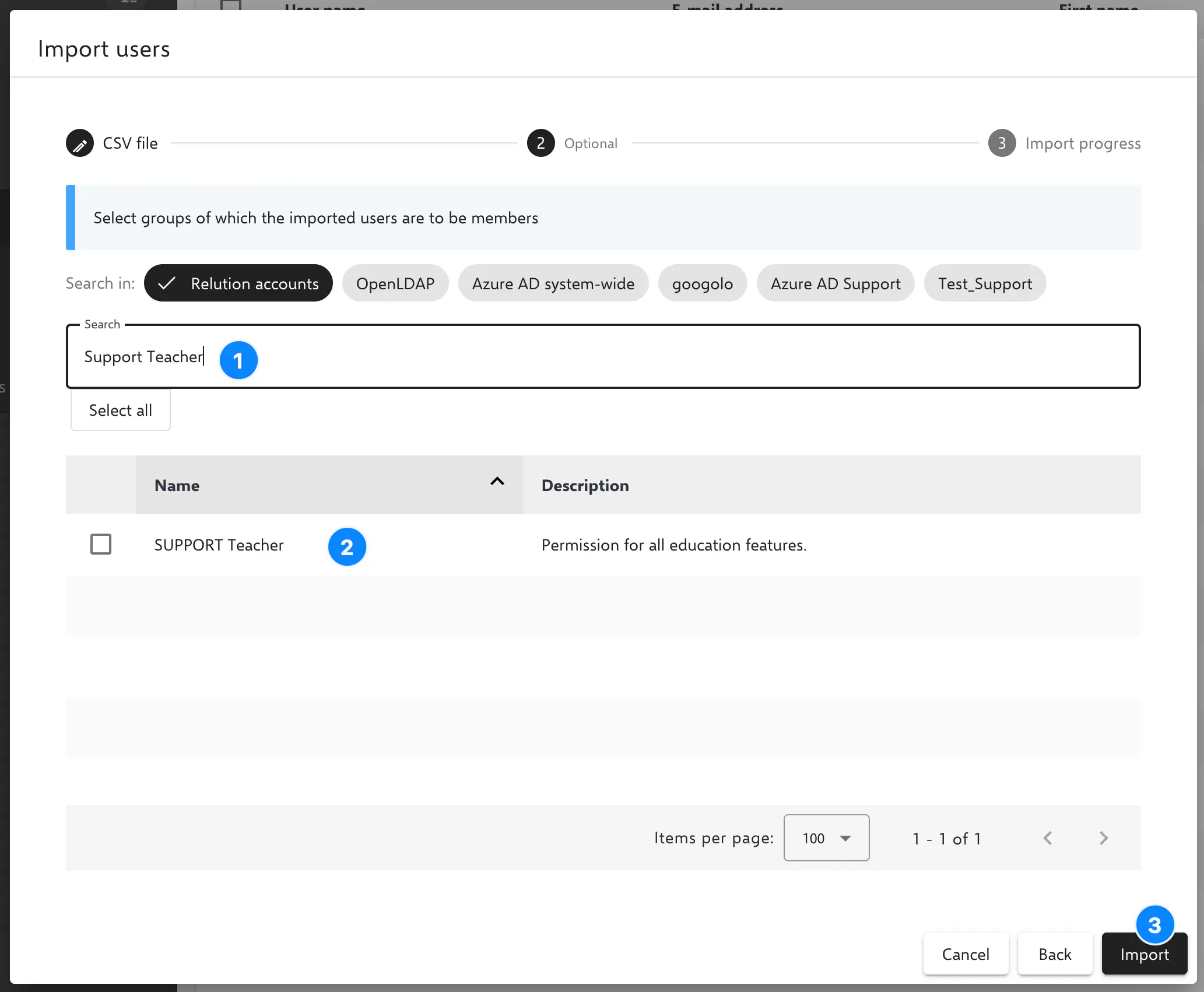
- Assignment (Optional): Users can be added directly to existing groups during this process.
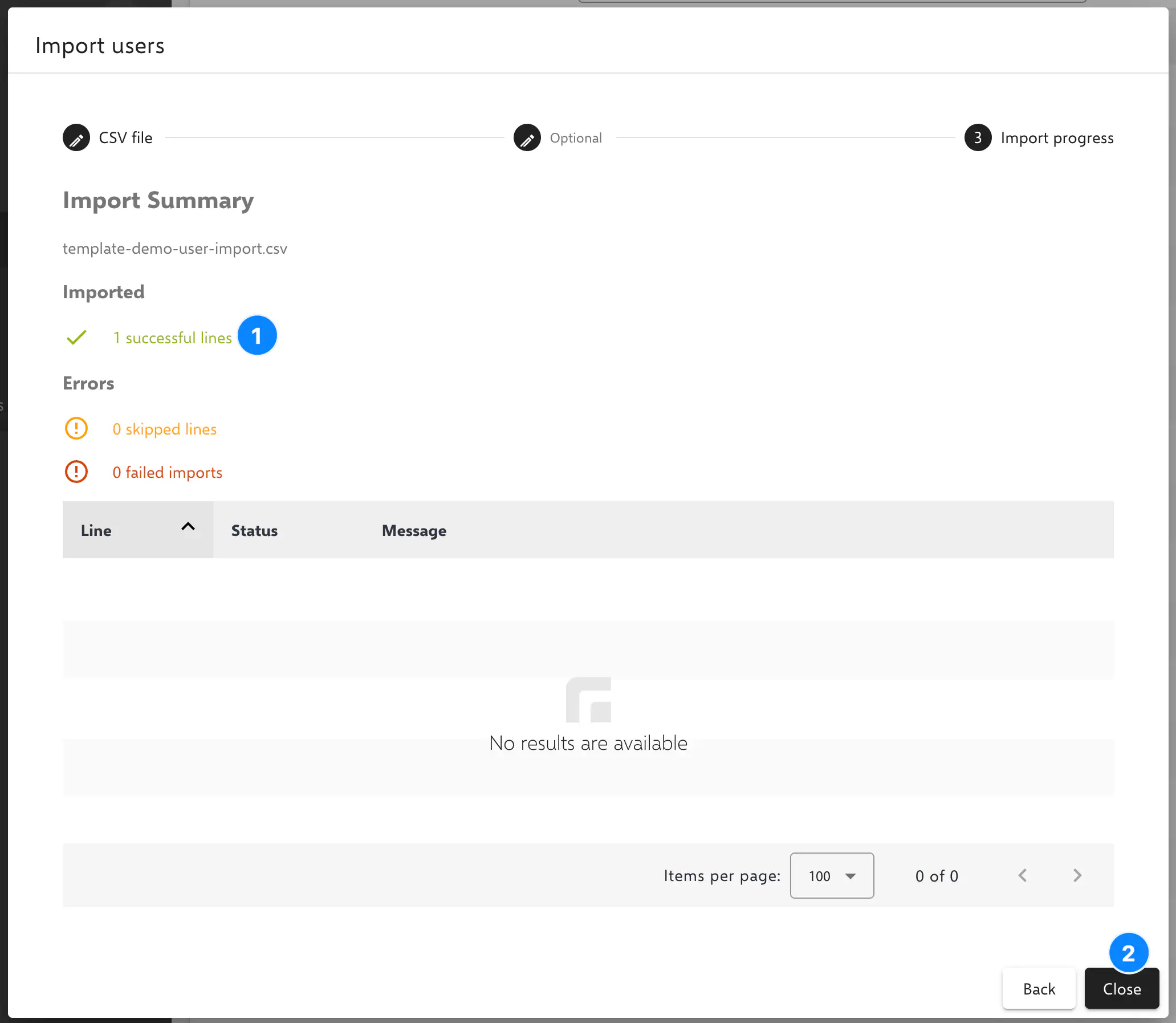
- Completion: The import progress shows the current status as well as any errors for invalid entries.
Important Configuration Notes
- Password Policies: If fixed passwords are defined, they must comply with the global password standards of the Relution instance. For example, if the system requires at least 8 characters, the import will fail for any users whose passwords contain fewer characters.
- Class Creation: Classes can only be created successfully if the import includes at least one person with the role Teacher and one person with the role Student for the respective class.
- Group Assignment: User groups or permission templates can be assigned directly via the
memberOfGroupscolumn in the CSV file. This should be based on the Unique Organization Name. - Updating Existing Users: The CSV import can also be used for already existing user accounts. Matching accounts are identified by their email address and updated with the values from the CSV file instead of being created again.
Naming Example:
- Organization Name:
User-Import-Test - Unique Organization Name:
UIT - User Groups:
UIT Student,UIT Teacher
A CSV file with one teacher and one student, each assigned a permission template via the memberOfGroups column, could look as follows:
name;email;givenName;surname;permissions;memberOfGroups
teacher1;teacher1@uit-school.com;Jane;Teacher;;UIT Teacher
student1;student1@uit-school.com;Sam;Student;;UIT Student
Multiple groups or permission templates within the same cell are separated by a pipe character (|), for example UIT Teacher|UIT Student. A semicolon can also be used as a separator within the cell; however, since it may already separate the columns themselves depending on the chosen CSV separator, using | is recommended for unambiguous results.
Automatic Creation of Missing Groups and Classes
Relution can automatically create classes and user groups that do not yet exist during the CSV import. Please keep the following points in mind:
- Precision: Ensure that the spelling is strictly correct.
- Whitespace Check: Pay close attention to spaces that may be present in columns before or after the actual group names, as these can lead to errors or duplicates.
Common Reasons for a Failed Import
A common reason for a failed CSV import is an email address that is already assigned to another organization. In Relution, the email address serves as the unique identifier of a user account and can therefore only be used once per server.