 Customer Hub
Check the certificate chain with SSL Labs
A valid connection shown by the browser when opening the Relution web interface does not yet confirm that the certificate configuration is correct. Desktop browsers often download missing intermediate certificates themselves or have already cached them. Mobile devices, Java-based clients and many apps do not do this and reject the connection if the chain is incomplete.
The free SSL Server Test by Qualys SSL Labs → checks the server from the outside and shows which certificates it actually delivers and whether they form a valid chain for the common platforms. The check is recommended after every certificate change, e.g. following Renew a purchased certificate →.
Prerequisites
SSL Labs checks the server over the internet. For this, the host name of the External URL must be publicly resolvable in DNS and the server must be reachable from the internet on port 443. For servers that are only reachable in the internal network, the section Check without internet access → describes an alternative using OpenSSL.
Run the test
- On www.ssllabs.com/ssltest →, the host name of the External URL is entered in the Hostname field, e.g.
mdm.example.com– withouthttps://and without a path. - If the result should not appear in the public result lists of the website, the option Do not show the results on the boards is enabled.
- Clicking Submit starts the test. It takes a few minutes.
If the host name resolves to several IP addresses (e.g. IPv4 and IPv6, or several servers behind a load balancer), SSL Labs checks each address separately. In this case, the result of each address needs to be reviewed, as the servers may be configured differently.
SSL Labs caches results for some time. If the certificate has been replaced since the last test, a new test is triggered via the Clear cache link on the results page.
Evaluate the result
The overall grade at the top of the results page mainly rates protocols and cipher suites. For the certificate chain, two areas in the section of the server certificate are relevant:
- Chain issues: This line summarises the result of the chain check. With a correct configuration it reads None. Incomplete means that an intermediate certificate is missing, Contains anchor that the root certificate is delivered as well, and Incorrect order that the certificates are delivered in the wrong order.
- Certification Paths: The tabs Mozilla, Apple, Android, Java and Windows show, for the trust store of the respective platform, along which path the server certificate is traced back to a trusted root certificate. If an intermediate certificate has been signed by several certificate authorities (cross-signing), several paths are shown (Path #1, Path #2 …).
Each path lists the certificates in order, starting with the server certificate (1) up to the root certificate. The second column indicates where each certificate comes from:
| Label | Meaning |
|---|---|
| Sent by server | The certificate is delivered by the server, i.e. it comes from server.pem. |
| In trust store | The certificate is contained in the trust store of the platform. This only applies to root certificates (marked Self-signed). |
| Extra download | The certificate is not delivered by the server; SSL Labs downloaded it from the address stored in the certificate. |
Correct configuration
In a correct configuration, the server delivers the server certificate and all intermediate certificates (Sent by server). The root certificate at the end of the path comes from the trust store (In trust store):
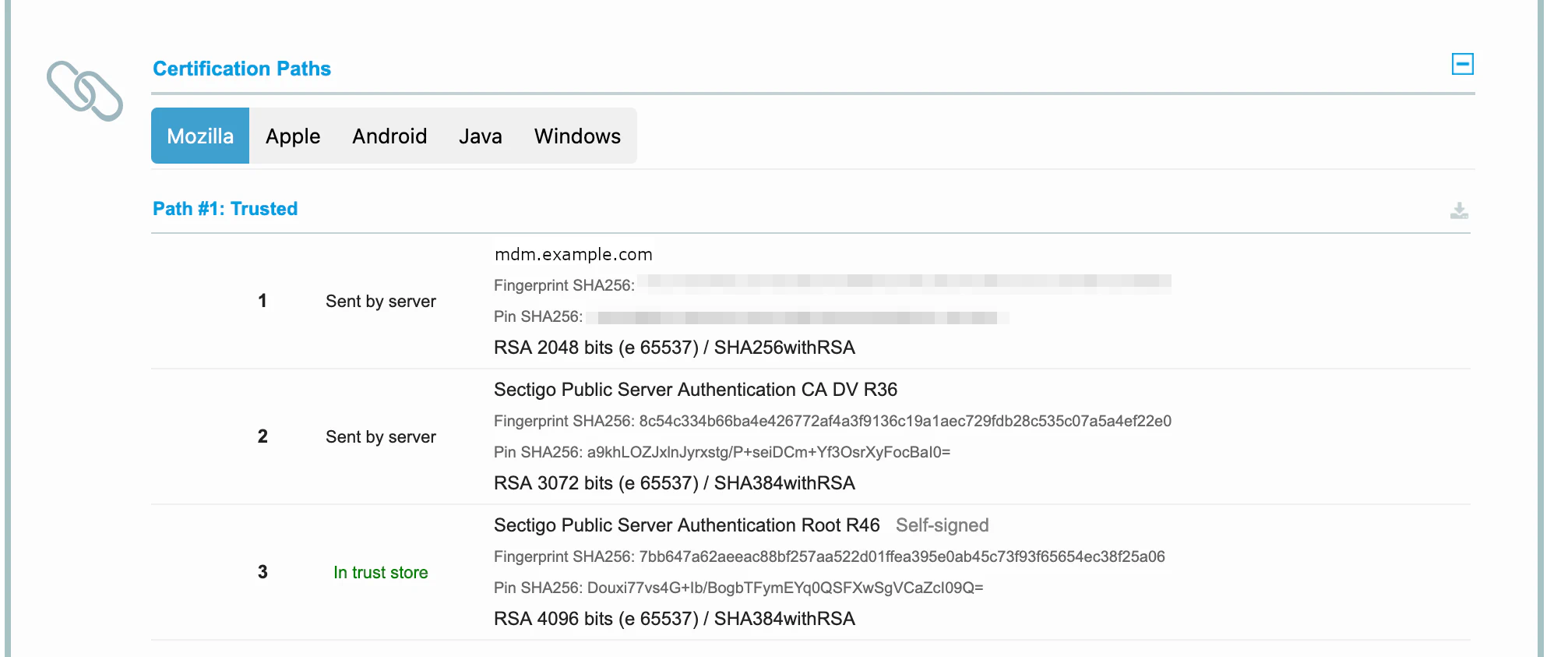
In the example, the server delivers the server certificate for mdm.example.com (1) and the intermediate certificate Sectigo Public Server Authentication CA DV R36 (2). The root certificate Sectigo Public Server Authentication Root R46 (3) is contained in the trust store. This is the structure produced by the guide Renew a purchased certificate →.
Root certificate is delivered as well
If a certificate is labelled both Sent by server (orange) and In trust store, the server also delivers the root certificate. The Chain issues line then reads Contains anchor:
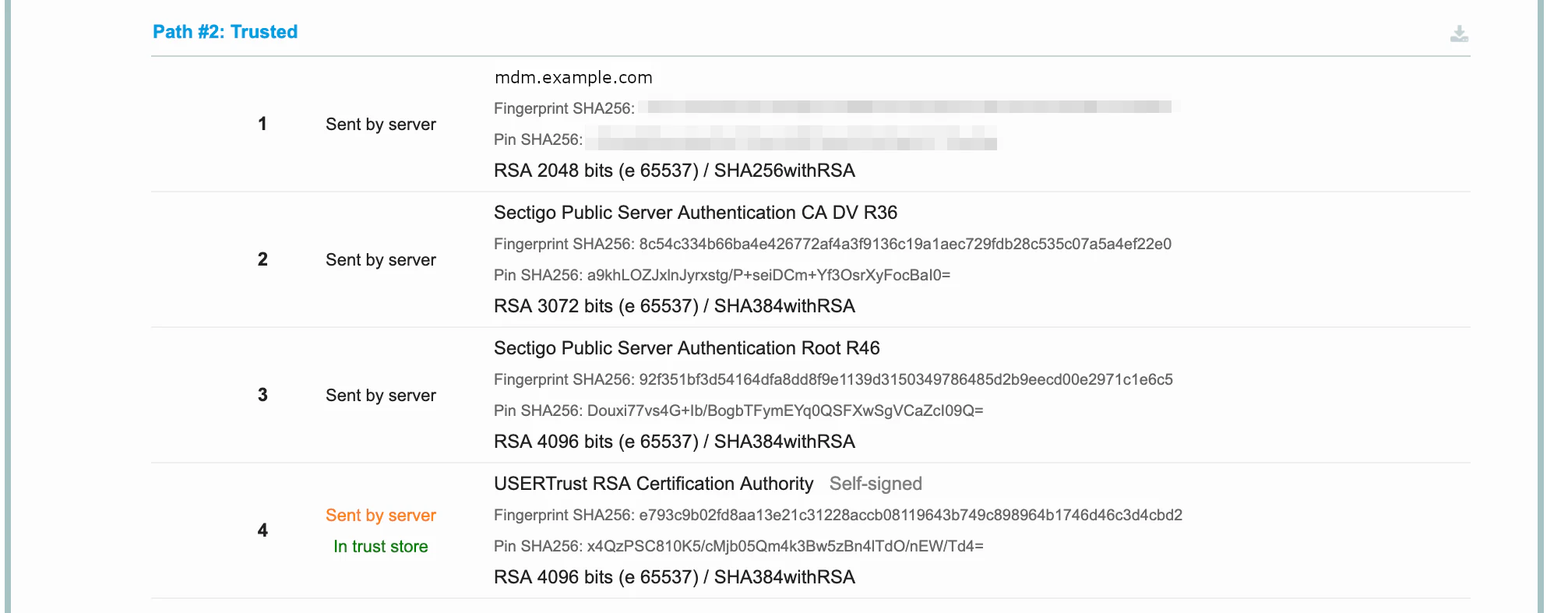
In the example, the root certificate USERTrust RSA Certification Authority (4) is contained in server.pem. Clients only trust a root certificate if it is in their own trust store; the delivered copy is therefore not used and merely enlarges every connection handshake.
The error is resolved by removing the root certificate from server.pem:
A backup is created before the change, e.g. with
cp server.pem server.pem.old.The following command lists all certificates in the file in order, with subject (
subject) and issuer (issuer):openssl crl2pkcs7 -nocrl -certfile server.pem | openssl pkcs7 -print_certs -nooutThe root certificate is the entry whose
subjectandissuerare identical, in the example the fourth one withCN = USERTrust RSA Certification Authority.In a text editor, the block of this certificate from
-----BEGIN CERTIFICATE-----up to and including-----END CERTIFICATE-----is deleted. The blocks appear in the file in the same order as in the output of the command.The command from step 2 is run again; afterwards, no entry with identical
subjectandissuermay appear.The reverse proxy is restarted so that it reads the modified file, see Put the certificate in place in the reverse proxy →. The test is then repeated via Clear cache.
Building and checking the chain is described in detail in Combine the server certificate and the intermediate certificates →.
Intermediate certificate is missing
If a certificate is labelled Extra download (orange), it is missing from the chain delivered by the server. The Chain issues line then reads Incomplete:
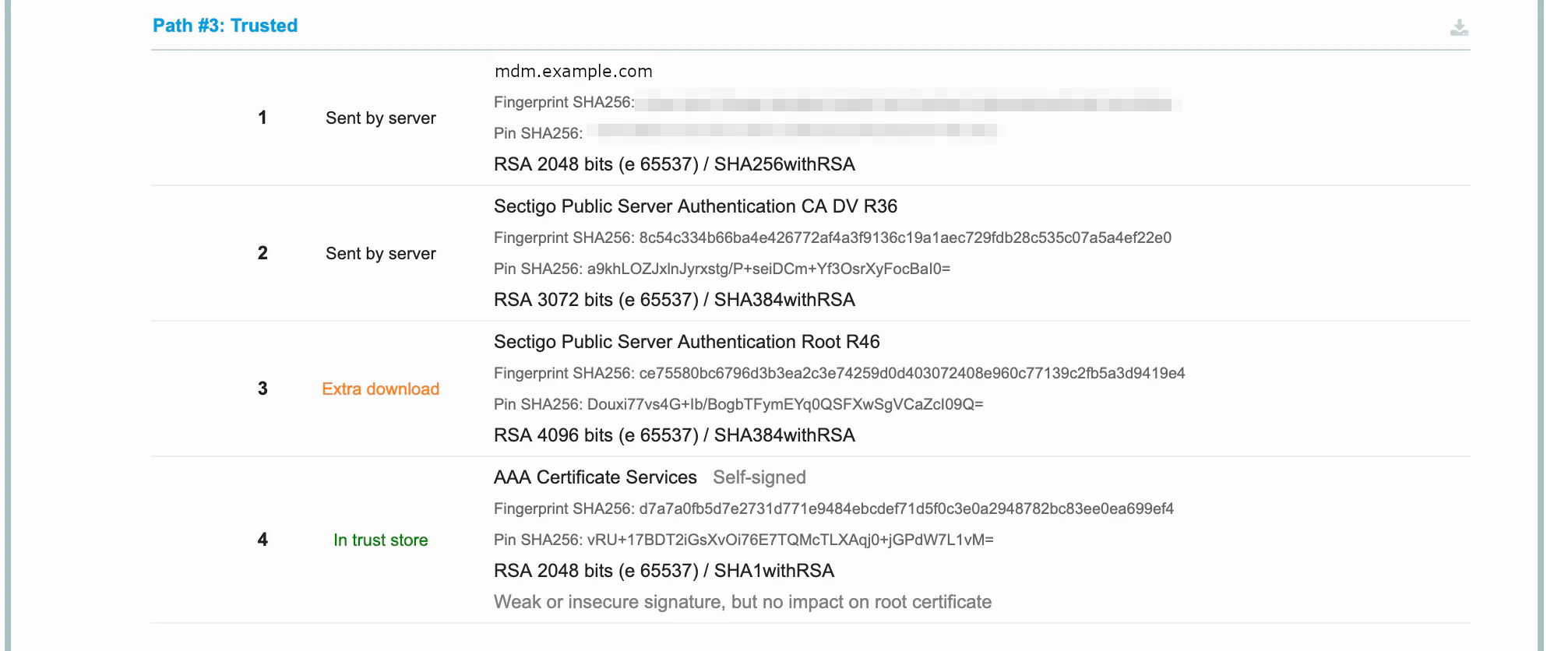
In the example, the server does not deliver the intermediate certificate Sectigo Public Server Authentication Root R46 (3) – despite its name, this is the variant signed by AAA Certificate Services, i.e. an intermediate certificate and not a root certificate. SSL Labs downloaded it and therefore still rated the path as Trusted. Desktop browsers often behave the same way, which is why the error frequently goes unnoticed in the browser. Android devices, Java-based clients and many apps, on the other hand, do not download missing intermediate certificates and abort the connection with a certificate error.
The error is resolved by adding the missing intermediate certificate to server.pem:
The name and Fingerprint SHA256 of the entry marked Extra download are noted. The fingerprint is decisive, as several variants of a certificate with the same name can exist.
The intermediate certificate is obtained as described in Obtain the intermediate certificates from the certificate authority →. Alternatively, SSL Labs offers the certificates of the path in PEM format via the download icon to the right of the path heading (Path #3 in the example); only the block of the missing certificate is taken from it. If the certificate is not in PEM format, it is converted as described in Convert the certificate to PEM format →.
The fingerprint of the downloaded file must match the one noted. OpenSSL displays it in upper case with colons, SSL Labs in lower case without separators:
openssl x509 -in intermediate.pem -noout -subject -issuer -fingerprint -sha256After backing up
server.pem(e.g.cp server.pem server.pem.old), the intermediate certificate is inserted after the certificate it issued. If it belongs at the end of the chain,cat intermediate.pem >> server.pemis sufficient. Care must be taken that-----END CERTIFICATE-----and-----BEGIN CERTIFICATE-----are on separate lines.The chain is checked with the command from Combine the server certificate and the intermediate certificates →.
The reverse proxy is restarted, see Put the certificate in place in the reverse proxy →. The test is then repeated via Clear cache.
If, as in the example, the missing certificate belongs to an additional path for older trust stores while another path is already complete, the server delivers several variants of the same intermediate certificate. How such a chain is built is described in nginx: Multiple certification paths →.
Check without internet access
If the server is not reachable from the internet, the delivered chain can be displayed with OpenSSL from a computer in the internal network. The host name is specified twice so that the server selects the matching certificate (SNI):
openssl s_client -connect mdm.example.com:443 -servername mdm.example.com -showcerts </dev/null
The Certificate chain section of the output lists the delivered certificates, numbered from 0, with subject (s:) and issuer (i:):
Certificate chain
 0 s:CN = mdm.example.com
   i:C = GB, O = Sectigo Limited, CN = Sectigo Public Server Authentication CA DV R36
 1 s:C = GB, O = Sectigo Limited, CN = Sectigo Public Server Authentication CA DV R36
   i:C = GB, O = Sectigo Limited, CN = Sectigo Public Server Authentication Root R46
The chain is correct if the server certificate is at position 0 and the issuer (i:) of each entry matches the subject (s:) of the following one. The issuer of the last entry is the root certificate, which is not itself in the list. If the last entry has an identical subject and issuer, the root certificate is delivered as well.
At the end of the output, the line Verify return code: 0 (ok) indicates a valid chain. The codes 20 (unable to get local issuer certificate) and 21 (unable to verify the first certificate) point to a missing intermediate certificate. They also occur if the root certificate is missing from the trust store of the checking computer, e.g. for certificates from a private certificate authority.