 Customer Hub
Known Issues
Exchange policy: No user certificate of subtype Exchange
When a policy with an Exchange configuration is applied, the Change policy action fails in the device actions. The following message is displayed:
At least one sub action failed: ErrorCode: -, Message: No user certificate of subtype Exchange found for user <username>.
The cause is the Use user certificate setting in the Certificate section of the Exchange configuration. With this option, Relution looks for a user certificate of subtype Exchange for the device user. If no such certificate exists for the user, the account cannot be deployed.
Solution: In the applied Exchange configuration, the Select certificate option is set in the Certificate section. No certificate needs to be selected; the configuration can be saved directly.
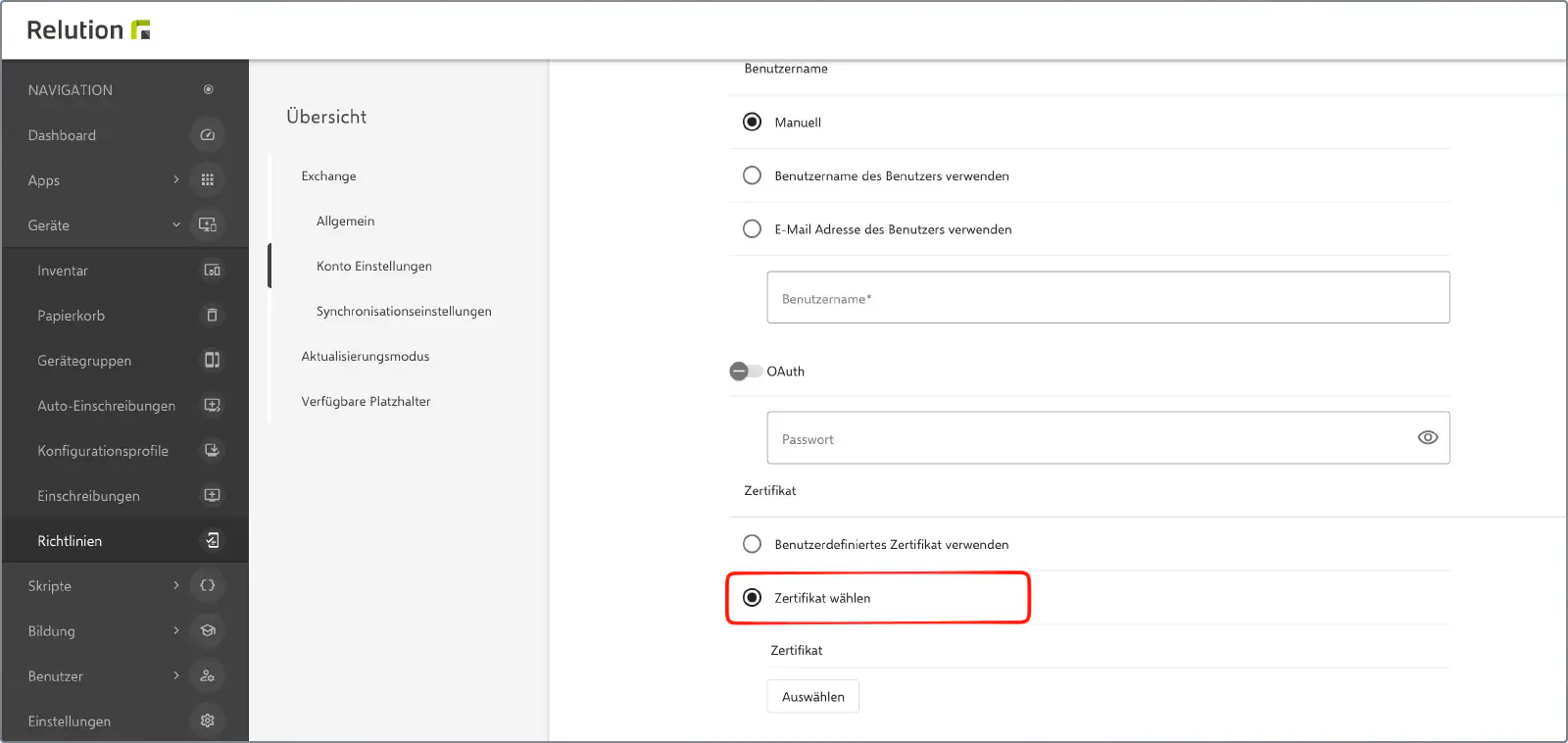
The same applies to the S/MIME certificates further down in the Exchange configuration. If S/MIME signing or encryption is enabled, the S/MIME signing certificate and S/MIME encryption certificate sections appear there with the same choice. If one of these sections is set to Use user certificate, Relution additionally looks for a user certificate of subtype S/MIME signing or S/MIME encryption, and the action fails with the corresponding message if none exists. In this case, the Select certificate option is set in these sections as well.
More information: Exchange configuration →
Shortcuts as a required app
Apple changed the bundle ID of the Shortcuts app. The older VPP listing with the bundle ID is.workflow.my.app can no longer be installed on devices running iOS 26 or later, because iOS actively rejects the installation with the error AppBlacklisted. If this older listing is included in the Required Apps list, the deployment keeps restarting without the installation ever completing successfully.
Typical symptoms:
- Affected iOS devices are displayed as
non-compliantin the device inventory. Shortcutsis correctly listed underInstalled apps.- The app deployment keeps restarting but never completes successfully.
- The device log shows the message
This app can no longer be installed on this version of the OS.together with the error codeAppBlacklisted.
Workaround: The outdated VPP app with the bundle ID is.workflow.my.app is removed from the Required Apps list, and the corresponding VPP assignment is deleted.
Shortcuts app with the bundle ID com.apple.shortcuts should not currently be added to the Required Apps list as a replacement, since Relution still treats Shortcuts as a system app that cannot be installed. If Shortcuts is genuinely missing on individual devices, it can instead be installed separately by distributing an Apple App Store app (Manage App Store apps →).Error when updating to Relution 26.1
After updating to Relution 26.1, the Docker container no longer starts. The following error appears repeatedly in the container log:
Exception in thread "main" java.lang.reflect.InvocationTargetException
Caused by: java.io.IOException: Permission denied
at java.base/java.io.File.createTempFile(File.java:2184)
at io.relution.boot.Main.checkTempDirectory(Main.java:291)
at io.relution.boot.Main.main(Main.java:216)
Cause and solution: Problem with update to 26.1 →
Server startup fails with a self-signed S3 certificate
After updating from a version earlier than 26.2 directly to Relution 26.4 or newer, the server no longer starts if the connected S3 object storage is reached over TLS using a self-signed or company-internal certificate. The following error appears in the log:
AccessDeniedException: software.amazon.awssdk.core.exception.SdkClientException: Unable to execute HTTP request: (certificate_unknown) PKIX path building failed: sun.security.provider.certpath.SunCertPathBuilderException: unable to find valid certification path to requested target (SDK Attempt Count: 3)
Cause and solution — including the required re-login of all users: Server startup with a self-signed S3 certificate →
EntraID/OIDC login behind an outgoing proxy fails
As of Relution 26.3, login via EntraID (and other OIDC providers) fails if the Relution server can only reach the internet through an outgoing corporate proxy. After clicking Sign in with Microsoft, the callback loads for about five minutes and then ends in a timeout (nginx error 504 or an error page). The cause is that the internal OIDC component no longer uses the configured proxy and connects directly to the identity provider, which can be blocked by the firewall. The issue is tracked as REL-13391 and will be fixed in an upcoming version.
Cause and workaround: OIDC login behind an outgoing proxy →
Prometheus metrics are not exposed
As of Relution 26.4, only the health endpoint is exposed by default for security reasons; the Prometheus endpoint (/actuator/prometheus) is disabled. Prometheus monitoring therefore does not receive any metrics until the endpoint has been enabled once in the application.yml.
Cause and solution: Enabling Prometheus metrics in Relution →
Log levels cannot be changed via the system portal
As of Relution 26.4, only the health endpoint is exposed by default for security reasons. The system portal therefore shows the Details section only; the Logger, Environment, Metrics and Threads sections appear once the corresponding endpoints have been enabled in the application.yml. Independently of this, log levels can still be changed via the Web API.
Cause and solution: Enabling the actuator endpoints →
OIDC + Entra ID
- OIDC authentication with Microsoft Entra ID was reconfigured according to our documentation.
The configuration itself is correct, but login does not work immediately after setup.
Users receive an error message after logging in with their Microsoft credentials:
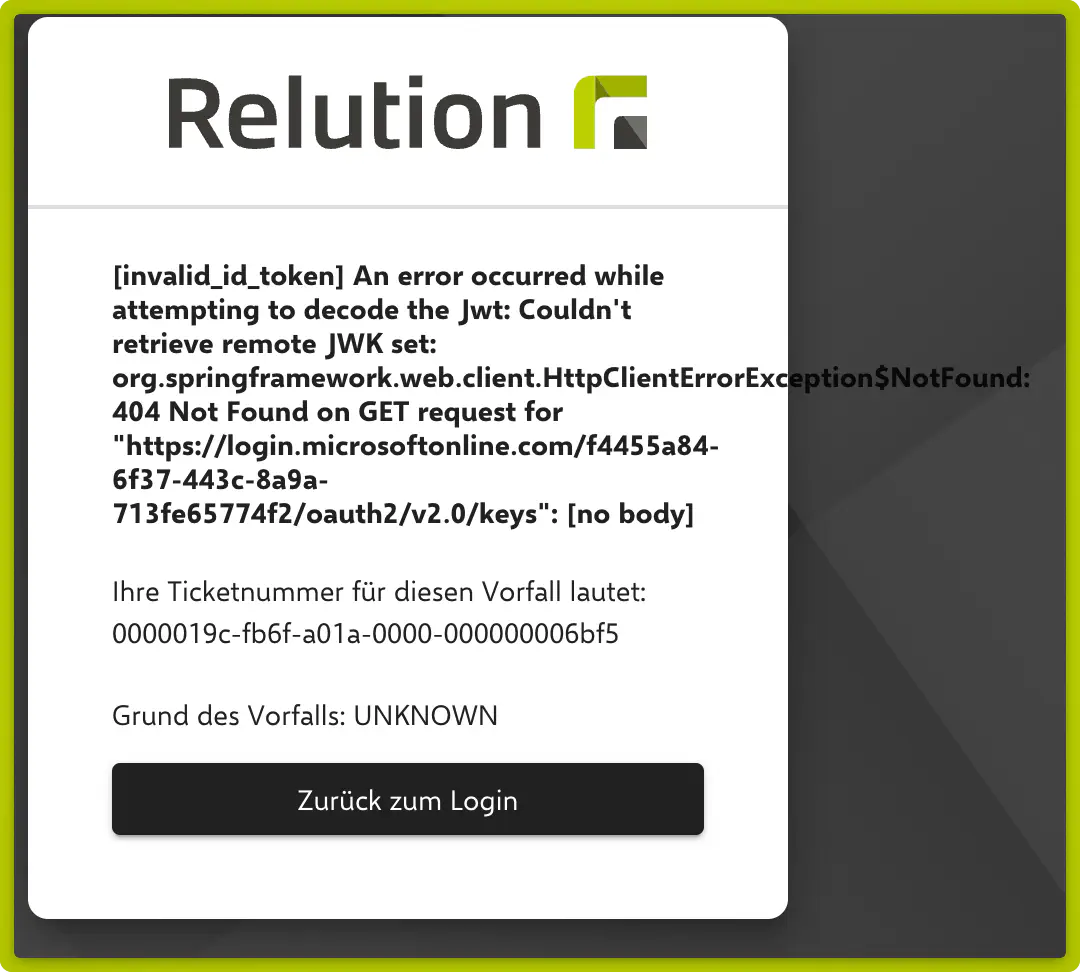
Solution / Workaround
Only after restarting the Relution server does OIDC login work as expected.
Backups with iOS 26.4
- When restoring backups from iOS 26.3 or earlier to a device with iOS 26.4 installed, the Device Management state is lost.
shared iPad
- On Shared iPad, as of iOS 26, it is not possible to create or save local files in Guest Mode.
We have opened a case with Apple regarding this, and to expedite the process, feel free to open a case with Apple → and inform our support team.
- Workaround: Create and edit files through a connected file share. paed.ML x Relution →
Apple ID signing
- Signing in through system apps with an Apple ID is possible, even though the restriction Modifying accounts allowed is disabled.
New Apps
- New Apps and the bundle IDs to block
- Preview →
com.apple.Preview - Games →
com.apple.games - Tipps →
com.apple.tips
- Preview →
Relution Agent 5.19.0
There are currently two problems with Relution Agent version 5.19.0.
In some cases, an error may occur when logging in to Relution Shared Device. This is displayed after login. The error message reads ‘Bad state: Stream has already been listened to.’ As a workaround, simply press the Home button on the iPad. The user should be logged in and the device should be usable as normal.
All apps with an available update are displayed in the App Store. This is a display error.
iOS Wallpaper
There is currently an issue with the deployment of Wallpapers the Problem can occur on all iOS Device where a Wallpapere policy is deployed. The issue can’t be reproduced the whole time but occur when a policy change occur on the device. We created a Workaround with the Relution Server Version 5.29.1 but the problem can still occur in some cases. We already created a Ticket with Apple to solve this Problem as quickly as possible.
The other solution for the problem would be to create a Device group where the device is only for a brief moment and where the wallpaper is deployed. After the wallpaper is deployed the Wallpaper wont be withdrawn from the device but the policy will. Which shouldn’t result in the mentioned Wallpaper Problem.
Apple Files App
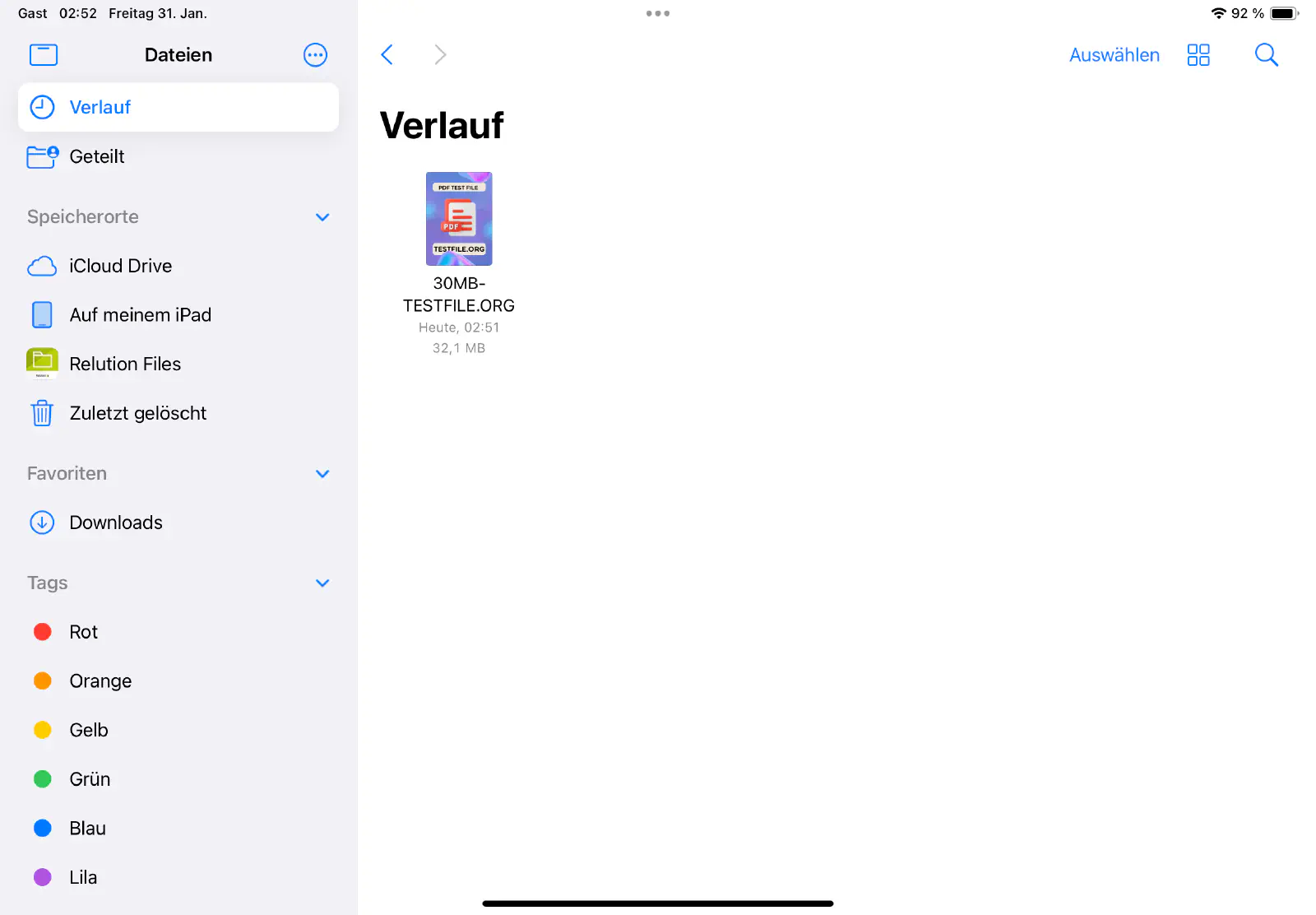
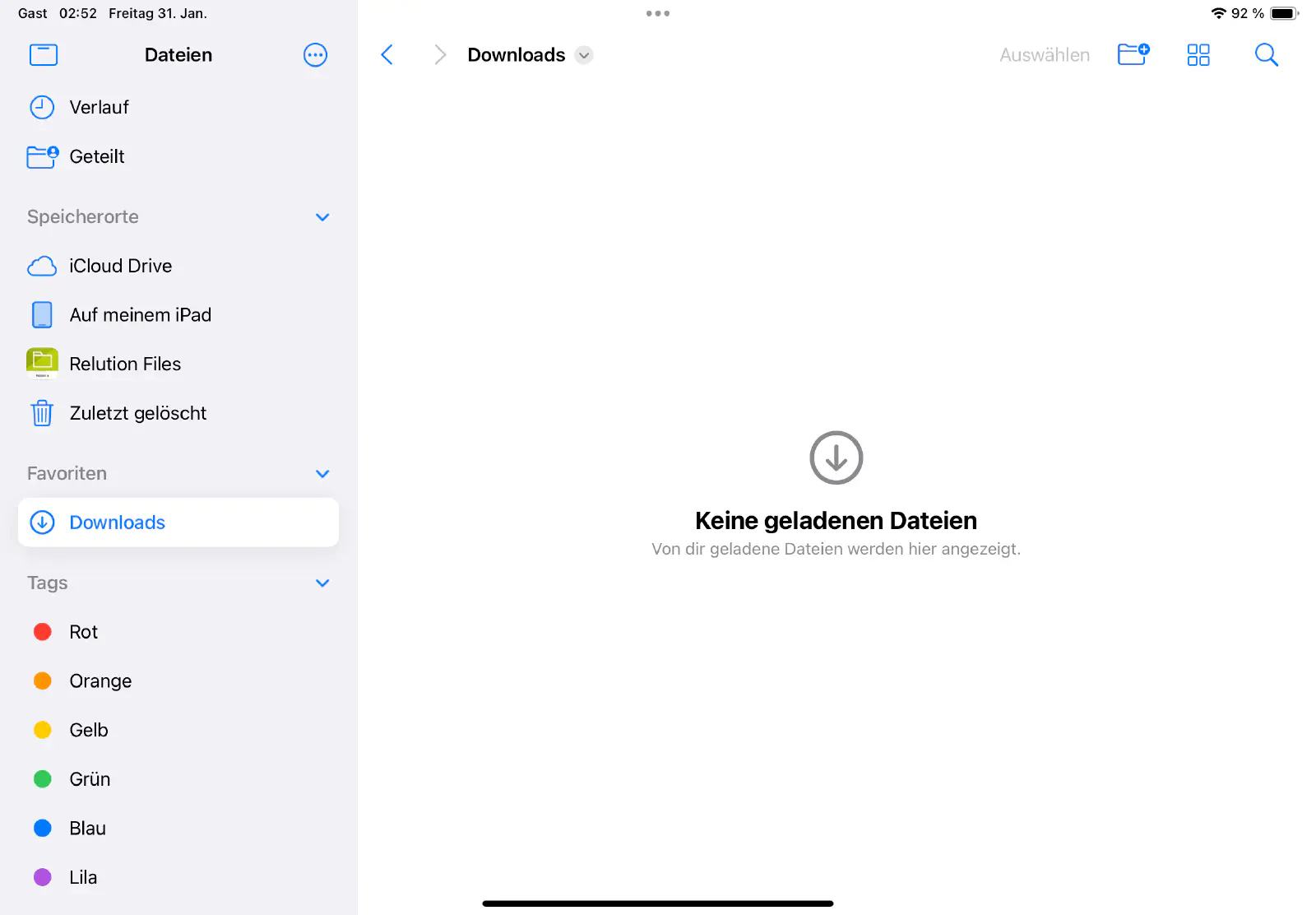
There is currently an error in the Files app on Apple shared iPads (tested with iOS 18.2 and 18.3).
The bug is also noticeable in that downloaded files are missing from the Downloads folder. When data is opened, it is visible in the Downloads folder until the Apple Files app is closed and reopened.
Issues with SMB Access in iOS 18
There is a known issue in iOS 18 that can cause problems when writing to SMB shares. This is a bug that occurs independently of Relution and is related to a problem within iOS 18 itself. Apple is aware of the issue, and we recommend keeping an eye on upcoming updates from Apple, as a solution may be included in a future iOS release.
Airdrop
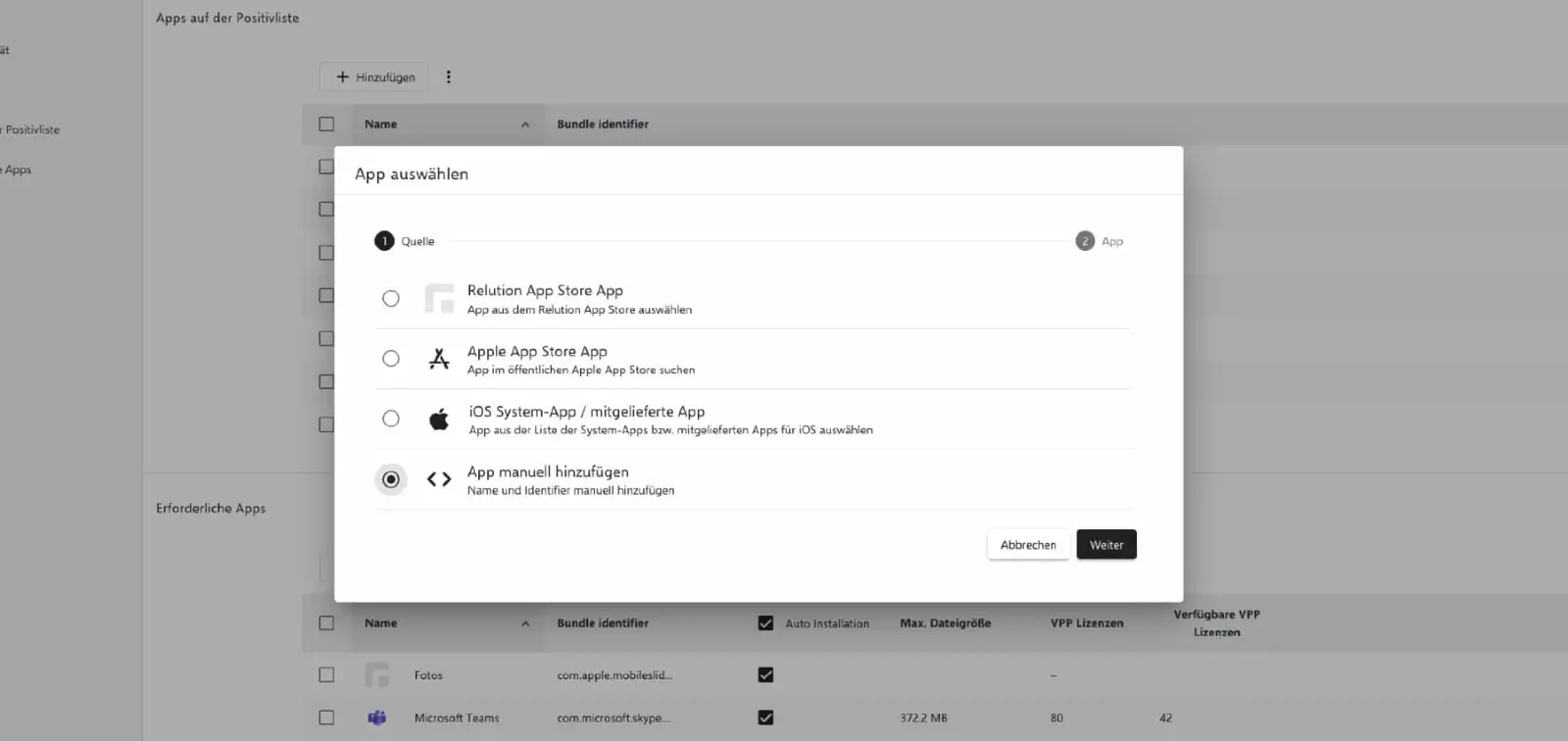
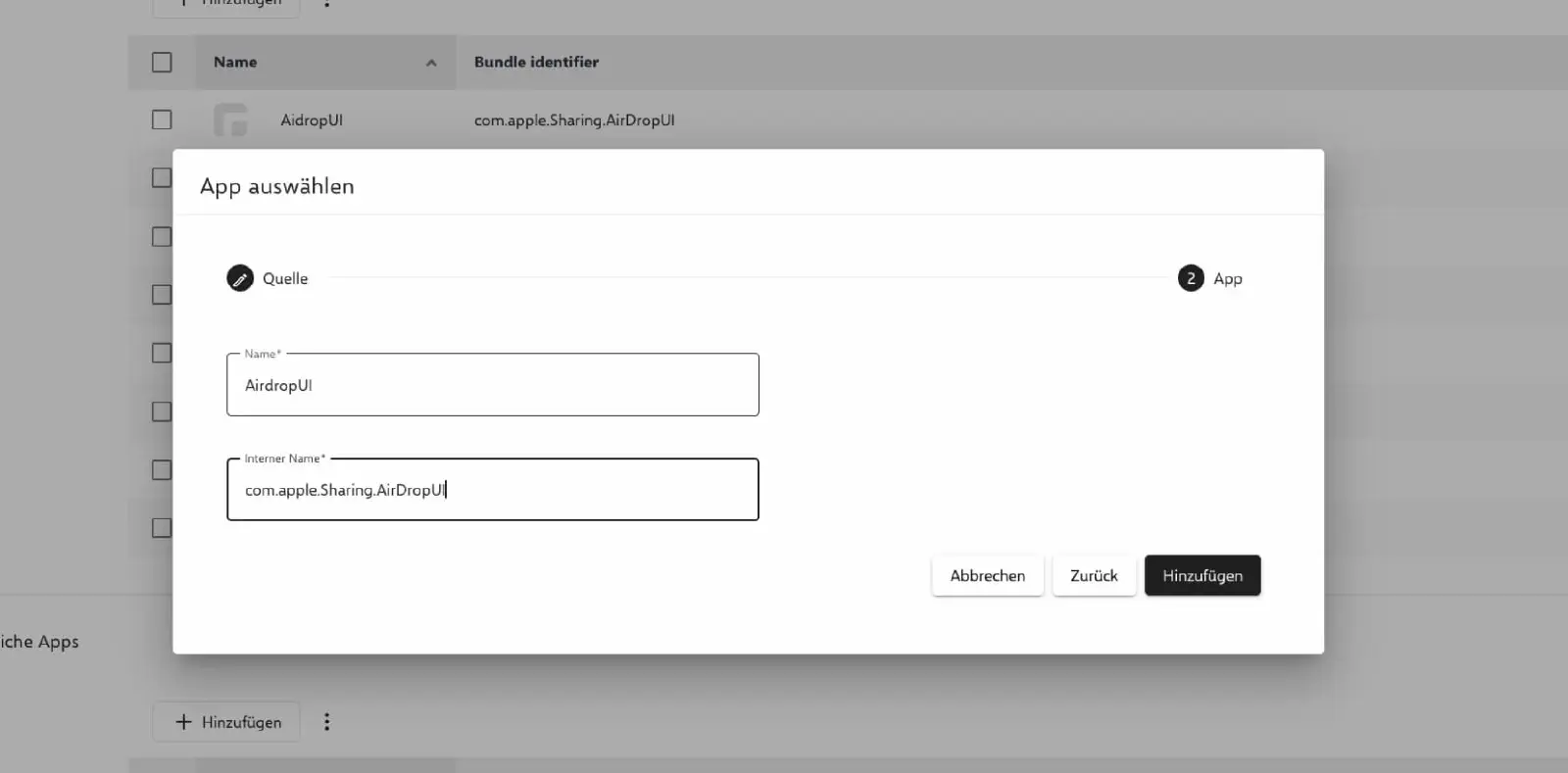
In iOS 18, there may be difficulties with Airdrop, as the new bundle identifier for the Airdrop UI must be stored positively in the app compliance. The correct identifier is:
com.apple.Sharing.AirDropUI
Password app
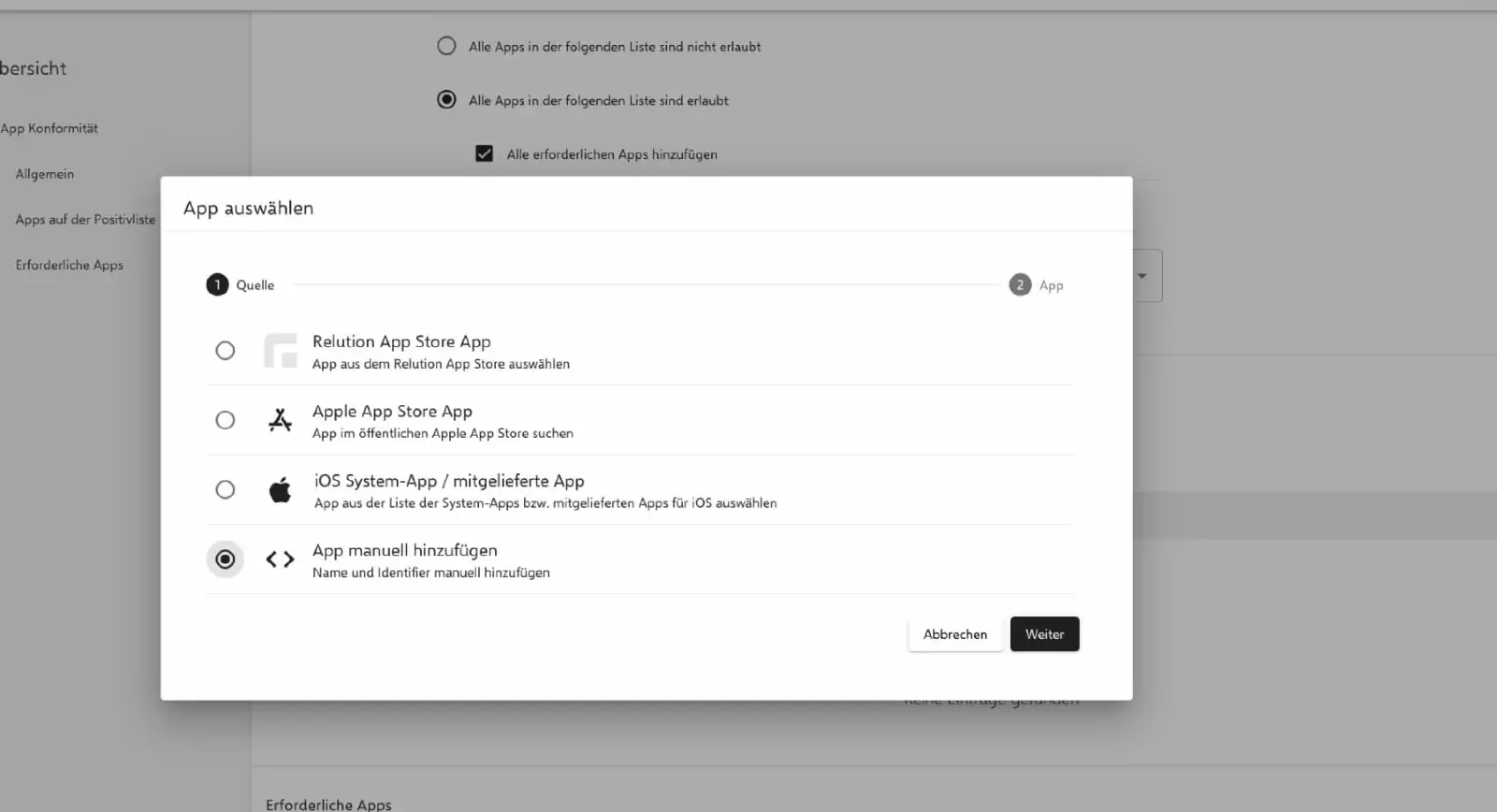
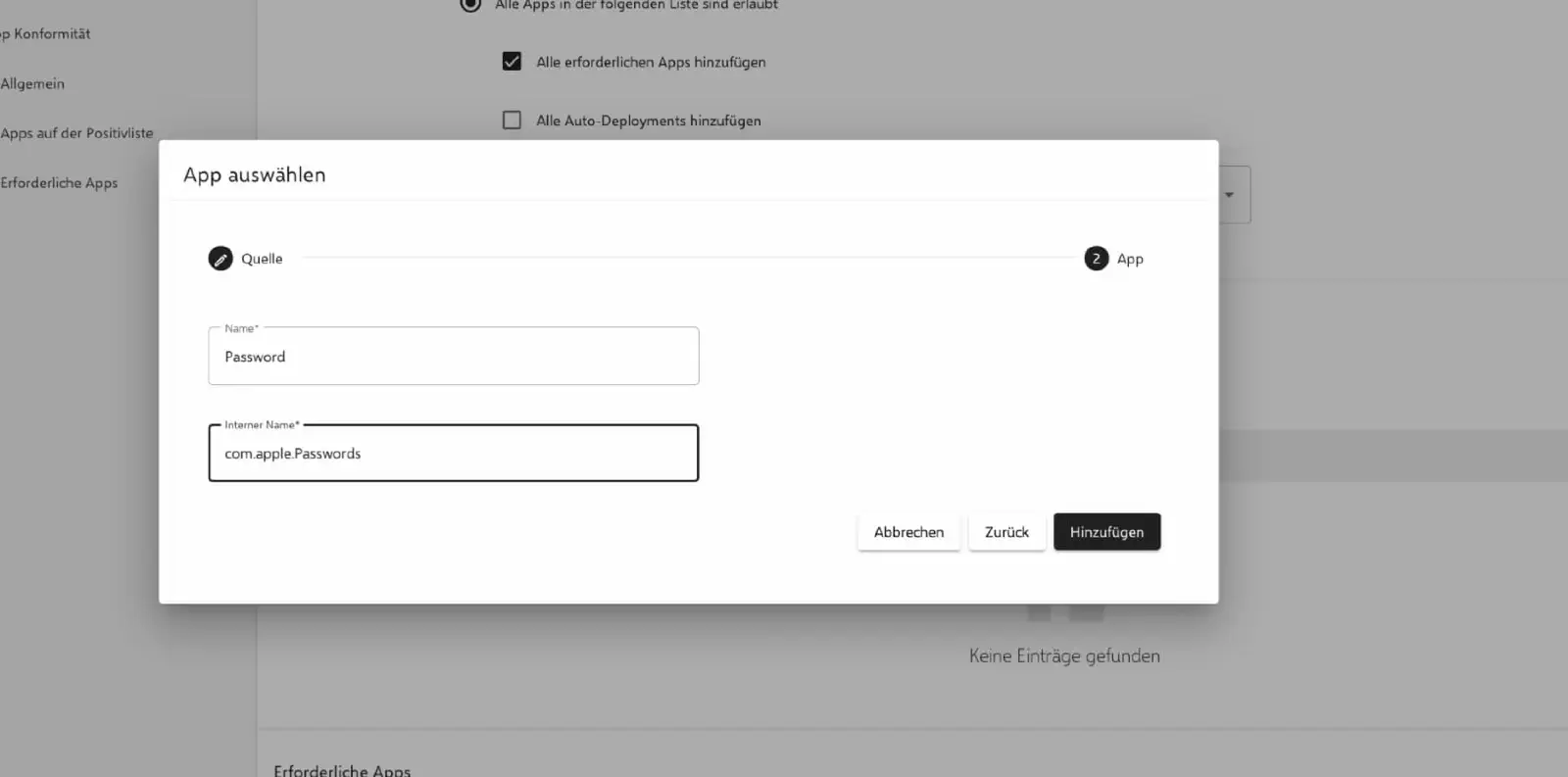
With iOS 18, Apple has introduced a new system app that serves as a password safe. If a positive list of approved apps is defined via app compliance, the new bundle identifier of the password app must also be stored here in order to allow it correctly.
QR code scanner
Another known problem concerns the QR code scanner in iOS 18 with devices from generation 9. The bundle identifier has been shortened here. The current identifier is:
com.apple.BarcodeScanner
To fix this, the positive list must be added manually in the app compliance. The name is irrelevant here; it is only important to enter the bundle identifier mentioned above.
Devices smaller than generation 9 must use the separate app Code Scanner.
This can be called up by calling up the Spotlight search from the home screen from top to bottom and searching for Code.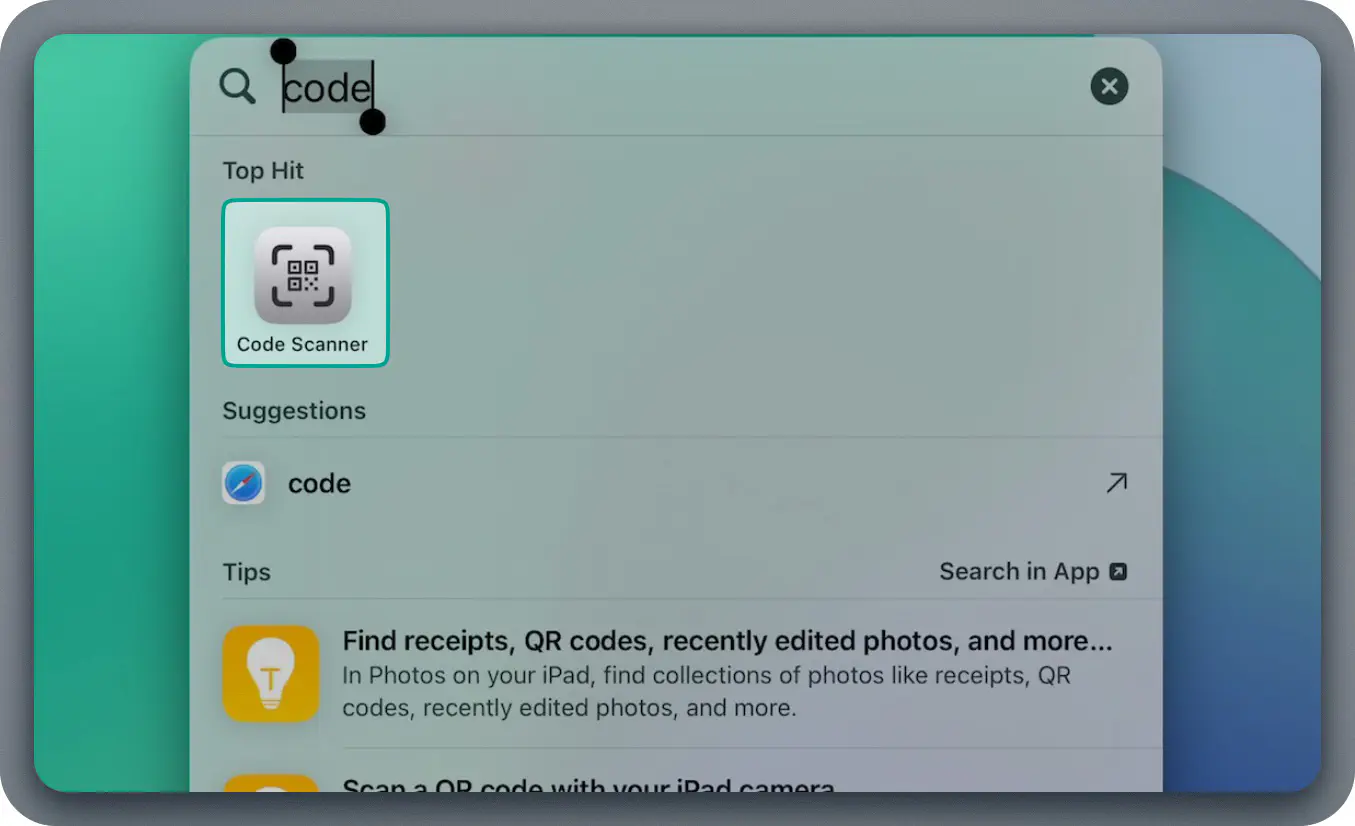
Slow login on shared devices
With iOS 17.x, setting the restriction configuration Allow iCloud Keychain synchronization to No causes the login on shared devices to be slowed down.
To bypass this behavior, the item Allow iCloud Keychain synchronization must be set to yes in the applied configuration of the ‘Restriction’.
Lack of storage space on iOS devices
On iOS devices, despite sufficient memory for app installations, a message may appear that there is not enough memory available. This is also displayed accordingly in the system settings.
The problem is caused by using the policy configuration Shared iPad settings. Repeated logins and logouts of guest users on the shared device can cause this error to occur spontaneously.
To avoid the occurrence of this problem, it is recommended not to use the policy. Alternatively, at least the two points Storage space quota and Number of users should be avoided.
For affected devices, it is necessary to reset them to factory settings.