 Customer Hub
Lifetime Licenses
Lifetime licenses are valid permanently for exactly one device. This eliminates recurring annual license costs.
A lifetime license is permanently claimed to the device’s serial number (SN) and cannot be transferred to another device.
Binding to the Serial Number
Lifetime licenses must be claimed to a serial number to take effect for a device. Devices whose serial number is claimed to a lifetime license are enrolled even if the device quota of the other licenses is exhausted.
Devices and auto enrollments without a serial number cannot be claimed. The number of claims is limited by the device limit of the lifetime license; once it is reached, further claims are rejected.
Requirement for Use
For lifetime license functionality to be available, at least one lifetime license must be assigned either on the Global organization or on a tenant.
The applicable level is shown in the Assignment type field of the license information: with global-based, the lifetime licenses and their claims are kept in the Global organization, with tenant-based in the respective tenant.
All ways of claiming require the permission to update the License information. Without a lifetime license, the buttons are locked (hint The organization has no Lifetime license).
Supported Platforms
Currently, lifetime licenses are only available for the following platforms:
- iOS / iPadOS
- Android Enterprise
Unsupported platforms continue to be licensed using other license types, e.g.:
- Perpetual – remains valid until cancellation
- Subscription – remains valid until the defined end of life (EoL)
No Revocation Possible
It is not possible to withdraw lifetime licenses that have already been assigned.
Ways to Assign Lifetime Licenses
There are currently 4 ways to assign lifetime licenses:
1. Via Auto-Enrollments
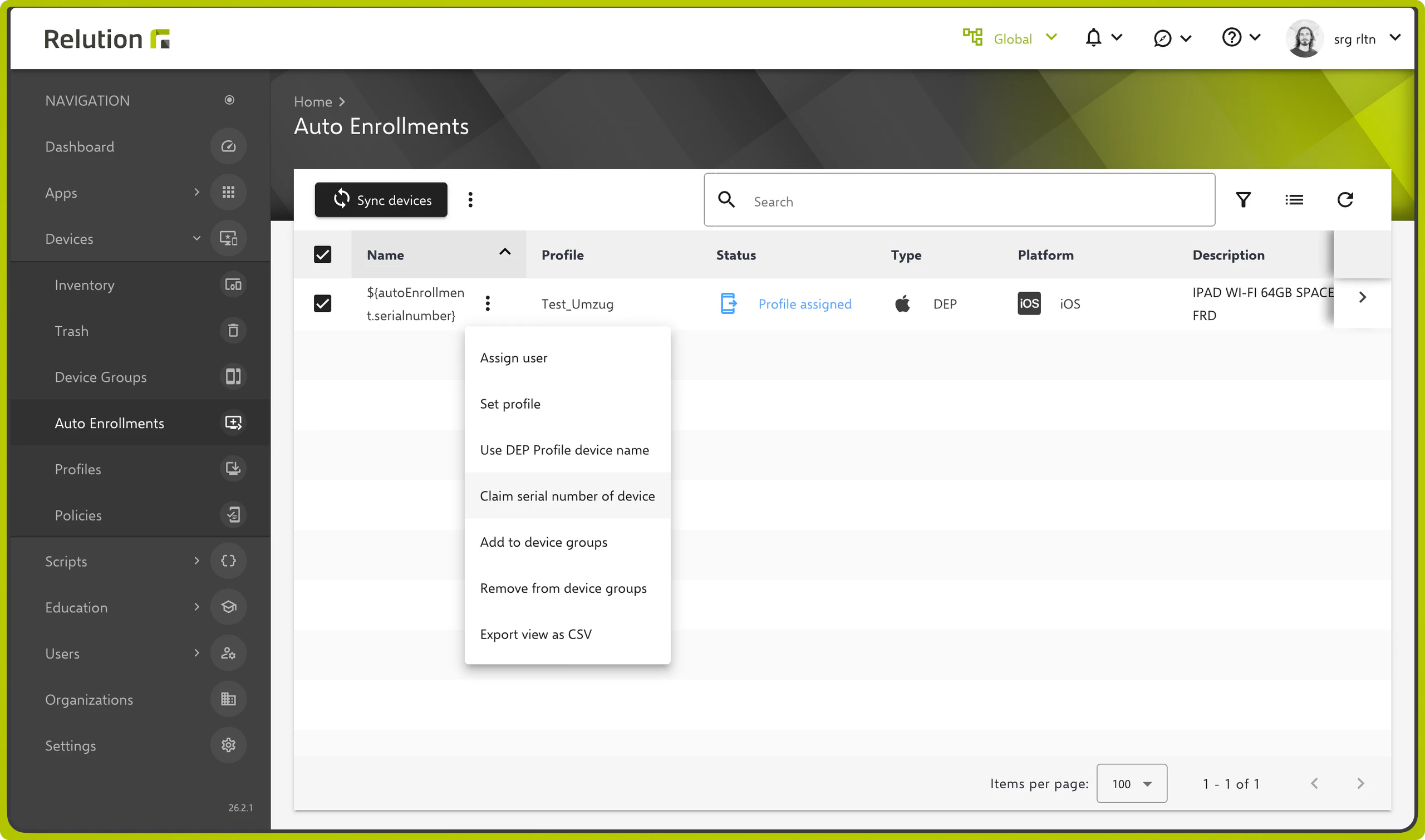
Lifetime licenses can be assigned on the Global / Tenant level via auto-enrollments. To do so, the desired entries are selected under Devices → Auto Enrollments. Then the action Claim serial number to lifetime license is chosen and the dialog is confirmed with Claim serial numbers to lifetime license. The claim cannot be undone.
The action is only available if a lifetime license exists and all selected entries have a serial number and belong to the same organization.
2. Directly in the Inventory for a Device
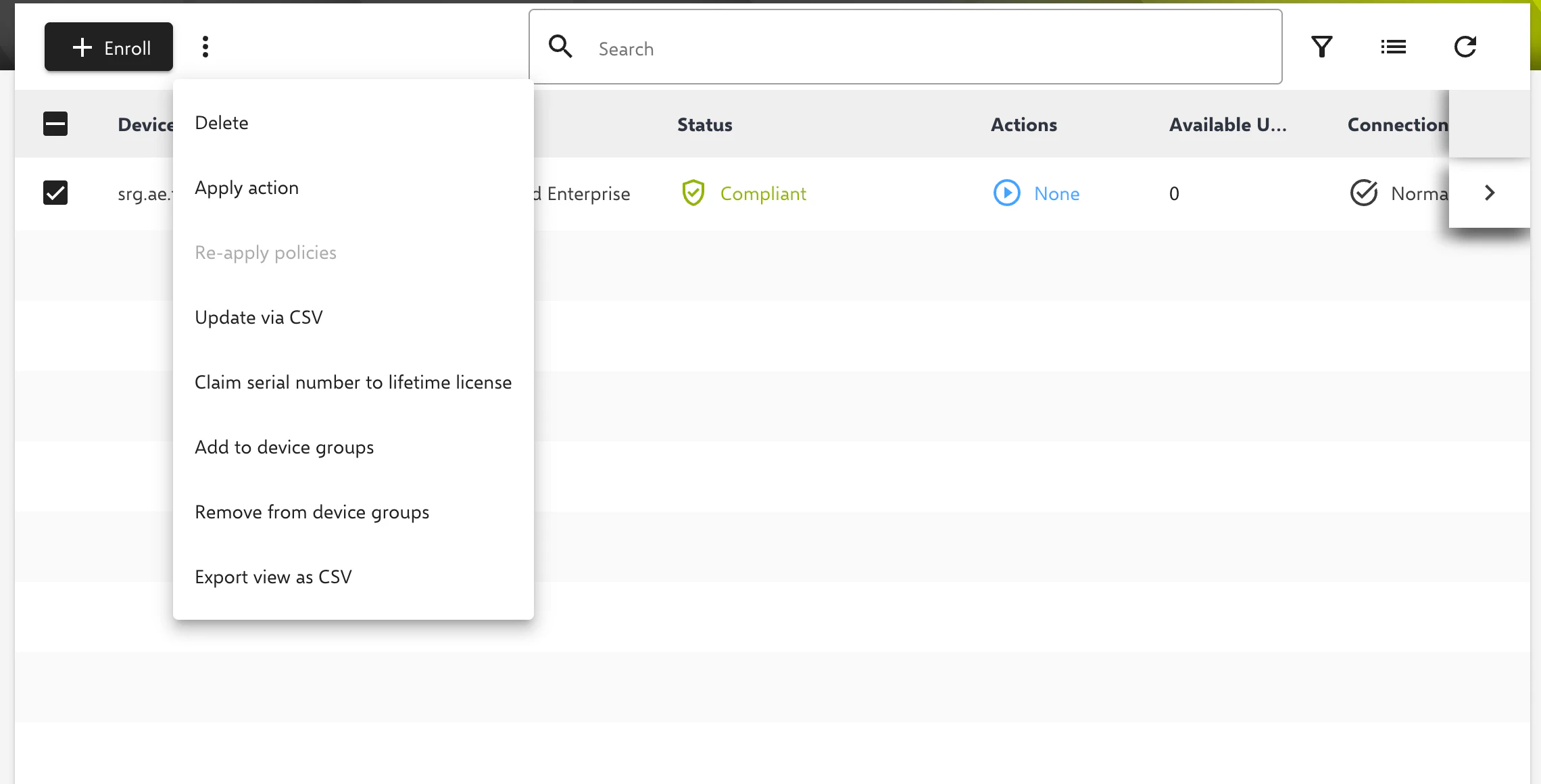
Assignment can be made directly in the inventory on the device. To do so, the desired devices are selected under Devices → Inventory, the action Claim serial number to lifetime license is chosen and the dialog is confirmed with Claim serial numbers to lifetime license.
Requirements:
- the assignment is made on the tenant
- the device has a serial number
- all selected devices belong to the same organization
3. During Manual Enrollment on a Tenant
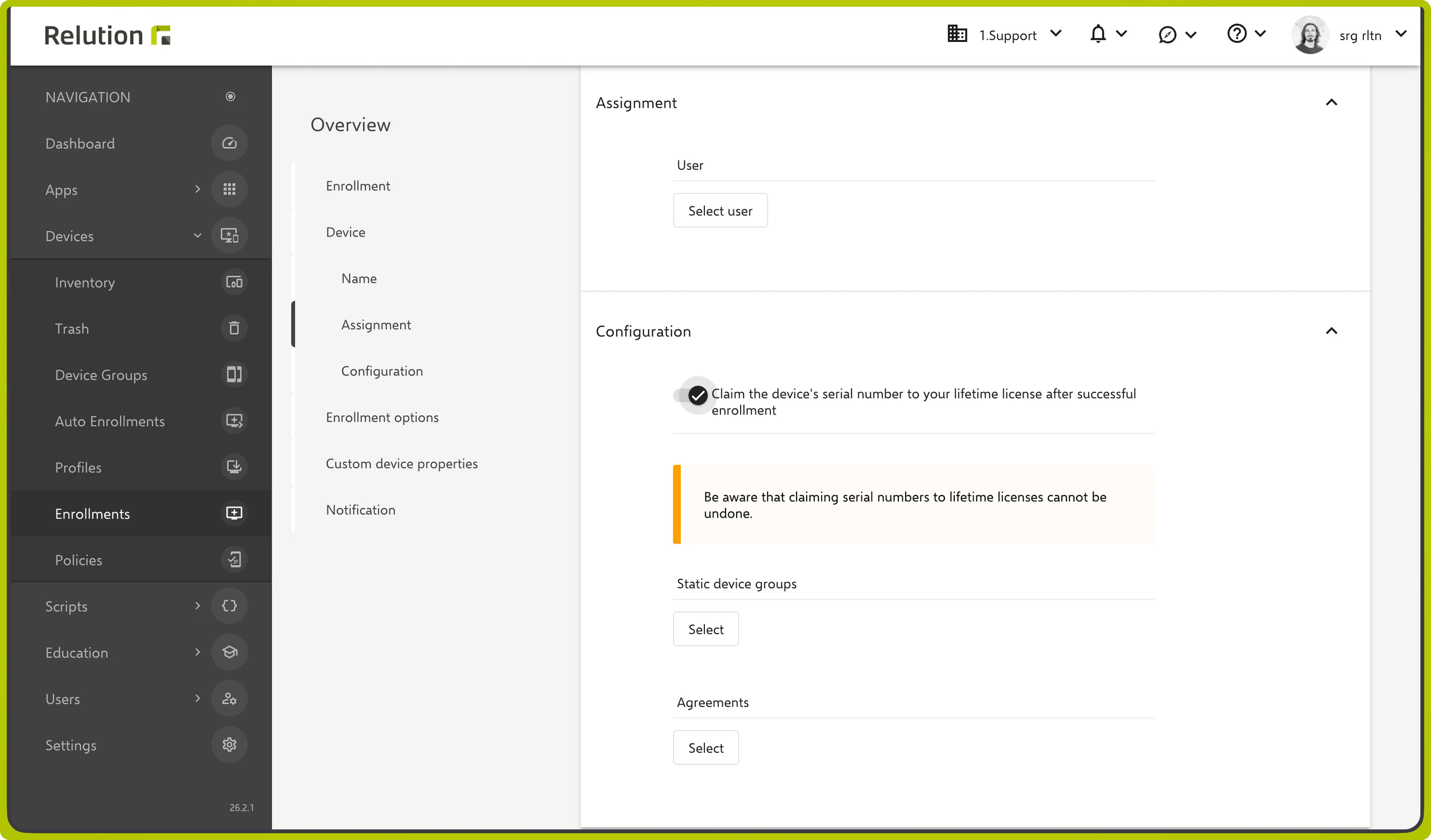
Lifetime licenses can be assigned as part of a manual enrollment on a tenant. When an enrollment for iOS / iPadOS or Android Enterprise is created under Devices → Enrollments, the Configuration section contains the toggle Claim the device’s serial number to your lifetime license after successful enrollment.
The toggle is only displayed if a lifetime license is available to the organization. It can only be set when the enrollment is created, not when it is edited later. Relution claims the serial number to the lifetime license only after successful enrollment. This claim cannot be undone.
4. Via CSV Upload
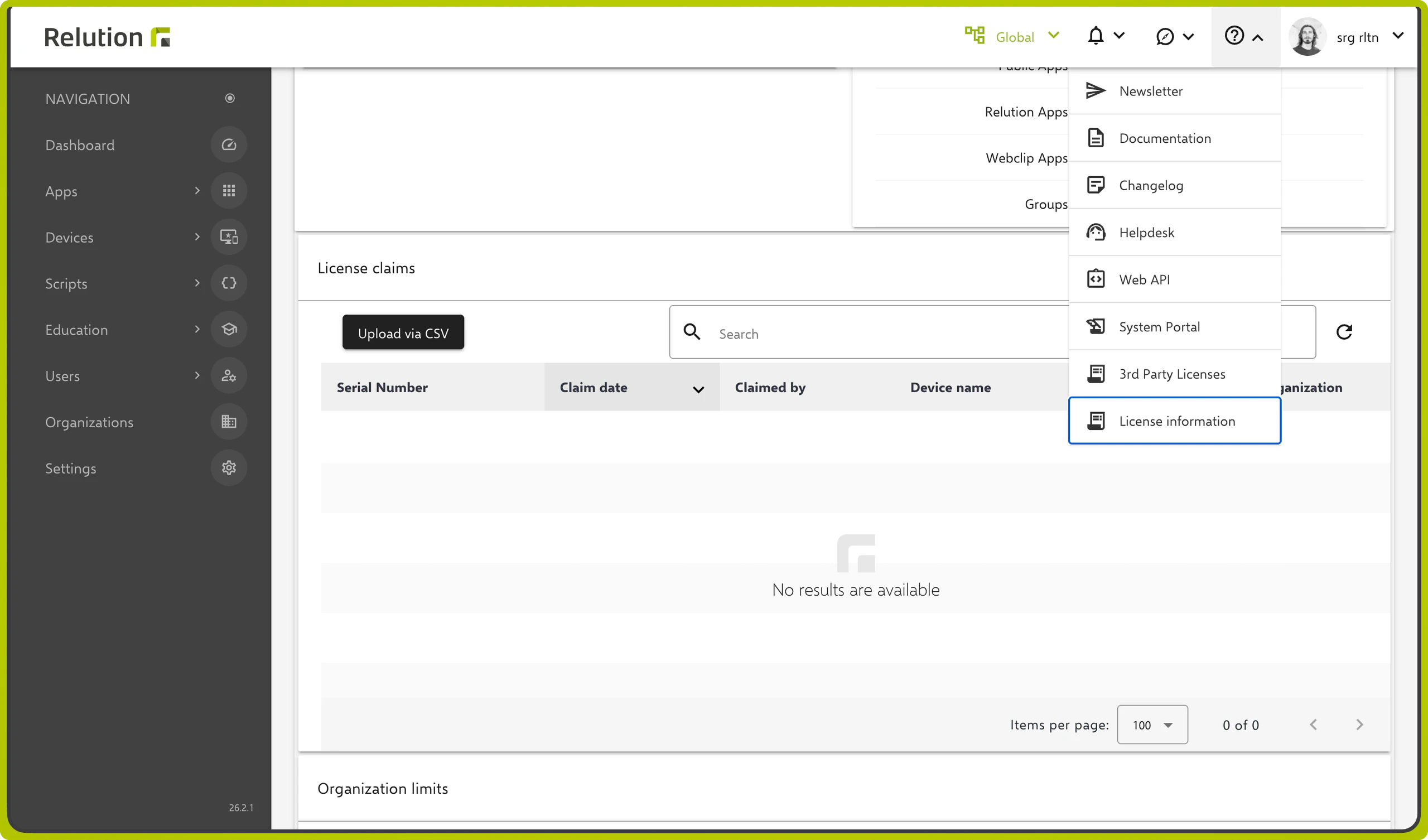
Assignment is also possible via CSV upload. To do so, the support menu (question mark icon) in the top right corner is opened and License information is selected. In the License claims section, the Upload via CSV button opens the import. The CSV file contains a serialNumber column with one serial number per line.
The License claims section only exists if a lifetime license is available. Where it appears depends on the Assignment type: with global-based only in the Global organization, with tenant-based only on the tenant where the lifetime licenses are stored.
Serial numbers that have already been claimed are skipped during the import. Once the device limit of the lifetime license is reached, the remaining lines are reported as failed.
Overview of Claims
The License claims section of the license information lists all serial numbers claimed to the lifetime license, regardless of how they were claimed. Among other things, Claim date, Claimed by, Device name and Organization are shown for each entry.
Summary
- Lifetime licenses are valid for the lifetime of a single device
- they are permanently claimed to the serial number
- transfer to another device is not possible
- lifetime licenses that have already been assigned cannot be revoked
- currently, only iOS / iPadOS and Android Enterprise are supported
- unsupported platforms still require other license types (e.g. perpetual or subscription)