 Customer Hub
Link Microsoft Entra ID
Linking Microsoft Entra ID with Relution creates the foundation for Microsoft-based integrations in the organization. This includes, for example, connecting Windows devices and using other Microsoft services together with Relution.
As a result, users and groups from Microsoft Entra ID can be synchronized with Relution. This allows user accounts to be managed centrally in Microsoft and automatically provisioned in Relution.
To allow synchronized users to sign in to Relution, OIDC authentication → must also be configured. If access is to be secured using Conditional Access →, both the link to Microsoft Entra ID and the configuration of OIDC → are required.
The required settings are configured partly in Relution and partly in the Microsoft Entra admin center.
Requirements
To link Microsoft Entra ID with Relution, the following requirements must be met when only synchronizing users from Microsoft Entra ID to Relution:
- an existing
Microsoft Entra IDenvironment - sufficient permissions in Microsoft Entra, usually the
Global Administratorrole - an accessible Relution Server
- an app registration in Microsoft Entra
If Windows Autopilot or Entra Join is also to be used, the following additional requirements must be met:
- the server URL of the Relution Server, which will later be stored in Microsoft Entra
- a created MDM application
Open the link configuration in Relution
In the Relution portal, the setup area is found under Settings → User management → Entra ID.
There, a guide provides support for configuring and linking Microsoft Entra.
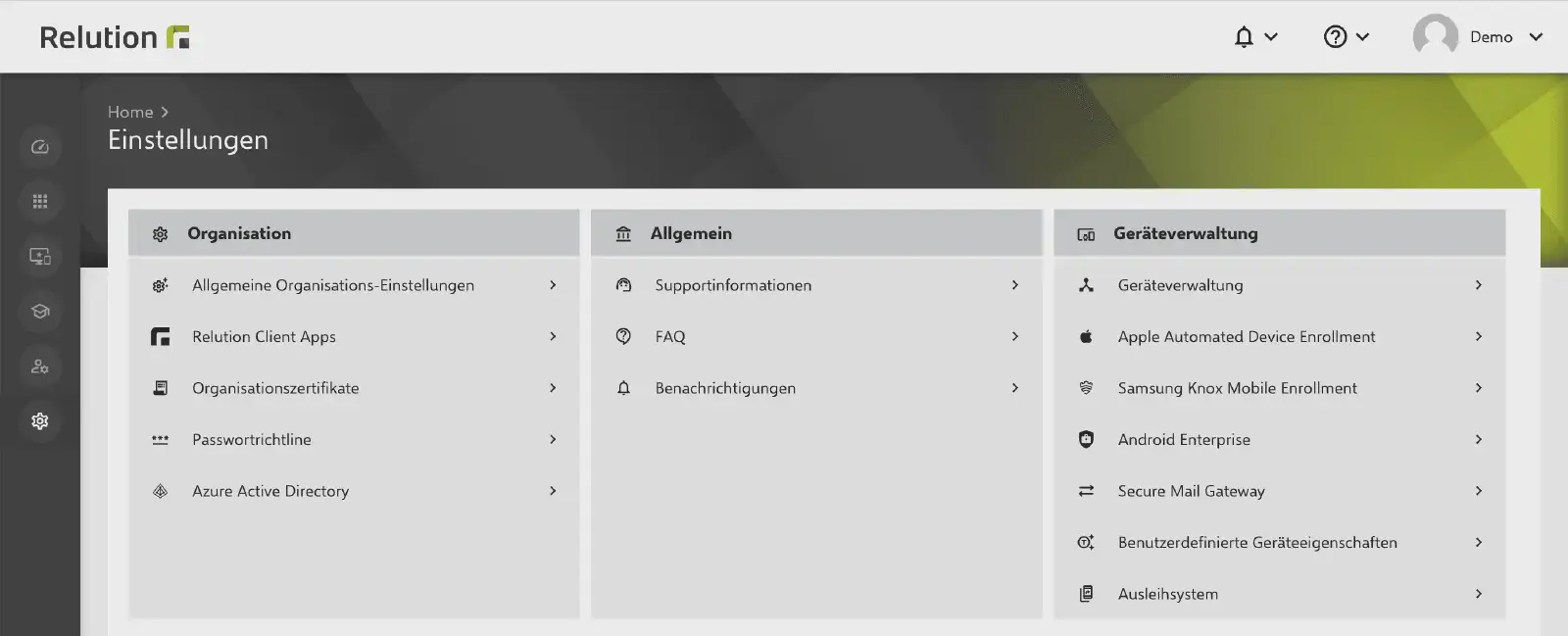
To only synchronize users and groups from Microsoft Entra with Relution, a standard app registration is sufficient. It can be created using the following link:
Create new app registration in Entra →
Configure the MDM application settings
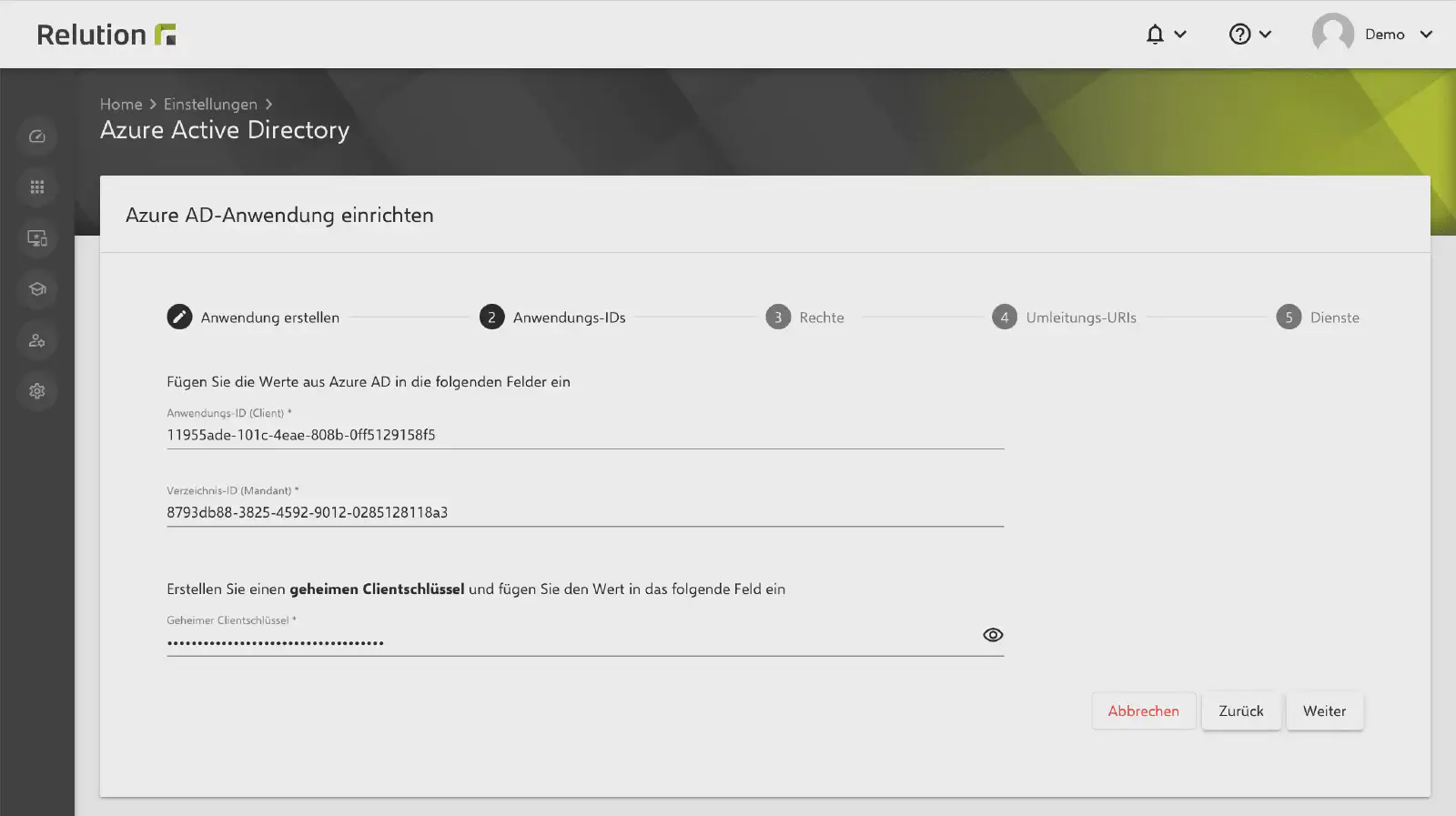
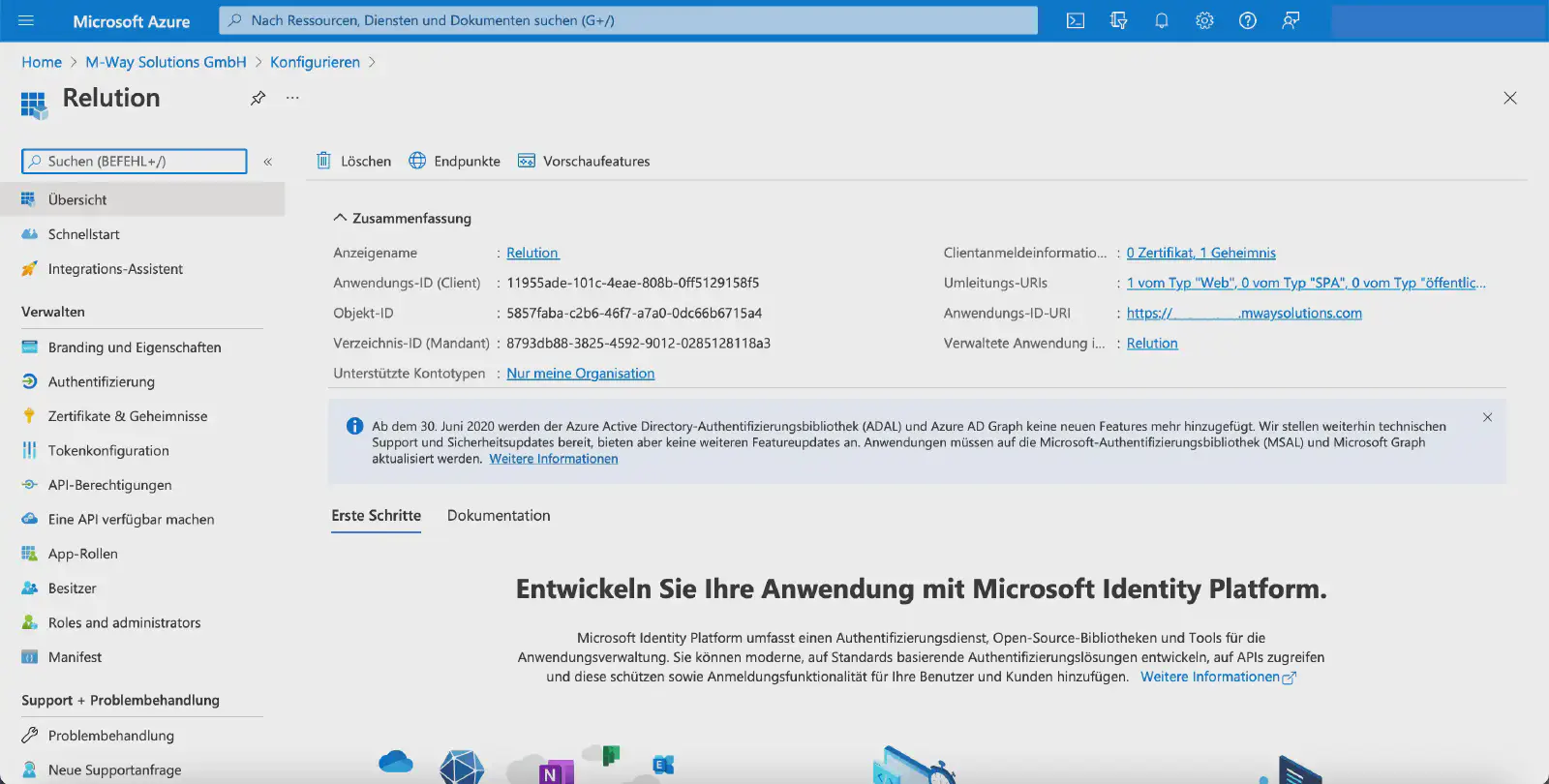
After the new MDM application has been created, the local MDM application settings can be configured in Microsoft Entra. The following information from Microsoft Entra must be transferred to the Relution guide:
- Application (client) ID
- Directory (tenant) ID
- the value of the Client secret
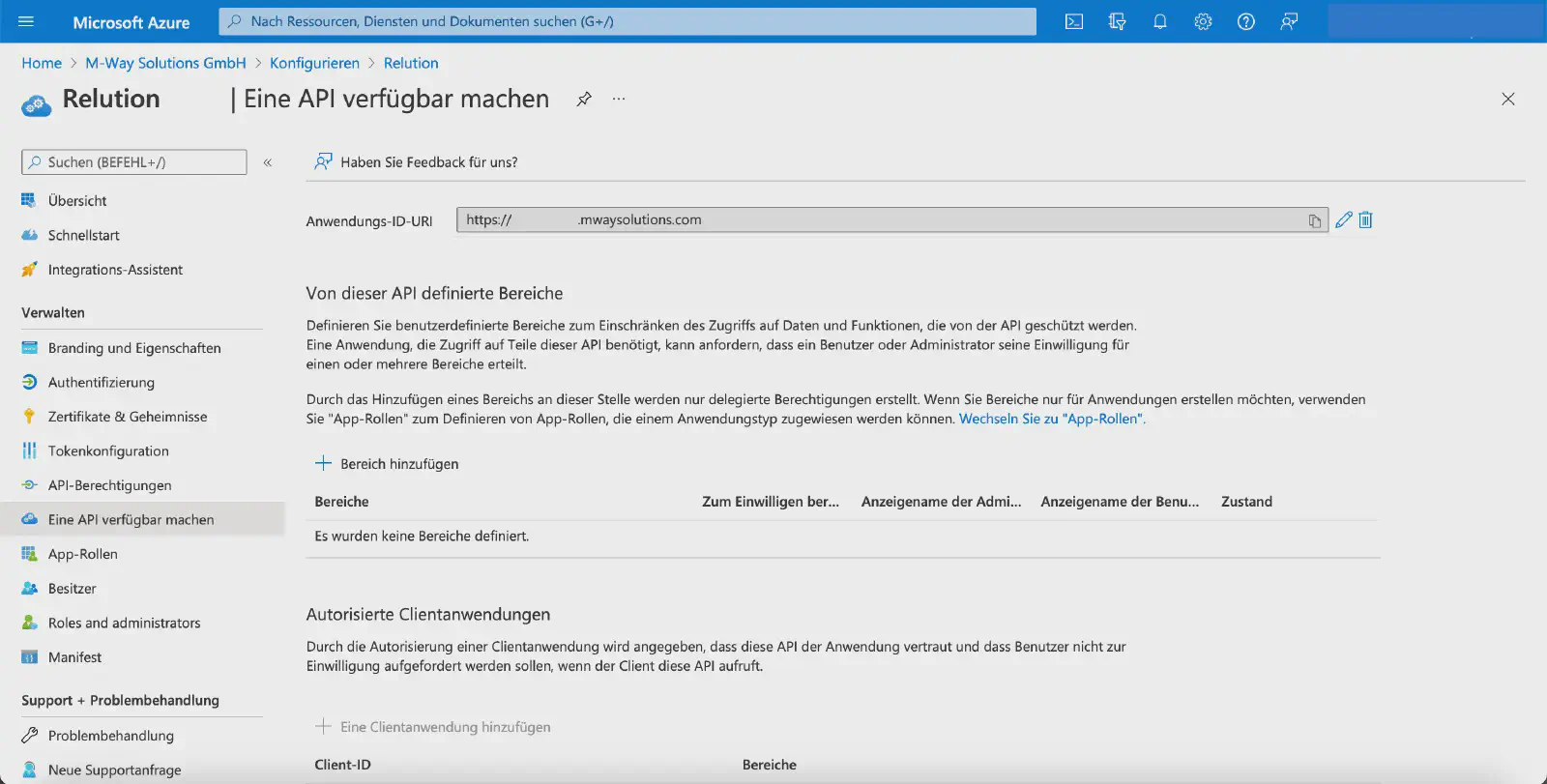
Then click Application ID URI in the local MDM application settings to edit it.
In the following view, enter the corresponding server URL as the Application ID URI.
Next, add a Client secret under Certificates & secrets:
- In the Client secrets tab, click New client secret.
- In the
Add a client secretdialog, enter a description and the validity period. - Click Add.
Client secret must be created for the application in Microsoft Entra and stored again in Relution.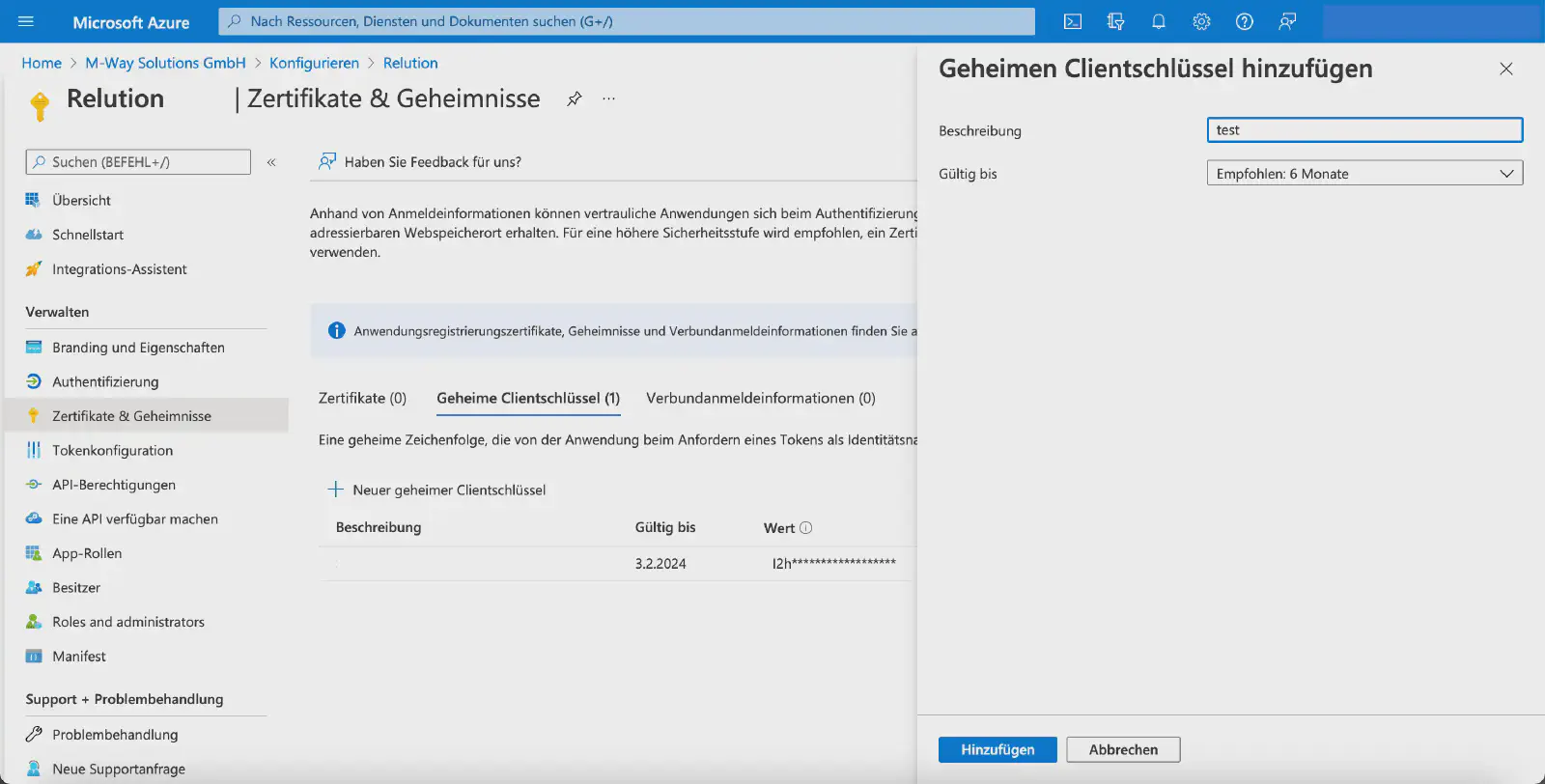
The new entry is then displayed in the overview under the Client secrets tab.
Value is shown only once and must therefore be copied immediately and transferred to Relution.Configure the API permissions
In the next step, the API permissions are configured:
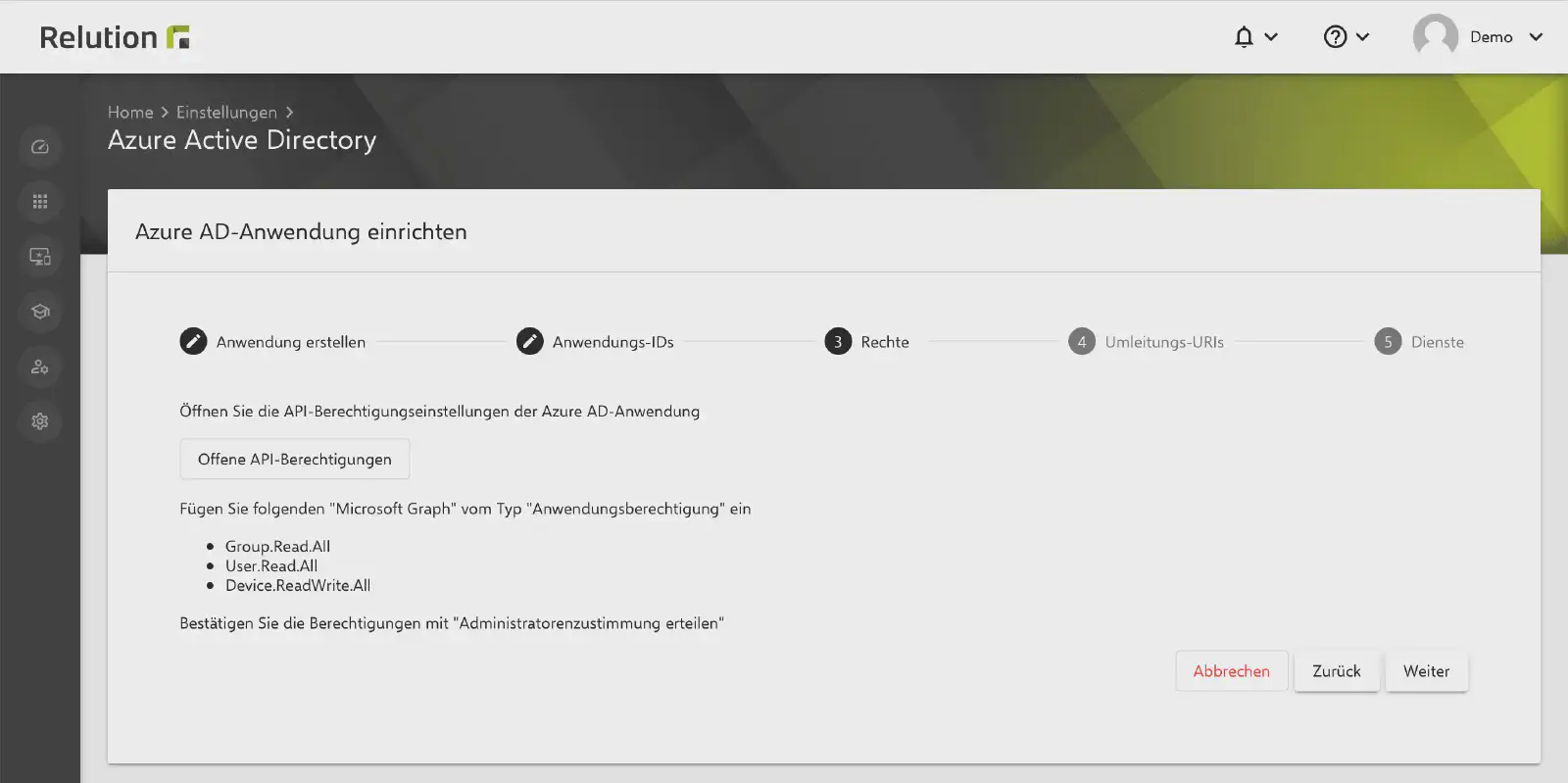
Depending on which Microsoft features are used in the future, additional permissions may need to be added later.
The following settings must be configured in Microsoft Entra:
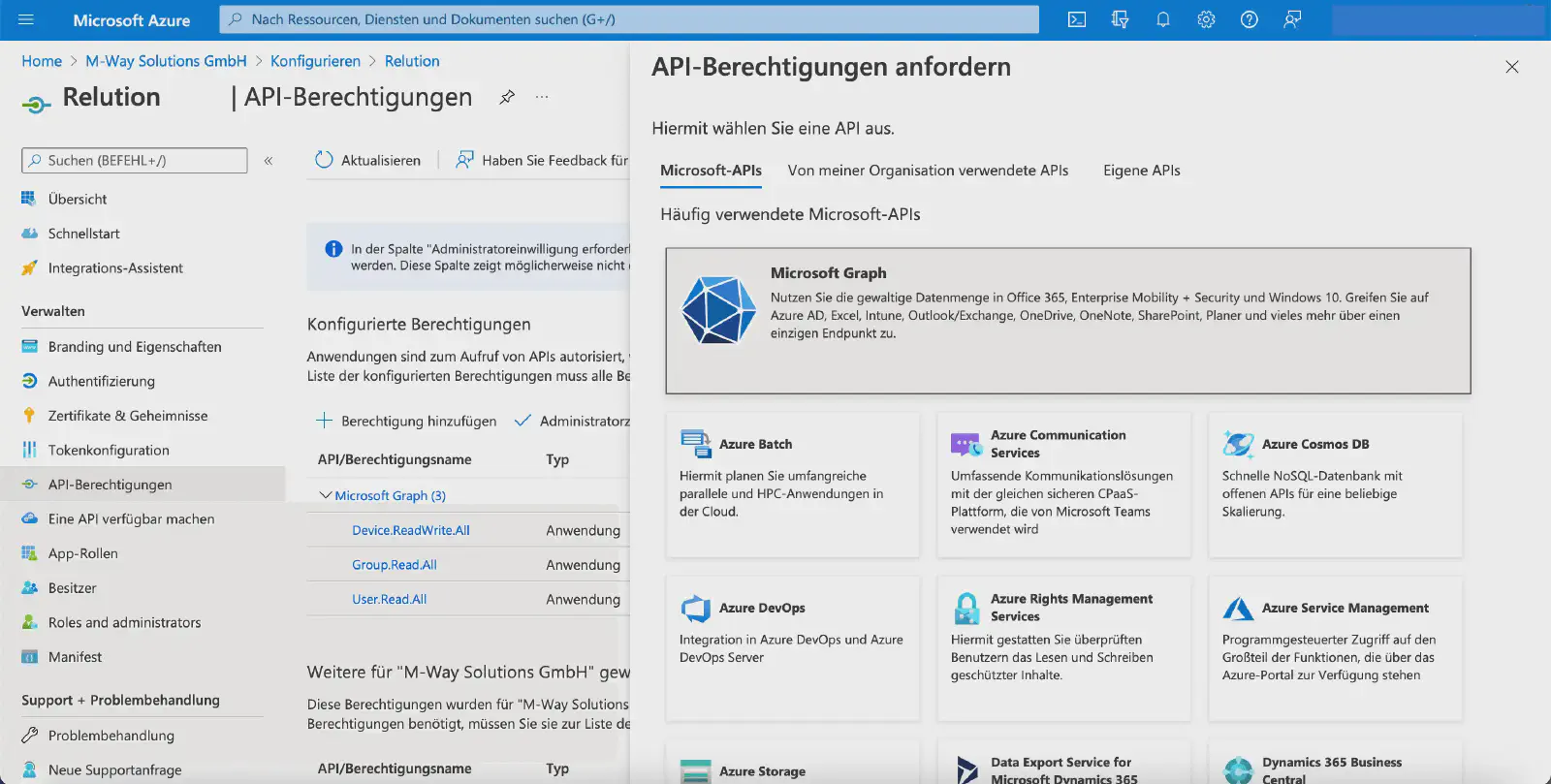
Under
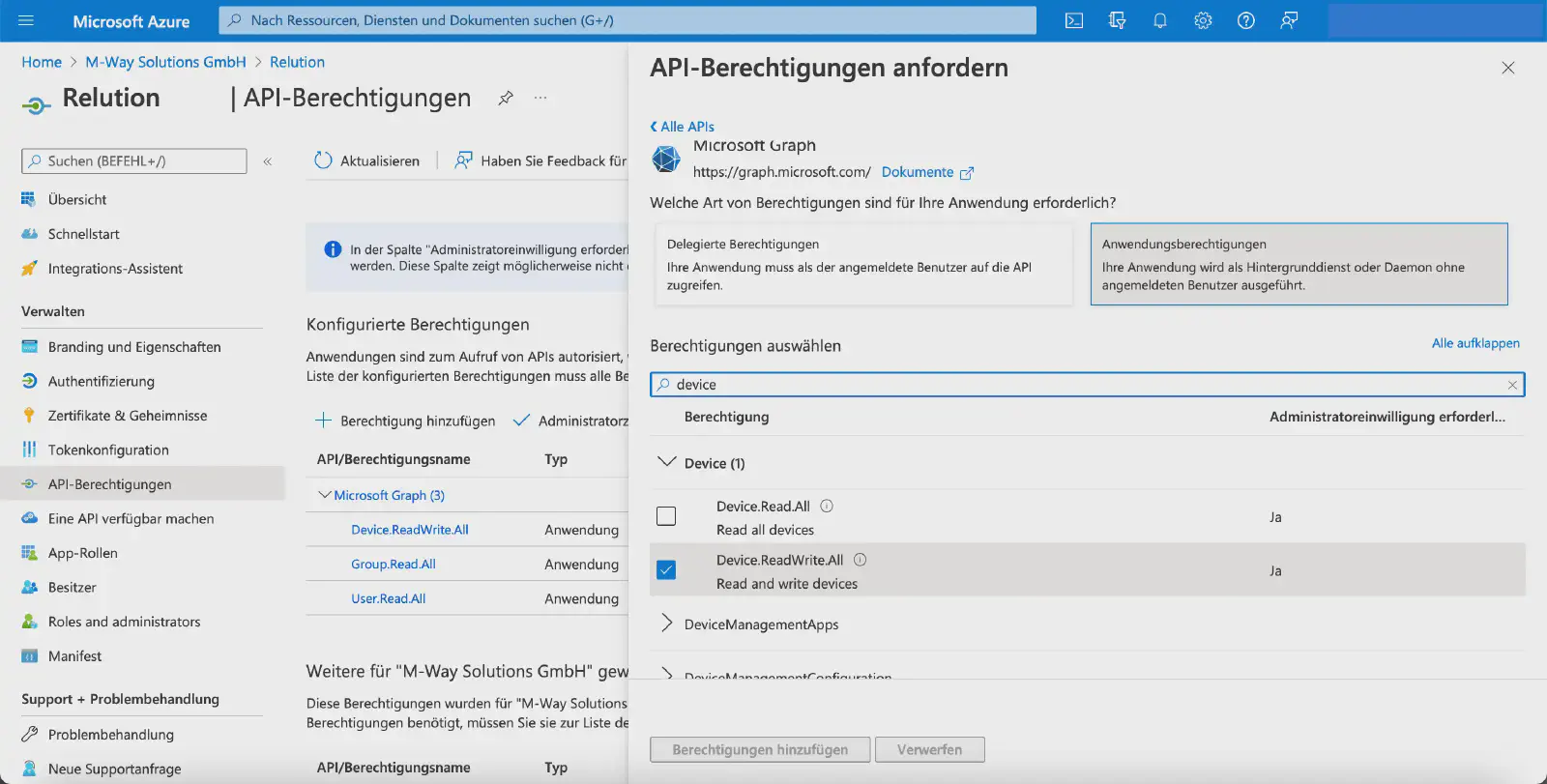
API permissions→Configured permissions, click Add a permission.In the Request API permissions dialog, select Microsoft Graph under Microsoft APIs.
In the next step, select the Application permissions tile.
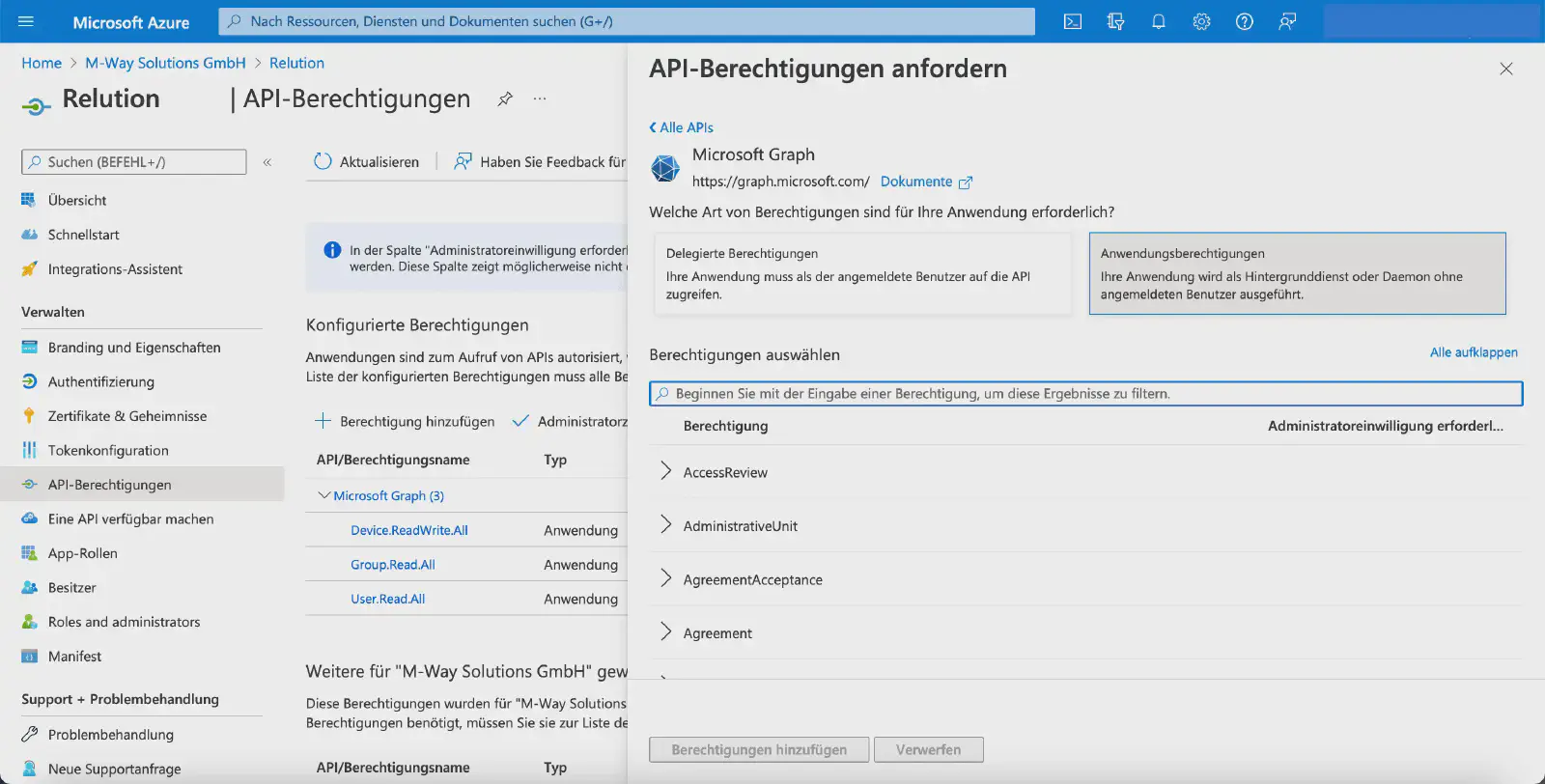
Select the
User.Read.Allpermission for User.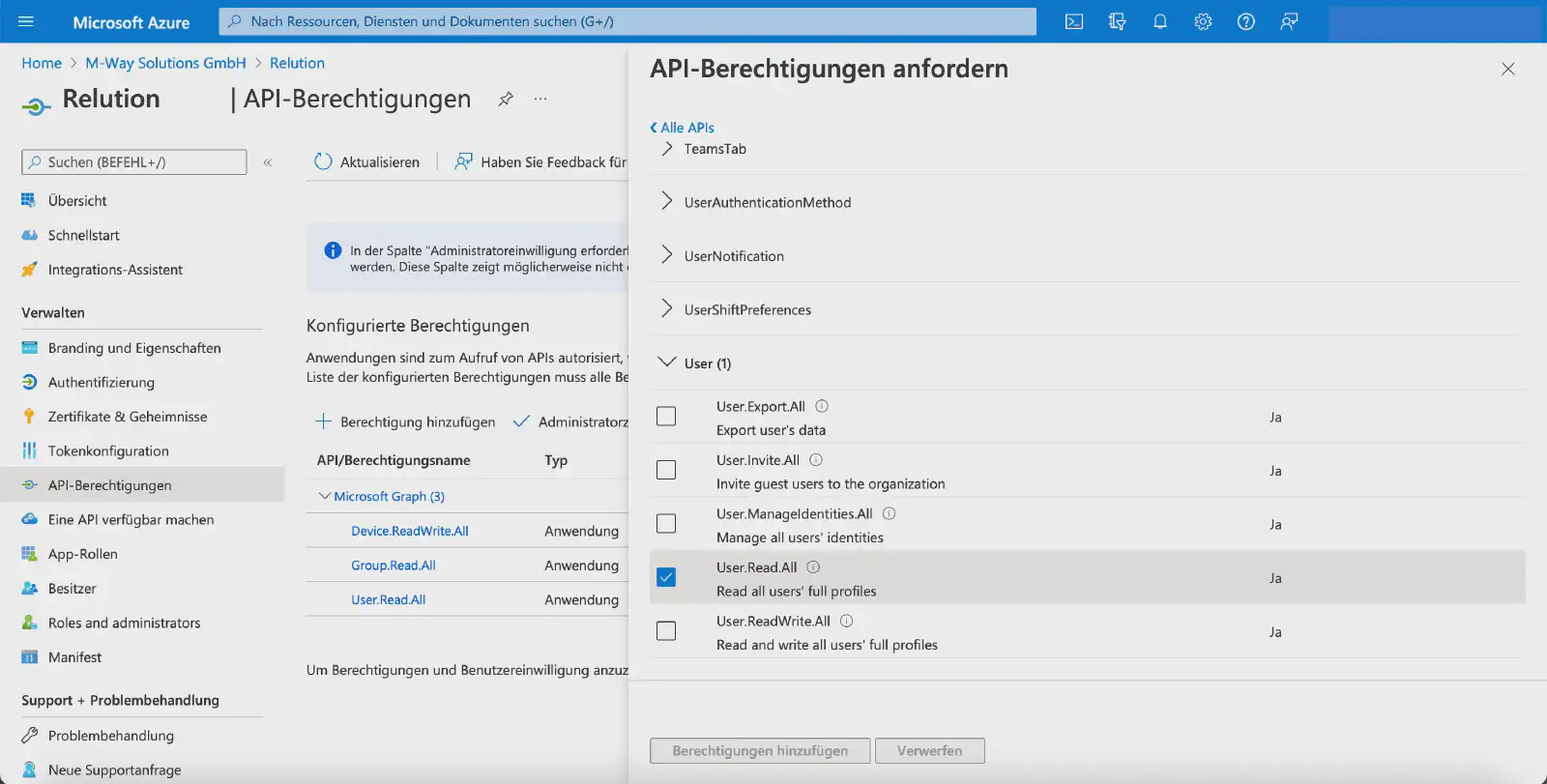
Select the
Group.Read.Allpermission for Group.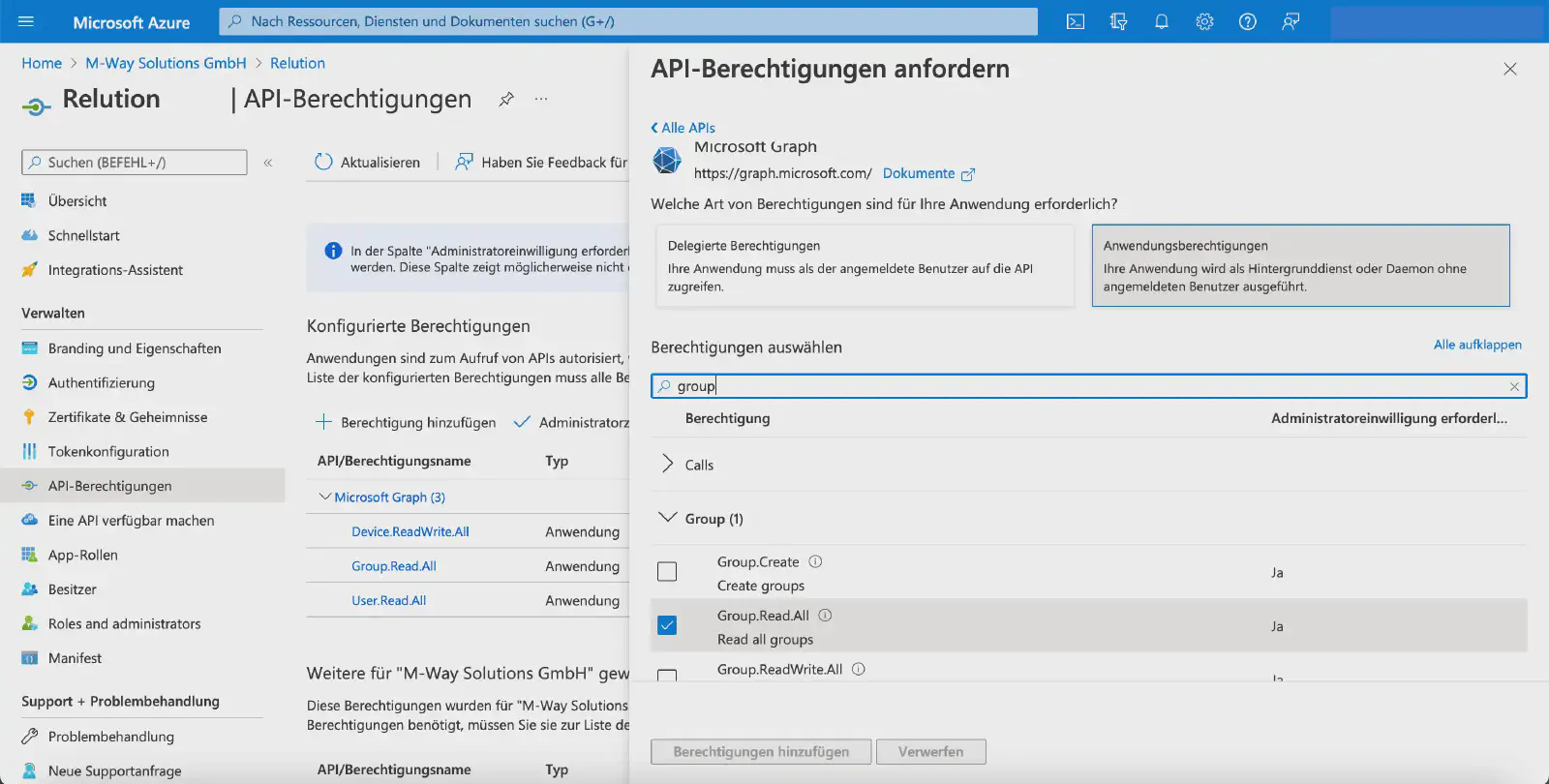
Select the
Device.ReadWrite.Allpermission for Device and confirm the selection with Add permissions.
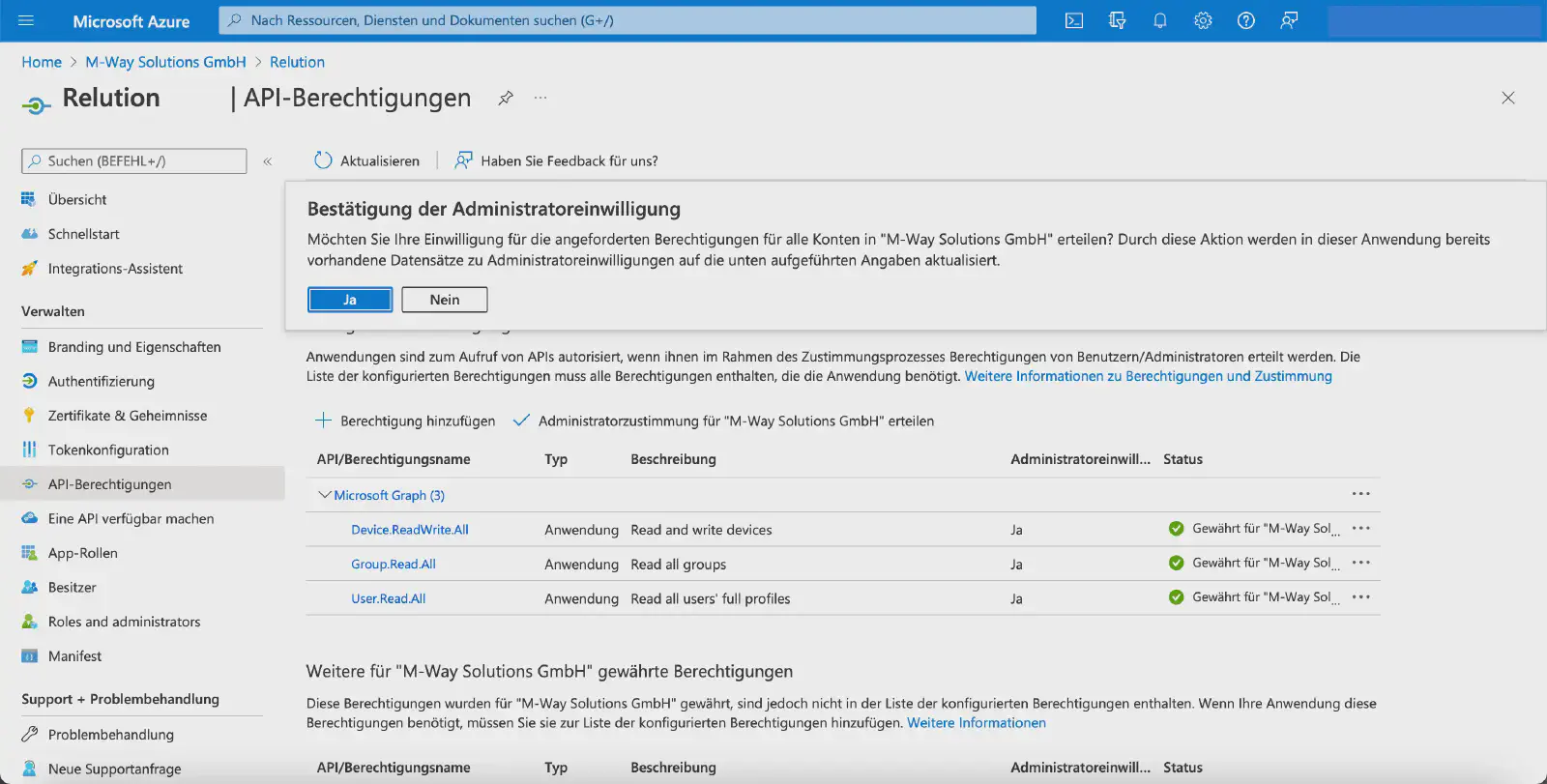
For newly added API permissions, an exclamation mark is initially displayed as the status. Administrators must grant consent once so that Microsoft Graph actually receives these permissions. The status is then shown as Granted with a green check mark.
Define the redirect URI
In the Relution guide, the Redirect URI is then configured in Microsoft Entra:
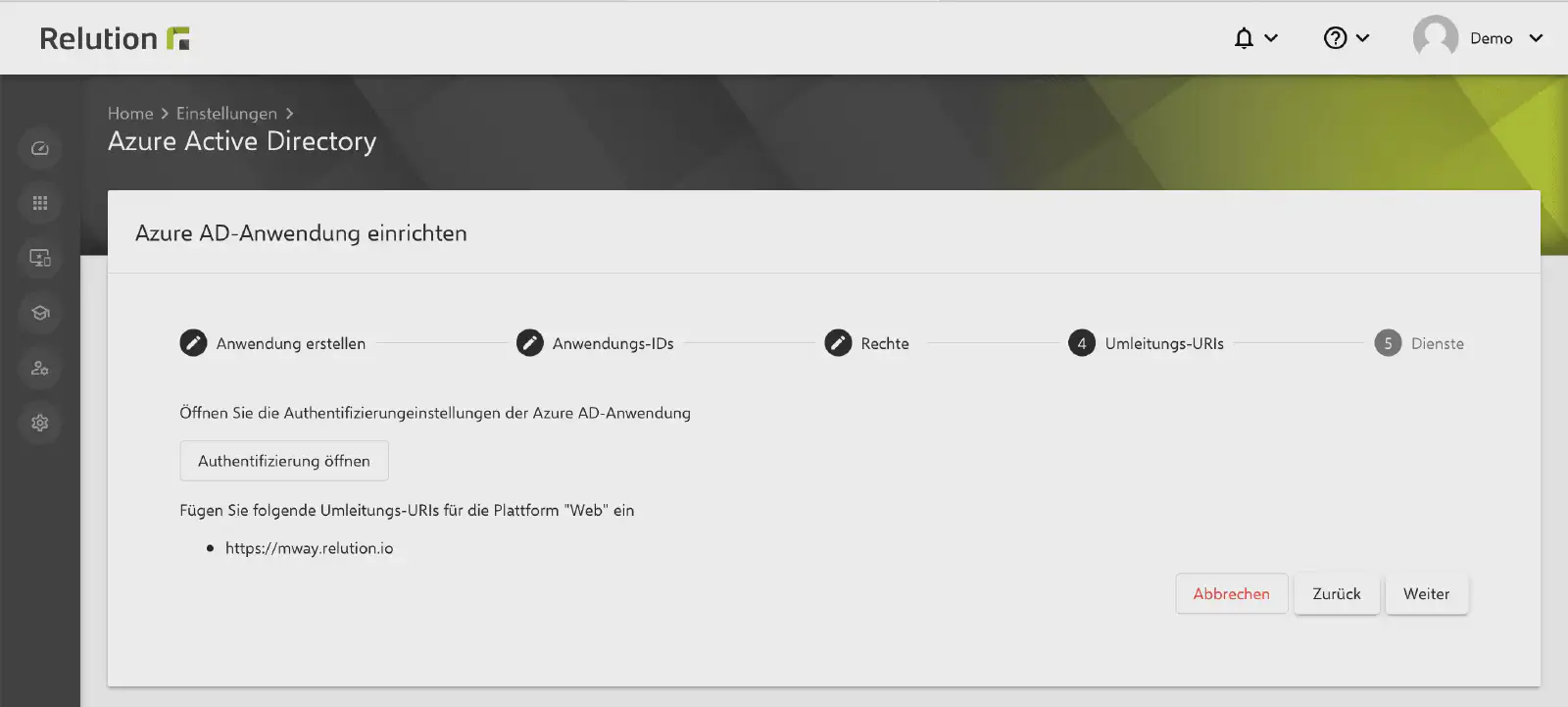
Under Authentication, click Add a platform.
In the Configure platforms dialog, select the Web tile.
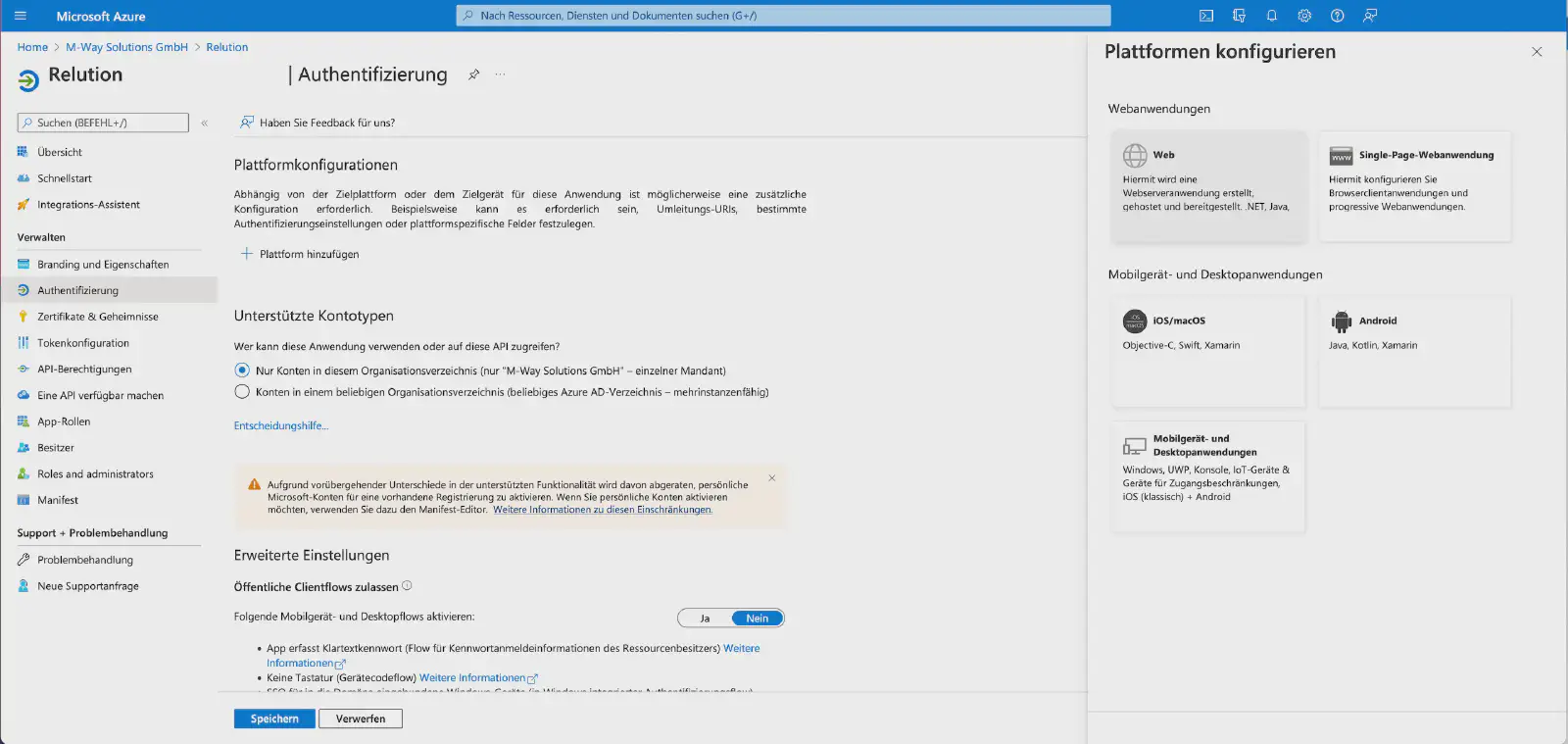
In the Web section, enter the server URL under Add a Redirect URI.
Disable the ID tokens checkbox.
Click Save.
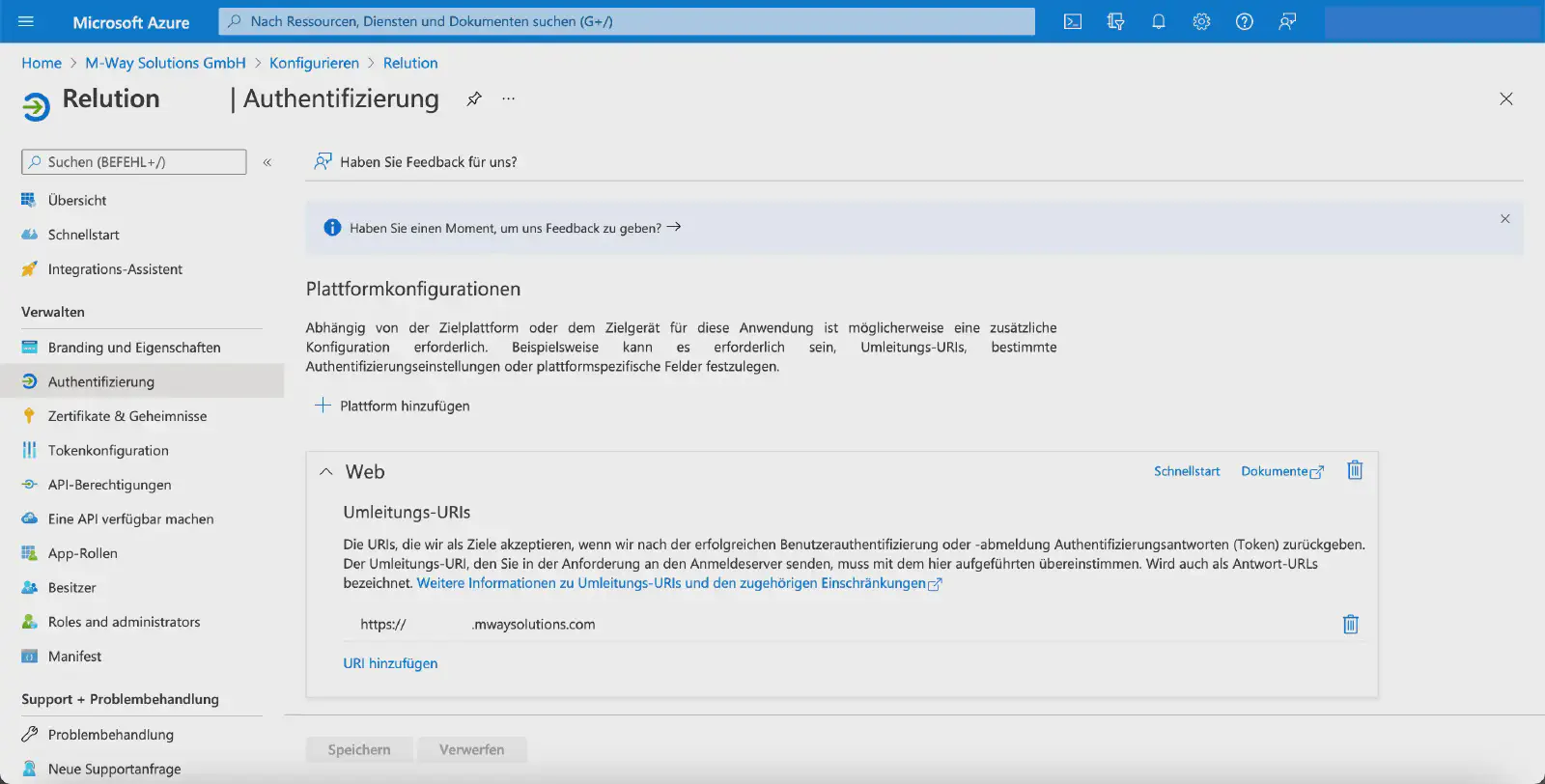
This completes the configuration in Microsoft Entra.
Select the Relution service options and complete the setup
The Relution guide allows optionally defining whether Microsoft Entra ID users and Microsoft Entra ID groups should be synchronized with Relution.
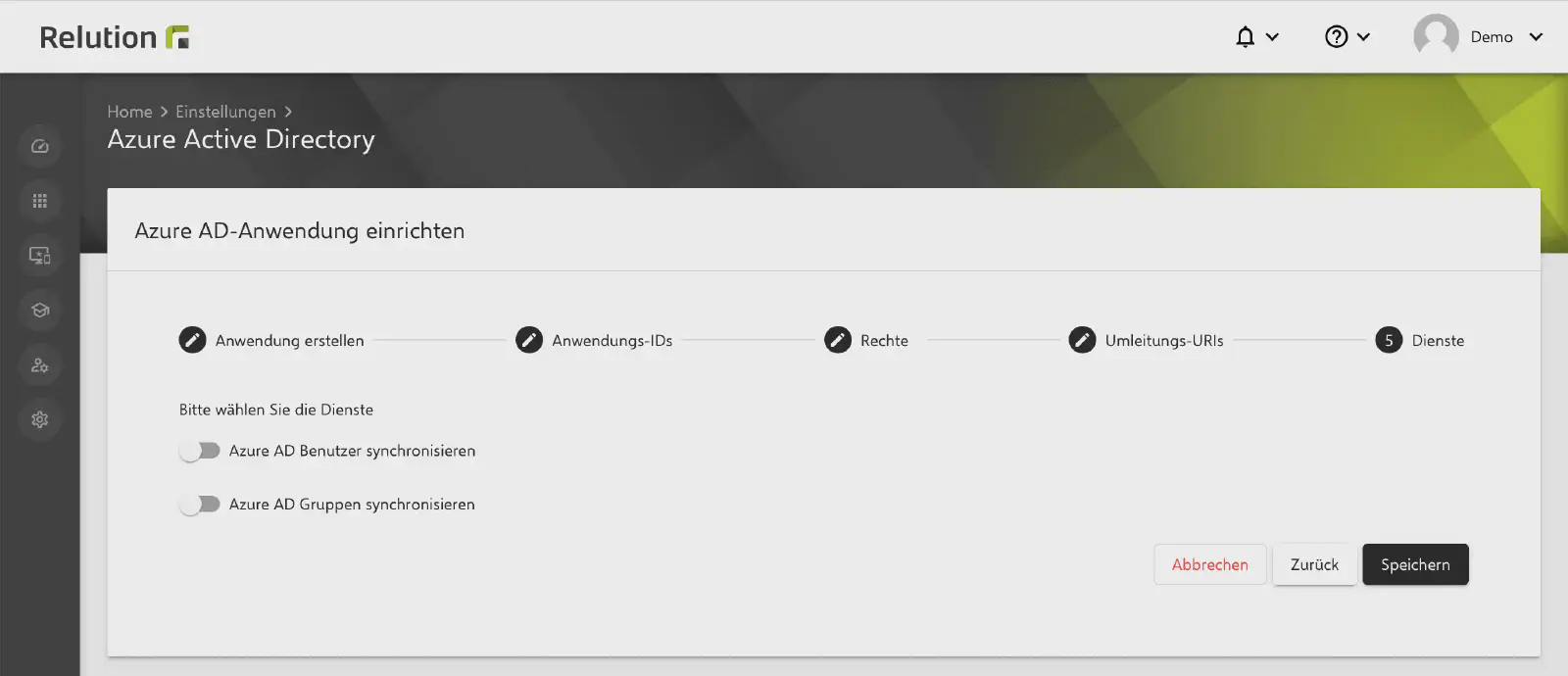
Click Save to complete the setup and linking of Microsoft Entra ID in Relution.
Summary
After completing these steps, Microsoft Entra ID is linked with Relution. This allows users and groups from Microsoft Entra ID to be synchronized with Relution and enables the use of additional Microsoft-related features.
To allow synchronized users to sign in to Relution, OIDC authentication → must also be configured. This also applies when using Conditional Access.