 Customer Hub
Help with Conditional Access
Where can I check if a device is compliant or non-compliant in Microsoft?
This can be checked either by navigating through Microsoft Intune to the devices of a specific user, or by viewing all devices directly in MicrosoftEntra ID →.

The device is marked as N/A in Microsoft
This indicates that the compliance status has not yet been synced. Ensure there are no errors on theConditional Accesssetting page and that there are no errors in the log.The device is marked as non-compliant in Microsoft, but the user can still access blocked apps
There are several possible causes:
- Make sure the Conditional Access policy applies to the user. Use the Microsoft sign-in logs → to verify – there should be a Conditional Access tab with policy evaluation details.
- Double check if the platform → is linked with Relution and the correct user group is assigned.
- If a user was already logged in, cached tokens may remain valid for up to two hours, bypassing the policy temporarily.
The user can't register the device due to a Conditional Access block
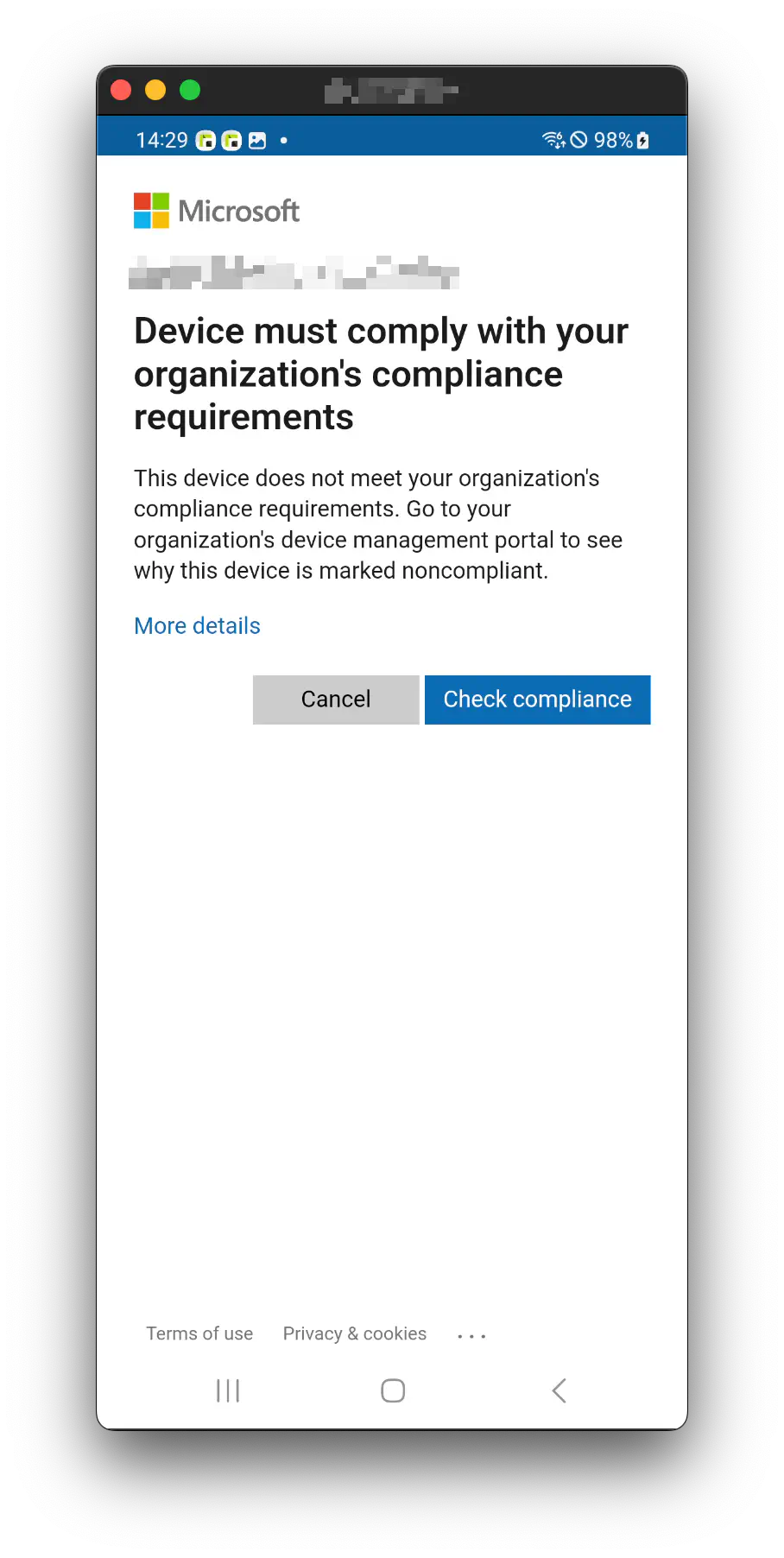
Review the Conditional Access Policy. Currently usingAll Cloud Apps will also block the user from registering. As of today, it is not possible to exclude the Microsoft Broker App, which is required for device registration.The device is blocked as non-compliant
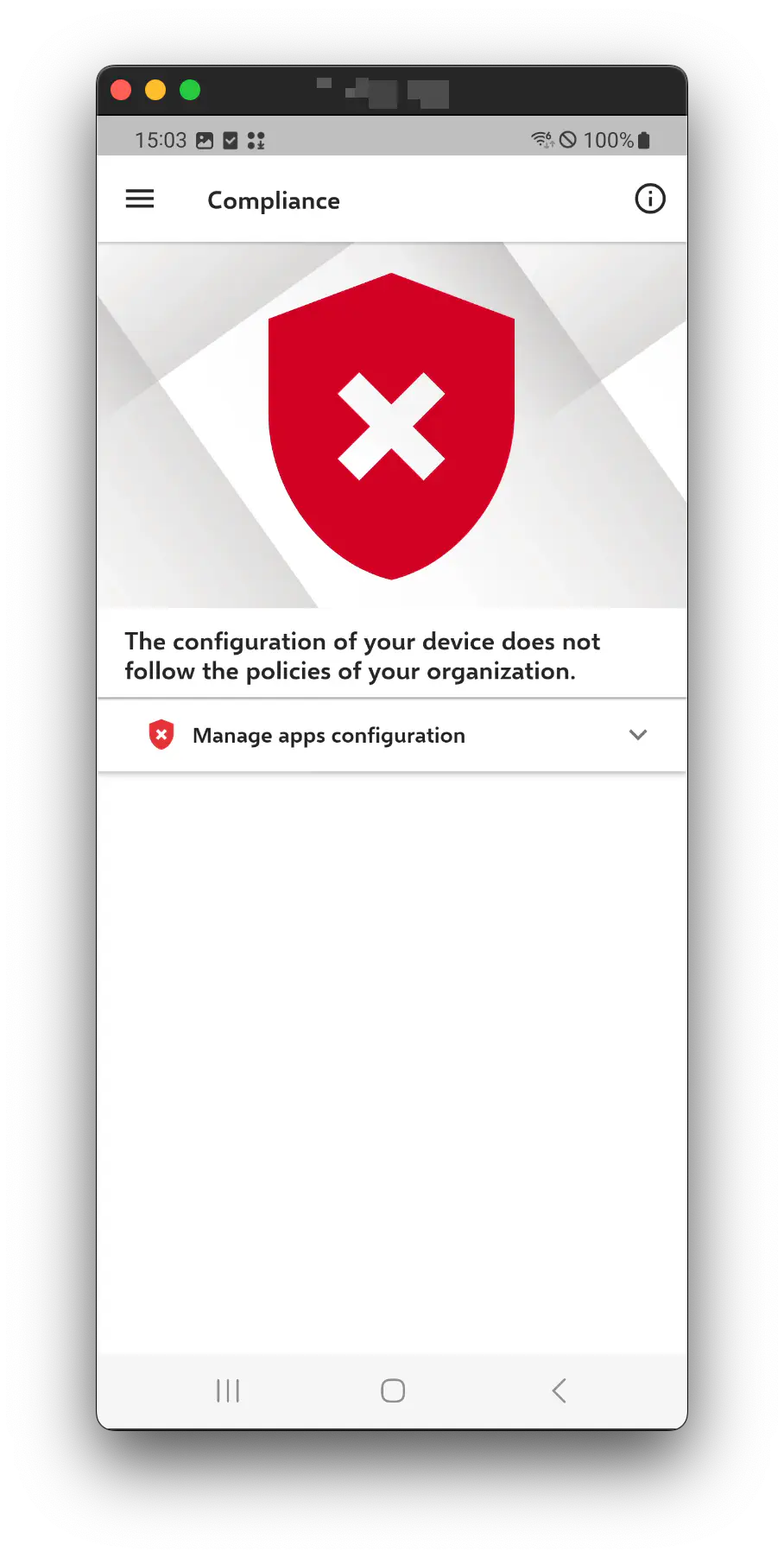
The device is marked as non-compliant, and access has been blocked by the administrator. Open the Relution Agent
to see why the device is non-compliant. Contact the administrator for further support.
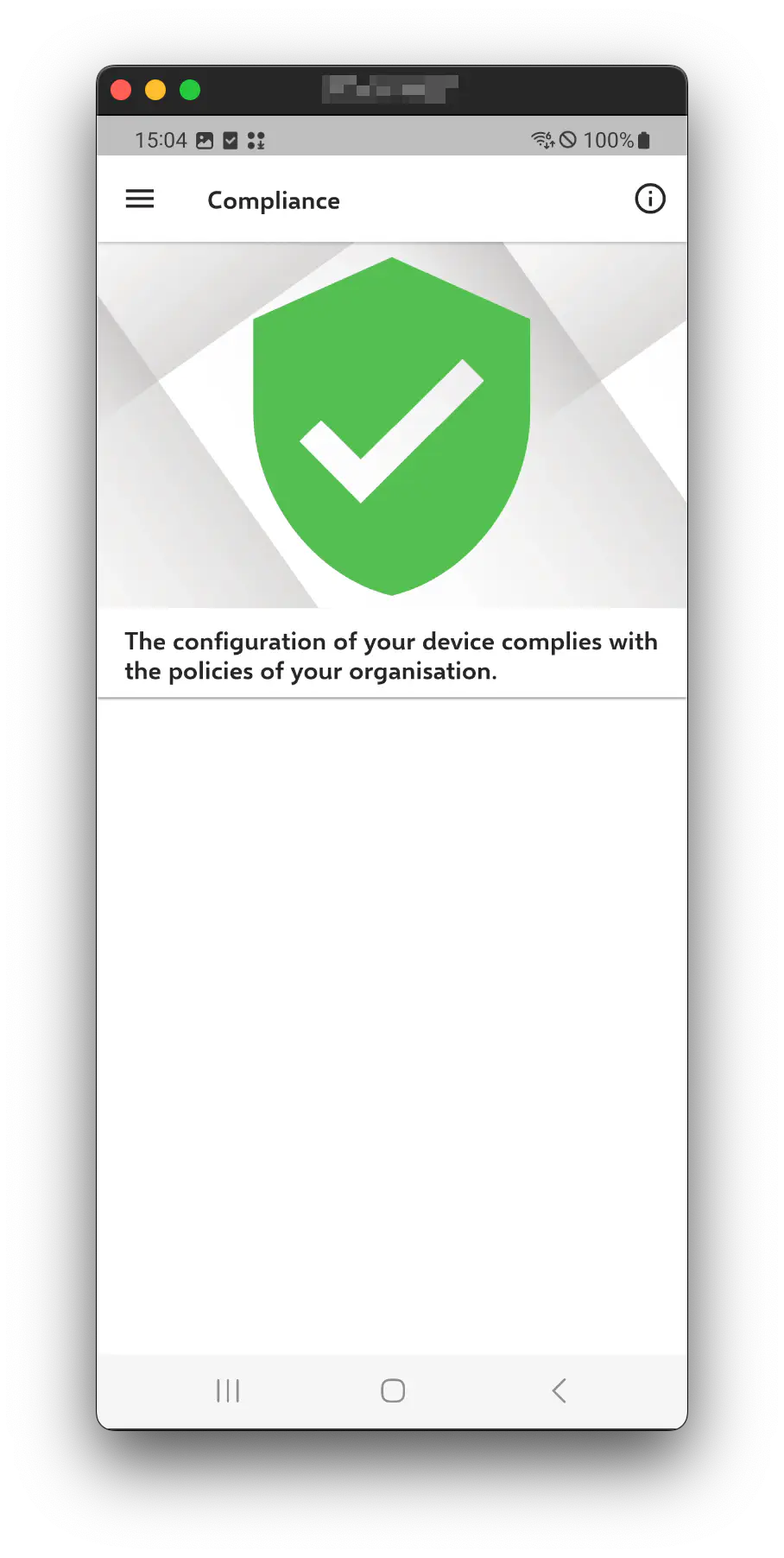
If the compliance state changes from non-compliant to compliant or vice versa, state updates usually get triggered within 1-2 minutes, but sometimes Microsoft may cache values up to 1 hour.
| Device Not Compliant | Agent Not Compliant | Agent Compliant |
|---|---|---|
 |  |  |
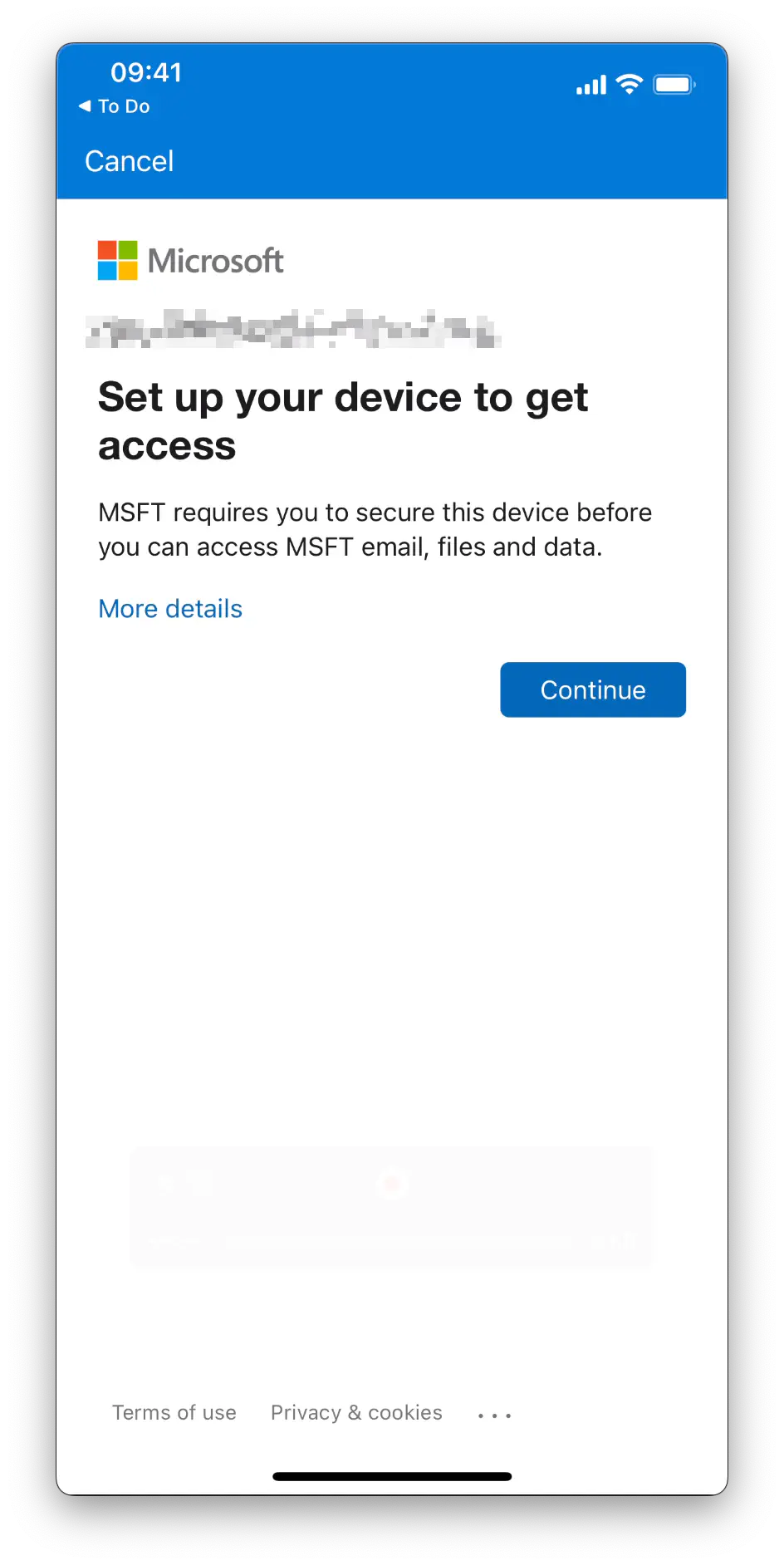
The device is not registered
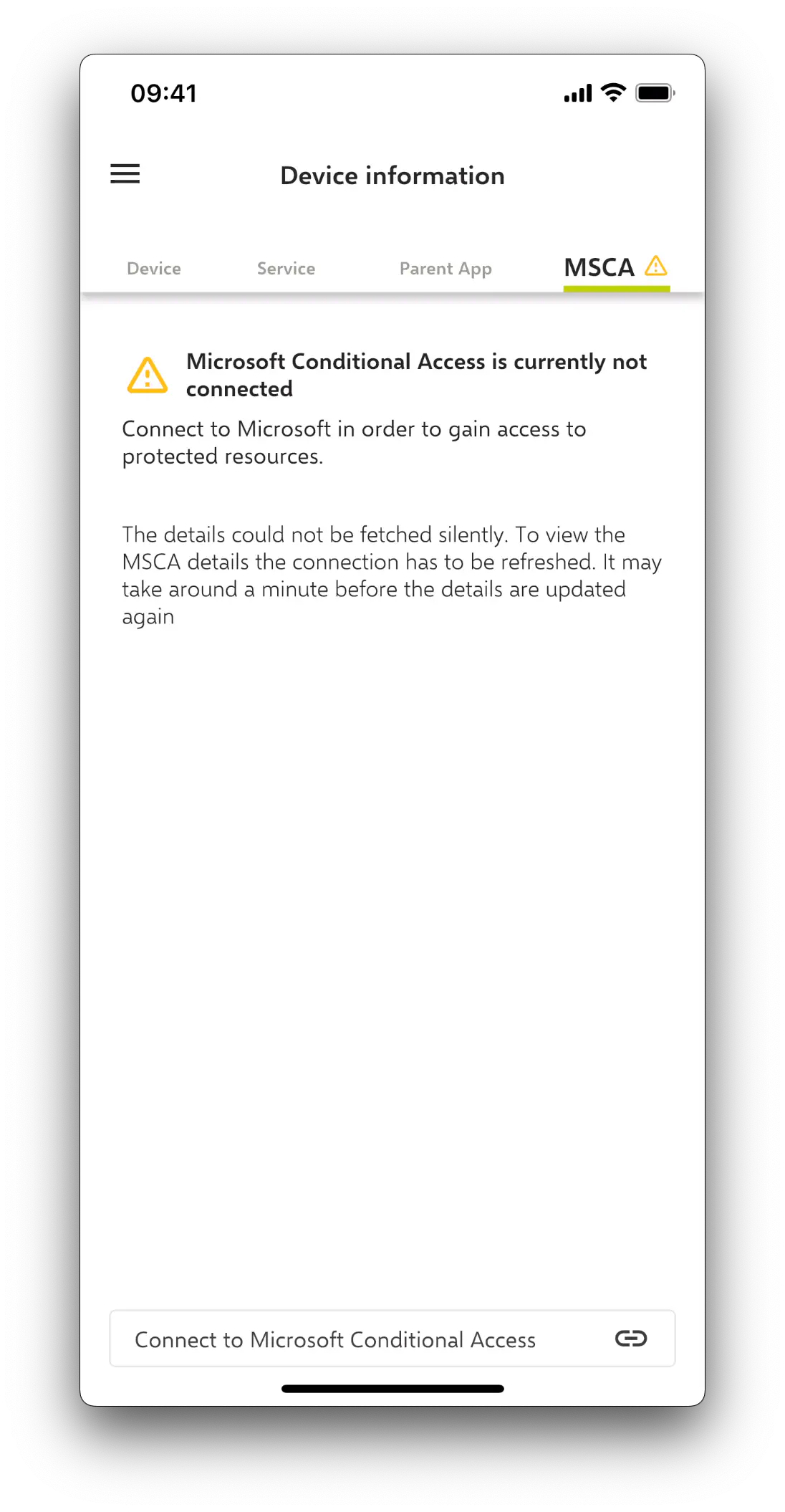
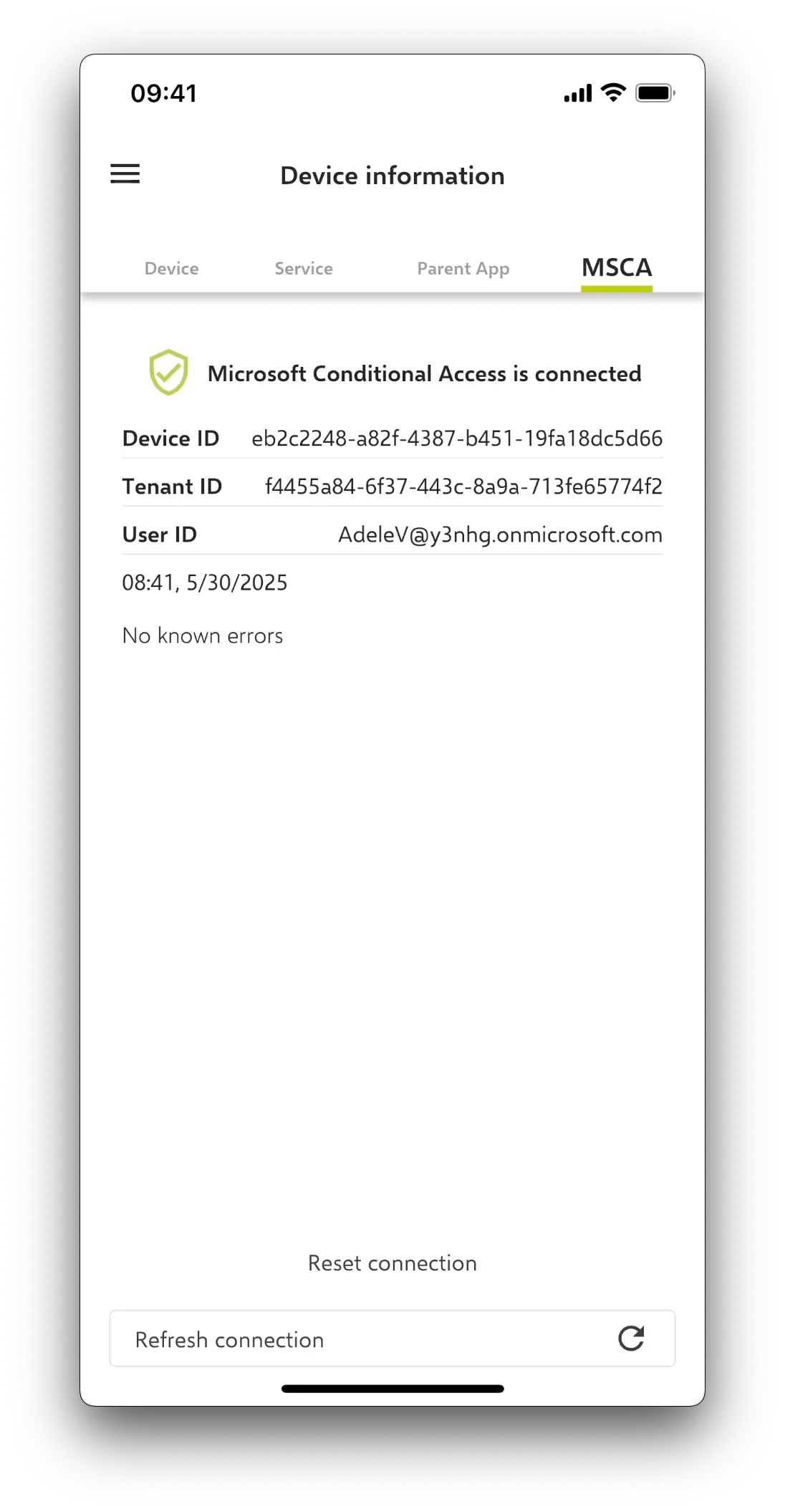
To use Conditional Access with iOS, macOS or Android Enterprise, devices have to be additionally registered with Microsoft via the Relution Agent. Within device details, the Entra ID account can be connected. This process will register the device properly.
| Device Not Registered | Agent Not Connected | Agent Connected |
|---|---|---|
 |  |  |
The user or device can't be registered
If registration fails, it could be due to a broken or outdated connection.
Possible solutions:
- Use ‘Reset Connection’ in the Relution Agent under Device information -> MSCA
- Remove the device registration in the Microsoft Authenticator app
- Delete previous registrations with the Keychain Access app on macOS.