 Customer Hub
Set up platforms
This setup guide explains how to connect Relution with Microsoft Entra/Intuneto support Conditional Access for Android Enterprise, iOS, macOS, and Windows. Please ensure that all requirements → are fulfilled before proceeding.
This setup consists of the following steps:
Create an Entra ID applicationto authenticate the server with Relution’s microservice.Give consent to the multi-tenant Relution appto report compliance states toEntra ID.- Add
Relutionas compliance partner inIntune - Verify successful setup via synchronization and status checks.
Each step is crucial for the next one, so please go through them carefully one by one, and whenever prompted to verify something, ensure it reports back success.
Navigate to Conditional Access
Once Entra ID is configured and user synchronization is complete, navigate to Conditional Access in the settings.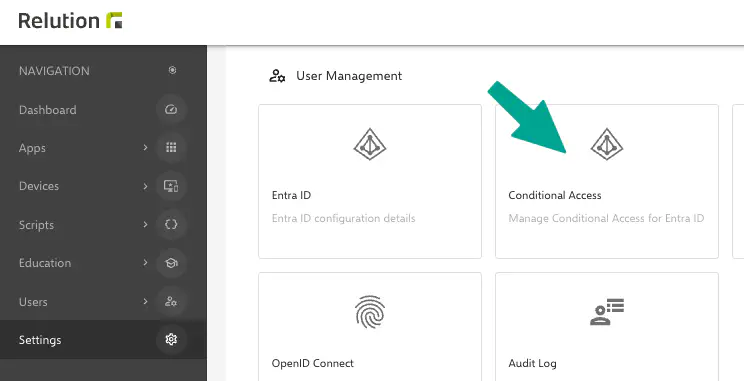
Support for Android Enterprise, iOS and macOS
Start the wizard to enable platform-specific support.
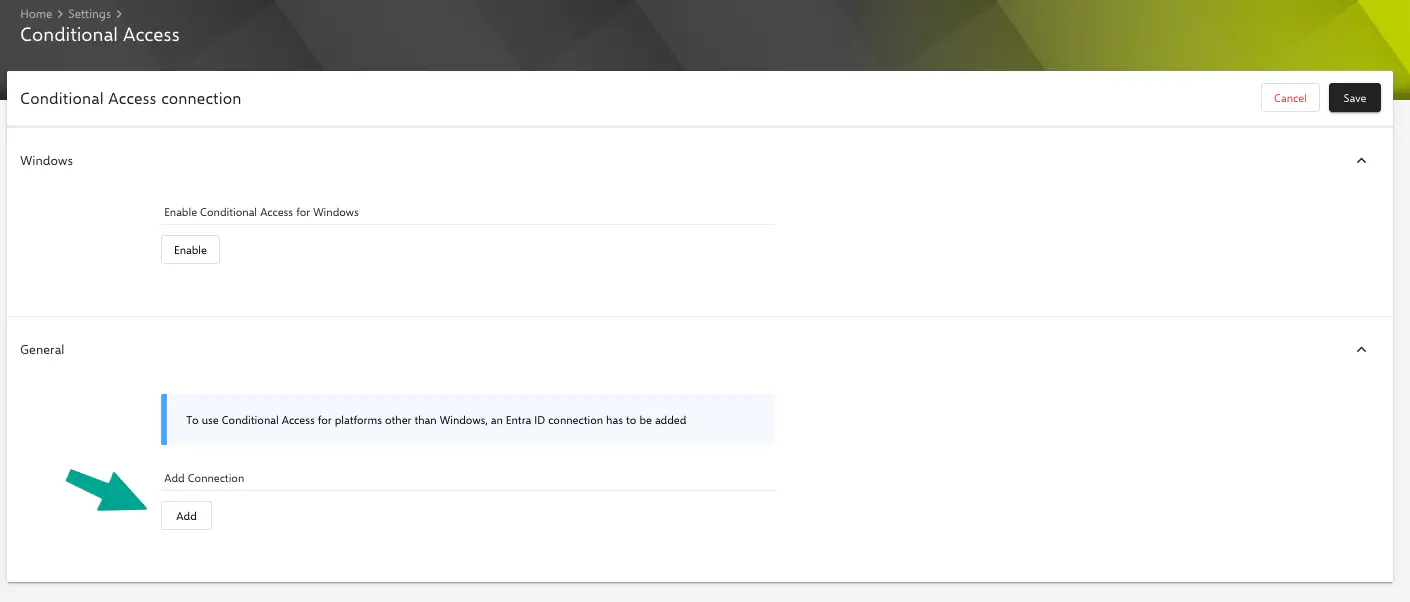
Wizard (1): Create application
The app from the Entra ID setup may be reused, but Relution recommends creating a separate app for clarity and security.
Create a new Entra ID application to authenticate with Relution’s backend.
Contrary to the Entra ID setup, no MDM-specific app is needed — a basic App Registration is sufficient.
The link in the wizard leads to the Entra ID app registrations →. After creating the app, proceed by entering the Application ID.
Wizard (2): Application IDs
Generate a Client Secret and enter both the Application ID and the Secret in the respective input fields in the wizard. Once verification succeeds, continue to the next step.
Wizard (3): Expose API
Due to Microsoft token validation limitations, a custom API scope needs to be exposed. In the Expose an API section of the app, do the following:
In the Expose an API setting page of the Entra app, do the following:
- Click Add a scope.
- Fill in the necessary information.
- Name the scope
Relution.Auth - Have the consent on Admins only
- For the display name and description we suggest:
Used by Relution to identify Tenant Ownership.
- Name the scope
- Click on Add scope.
- The scope should now appear in Scopes defined by this API.
On the top of the Expose an API view in Entra, an Application ID URI should be visible. This value should be selected in the scope type. It should contain the Client ID of the newly created app (step 1), or the domain if the one from the Entra ID setup is reused. In case it’s neither of both, a custom value can be entered.
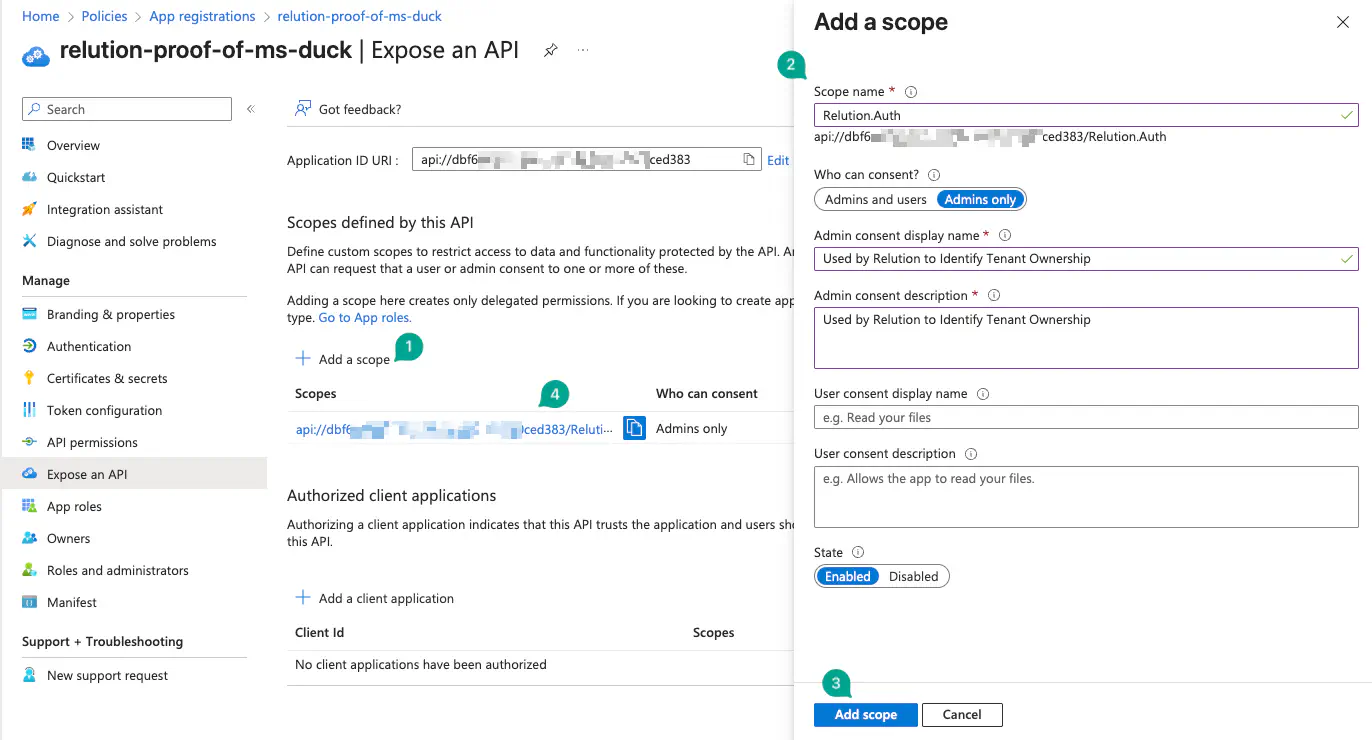
It should now be possible to successfully verify this step in the wizard.
Wizard (4): Add Compliance Partner
In Intune Partner Compliance Managment →, add Relution as a compliance partner for every platform that should be synced.
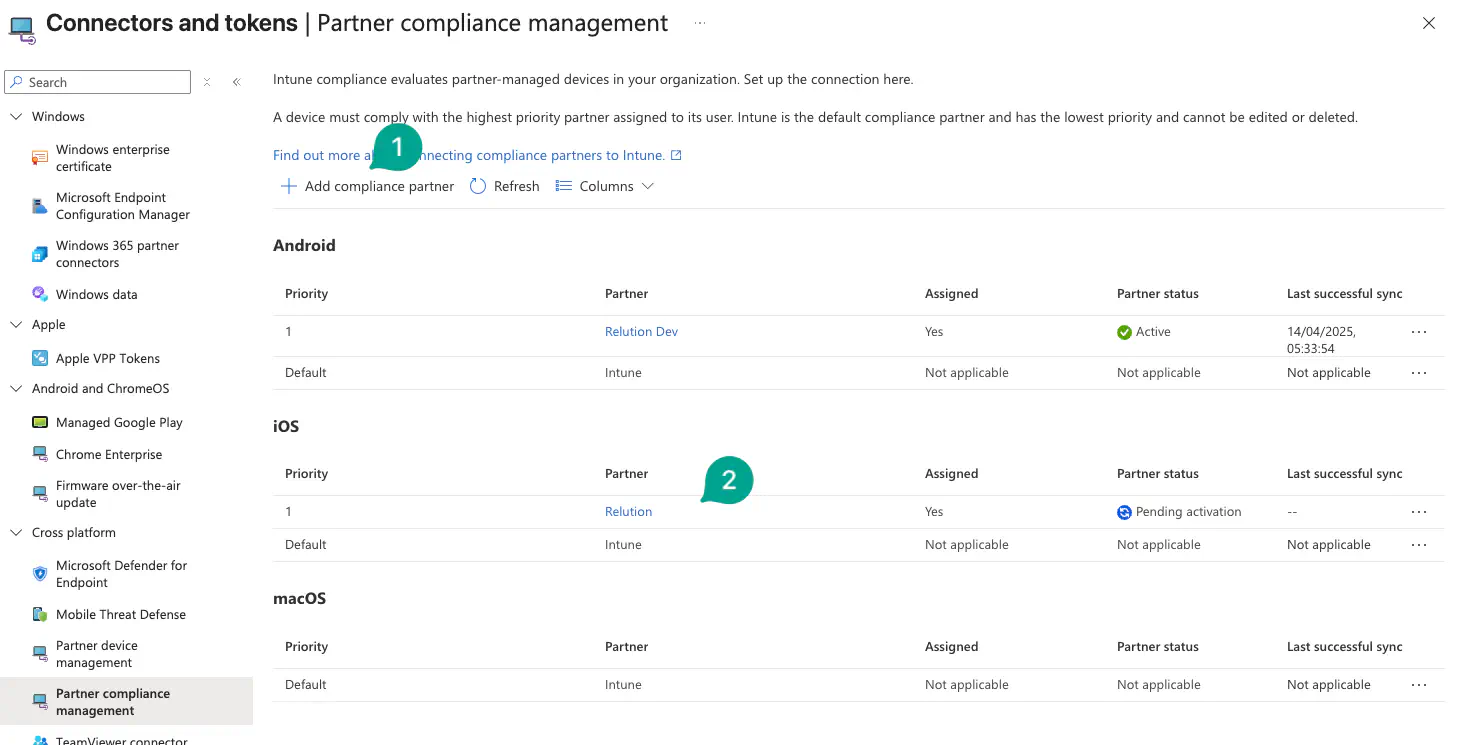
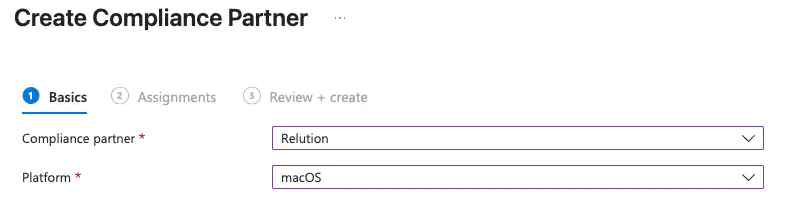
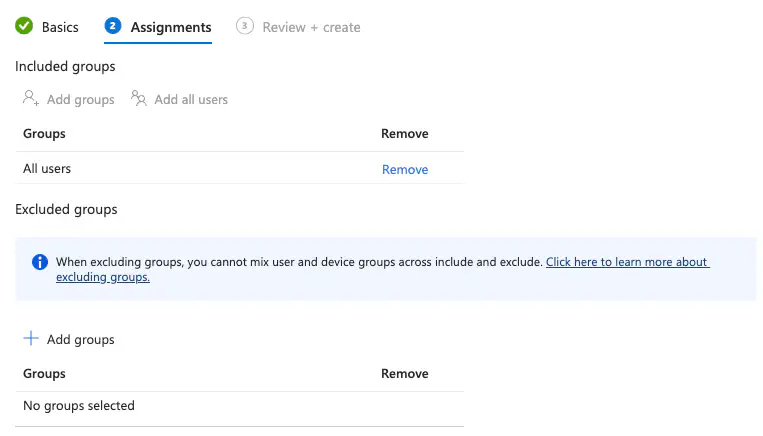
Steps:
- Click Add compliance partner
- Select the platform to sync (these steps can be repeated for all platforms).
- Assign a group of users that should be synced. Add all users can also be selected, but access must be retained.
- As of now, excluding groups won’t have any affect.
- After reviewing that everything was selected correctly, click on Create.
Relutionshould now be shown with a status of🔄 Pending activationfor that platform. Status might differ if this is not the first setup.
Wizard (5): Grant Consent
Now grant admin consent to our multi-tenant app Relution. This step is necessary so that Relution is allowed to actually manipulate compliance states of the Entra ID devices.
A new tab will open (check for pop-up blockers).
After successfully granting consent, a confirmation page appears: Success! You can now close this tab. This extra tab can now be closed; continue with the wizard.
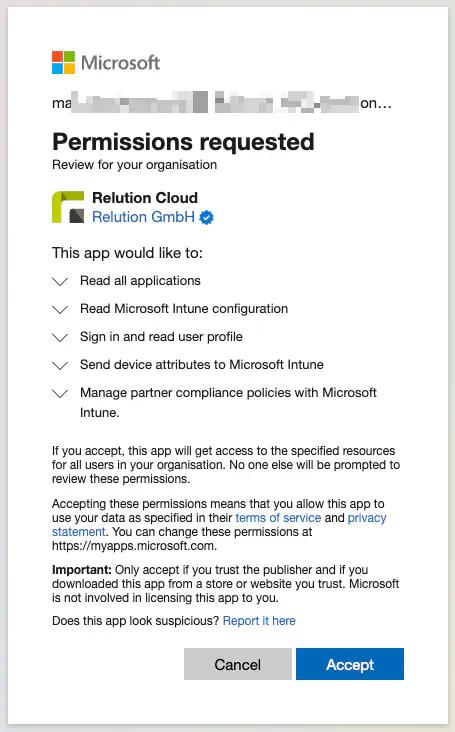
Wizard (6): Synchronize
Lastly, synchronize the Entra ID groups. During this synchronization, Relution will ensure a correct setup and sync the groups configured in the wizard during step 4.
In the Intune Partner Compliance Managment → setting, Relution should now be shown as ✅ Active.
Support for Windows
To enable Windows device support, simply activate the following option:
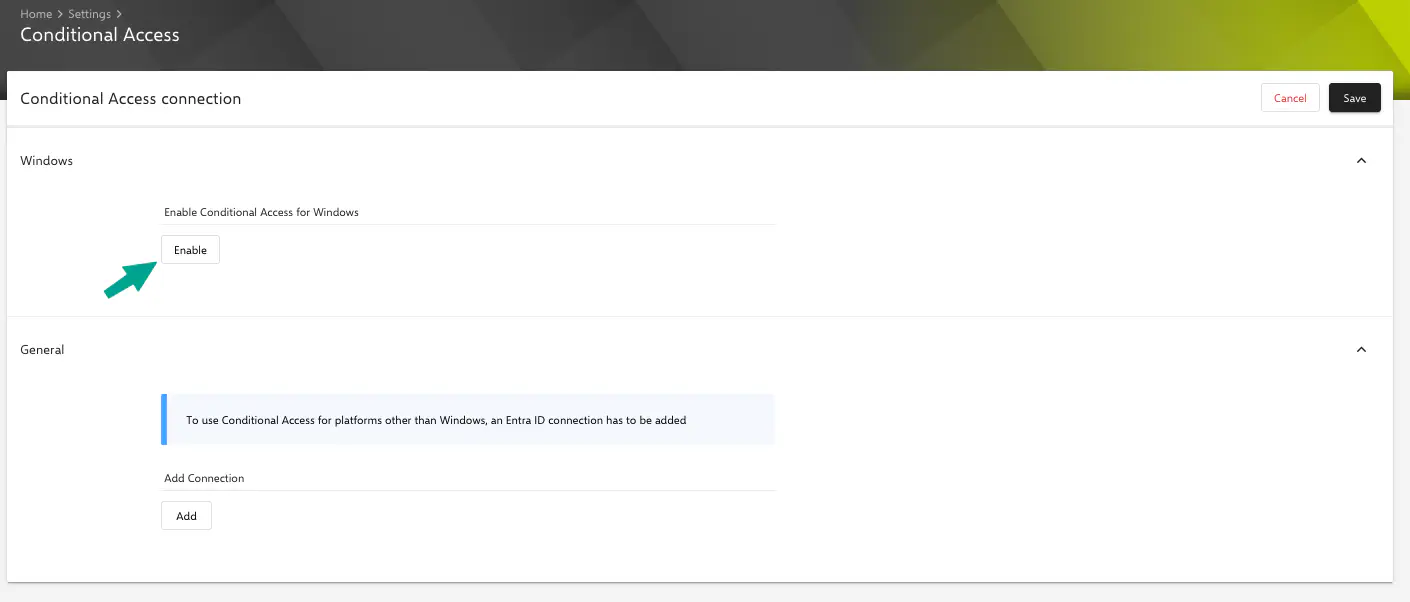
Windows devices should now sync their compliance status successfully.
Related Topics
- Conditional Access Overview → — Requirements and fundamentals for Conditional Access.
- Microsoft Entra ID Integration → — Setup for Entra ID authentication.