Android Enterprise
Introduction
This article describes how to configure the TeamViewer Host App in Relution to enable automatic device assignment within the TeamViewer portal.
Configuring the TeamViewer Host App
In the Relution portal, create a Manage Apps → configuration and add the following two apps from the Managed Google Play Store:
- TeamViewer Host
- TeamViewer Universal
Afterwards, adjust the app configuration and define the following relevant settings:
| Name | Description |
|---|---|
| Assignment ID | For automatic device assignment as a managed device in TeamViewer. |
| Partner List Device Name | The display name in the TeamViewer web interface. |
Configuration Details
- Assignment ID Enter the Assignment ID from the TeamViewer portal that you received during the Setup Step →.
- Partner List Device Name Configure the name consisting of the device name and serial number using the available placeholders:
${device.name}_${device.serialnumber}
Note: To ensure a clear correlation between devices in Relution and TeamViewer, the serial number must be included in the device name. This is ensured by using the
${device.serialnumber}placeholder.
Completion
Apply the configuration to your Android Enterprise devices. As soon as the installation is complete, the assignment will be performed automatically, and the devices will appear correctly in the TeamViewer portal.
Notes
Login Canceled or Authentication Denied
Problem: The mobile device indicates that the login was canceled or authentication was denied.
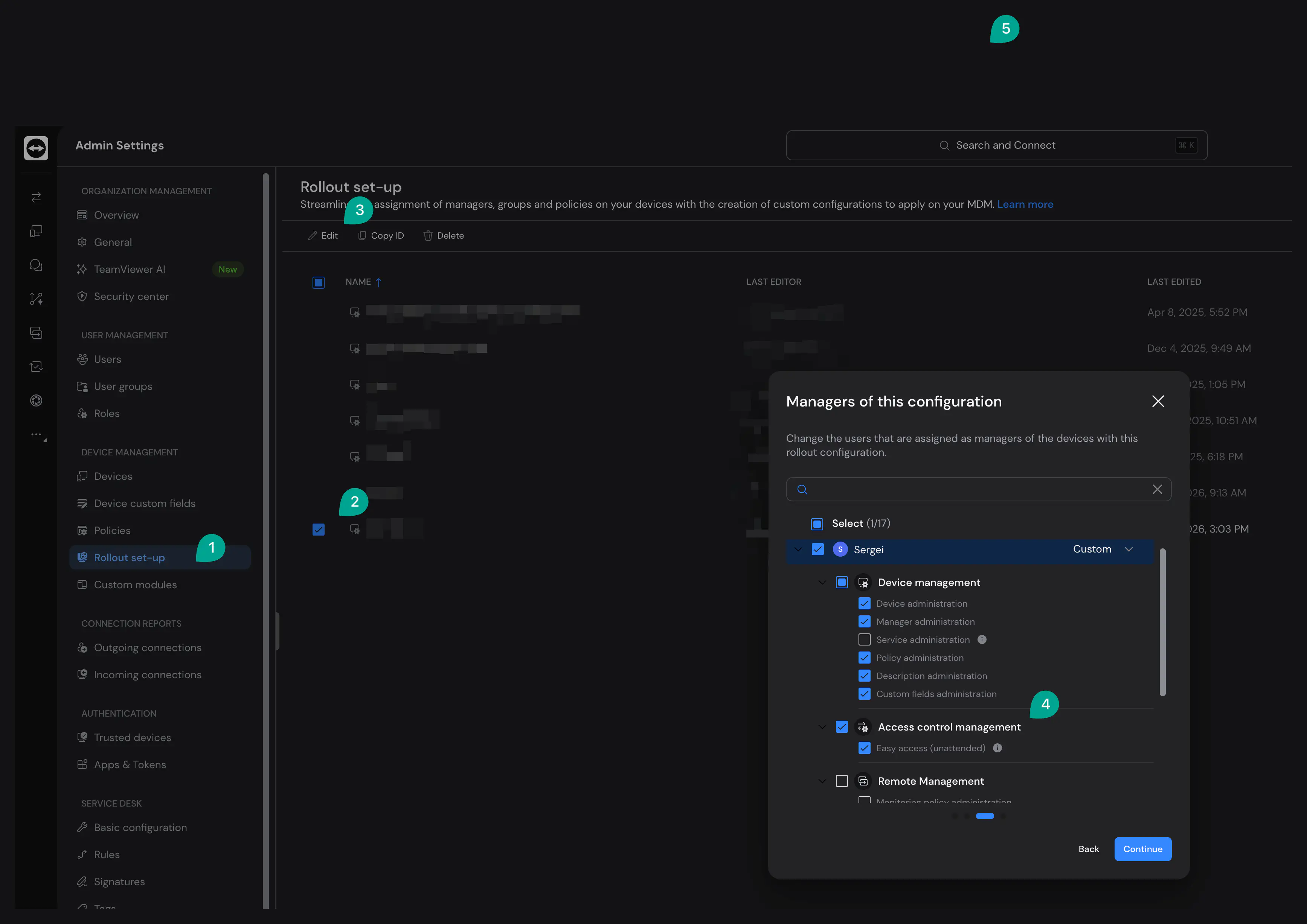
Cause: Easy Access has not been activated in the TeamViewer portal under the Rollout Configuration. Without this setting, assignment cannot occur without a manual password.
Solution: Edit the corresponding rollout configuration in the TeamViewer portal and enable the option Allow Easy Access.
Important Information on User Interaction
The behavior during remote access varies depending on the Android version:
- Android 13 and older: On many devices (especially those with manufacturer-specific TeamViewer Add-ons), access often works completely in the background without any user interaction.
- Android 14, 15, and newer: Due to stricter security policies from Google (Media Projection API), a system pop-up will inevitably appear when a remote access session starts. The user must manually confirm the screen sharing. Currently, this cannot be bypassed on standard Android Enterprise devices.