iOS
Introduction
This article describes how to deploy and configure the TeamViewer QuickSupport App on iOS devices using Relution.
Deploy TeamViewer QuickSupport App
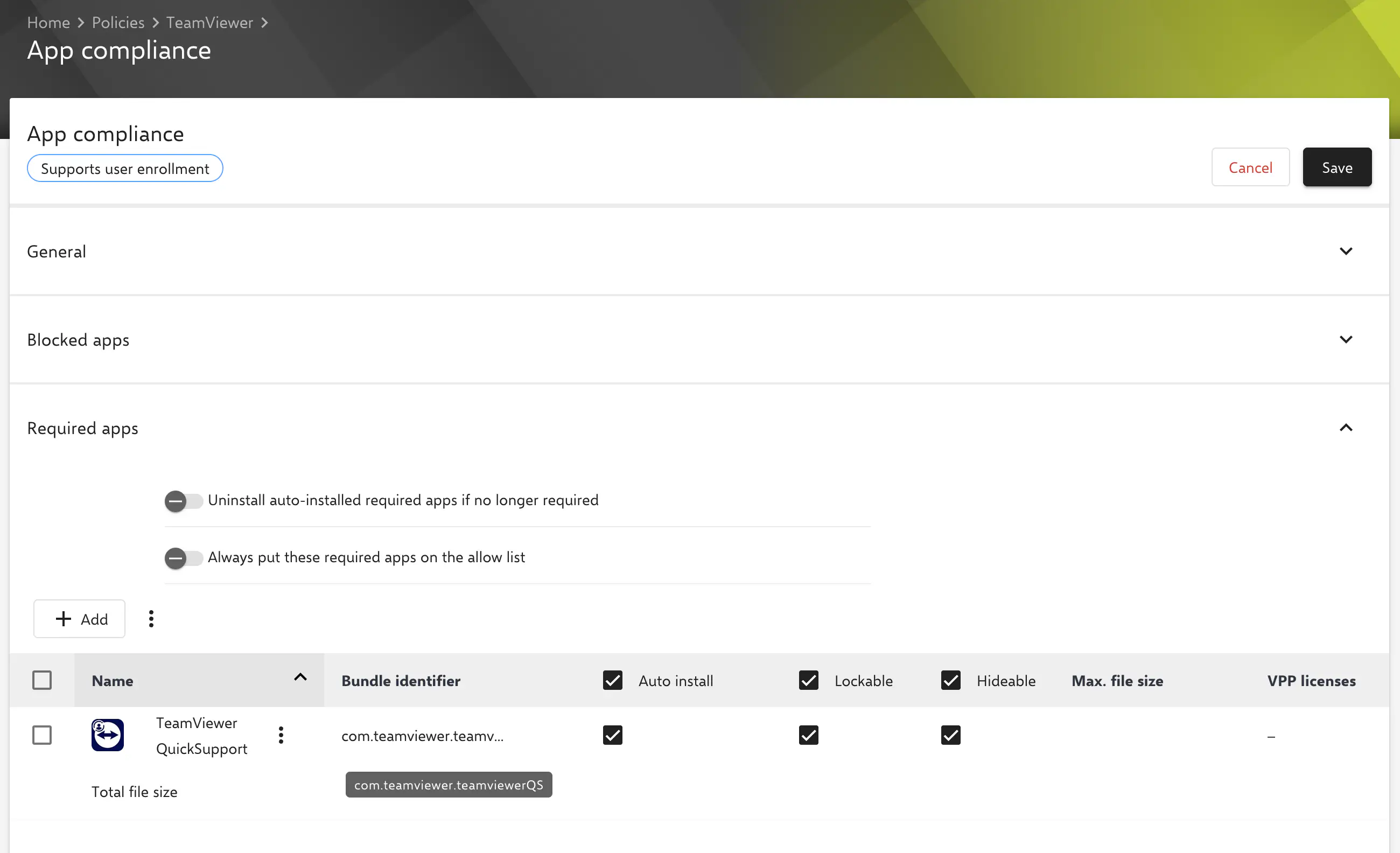
Create a policy with an app compliance → configuration. Add the TeamViewer QuickSupport app (bundle identifier: com.teamviewer.teamviewerQS) from the App Store to the required apps list.
Configure app for device registration
Add a Managed Apps → configuration and select the TeamViewer QuickSupport app from the App Store. Add the following configuration data to the predefined XML:
<key>mdv2AssignmentID</key>
<string>YOUR_ASSIGNMENT_ID</string>
<key>partnerListDeviceName</key>
<string>${device.name}_${device.serialnumber}</string>
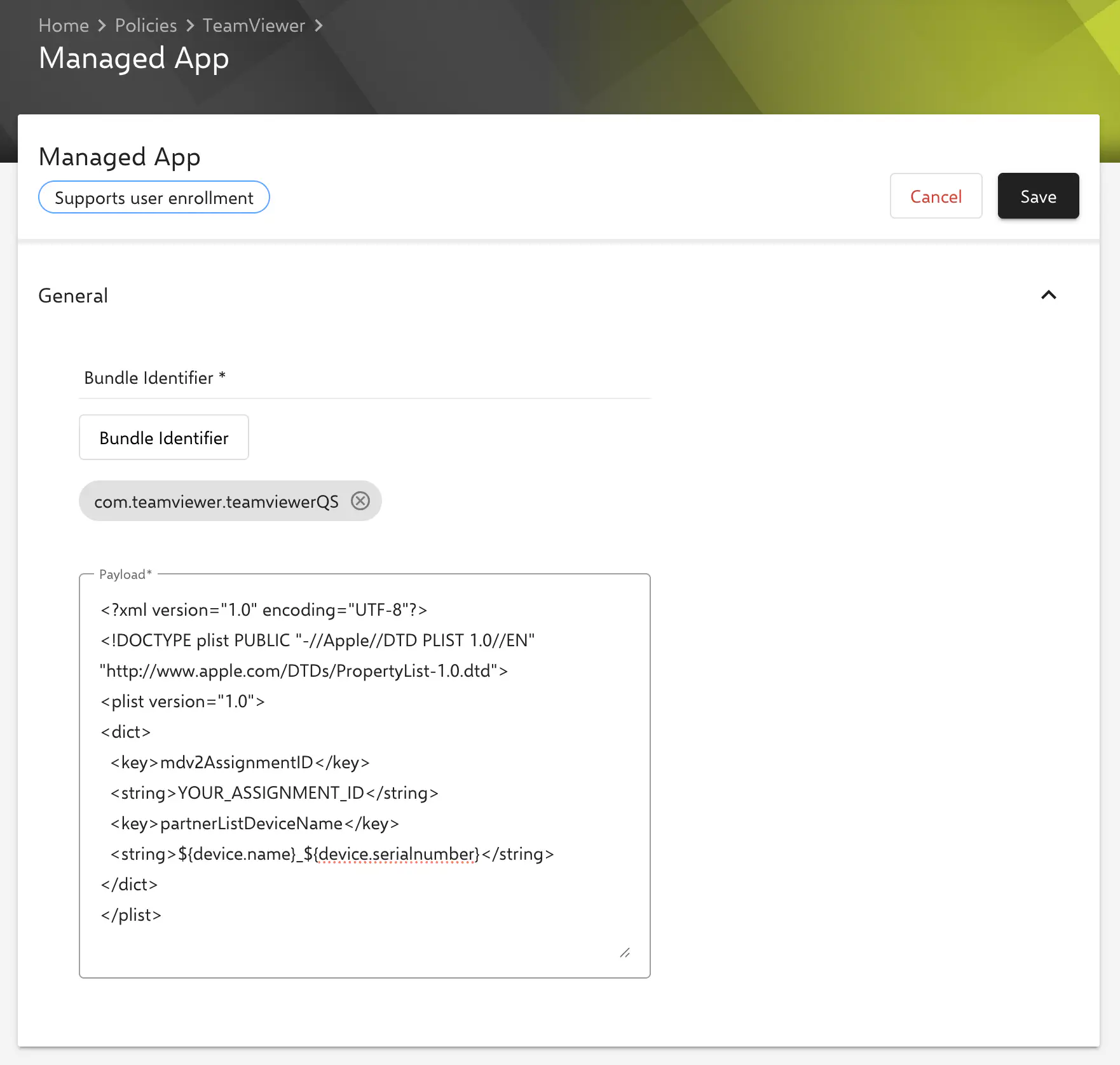
mdv2AssignmentID: Used for automatic device assignment as a managed device in TeamViewer. Enter the Assignment ID from the TeamViewer portal, which you received during the setup step →.
partnerListDeviceName: Display name of the device in the TeamViewer web interface. Configure the device name consisting of the device name and serial number as follows, using the available placeholders:
${device.name}_${device.serialnumber}
To establish a link between devices in Relution and TeamViewer, the serial number must be part of the device name. This is ensured by using the placeholder ${device.serialnumber}.
Apply the configurations to your iOS devices. Once the installation is complete, the assignment will be carried out automatically, and the devices will appear in the TeamViewer portal.