 Customer Hub
Remote support sessions
Once a TeamViewer account with a valid license is configured in the Relution settings, and the device is successfully registered in the TeamViewer portal, unattended remote support sessions can be initiated. This applies to the Android Enterprise, macOS, and Windows operating systems. For iOS, the TeamViewer QuickSupport app only allows attended sessions that require active user interaction.
Ensure that a TeamViewer desktop client, such as TeamViewer Host or the full version of the TeamViewer client, is installed on the device in order to open the session
Start remote support session
To initiate a remote support session, navigate to the detail view of the device within Relution. In the header section of the device’s detail page, select the remote support icon.
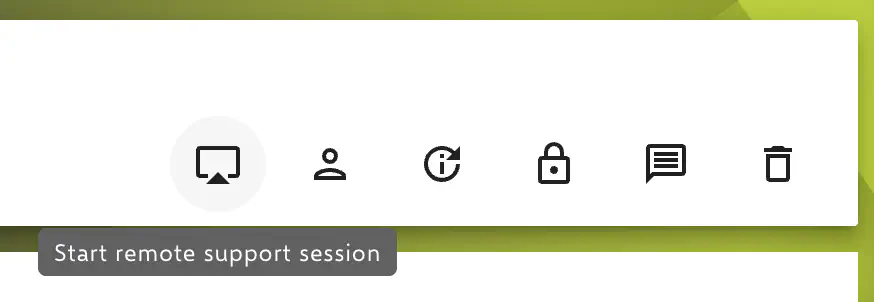
This action will automatically generate a link for an unattended remote session. Note that the generated link is designed to be opened exclusively with an installed TeamViewer desktop app.
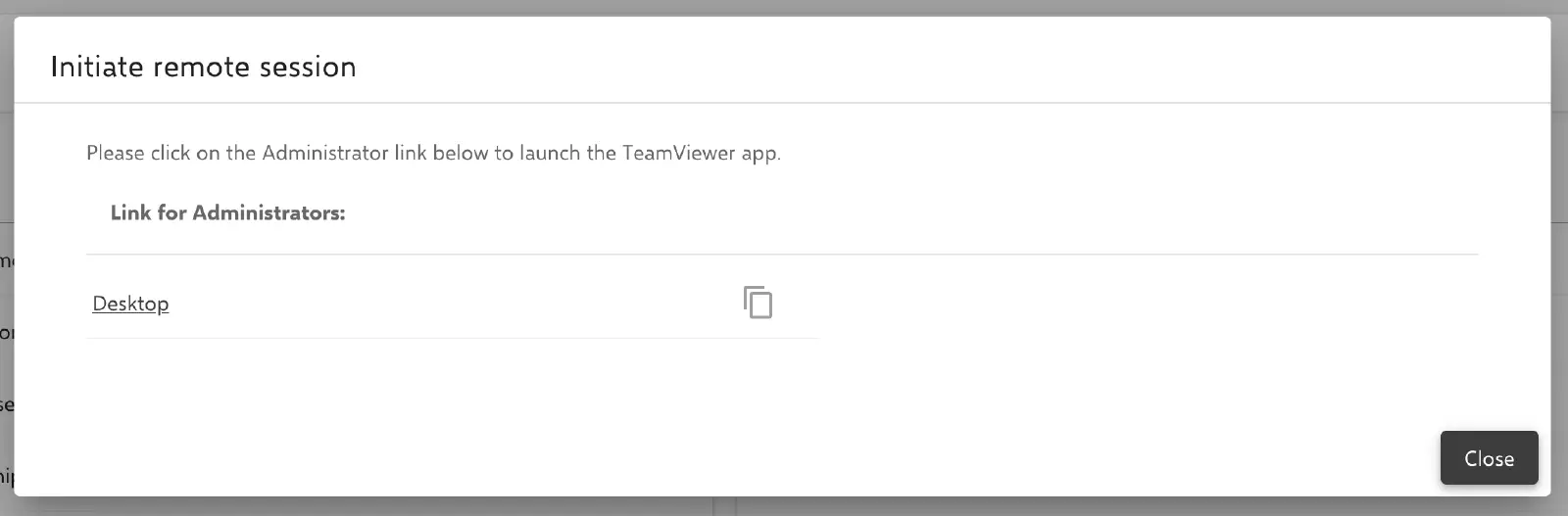
After successfully completing all steps for the remote maintenance session, approval may be required on the desired end device.