Configure TeamViewer
Introduction
With Relution, you can connect an TeamViewer account with your own license to enable seamless integration. Additionally, the TeamViewer Host can be distributed and configured on your managed devices, allowing for uncomplicated remote support directly through the Relution portal.
Requirements
To use the integration, a TeamViewer (Classic) Corporate or Tensor license is required. Furthermore, your user account must have access to the TeamViewer portal to perform the necessary configurations.
Supported platforms
The TeamViewer app can be distributed and configured via Relution on the following platforms:
Creating the Rollout Configuration
To configure devices, an Assignment ID is required. Follow the steps outlined in the Rollout Configuration Guide → in the TeamViewer Portal → .
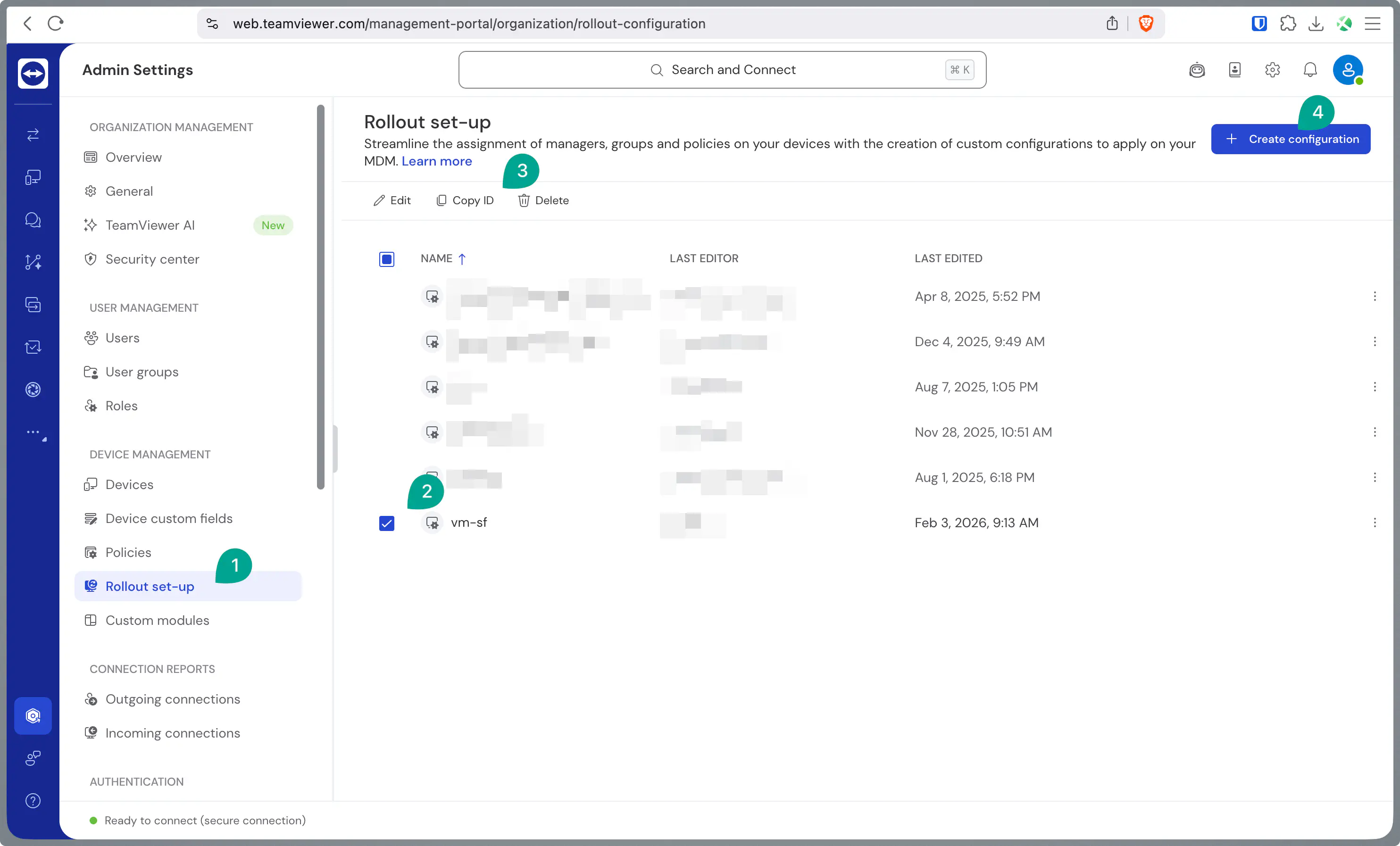
To enable remote sessions with unattended access to your devices, assign your users the Easy Access permission in the Access Rights Management section.
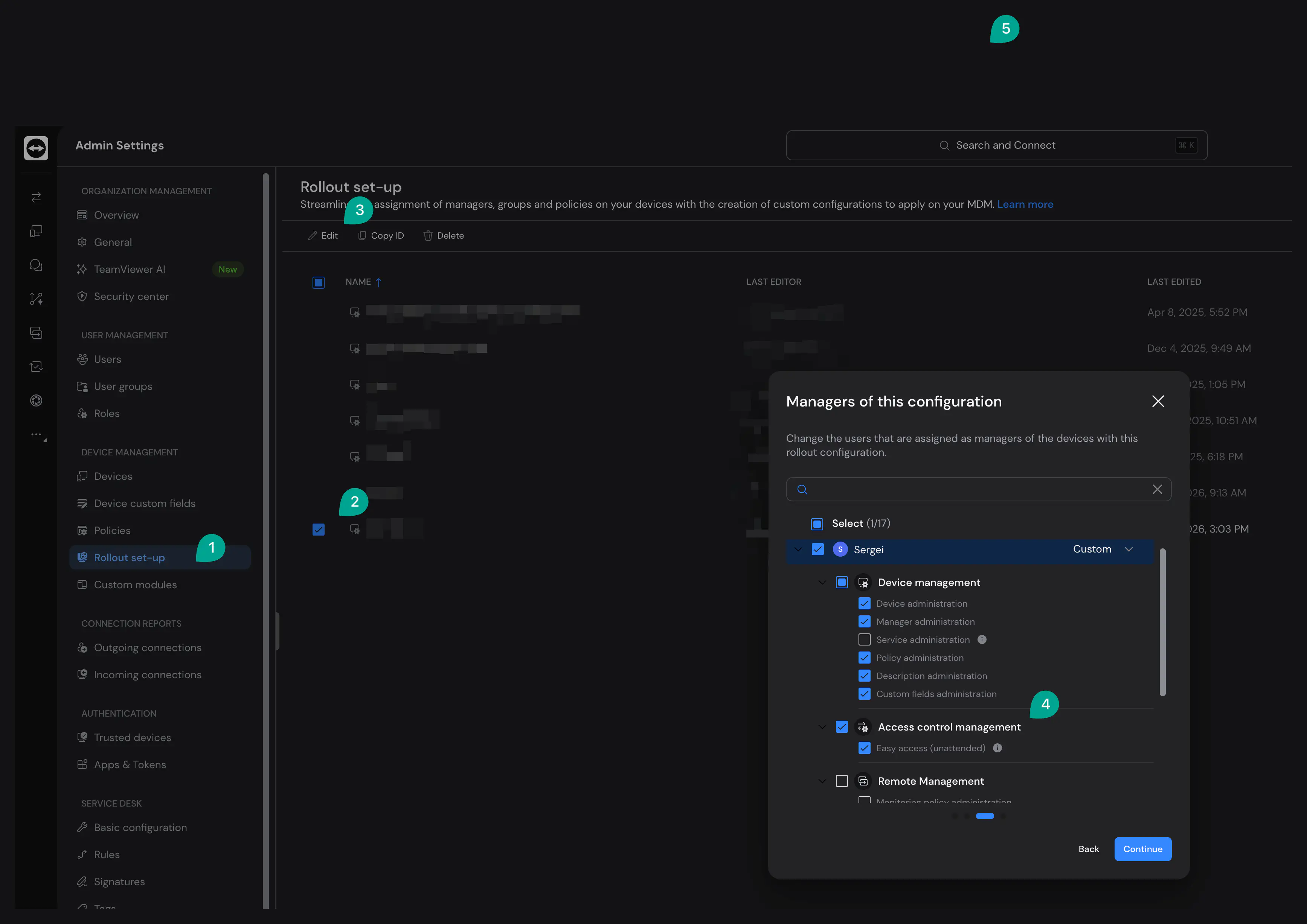
Connecting your TeamViewer account in Relution
To link your TeamViewer account with Relution, navigate to Settings > Remote Support in the Relution portal. Log in with your TeamViewer account to complete the integration.
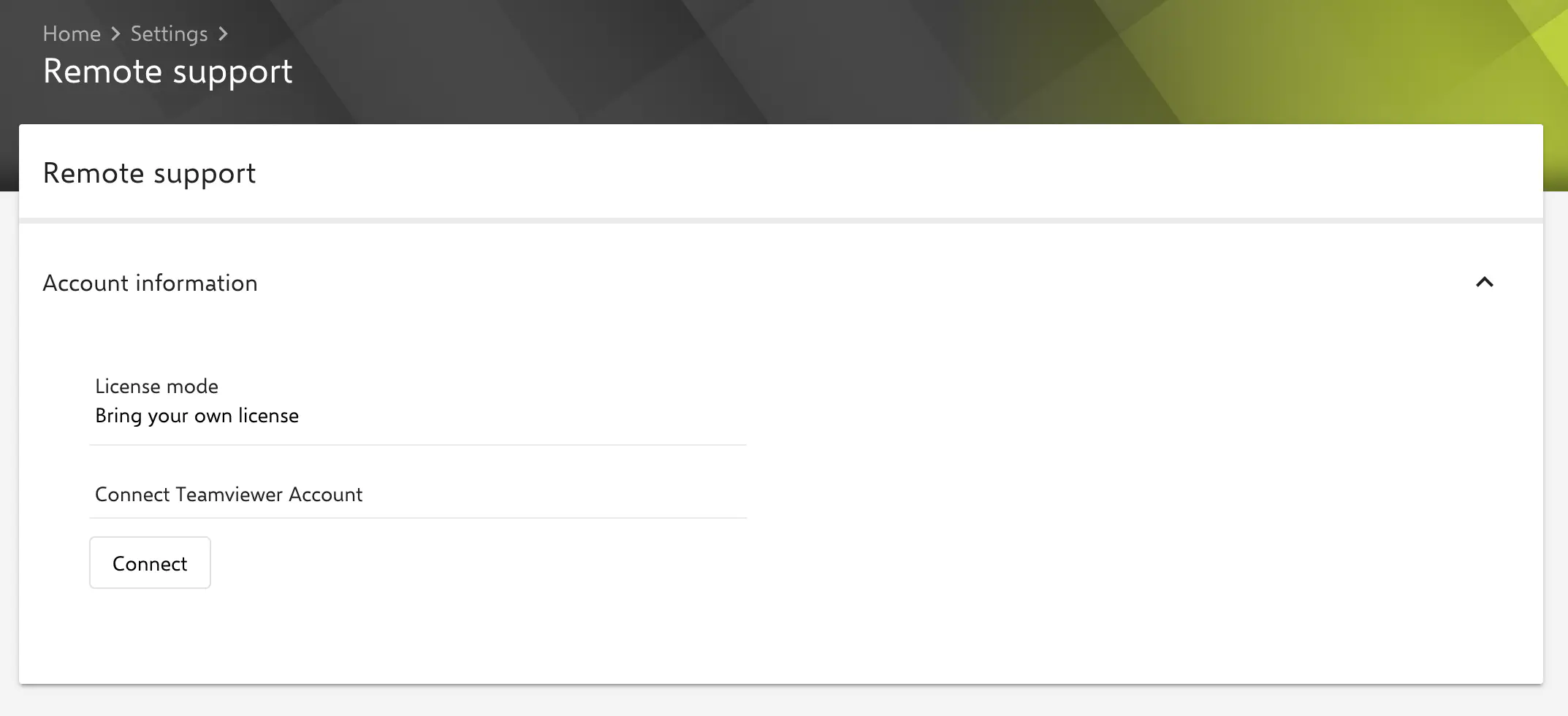
After successful authentication, you can verify the connection. If any connection issues occur, you can re-authorize your account to re-establish the integration with TeamViewer.