 Customer Hub
Configure TeamViewer
With Relution, a TeamViewer account can be connected with its own license to enable seamless integration. Additionally, the TeamViewer Host can be distributed and configured on managed devices, allowing for uncomplicated remote support directly through the Relution portal.
Requirements
To use the integration, a TeamViewer (Classic) Corporate or Tensor license is required. Furthermore, the user account must have access to the TeamViewer portal to perform the necessary configurations.
Supported platforms
The TeamViewer app can be distributed and configured via Relution on the following platforms:
Creating the Rollout Configuration
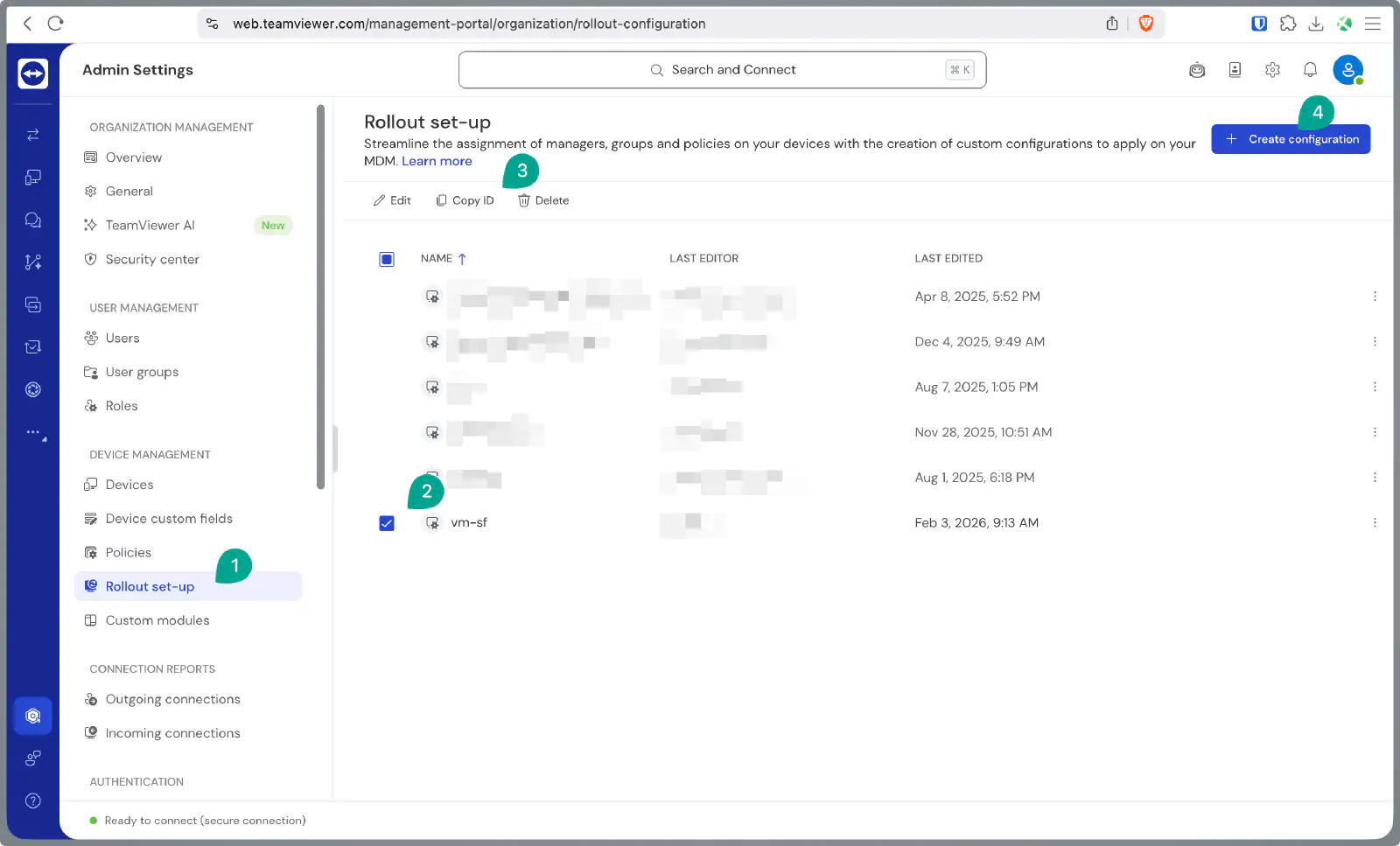
To configure devices, an Assignment ID is required. Follow the steps outlined in the Rollout Configuration Guide → in the TeamViewer Portal →.
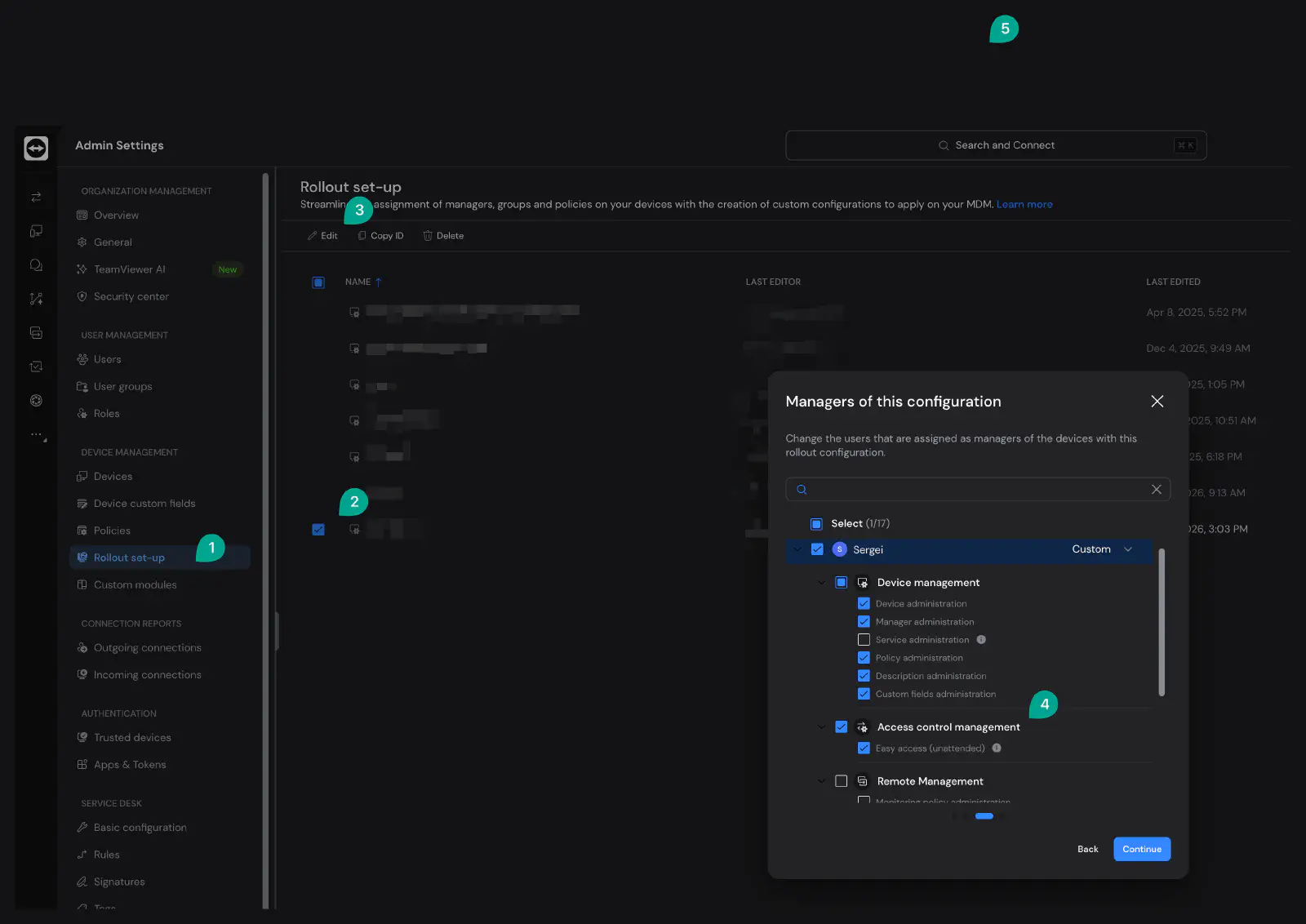
To enable remote sessions with unattended access to devices, assign users the Easy Access permission in the Access Rights Management section.
Connecting a TeamViewer account in Relution
To link a TeamViewer account with Relution, navigate to Settings → Remote Support in the Relution portal. Log in with the TeamViewer account to complete the integration.
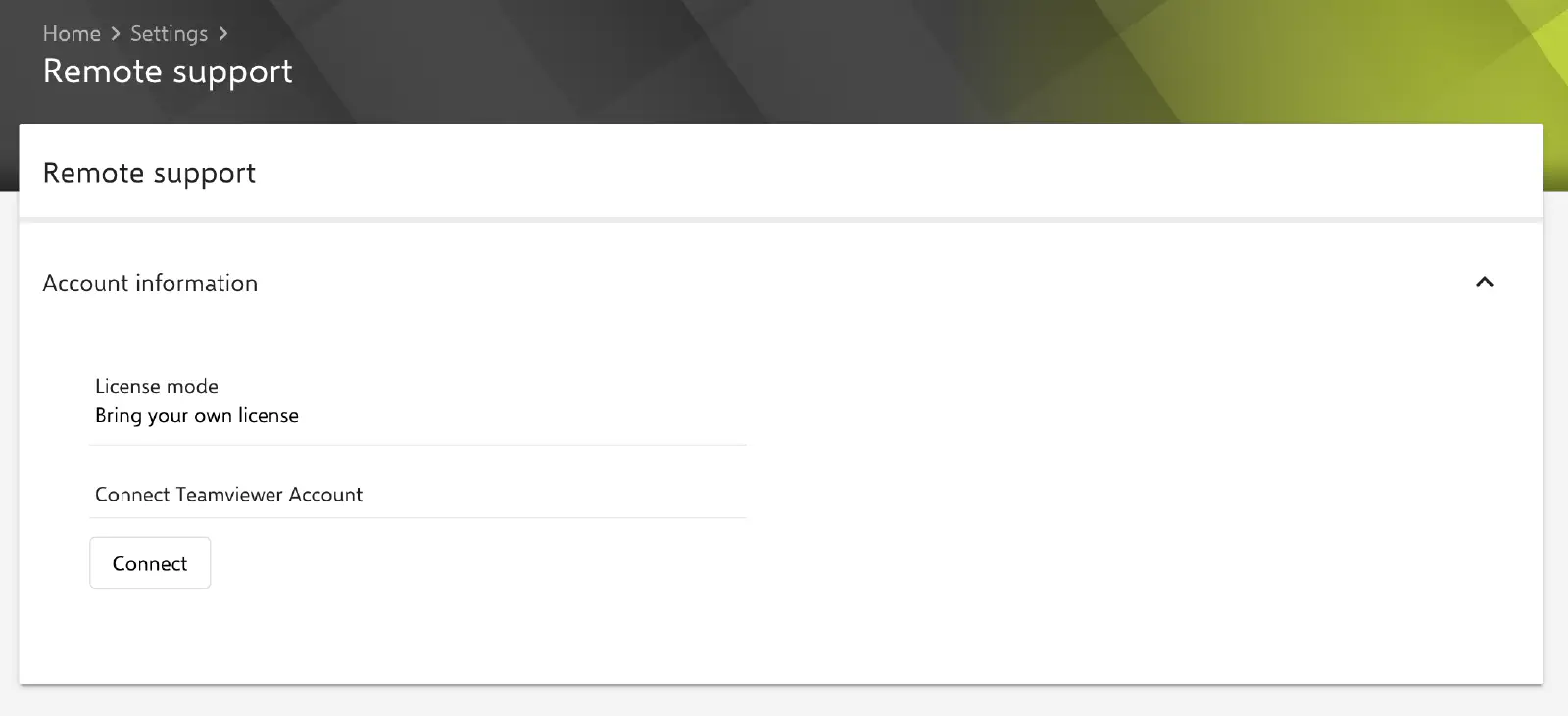
After successful authentication, the connection can be verified. If any connection issues occur, the account can be re-authorized to re-establish the integration with TeamViewer.