Windows
Introduction
The following guide outlines the steps to configure TeamViewer Host for Windows via Relution, including the distribution of the TeamViewer Host as a Relution Store App and the creation of a script to configure the application.
Deployment and configuration of TeamViewer Host
Downloading the MSI package
First, download the appropriate MSI package for your architecture from TeamViewer. Log in to the TeamViewer portal, navigate to Admin Settings > Rollout Configuration, and download the MSI package. The downloaded installer includes both the TeamViewer Full Client and the TeamViewer Host. For integration with Relution, only the TeamViewer Host is required. Detailed information on downloading the MSI package can be found in the TeamViewer Documentation →.
Creating the Relution Store App
After downloading the TeamViewer MSI package, log in to the Relution portal. Navigate to the Relution App Store and create a new native app using the previously downloaded MSI file. Further details can be found under Windows App Installation →.
Creating the assignment script
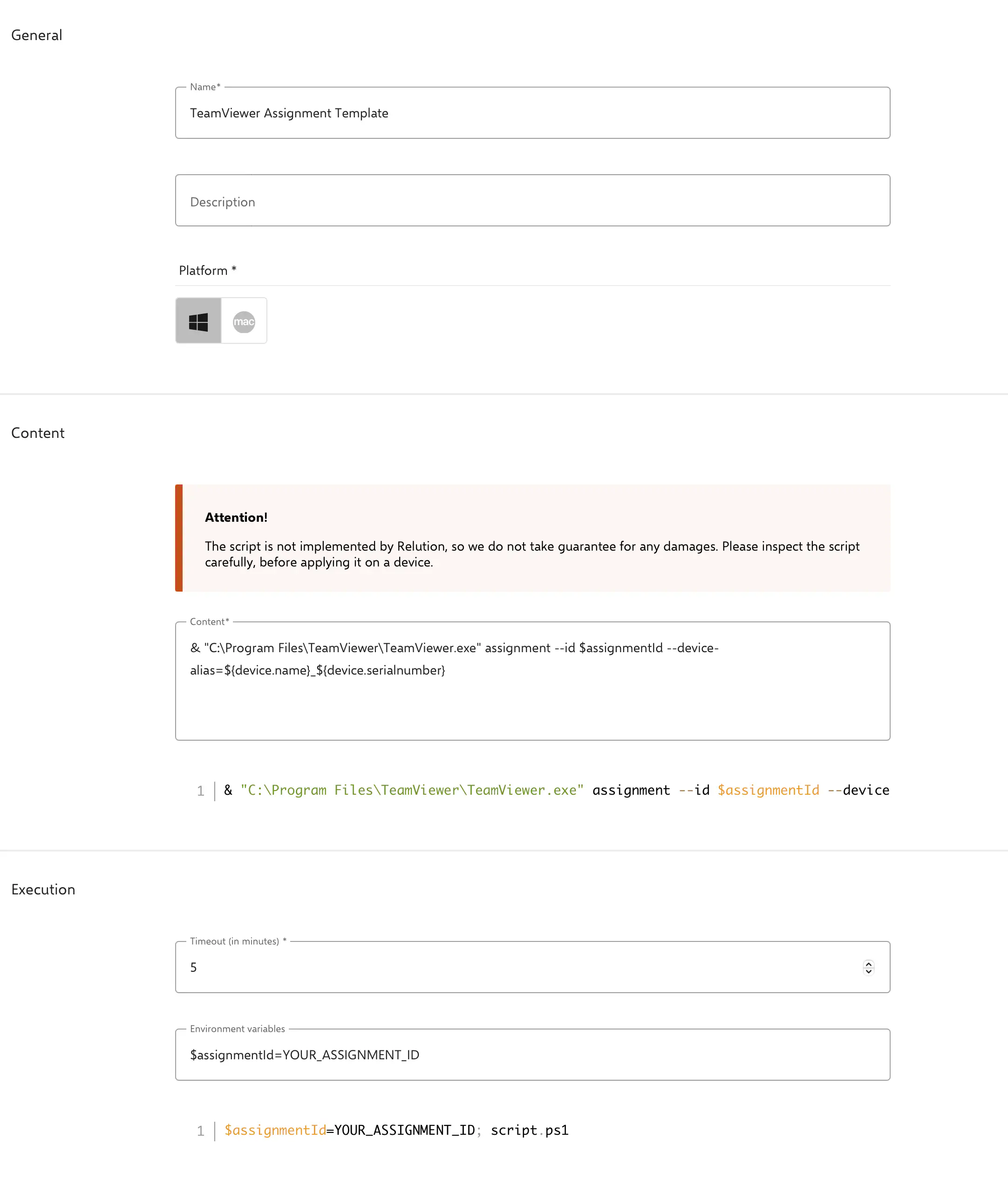
To configure the TeamViewer Host on the devices, create a new script for the Windows platform in the Relution portal. Depending on the architecture of your target device, use one of the following scripts:
Script for devices with a 64-bit operating system:
& "C:\Program Files\TeamViewer\TeamViewer.exe" assignment --id $assignmentId --device-alias=${device.name}_${device.serialnumber}
Script for devices with a 32-bit operating system:
& "C:\Program Files (x86)\TeamViewer\TeamViewer.exe" assignment --id $assignmentId --device-alias=${device.name}_${device.serialnumber}
In the “Execution” section, assign the variable $assignmentId to the Assignment ID from the TeamViewer portal, which you received during the setup step →: $assignmentId='YOUR_ASSIGNMENT_ID'
To establish a link between devices in Relution and TeamViewer, the serial number must be included in the device name. This is ensured by using the placeholder ${device.serialnumber} in the script. The combined name will appear in the TeamViewer portal after successful registration.
Executing the script after installation
To execute the script, open the TeamViewer Host MSI app created earlier in Relution. Navigate to the Scripts tab and add the previously created configuration script.
Install the application on the desired Windows devices using either an App Compliance configuration or the action Deploy Relution Store App.
Once the TeamViewer Host has been installed, the script will automatically run. After the configuration is complete, the devices should appear in the TeamViewer portal.