Configure TeamViewer
Introduction
If you do not yet have a TeamViewer license, you can link your existing TeamViewer account to Relution. You can obtain a TeamViewer license through Relution. This requires a Relution license add-on for TeamViewer remote maintenance.
With Relution, you can distribute the TeamViewer app directly to your managed devices and start remote support sessions via the Relution portal.
Requirements
To use TeamViewer integration with “Included License,” you need an additional license for this add-on. Please contact the Relution sales team to purchase it.
Supported platforms
After successful connection, remote maintenance sessions can be initiated via Relution on the following platforms:
- Android Enterprise
- macOS
- Windows
For further information on how to register the device see Remote support sessions →.
Setup account
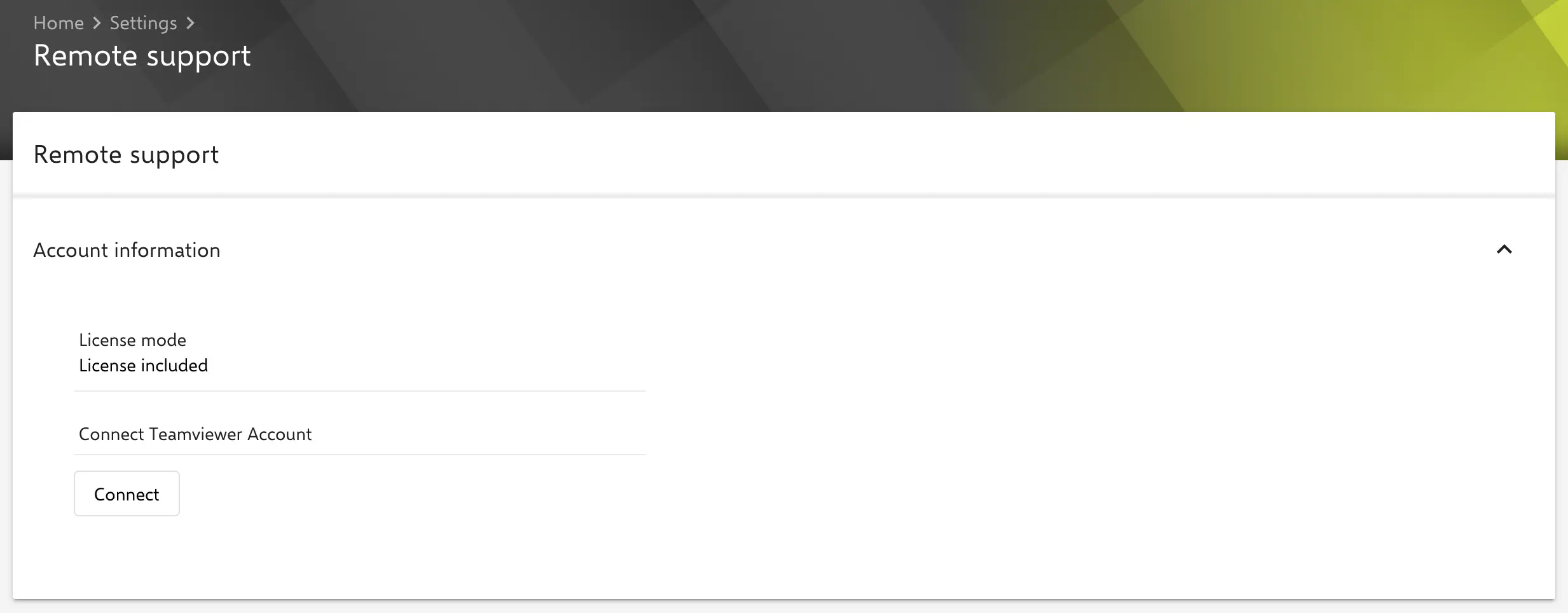
To integrate your TeamViewer account with Relution, go to Settings > Remote Support in the Relution portal and click the Authorize button. Log in using your TeamViewer account credentials to complete the setup.
Once authorized, your TeamViewer account is linked to your Relution organization as a tenant account under the Relution vendor. After successful authentication, you can verify the connection status. If any issues arise, you can re-authorize your account to re-establish the integration.
To set up the connection, make sure you have the add-on for the “included TeamViewer license”. Check in the settings whether the license mode displayed is “License included”. If an incorrect mode is displayed, perform a license check to update the available functions and apply the correct license.