Customer Hub
Configure TeamViewer
Without a TeamViewer license, an existing TeamViewer account can be linked to Relution instead. A TeamViewer license can also be obtained through Relution. This requires a Relution license add-on for TeamViewer remote maintenance.
With Relution, the TeamViewer app can be distributed directly to managed devices, and remote support sessions can be started via the Relution portal.
Requirements
Supported platforms
After successful connection, remote maintenance sessions can be initiated via Relution on the following platforms:
- Android Enterprise
- macOS
- Windows
For further information on how to register the device see Remote support sessions →.
Setup account
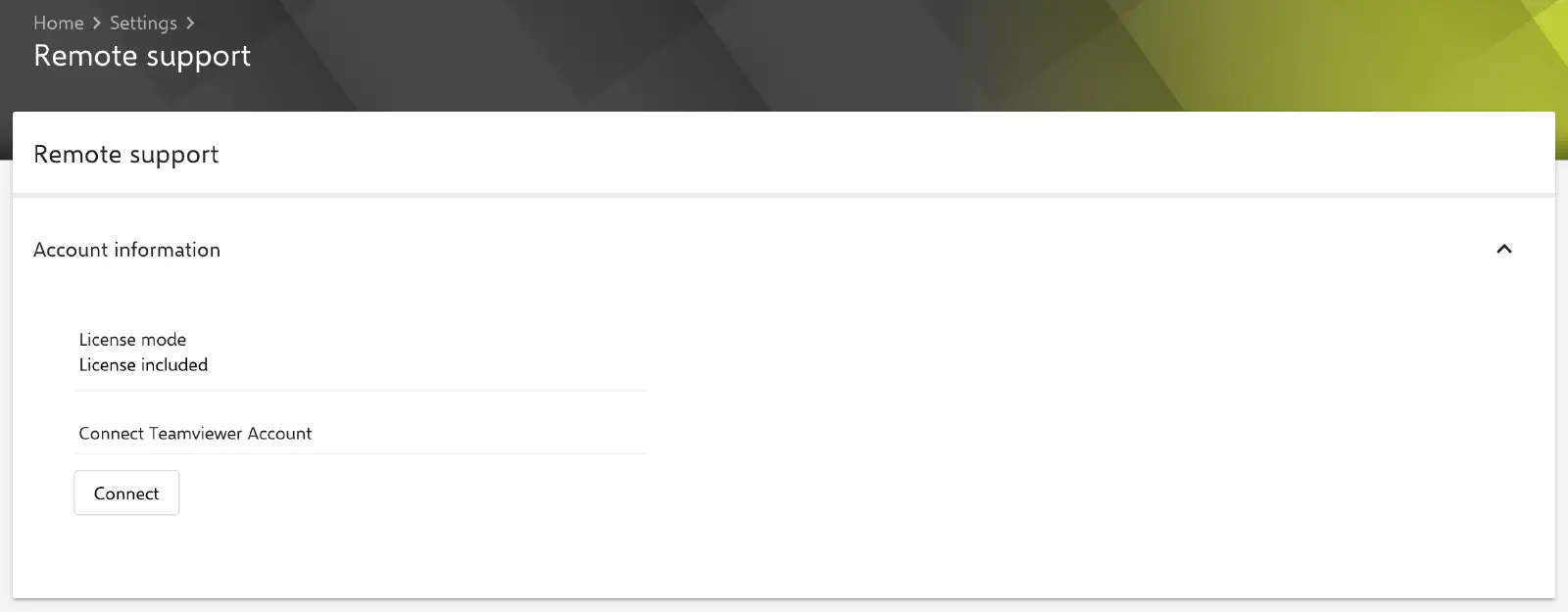
To integrate a TeamViewer account with Relution, go to Settings → Remote Support in the Relution portal and click the Authorize button. Log in using the TeamViewer account credentials to complete the setup.
Once authorized, the TeamViewer account is linked to the Relution organization as a tenant account under the Relution vendor. After successful authentication, the connection status can be verified. If any issues arise, the account can be re-authorized to re-establish the integration.
To set up the connection, make sure the add-on for the included TeamViewer license is available. Check in the settings whether the license mode displayed is License included. If an incorrect mode is displayed, perform a license check to update the available functions and apply the correct license.