Remote support sessions
Introduction
The TeamViewer integration with Relution allows you to provide efficient remote support to managed devices via the Relution Portal. Once your TeamViewer account has been configured in the Remote Support settings and the TeamViewer Host app is installed on the device, you can initiate both attended and unattended remote support sessions.
This guide outlines how to set up and distribute the TeamViewer Host app across Android Enterprise, macOS, and Windows devices, register the device for remote support, and start remote support sessions via Relution.
Device registration
To register a device, the TeamViewer Host app must be installed. This automatically triggers a Register for remote support action to retrieve the TeamViewer login data required for remote maintenance sessions.
The following explains how the TeamViewer apps are distributed via Relution and installed on the devices depending on the platform.
Android Enterprise
Create a Manage apps → configuration in the Relution portal and add the TeamViewer Host app as well as the manufacturer-specific TeamViewer add-on or the TeamViewer Universal Add-On from the Managed Google Play Store. No further configuration is required here.
Note: After installing the TeamViewer Host app, you must launch it to follow the on-screen instructions and grant the required permissions.
macOS
Download the TeamViewer Host app from the TeamViewer website and add the .dmg file as a native app in the Relution App Store. Define a detection rule by specifying the bundle identifier of the TeamViewer Host (com.teamviewer.TeamViewerHost).
Distribute the app to your devices using an app compliance configuration or a Deploy Relution Store App action.
Open the installed app on the macOS device and follow the steps displayed to complete the installation.
Windows
Deploy the TeamViewer Host app from the WinGet → store on your devices.
Initiate remote support sessions
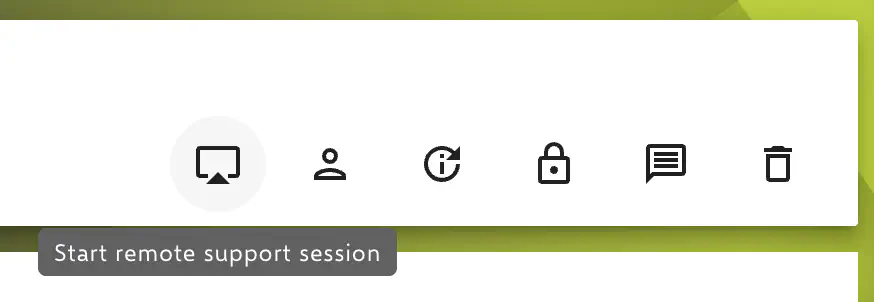
To initiate a remote support session, navigate to the detail view of the device within Relution. In the header section of the device’s detail page, select the remote support icon.
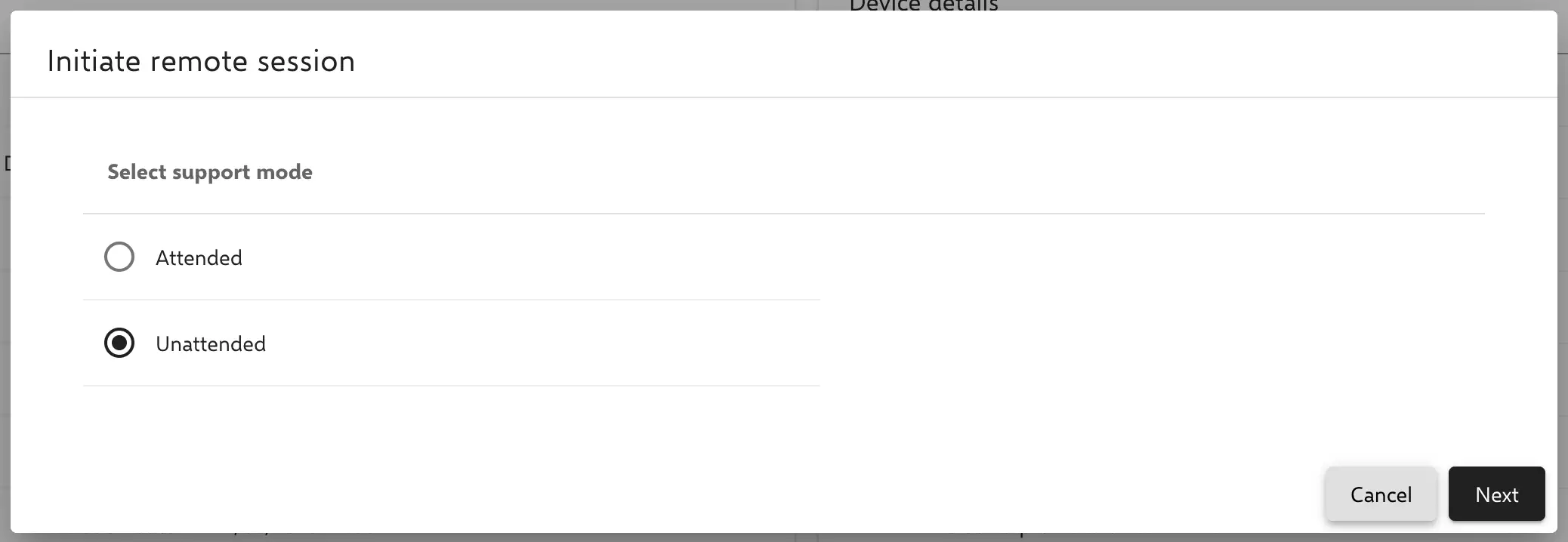
A dialog opens and you can choose between an attended and unattended session. The main difference between the session types is the need for user interaction:
- Attended Session: Requires a user at the device to approve the connection.
- Unattended Session: No user interaction is needed to start the connection.
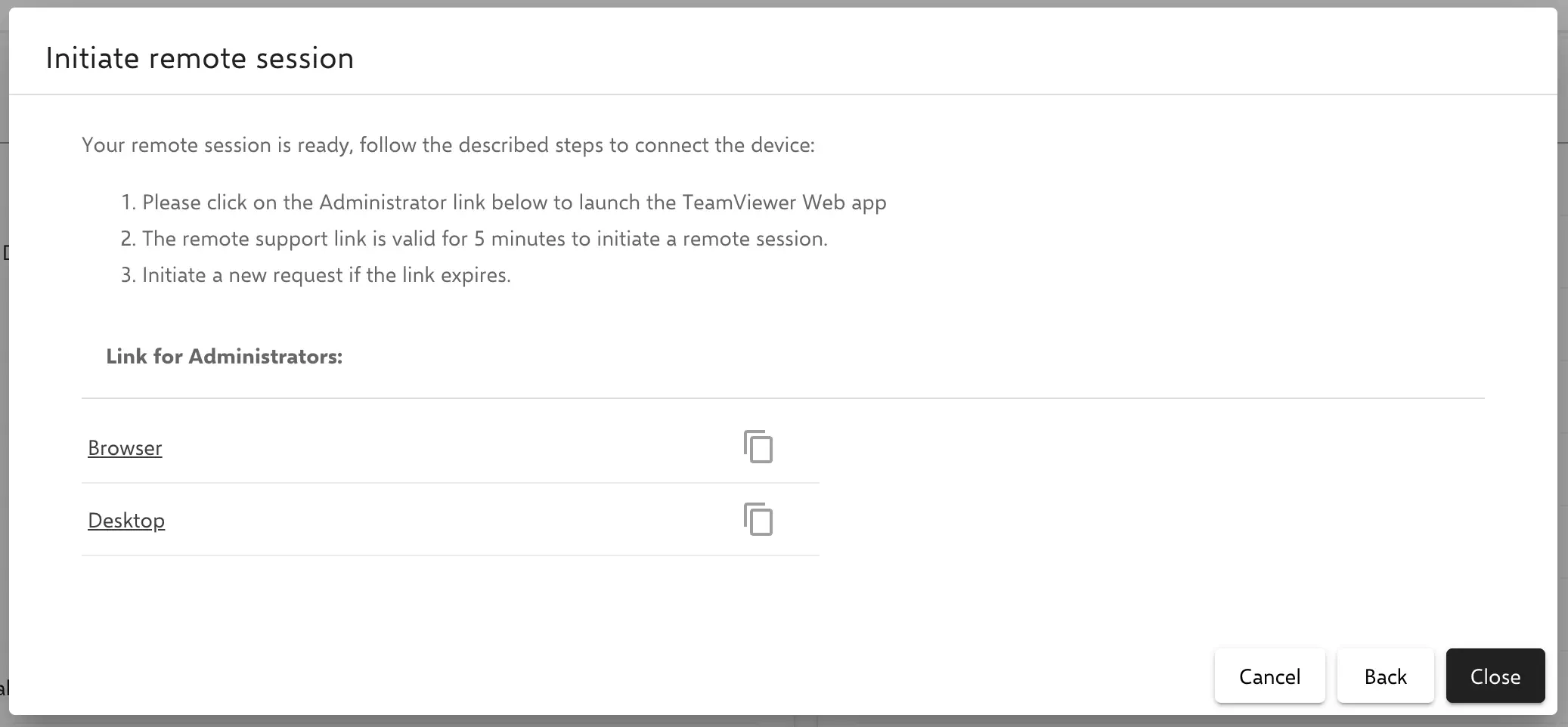
Links for the TeamViewer web app and the TeamViewer desktop application are generated. Administrators can use one of the two links to start a remote maintenance session.
To open the desktop link, a TeamViewer desktop app, such as the TeamViewer Full Client, is required.
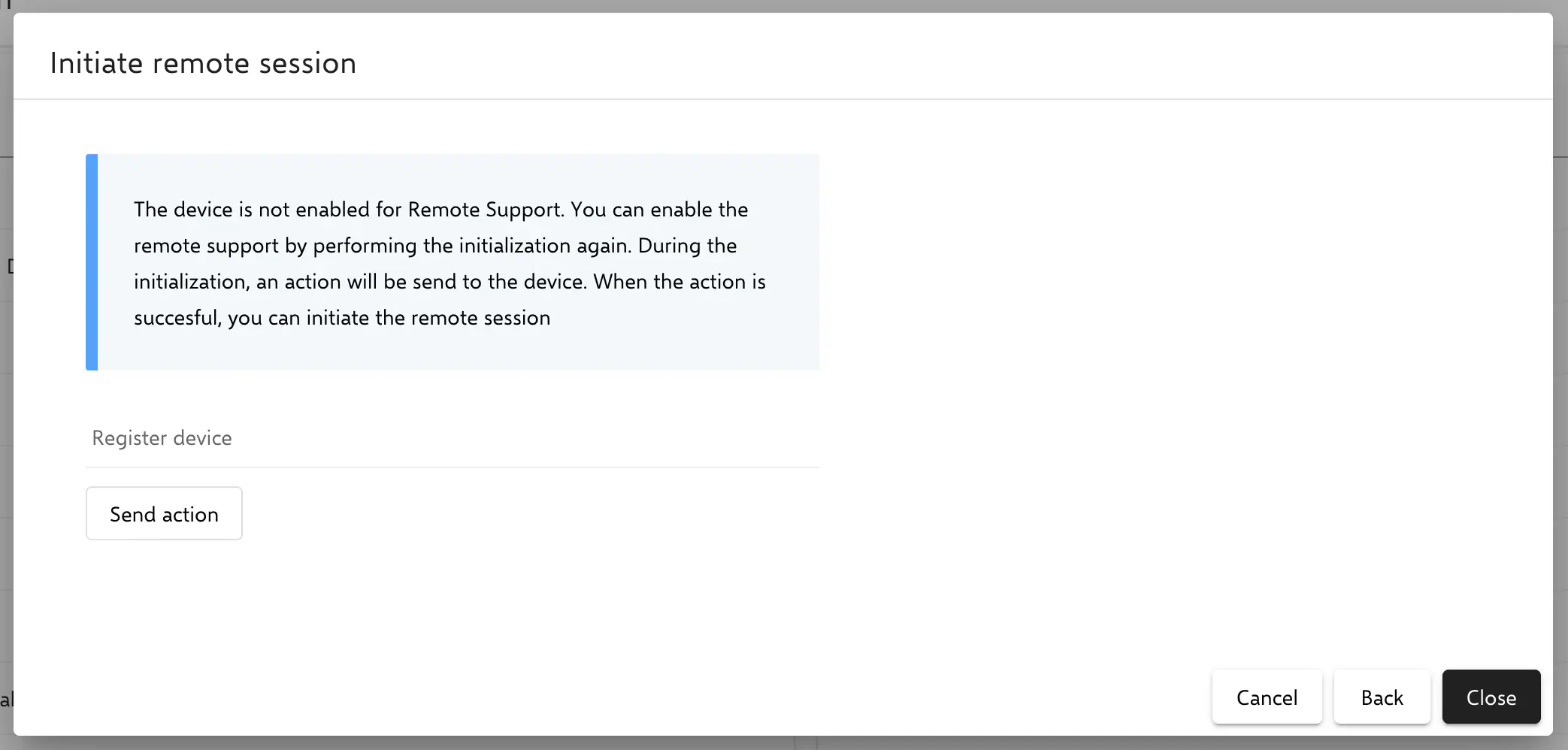
If the TeamViewer credentials for the device have not yet been transmitted to Relution, the dialog will display a corresponding message and prompt you to trigger an action to register the device for remote support. Once this action has been successfully completed, you can initiate the remote support session using the same dialog.
After successfully completing all steps for the remote maintenance session, approval may be required on the desired end device.