 Customer Hub
Clevertouch
Relution makes it possible to manage interactive whiteboards from the Clevertouch brand.
Supported product ranges and models
The following product series are supported:
- IMPACT Lux
Enrollment
An enrollment is created for the platform Android with Clevertouch selected as the type. The enrollment link is then opened on the device, and the instructions on the webpage are followed.
The Relution Companion for Clevertouch can be downloaded and installed via the displayed download button.
After the Companion has been installed successfully, the enrollment is started from the enrollment page.
The Companion then opens automatically and prompts confirmation of several notes and authorizations. After successful enrollment, a corresponding confirmation screen will appear.
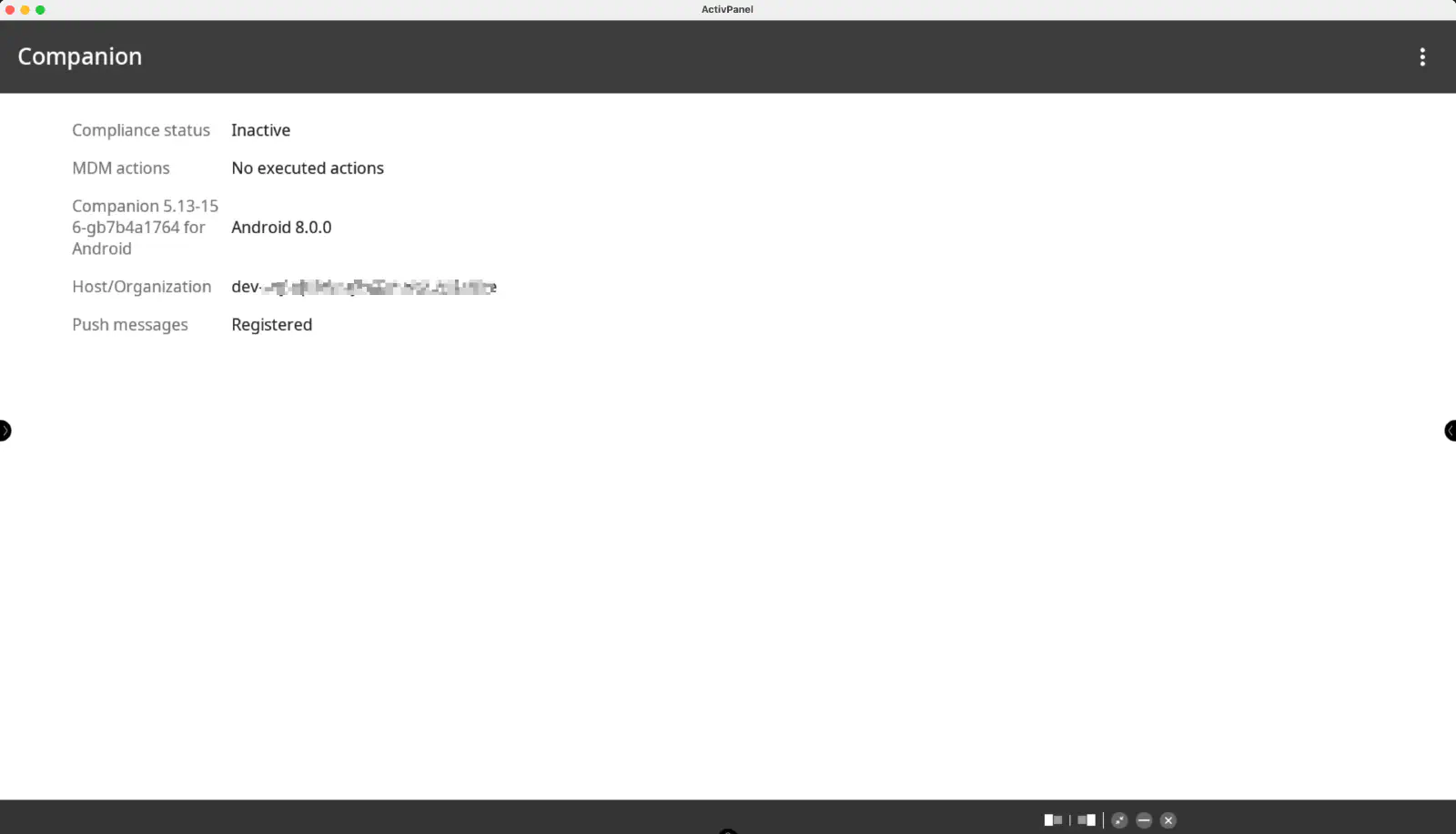
The device should now be visible in the Relution Portal inventory.
Supported Actions
The following actions can be performed on Clevertouch interactive whiteboards via Relution:
| Action | Description |
|---|---|
| Trigger Alarm → | |
| Remove App → | |
| Send File to Device → | |
| Wipe Device → | |
| Reboot Device → | Restart or shut down (Power off option) |
| Refresh Device Info → | |
| Send Message → | |
| Deploy Relution Store App → | |
| Update Operating System → |
Supported Policies
The following policies are supported on Clevertouch interactive whiteboards:
| Policy | Restrictions |
|---|---|
| Scheduled OTA Update → | |
| Hotspot → | |
| WiFi → | |
| App Compliance → |
Manufacturer-specific policy
The manufacturer-specific policy Clevertouch offers the following settings:
| Setting | Description |
|---|---|
| Brightness | Set brightness to a fixed value from 0 to 100 |
| Enable Eye Care | |
| Lock touch input | |
| Boot Source | Set the active source after the display powers on (Do Not Change, Android, HDMI 1–3, USB-C 1–2, or VGA) |
| Current Source | Set the currently active source (same options as Boot Source) |
| No signal power off | Power off when no signal is received after the set time |
| No signal power off time | Time from 1 minute to 1 hour until power-off without a signal; only available when No signal power off is enabled |
| Allow source alias | Once enabled, set aliases for Android, HDMI1, HDMI2, HDMI3, and USB-C1 |
| Enable Ethernet | |
| Mute | |
| Volume | Set volume to a fixed value from 0 to 100 |
| Enable LockScreen Pin | Set a lock screen PIN (exactly 4 digits) |
| Language | Set the device language (English, German, or Spanish) |
| Enable Automatic OTA Update | |
| Enable installation from unknown sources | Allows installation from unknown sources, including USB drives |
| Power on automatically | Set weekdays and time for automatic display power-on |
| Power off automatically | Set weekdays and time for automatic display power-off |
| Time until panel goes into standby mode | Don’t change, Never, 15 or 30 minutes, 1, 1.5, or 2 hours |
A new configuration is preset with the following values: brightness 100, volume 33, language German, standby Never; Enable Ethernet and Enable installation from unknown sources are enabled. Brightness, volume, and language have no “Don’t change” option, so these values are always set by the policy.
After changing the lock screen PIN, a restart of the device might be required for the change to take effect.